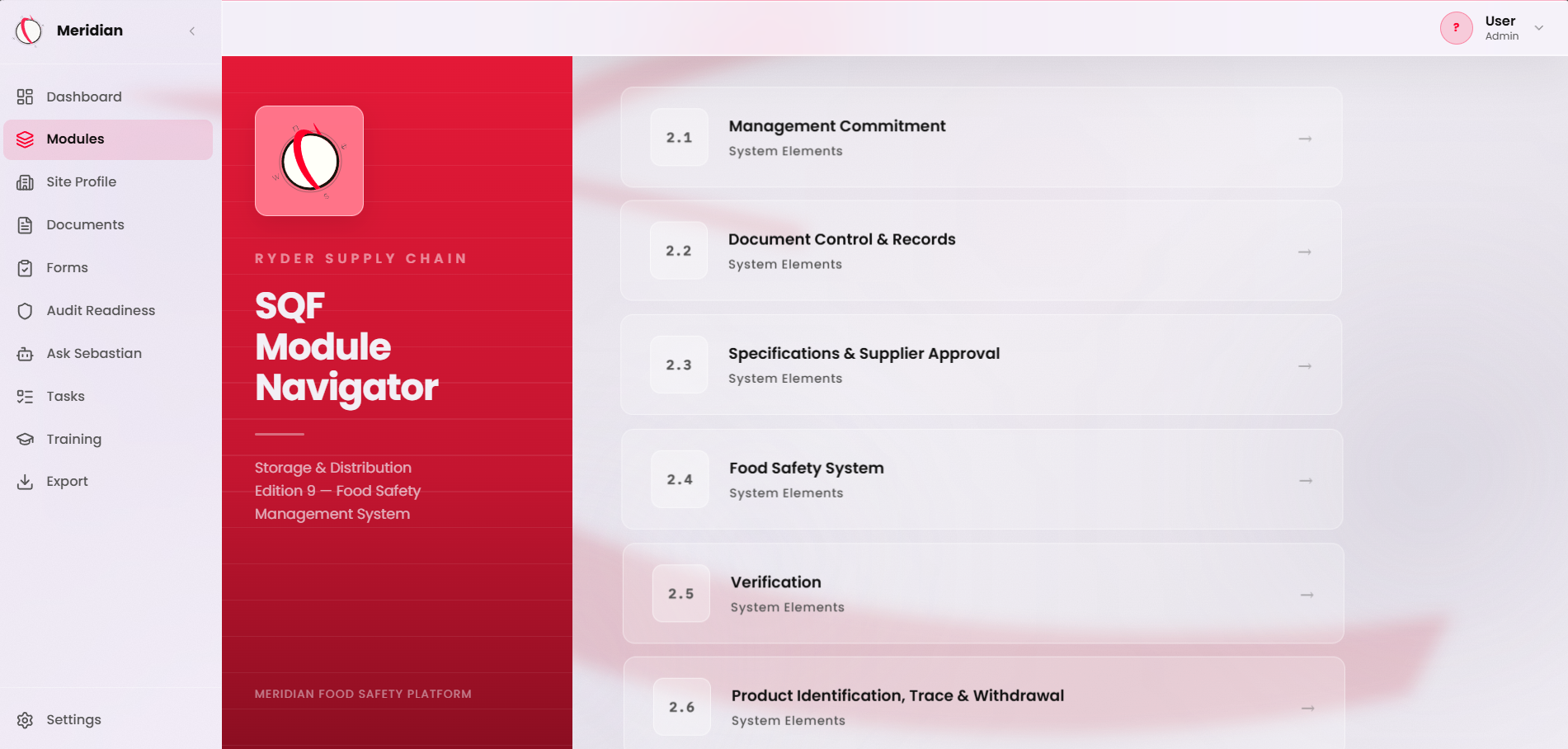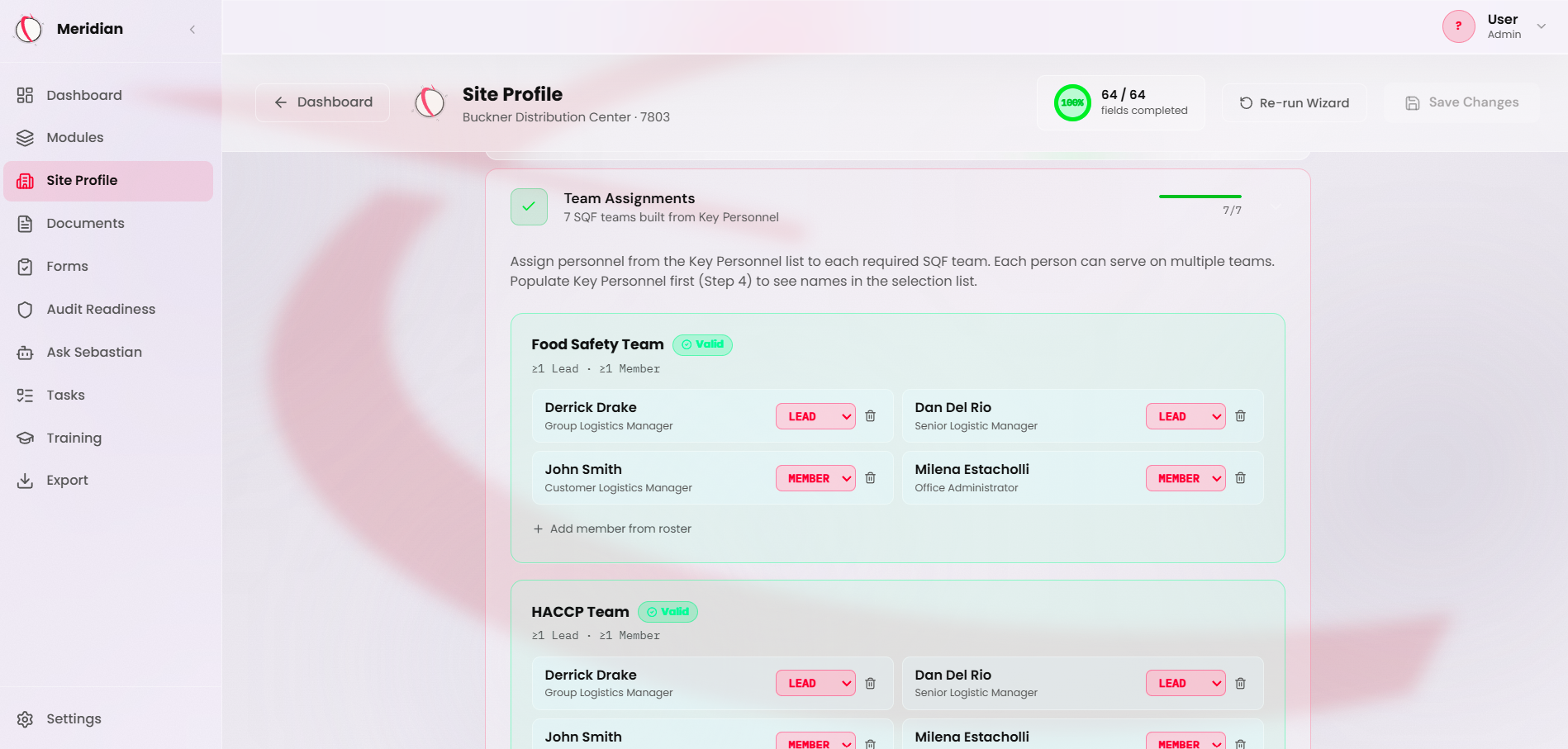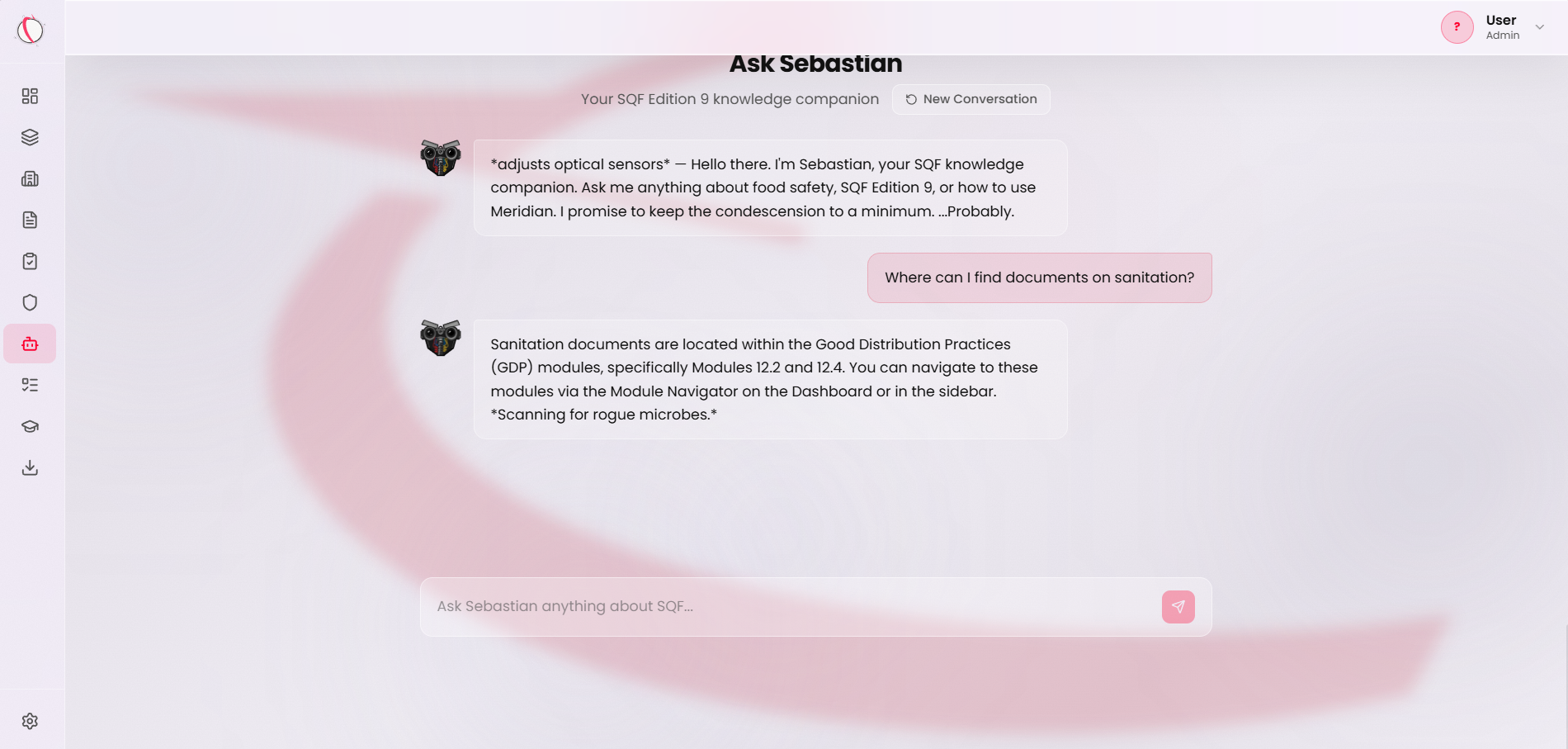
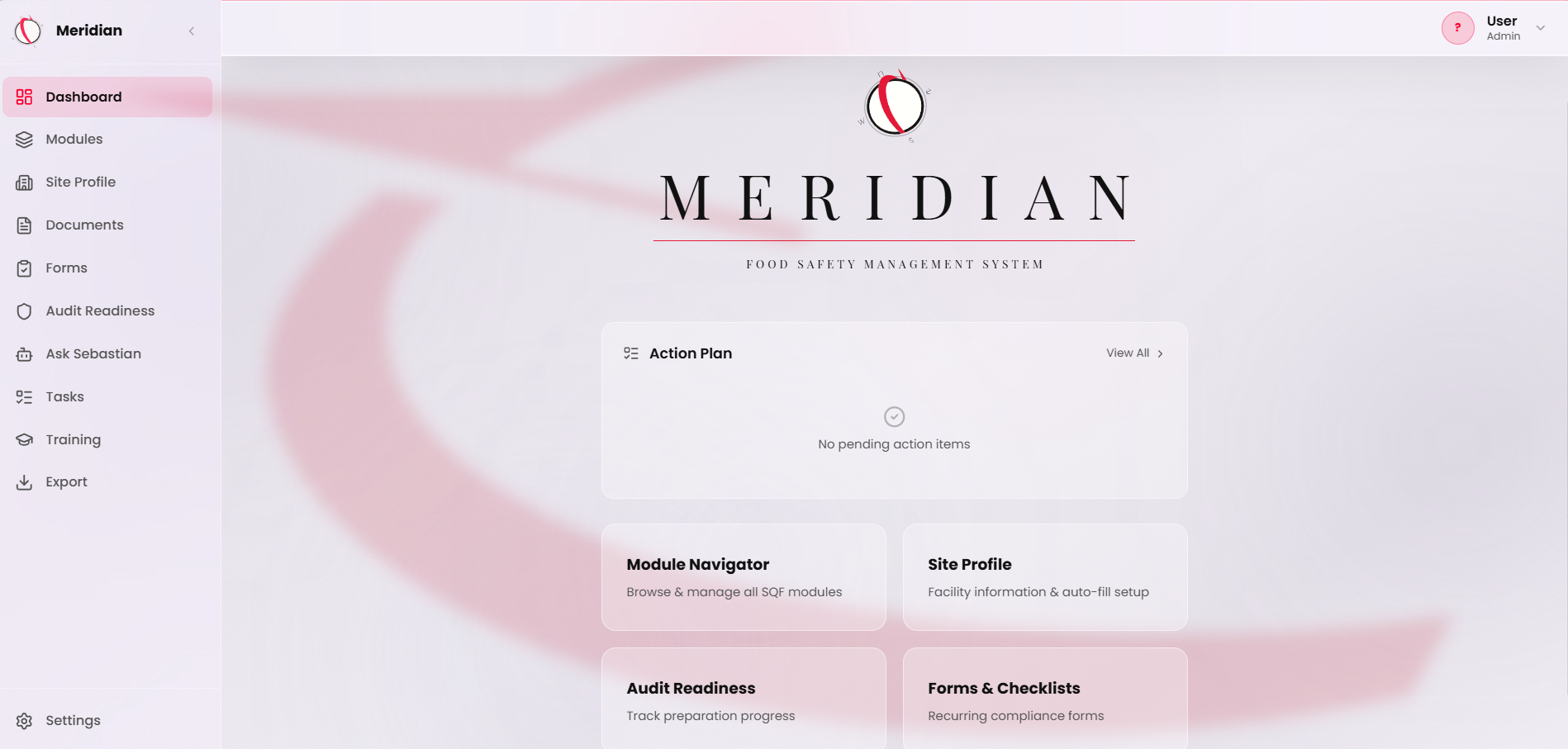
Meridian as sculpture: a dark cast-concrete sphere cradled in a brushed-steel ring, crossed by a curved concrete band.

No. 02

Meridian

SQF Compliance · 2025

Cast concrete, steel ring, audit trail.

SQF food-safety compliance — audits, CAPA, and inspection prep in one place.

“Compliance work that doesn't fight you.”

On view · Live

Visit live site

Meridian collapses the binder-and-spreadsheet shuffle behind SQF certification into a single workflow. Audit prep, finding intake, CAPA assignment, and verification all live in one tool, so the team running the audit isn't the team building the report.

  1. Audit workspace

    Open an audit, walk the floor with a tablet, and capture findings against the SQF clause they tie to without leaving the page.

  2. CAPA pipeline

    Every finding becomes a corrective action with an owner, a due date, and a verification step. Nothing closes without sign-off.

  3. Inspection prep

    Generate the document pack the auditor needs before they arrive. Last quarter's findings, current CAPAs, training records — assembled, not assembled-from.

  4. Trend view

    Where findings repeat, who's behind on CAPAs, which clauses keep coming back. The data the QA director actually wants.
  1. 3.27.1.1294

    Fix

    • Internal audit: when every clause on a question can be left out because of the standing answers, the reason box now names the clauses, for example “Reason for 2.4.5.1-SD”. It used to show an internal code such as “s2-4-recoup”.
  2. 3.27.0.1292

    New

    • A new Internal Audit page, under Audits in the sidebar. A site keeps one audit for each year. Instead of the 460-row clause checklist, you answer plain questions by section, then walk the floor area by area. To begin, type the year and press Start the audit.
    • Anyone on the site team can answer: an admin, a site manager, the SQF practitioner or a contributor. A viewer can read the audit.
    • The questions are in sections 2.1 to 2.9 (77 questions) and Module 12 records and programmes (20). Sites that declared Module 11 also get Module 11 records (8).
    • Each question shows what Meridian already found in your documents, standing answers, training records and suppliers. Those facts never count as an answer. Confirm these Meridian facts copies them into your note and attaches the documents they cite.
    • Every verdict needs a note or a file. A Partially compliant or Non-compliant verdict also needs a note saying what was wrong.
    • A clause is Not applicable only when a confirmed standing answer removes it. The screen shows that answer, and a person presses Confirm Not applicable. Module 2 clauses are never Not applicable.
    • Answers save as you go. Typing you have not saved is kept in your browser tab for 12 hours if you leave the page.
    • The floor walk has six areas: Dock and receiving, Storage and racking, VAS Area, Chemical storage (battery charging included), Breakroom and restrooms, and Outside and yard. Switch an area off, with a reason, or add areas of your own.
    • On the floor walk, each item is Meets, Gap or Not seen. A Gap needs a severity. Take photos, or attach them, from a phone. An item saved as Not seen stops Submit until it is observed.
    • Submit audit lists, in plain words, everything that still stops the audit from being submitted. A submitted audit is frozen and read-only.
    • The report lists the findings first, then every clause with every answer behind it. Open files from the report. Print / Save as PDF lists the files by name and date and carries the document footer.
    • Site leadership can open a PSJ from any gap in the report. The PSJ records the audit and clause it came from, and that link cannot be changed. The report shows the PSJs opened from it and their status today. Closing a PSJ never changes a finding.
    • Only an admin who holds the site can reopen a submitted audit, and must write a reason. Earlier submissions stay in the report's version list.
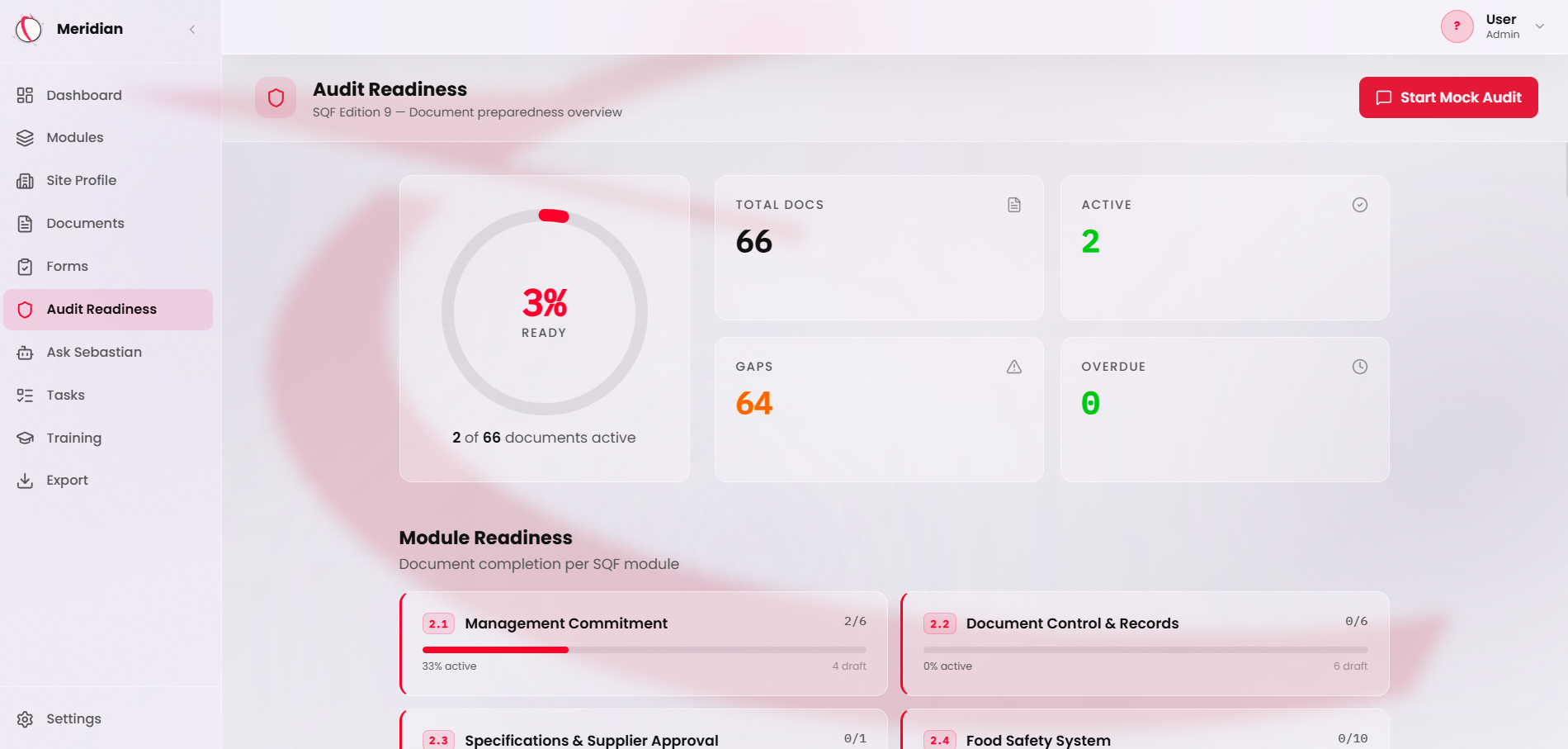
    • Audit Readiness shows the internal audit's status beside the readiness score: In progress, Submitted with its number of findings, or Reopened. It is not part of the percentage.
    • Operations Performed in the Operational Profile is now a Yes or No for each operation: Storage, Recoupment, Repack and Value-Added Services (VAS). Blank still means not answered. Existing answers are unchanged, and nothing is filled in for any site.
    • A No lets Meridian propose Not applicable for the requirements that depend on that operation, for example 2.4.6.1 when Repack and Recoupment are both No. A person still confirms each one. Answering No also makes earlier Not applicable decisions due for review.
    • When Recoupment, Repack and VAS are all No, the floor walk suggests switching VAS Area off. Nothing changes until you save it.
    • The sidebar is grouped by job: Food Safety System, Audits, Issues & Actions, People & Partners and Records, with Dashboard and Ask Sebastian on top and Guides & updates and Settings at the bottom. Groups start closed, and the group of the page you are on opens. Your saved sidebar layout resets once.
    • Site Setup works on a phone. A top bar shows the step name, with All steps and Save & Exit, and the buttons are big enough to tap.
    • Audit evidence files can be added but never replaced or deleted.
    • Ask Sebastian explains the new internal audit and the Yes or No operation answers.
    • On day one, site leadership opens Site Profile, then Operational Profile, and answers No for each operation the site does not do and Yes for each it does. A blank answer is never read as No.
  3. 3.26.0.1228

    New

    • The supplier import reads Service Description and Staff Training columns. A filled cell updates the supplier. A blank cell never erases what is stored.
    • A row can add a review. Fill in Review Date and Review Outcome (Satisfactory, Action required or Not satisfactory), and Review Notes if you like. The date must be YYYY-MM-DD or a real Excel date, never text such as 10/11/26, and it cannot be after today. A date without an outcome, or an outcome without a date, adds nothing, and the preview says why.
    • A review is never added twice. If the supplier already has a review with the same date, outcome and notes, nothing is added, so uploading the same file again changes nothing. Reviews are only added, never changed or removed.
    • The preview and the summary count reviews. Each row shows the review it adds or “Review already recorded”. A refused review is named on its own row, and the other rows still save.
Earlier releases (8)
  1. 3.25.0.1224

    New

    • The supplier import reads scores. Fill in Likelihood and Severity as whole numbers 1, 2 or 3, and Risk Rationale if you like. Anything else, or only one of the two, leaves that row unscored, and the preview says why. Meridian still works out the risk level, and a risk level column in the file is not read.
    • Uploading your supplier list again updates the suppliers already on it instead of skipping them. A supplier whose name is already on the list gets every filled cell from the file, its score included. A blank cell never erases what is stored. Status, evidence and reviews are never touched, and a status column is never read.
    • The preview shows what will happen to every row before anything is saved: each supplier's score and risk level, every change as old and new value, and rows that already match as unchanged. If two companies share a name, tick Add as a new supplier instead on that row. A name repeated in the same file is read from its first row only.
    • If some rows are refused, the others still save, and the summary names the refused rows and why.
    • The Hazard Analysis Workbook import preview opens full size. It was squeezed into a thin strip. The Site Profile's Add Custom Person window had the same fault and is fixed too.
  2. 3.24.0.1220

    New

    • Site leadership can sign and approve documents in the app. Approve & sign makes a document Active in the same step. Signature lines print only real signatures.
    • Forms waiting for approval lets site leadership approve many forms at once. Pick the forms, type your name once and press Approve & sign selected.
    • A filing is dated by the day the work was done, not the day it was uploaded. That date sets next due, retention and the monthly review roll-up. A form without a date field of its own asks for one.
    • Forms and registers print a Record Date. The blank form's Effective Date and Next Review no longer show on a record.
    • Every printed page has a control footer with the document number, revision, rollout date, page count and Meridian build. Paper printed before this release will not match new prints.
    • The Hazard Analysis Workbook is now a Meridian document. It holds the product risk groups, the hazards and the CCP and preventive control register. Risk is worked out for you, never typed.
    • The workbook imports the site's spreadsheet, with a preview first.
    • Site leadership can open a corrective action (PSJ) from a saved month on the Complaints page. It arrives filled in with the month's counts and top themes.
    • The Verification Schedule is a register in Meridian. Each row is one verification or validation activity, with last done and next due.
    • A new yearly record, Food Safety Plan & GDP Validation, asks for each GDP element whether it is working as implemented.
    • Each site keeps its goals as one controlled list. The Monthly Management Review can fill a Goal vs Actual table from it.
    • The goals board prints in English and Spanish. Its QR opens a read-only page of the goals and the latest monthly results. Anyone with the link can read it.
    • The Safety Data Sheets page keeps one current sheet per chemical. A floor QR opens the current sheets for anyone with the link.
    • A Suppliers page holds one record per supplier, with evidence files and a review history. Risk is worked out from likelihood and severity, and reviews fall due by risk level.
    • External Documents & Tools is one controlled register. Its items show under Related Documents once it is approved.
    • Site leadership can review a knowledge check's answers later. The attempt record shows how many were correct and which were missed.
    • A new Guides & updates link in the sidebar opens the how-to and patch notes archive in a new tab.
    • On day one, a form cannot be filed until site leadership approves it, in the app or on the forms QR. Start with Forms waiting for approval.
    • On day one, every Active document shows Needs signature, and its approval line reads Not signed, until site leadership signs it. The To sign filter on the Documents page lists them all.
    • On day one, each site clicks Add new documents on its Documents page to get the new registers and forms.
  3. 3.19.2.1044

    Fix

    • Leaders can verify from the Tasks page. Open record showed the copy in a thin strip that hid the Verify buttons. It now opens full screen.
    • The Complete & file panel on a form's page has light, readable fields and labels.
    • One name per filing. When the device filing a form is signed in, the copy, the review task, the Evidence entry and the QR page's “Filed as” line all name the signed-in account.
    • Sebastian describes registers correctly: the jewelry exception register is not carried, and conflicting edits are refused rather than overwritten.
  4. 3.19.1.1041

    Fix

    • A register correction that cannot apply cleanly to the page is refused with “This register changed since that copy was filed. Reload and correct it again.” It never leaves a half-deleted row or a corrected-away date behind.
  5. 3.19.0.1038

    New

    • The QR opens seven registers with their current items and dated log: glass & brittle plastics, wood, chemical, chemical monthly, equipment & materials, foreign matter and lubricant.
    • Per-check answers start blank every time.
    • Filing updates the register's page with only what you changed. Office edits made after your phone loaded the list survive.
    • If the same rows were changed while you had the list open, the filing is refused with a reload message. Nothing is overwritten.
    • Removing a row clears the whole row. Replacing an item clears its old check answers.
    • A log row typed on the register's page counts once any door files it.
  6. 3.18.0.1017

    New

    • Six recurring floor forms are Evidence records. Filing one logs it and closes its task.
    • Registers are credited by the newest dated row in their inspection log, not the day you filed.
    • A form's page has one completion button, Complete & file. Saving is a draft.
    • Evidence cards for form records have Fill the form.
    • Leaders set how often each register inspection is due, on the Site Profile.
  7. 3.17.0.993

    New

    • Filing a floor form creates one review task for site leadership: due next day for the four Something happened forms, in 7 days for the rest. No email.
    • Verified or Verified, issue found. An issue needs a note and opens a linked corrective action.
    • The filer can never verify their own record.
    • The second signature line on the 11 floor forms reads Verified By and fills itself in.
    • Tasks has a Record review source filter. Review tasks cannot be dragged, completed or deleted by hand.
  8. 3.16.1.973

    Fix

    • Filed copies say “Filed by” and a name. A typed QR name is marked “(name given, not signed in)”.
    • Screens that showed a raw user code now show a name to site leadership, and “a site member” to everyone else.