Meridian field guide · October 2026
Filing, verifying and keeping registers
For site staff and site leaders. Six releases over two days changed what happens when a form is filed. This guide shows how to use them, step by step.
- 3.16.1.973
- 3.17.0.993
- 3.18.0.1017
- 3.19.0.1038
- 3.19.1.1041
- 3.19.2.1044
Every printed document carries its version at the bottom. The last number is the build, so you can tell exactly which release your site is on.
What checks off a record
The Evidence page tracks recurring records an auditor expects on file. A record is checked off when it moves to the current period and the task chasing it closes. These are the ways to do that today.
| Where you do it | Does it check off the record? |
|---|---|
| Evidence page, Log Evidence with a file attached | YesFor any record. A note with no file does not count. |
| Forms QR, File this record | YesFor the 11 records a form covers (listed below). Registers count only when the inspection log gets a new dated row. |
| The form's own page, Complete & file | YesSame as the QR. Saving a draft does not count. |
| Evidence card, Fill the form | YesIt opens the form's page. Complete & file there counts. |
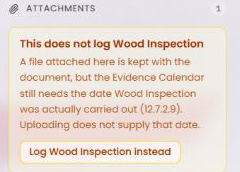
| Uploading a file on the form's page | Not by itselfThe upload box says This does not log …. Press Log … instead under it and give the date the work was done. |
| Records with no form behind them | Evidence page onlyPest control report, calibration certificates, backflow test, water and ice micro, compressed air, cleaning validation, HACCP recertification, traceability test, certificate of destruction. |
Floor forms: Monthly Facility Inspection, Monthly Chemical Check, Chemical Register Inspection, Glass & Brittle Plastics Inspection, Wood Inspection, Foreign Matter Inspection.
Office forms: Mock Recall, Crisis Management Test, Food Defense Test, Monthly Management Review, Annual Management Review.
Other tasks have their own switch. A floor form's review task closes when a leader presses Verified. A form's yearly Review Due task closes with Mark Review Complete. Corrective actions close through their own workflow.
A single upload that checks off the record by itself, and upload doors for the records with no form, are being designed now. They are not in this release.
What's new
- Forms say who filed them. Every filed copy shows
Filed by
and a name, on screen and on the printout. - Leaders verify floor forms. Each filed floor form creates a review task. A leader opens the record and marks it Verified, or Verified with an issue. Nobody verifies their own.
- Filing completes the work. Six recurring floor forms are now on the Evidence calendar. Filing one, from the QR or from its page, logs it and closes the task chasing it.
- Sites set their own register schedule. Leaders choose how often each of the five register inspections is due.
- Registers carry over. The QR opens a register with its current items and dated log, so nobody re-types the list.
- Fixes in 3.19.2. Verifying from the Tasks page works, the Complete & file panel is readable, and a filing names one person everywhere.
Floor form: one of the 11 forms on the QR menu under Something happened, Routine checks and Add to a list. Register: a standing list of items with a dated inspection log, such as the glass register. Site leadership: Administrator, Site Manager and SQF Practitioner. Filed copy: a dated, numbered copy of a form (v1, v2, v3) kept on the form's page under Filled Copy Versions.
How to
AFile a floor form from the QR
- Scan the forms QR sticker with your phone camera. No login is needed.
- The first time on a phone, it asks
Who's filling this in?
Type your first and last name and press Continue. It asks once per phone. - Pick your form. The groups are Something happened, Routine checks and Add to a list. You can also type in Search forms.
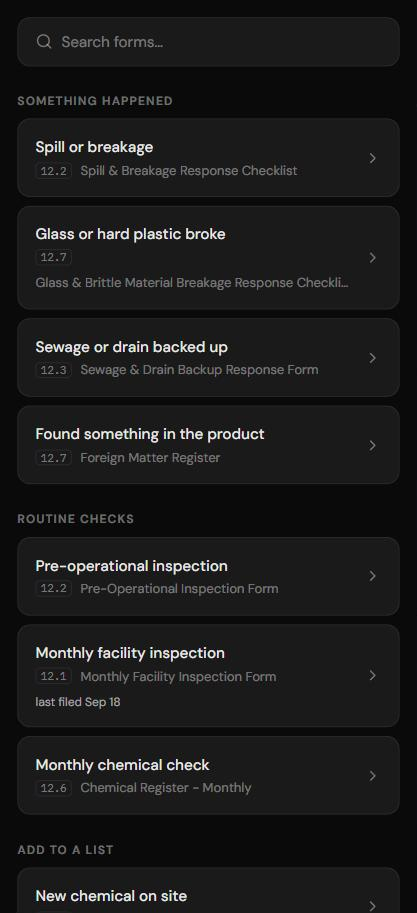
- Fill in the form. On a register (glass, wood, chemical, monthly chemical check, equipment, foreign matter, lubricant), a note at the top says
This list starts from what's on file. Add, change or remove items, then file it.
Your site's items and log are already there. Per-check boxes such as Condition start blank.
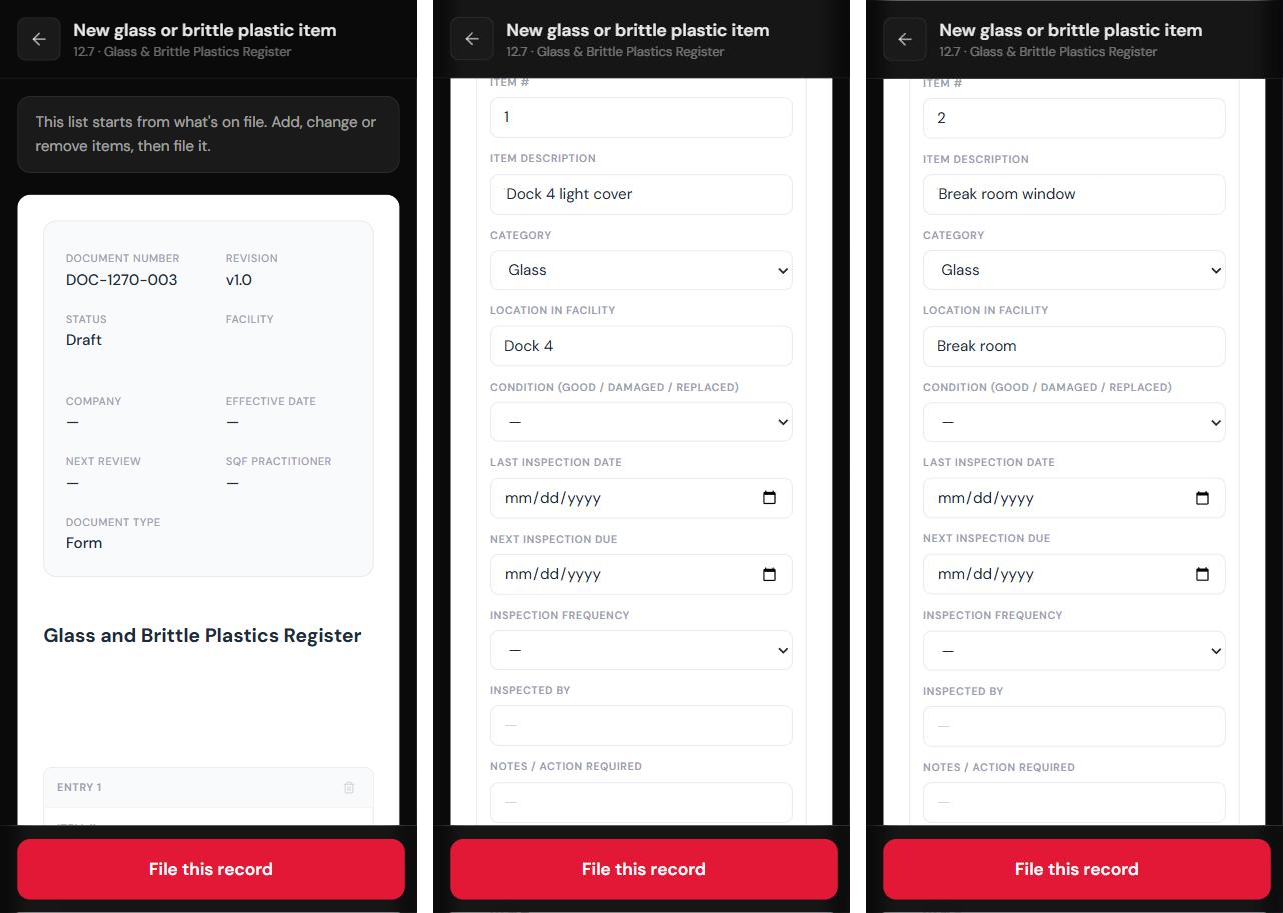
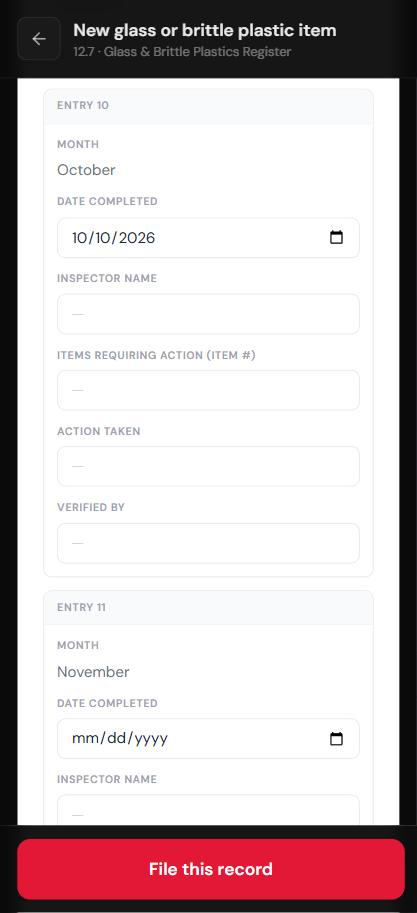
- Add a row for a new item, change a row, or press the trash icon to clear one. If you did the inspection, put its date in Date Completed on this month's row of the inspection log.
- At the bottom, check
When did this happen?
It starts at today. From the QR you can go back 30 days at most. Add notes or a photo if you want. - On a form tied to the Evidence calendar, a box says what filing will do:
Filing this records the … on the Evidence Calendar, once its inspection log holds a new dated row.
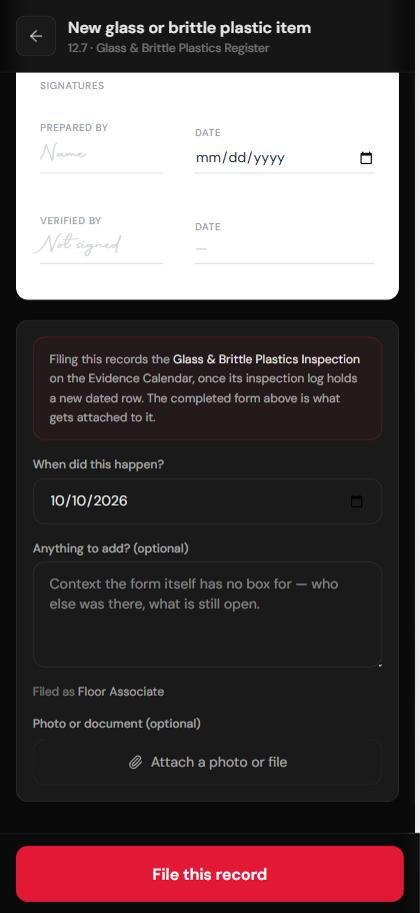
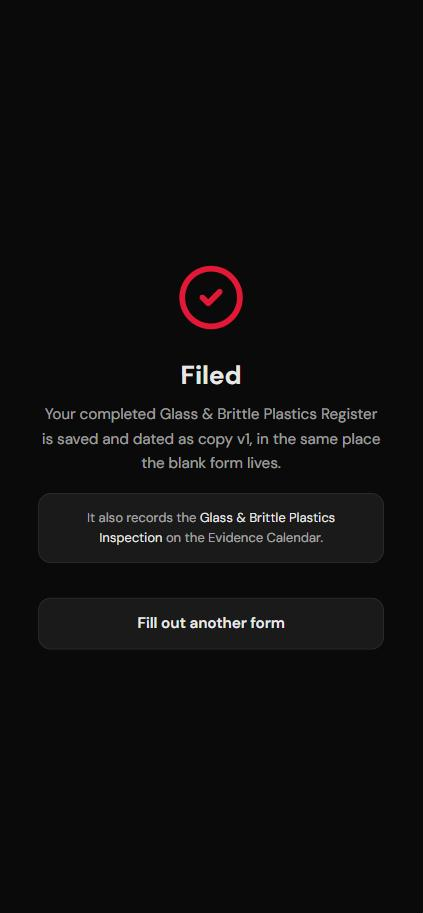
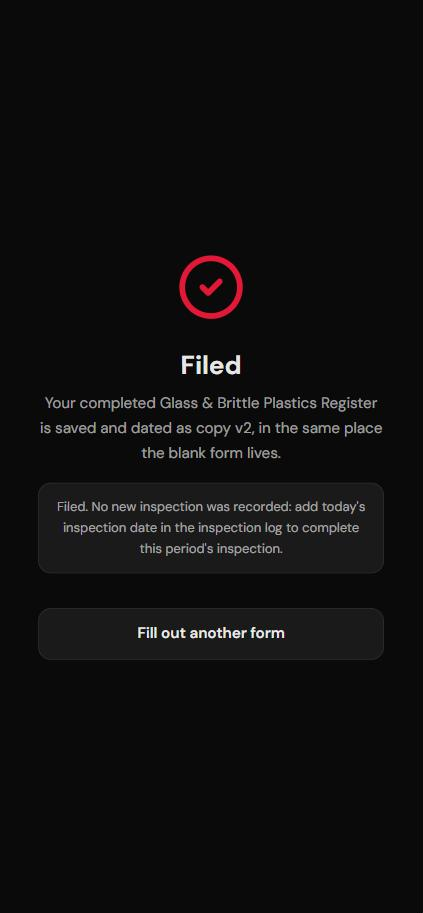
- Press File this record. The Filed screen gives the copy number, then one of these notes:
It also records the … on the Evidence Calendar.
The inspection counted.Filed. No new inspection was recorded: add today's inspection date in the inspection log to complete this period's inspection.
The form was filed, but the log had no new date.Already on file.
You filed exactly what was already filed for that day. Nothing new was written.
BComplete & file a form from its page
- Open the form's page from Documents, or press Fill the form on its Evidence card (section G).
- Fill it in. Meridian saves as you type, but that is a draft. Drafts don't count.
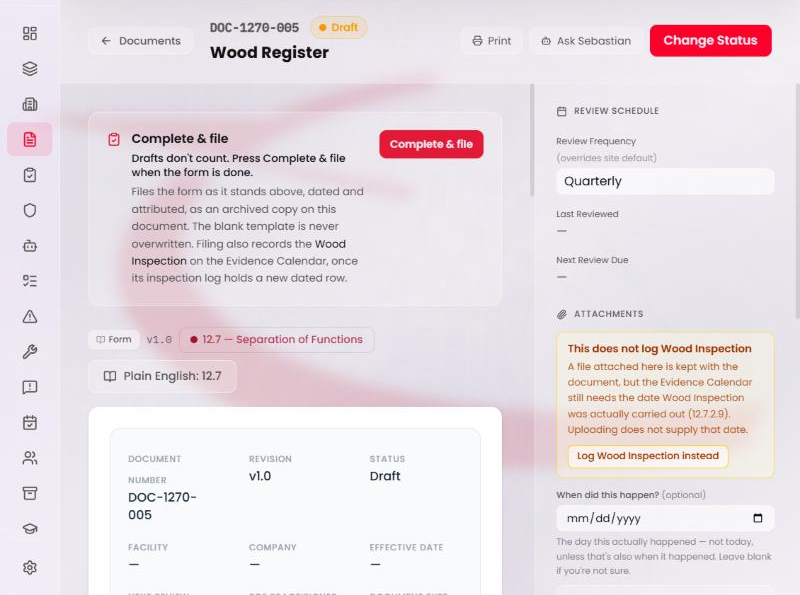
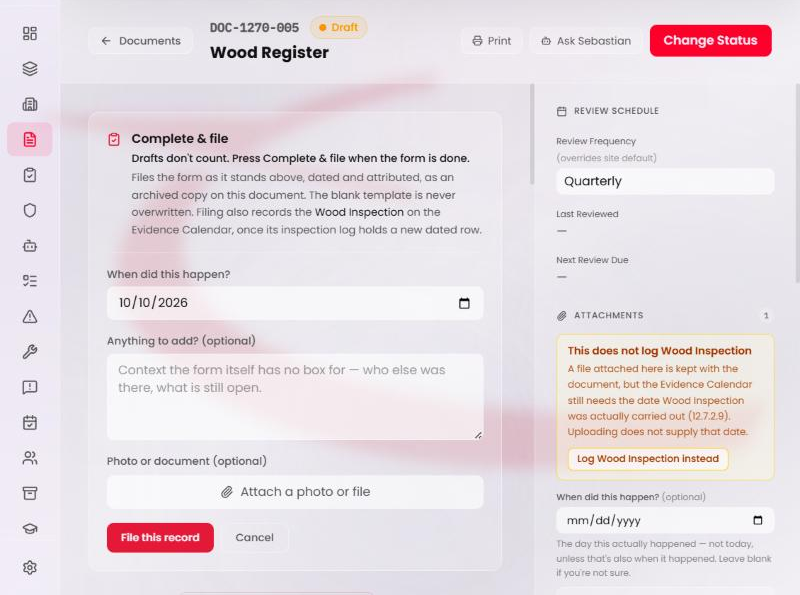
- Press Complete & file. Check the date, add notes or a photo, then press File this record. Cancel closes the panel.
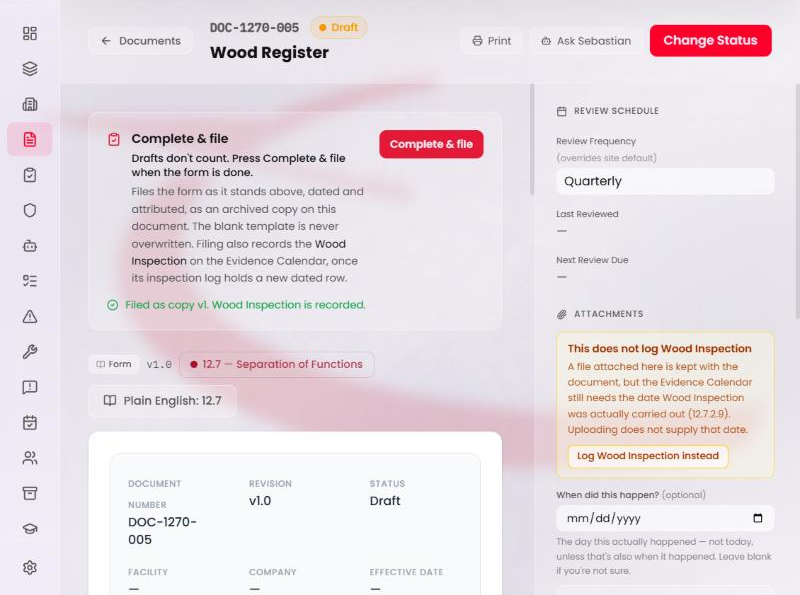
- A line appears in the panel.
Filed as copy v1. Wood Inspection is recorded.
means the record is checked off. A register with no new dated row saysFiled. No new inspection was recorded…
- The copy now shows under Filled Copy Versions on the same page.
CVerify a filed form (leaders)
You need the Administrator, Site Manager or SQF Practitioner role.
- Open Tasks. Review tasks are titled
Verify: …, filed (date) by (name)
. Pick Record review in the source list, or tick Assigned to me.
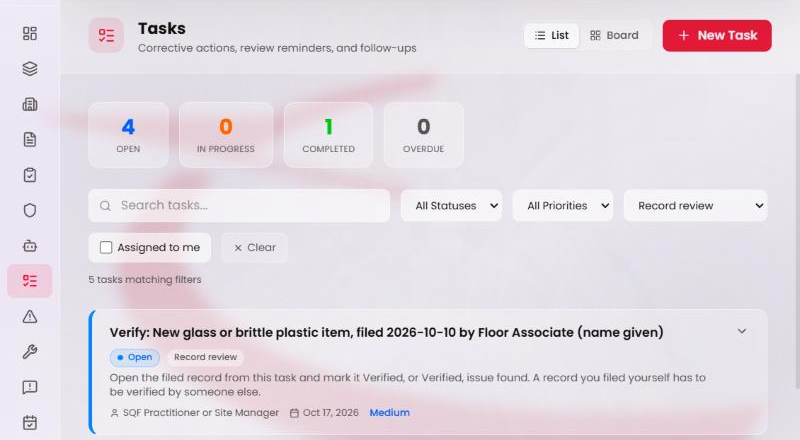
(name given).
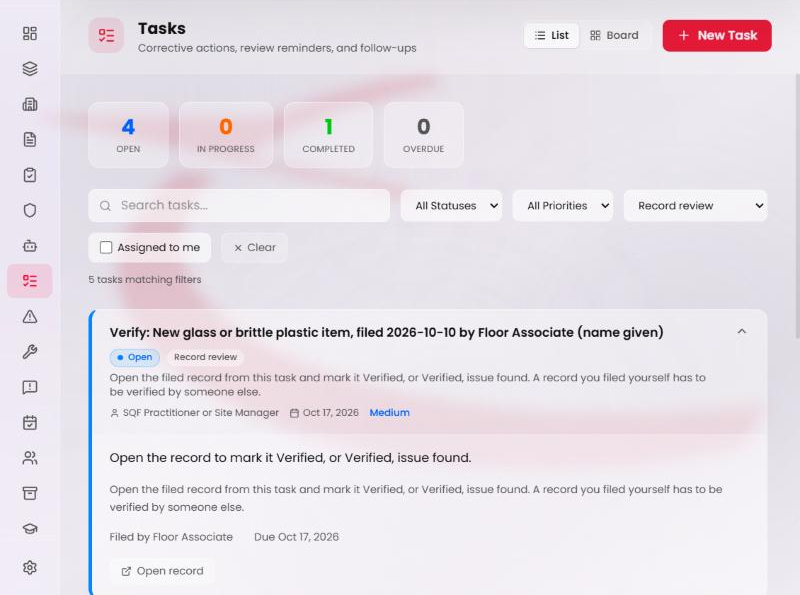
- Open the task and press Open record. The task has no complete button. It only leads to the record.
- Read the filed copy. Above it is Verify this record with two buttons.
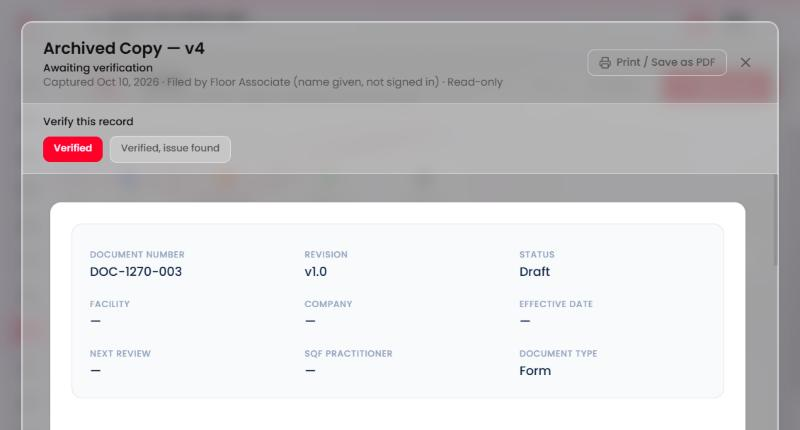
- If the record is fine, press Verified. The task closes for everyone.
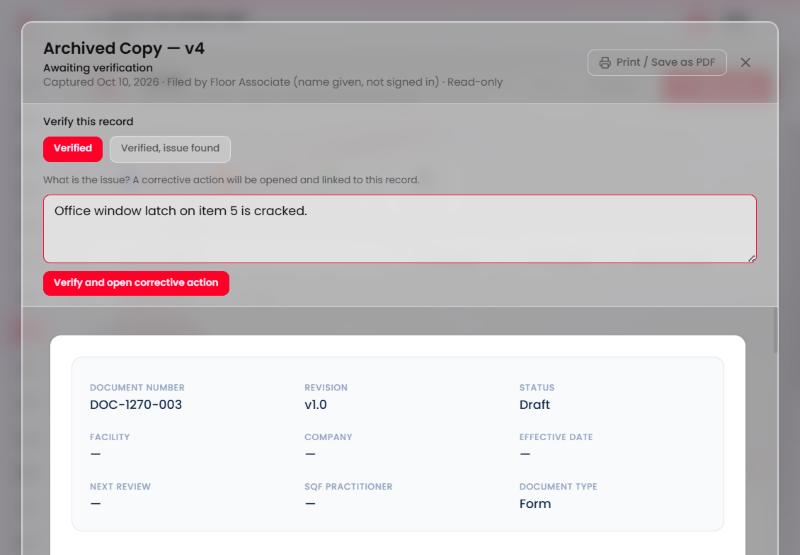
- If something is wrong, press Verified, issue found, write what the issue is, and press Verify and open corrective action. The note is required. The corrective action is linked to this copy.
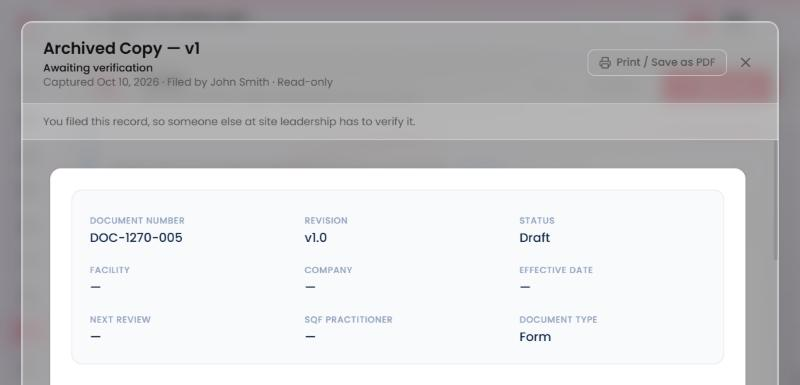
- If you filed the record yourself, there are no buttons. You see
You filed this record, so someone else at site leadership has to verify it.
If a form is corrected after filing, the old copy reads This copy was corrected. Verify the corrected copy.
Its task shows Cancelled, and a new Verify correction: …
task waits for the new copy.
DSee who filed or verified a copy
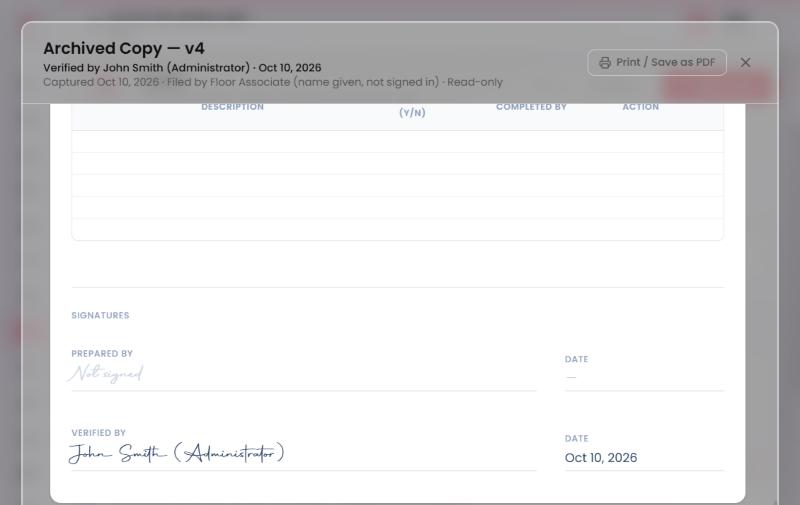
Open any filed copy from Filled Copy Versions, the Archive, the Evidence page or Tasks. The header shows Filed by
and a name, then one status:
- Verified by a name, role and date. If an issue was found, the corrective action number follows.
- Awaiting verification: filed, not yet checked.
- No review recorded: filed before reviews existed (before 3.17.0). Old copies are never shown as unverified.
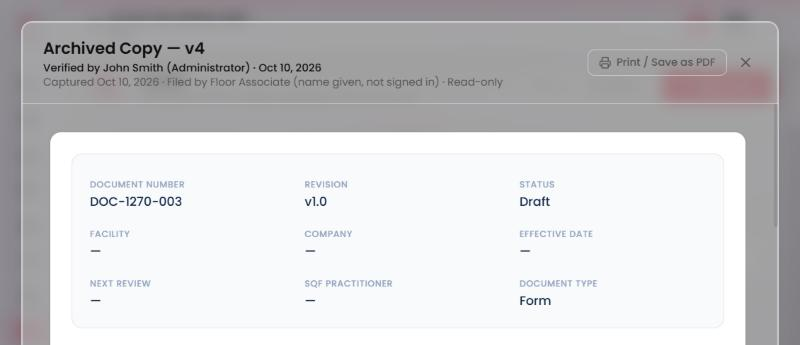
Office forms are not verified. Lines such as Clean-up verified by
inside a form are ordinary typed fields.
EKeep a register up to date
Work from the QR (section A) or the register's page, whichever is in your hand.
- Add an item. On the page, press Add Row under the item table. On the QR, use the next empty row or Add Row.
- Remove an item. Press the trash icon on its row. That clears the whole row, including its condition and notes. From the QR, the removal reaches the page when you file.
- Record the inspection. Fill Date Completed on this period's row of the inspection log, plus the inspector and any action taken, then file. The date must be real, newer than the last inspection logged, and not in the future.
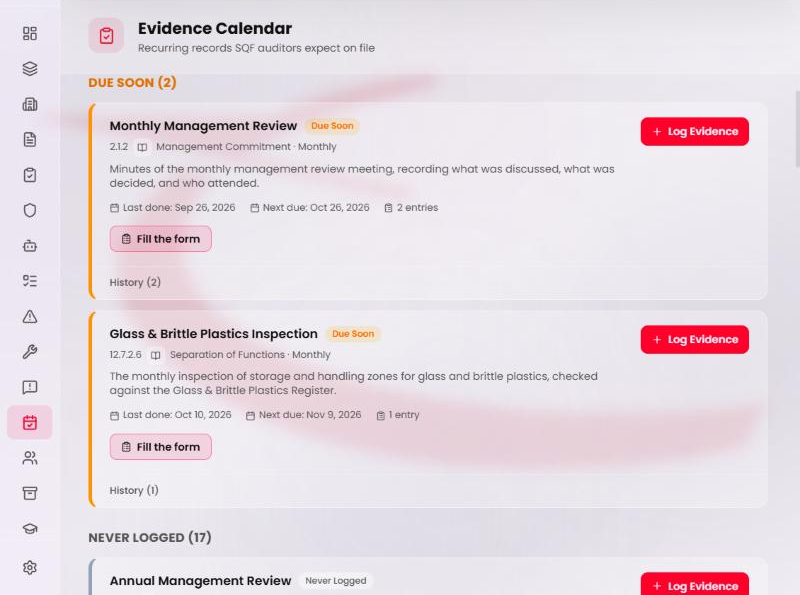
- Check it counted. Open Evidence. The card's
Last done
shows the log row's date, andNext due
moves one period ahead.
Adding an item alone files a copy but records no inspection. The inspection counts only when the log gets a new date.
FChange a register's inspection schedule (leaders)
- Open Site Profile and find the Evidence schedule card. Only Administrator, Site Manager and SQF Practitioner see it.
- It lists five register inspections: Monthly Chemical Check, Chemical Register Inspection, Glass & Brittle Plastics Inspection, Wood Inspection and Foreign Matter Inspection, each with its clause and default cadence.
- Pick a new frequency for a row: Annually, Semi-annually, Quarterly, Monthly or Every 5 years. It saves on its own. Reset to default puts it back.
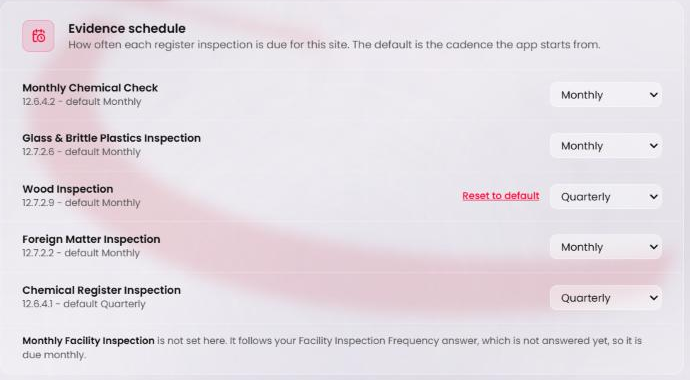
The line under the list is not a setting. The Monthly Facility Inspection follows your Facility Inspection Frequency answer in the Site Profile, and is monthly until that is answered. None of the six floor-form records can be declared Not Applicable.
GUse Fill the form from an Evidence card
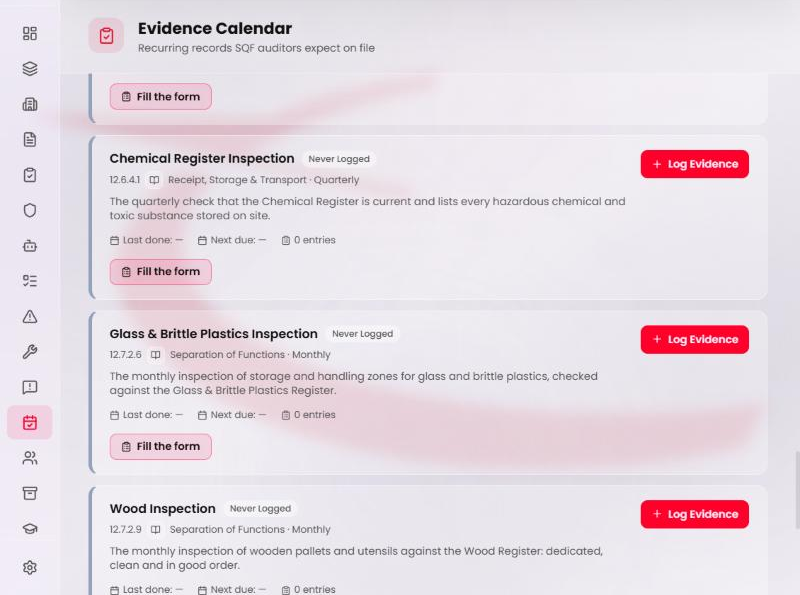
- Open Evidence and find a record a form covers.
- Press Fill the form. It opens that form's page. It does not file anything by itself.
- Fill the form and press Complete & file (section B).
Good to know
Why does my glass inspection still say overdue?
A filing counts only when the inspection log has a new dated row. Check Date Completed on this period's row: it must be newer than the last inspection logged and not in the future, and from the QR no more than 30 days old. Filing the same rows again, or saving a draft, counts nothing.
It says "This list changed while you had it open." What happened?
Someone changed, added or removed a row you also touched, after your phone loaded the list. Meridian refused the filing so neither of you overwrites the other, and saved nothing. Press Reload the list, redo your change, and file again.
What if the office edits the list while I'm filing on my phone?
When you file, only the boxes you changed go to the register's page. An item the office added stays. A row the office removed does not come back. If you both touched the same row, you get the reload message above. An office screen that was already open shows your filing after a reload.
Why are Condition and SDS on file blank on a register that carried over?
On purpose. The items and the log carry over. The per-check answers do not: condition, inspected by, notes, SDS on file, quantity on hand, last inventory date and the like. A periodic check should never arrive pre-answered.
Why doesn't the jewelry exception register carry over?
Its rows name people and the reason for their exception, which can be medical or religious. Anyone with the QR could read them, so that register always opens blank.
Why can't I verify my own form?
A second person has to check the work. Meridian uses your login for forms filed while signed in and the typed name for forms filed at the QR. If your site has one leader, forms that leader files wait for someone else with leadership access.
The review task says Cancelled. Was my form deleted?
No. A leader corrected the filed copy. The task for the old copy is cancelled and a new Verify correction
task is open for the corrected one.
A correction says "This register changed since that copy was filed."
The register's page has moved on since that copy was filed, so the correction could not be applied cleanly. Nothing was written. Reload the copy and correct it again.
It says "Already on file". Did I lose my form?
No. Your answers matched the copy already filed for that date, so Meridian did not write a second one.
My phone is signed in to Meridian. Whose name goes on a QR filing?
Your account's name, on the copy, the review task and the Evidence entry, and the Filed as
line shows it before you file. Your account must be able to file for that site. If it cannot, the filing is refused with You do not have access to this site.
or Your role cannot file form records.
Sign out first to file under the name you type.
Some older copies show an email address as "Filed by".
Copies filed before 3.16.1 stored whatever the browser sent. Copies filed since then show the person's name.
Patch notes
3.19.2.104410 Oct 2026Fixes
- Leaders can verify from the Tasks page. Open record showed the copy in a thin strip that hid the Verify buttons. It now opens full screen.
- The Complete & file panel on a form's page has light, readable fields and labels.
- One name per filing. When the device filing a form is signed in, the copy, the review task, the Evidence entry and the QR page's
Filed as
line all name the signed-in account. - Sebastian describes registers correctly: the jewelry exception register is not carried, and conflicting edits are refused rather than overwritten.
3.19.1.104110 Oct 2026Fix
- A register correction that cannot apply cleanly to the page is refused with
This register changed since that copy was filed. Reload and correct it again.
It never leaves a half-deleted row or a corrected-away date behind.
3.19.0.103810 Oct 2026New
- The QR opens seven registers with their current items and dated log: glass & brittle plastics, wood, chemical, chemical monthly, equipment & materials, foreign matter and lubricant.
- Per-check answers start blank every time.
- Filing updates the register's page with only what you changed. Office edits made after your phone loaded the list survive.
- If the same rows were changed while you had the list open, the filing is refused with a reload message. Nothing is overwritten.
- Removing a row clears the whole row. Replacing an item clears its old check answers.
- A log row typed on the register's page counts once any door files it.
3.18.0.101710 Oct 2026New
- Six recurring floor forms are Evidence records. Filing one logs it and closes its task.
- Registers are credited by the newest dated row in their inspection log, not the day you filed.
- A form's page has one completion button, Complete & file. Saving is a draft.
- Evidence cards for form records have Fill the form.
- Leaders set how often each register inspection is due, on the Site Profile.
3.17.0.9939 Oct 2026New
- Filing a floor form creates one review task for site leadership: due next day for the four Something happened forms, in 7 days for the rest. No email.
- Verified or Verified, issue found. An issue needs a note and opens a linked corrective action.
- The filer can never verify their own record.
- The second signature line on the 11 floor forms reads Verified By and fills itself in.
- Tasks has a Record review source filter. Review tasks cannot be dragged, completed or deleted by hand.
3.16.1.9739 Oct 2026Fix
- Filed copies say
Filed by
and a name. A typed QR name is marked(name given, not signed in)
. - Screens that showed a raw user code now show a name to site leadership, and
a site member
to everyone else.
Change log
The technical record, for administrators. Versions are MAJOR.MINOR.PATCH.BUILD: MINOR adds something a site can do, PATCH is corrections only, and BUILD is the commit count, so every number maps to one exact commit.
3.19.2.1044 · PATCH
- The filed-copy viewer renders through a portal to the page body. Inside the Tasks panel its fixed overlay was trapped by a blurred ancestor and clipped to about 185 pixels.
- The submission fields have a light variant for the document page. The forms QR keeps the dark one.
- The Evidence entry's note uses the server-resolved filer name (ADR-144 OD-3), like the copy and the review task. The submission row keeps the typed name as sent.
- The forms QR asks the server which name a signed-in filing will carry and shows it on the
Filed as
line. One resolver serves both calls. - Sebastian's register knowledge and the 3.19.0 entry below corrected to match what shipped (ADR-146 Amendments 3 and 4).
3.19.1.1041 · PATCH, functions only
- Corrections that cannot apply cleanly to a register's page are refused with nothing written (ADR-146 Amendment 4 item 9). Corrections of registers filed before 3.19.0 are not affected.
3.19.0.1038 · MINOR · ADR-146
- Seven standing lists. The jewelry exception register was removed before release, for privacy.
- Only real table columns of the template, in rows below 200, carry or write. Header and signature fields never carry. Cell text capped at 1,000 characters, a filing's patch at 64 KB.
- Three-way merge against the cells the QR was shown. A filing whose cells no longer match the page is refused (
failed-precondition), guarded by the page's last-update time. - Removing a row clears the whole row. Changing an item's identity clears that row's per-check answers the filing does not set.
- Corrections patch the page compare-and-set, only where the page still holds that copy's value.
- A carried log row credits only if the filer entered it, or it is unchanged and still on the page.
- Snapshot paths are unique and create-only. A refused filing never deletes another filing's copy.
Release order: functions, then hosting. No rules change.
3.18.0.1017 · MINOR · ADR-145
- Six floor forms mapped to Evidence records (11 forms in the map in all). Registers credit by newest dated log row; the facility inspection is whole-form and follows the Facility Inspection Frequency answer.
- New rule:
sites/{siteId}/evidenceSettings/cadenceOverrides, readable by site members, writable by leadership, for the five register inspections only. - Template review for the six forms back to yearly. Go-live credited each site's latest filing: Columbia 5, KC Liberty 5, Carlisle 1.
- Known gap: the internal audit's evidence windows and the document page's overdue warning still read the default cadence.
3.17.0.993 · MINOR · ADR-144 slice 2
- The sign-off is written only by the
verifyFormSubmissionfunction onto the filing row. Review tasks carry a link that the rules lock against browser edits. - A correction restarts review; the old copy can no longer be verified. A signed-in filer's name comes from the server.
3.16.1.973 · PATCH · ADR-144 slice 1
- Display only: filer names on copies, names instead of ids. Nothing new stored; no functions or rules changed.