Meridian guide
Import suppliers from a spreadsheet
Add many suppliers at once, score them, record their reviews, and update suppliers already on the list by uploading the file again. A preview shows every change before anything is saved.
Prepare the spreadsheet
Use an .xlsx, .xls or .csv file with one supplier on each row and a header row above them. A title above the table is skipped. Meridian finds each column by its header, not by its position, so the order does not matter. Capital letters, punctuation and a note in brackets after a header are ignored.
Only Name is required. The other headers Meridian reads are Type, What they supply (or Supplies), Address, Contact, Phone, Email, Likelihood, Severity, Risk Rationale, Service Description, Staff Training, Review Date, Review Outcome and Review Notes. A file can hold up to 1,000 suppliers.
A column Meridian does not read, such as a status or a risk level, is named in the preview and ignored.
Choose the file and read the preview
In the sidebar, open People & Partners and choose Suppliers. Press Import suppliers from a spreadsheet and choose the file. Anyone who can add suppliers sees the button: an admin, a site manager, the SQF practitioner or a contributor.
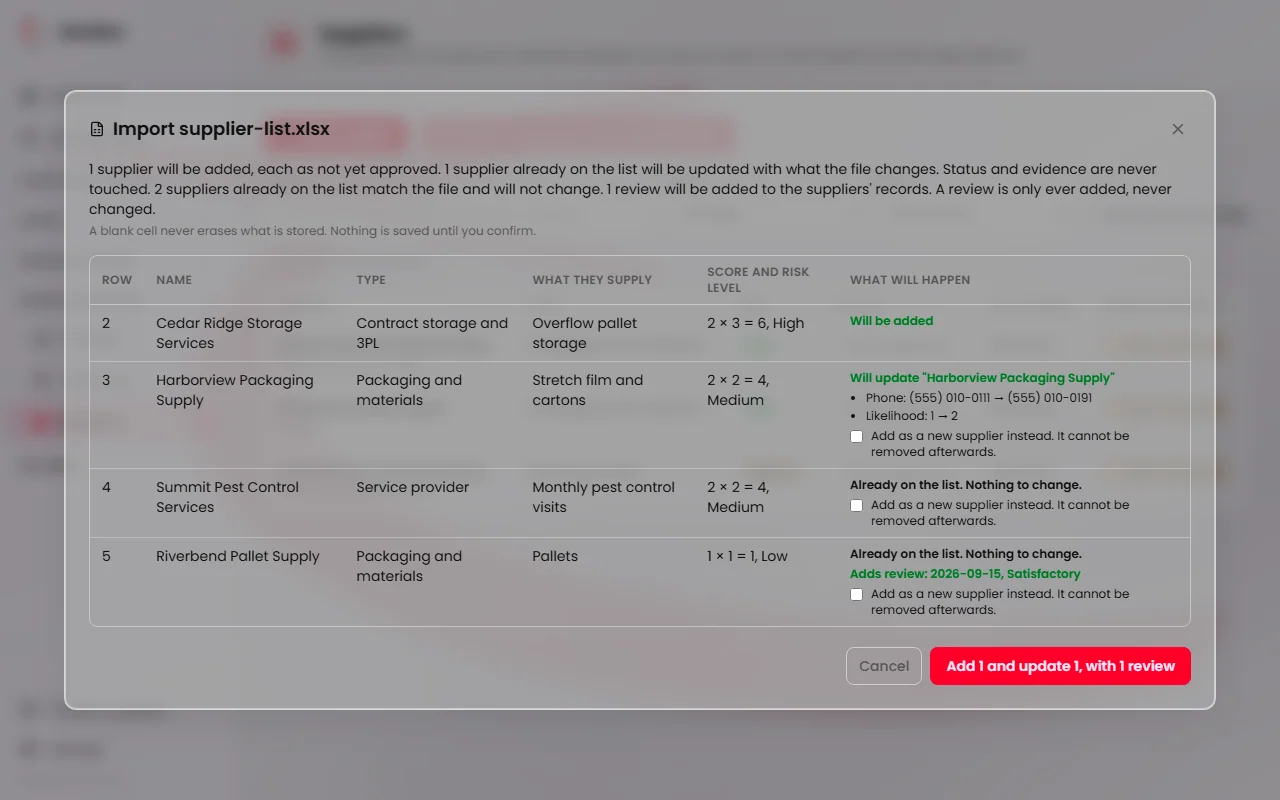
Meridian reads the file and opens a preview. Nothing is saved yet, and Cancel changes nothing. Every row shows the supplier as it will stand, its score and risk level, and what will happen to it. Every warning sits on its row.
Tip
Meridian never guesses. A row with no name is skipped and named. A type it cannot read is imported as Other for a new supplier, and leaves the stored type alone for a supplier already on the list.
Score the suppliers
Fill in Likelihood and Severity with the whole numbers 1, 2 or 3, and Risk Rationale with the reason. The score is taken only as a pair. Anything else, such as “Low”, 4 or 1.5, or only one of the two, leaves that row unscored, and the preview says why.
Meridian works out the risk level from the pair. A Risk or Risk Level column in the file is skipped and named. The Score and risk level column of the preview shows each pair and the level Meridian worked out.
Update suppliers already on the list
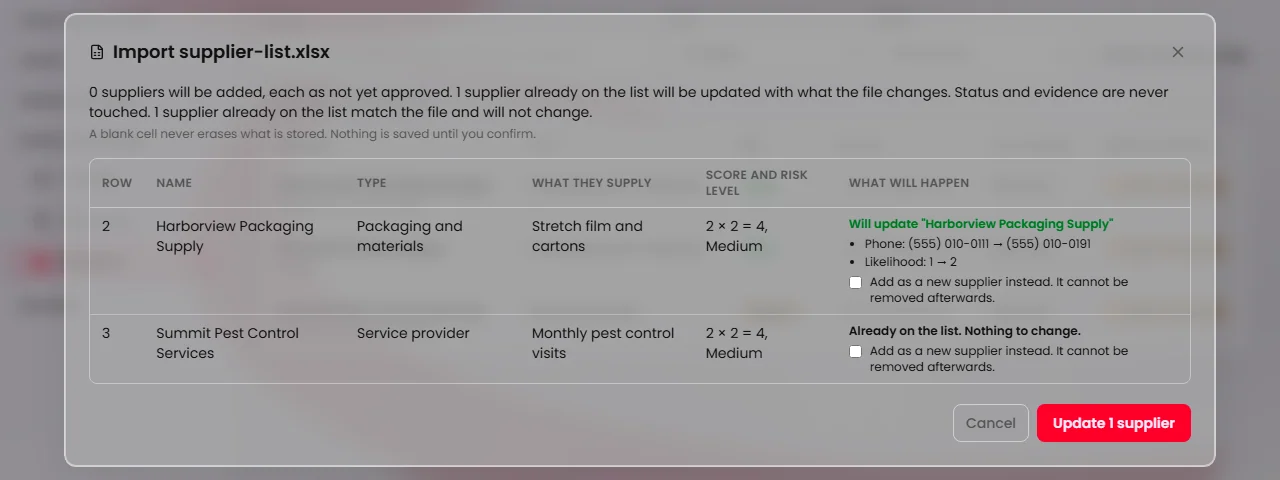
Upload your supplier list again and Meridian updates the suppliers already on it instead of skipping them. A row matches a supplier by name. Capital letters, punctuation and spacing are ignored, so “ACME, Inc.” and “Acme Inc” are the same name. “Acme Inc” and “Acme LLC” are different.
A matching supplier is updated with every filled cell in the file, its score included. A blank cell never erases what is stored. Service Description and Staff Training fill the supplier's own two fields. Status and evidence are never touched, and a status column is never read.
The preview lists each change as the field with its old value and its new value. A row that already matches the file reads “Already on the list. Nothing to change.” If the name appears twice in the file, only the first row is read and the other is skipped and named.
Caution
If two companies really share a name, tick Add as a new supplier instead on that row. A second supplier cannot be removed afterwards.
Add reviews from the file
A row adds one review when it has both a Review Date and a Review Outcome. The outcome is Satisfactory, Action required or Not satisfactory. Review Notes are optional.
Write the date as YYYY-MM-DD, or use a real Excel date. Text such as 10/11/26 is refused, because Meridian never guesses the order of day and month. The date cannot be after today. A date without an outcome, or an outcome without a date, adds nothing, and the preview says why.
A review is never added twice. If the supplier already has a review with the same date, outcome and notes, the row reads Review already recorded and nothing is added, so uploading the same file again changes nothing. Reviews are only ever added. They are never changed or removed.
Confirm the import
The summary above the table counts the suppliers to add, to update and left unchanged, the rows skipped and the reviews to add. The confirm button says what pressing it does, for example Add 3 and update 2, with 2 reviews. It reads Nothing to import, and stays greyed out, when there is nothing to do.
When it finishes, the message reads like “Import finished: 3 added (each as not yet approved), 2 updated, 1 unchanged, 0 skipped, 2 reviews added.” Site leadership sets the status of each new supplier.
If some rows are refused, the others still save. The summary names the rows that failed and why. Import the file again to retry them: the rows that went through then show as already on the list.