Meridian guide
Open a PSJ from a complaint month
Turn a month on the Complaints page into a Problem Solving Jacket that already names the month, and see how the month and the PSJ point at each other.
Find the month on the Complaints page
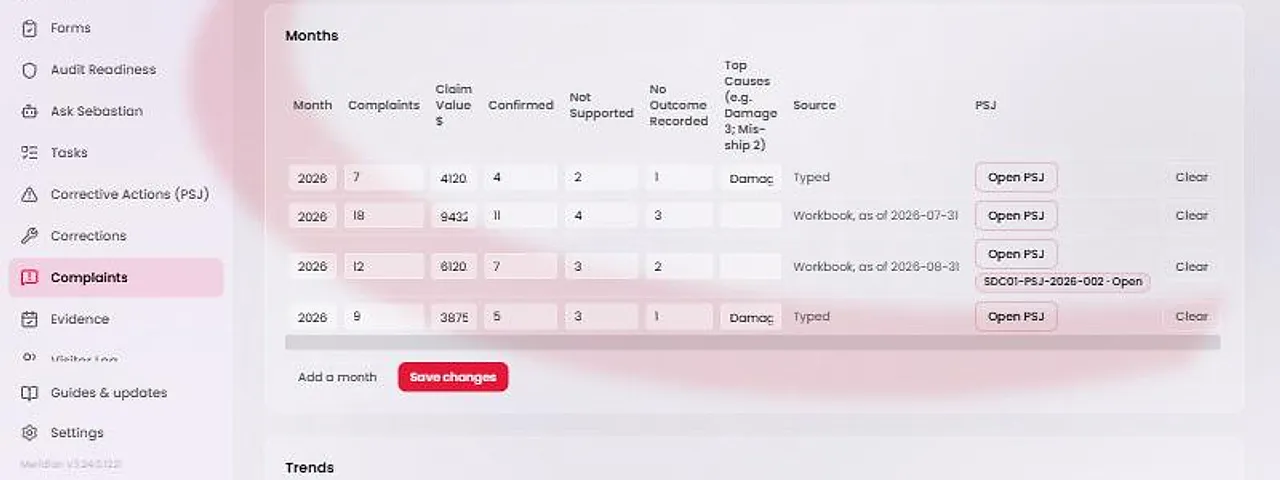
In the sidebar, open Issues & Actions and choose Complaints. The Months table lists each saved month with its complaint count. Site leadership (an admin, a site manager or the SQF practitioner) also sees a PSJ column with an Open PSJ button on each row.
A row you have edited but not saved shows “Save this row first”. Press Save changes, then Open PSJ.
Tip
Meridian does not decide that a month has an adverse trend. A person does. Open a PSJ only for a month that needs one.
Press Open PSJ
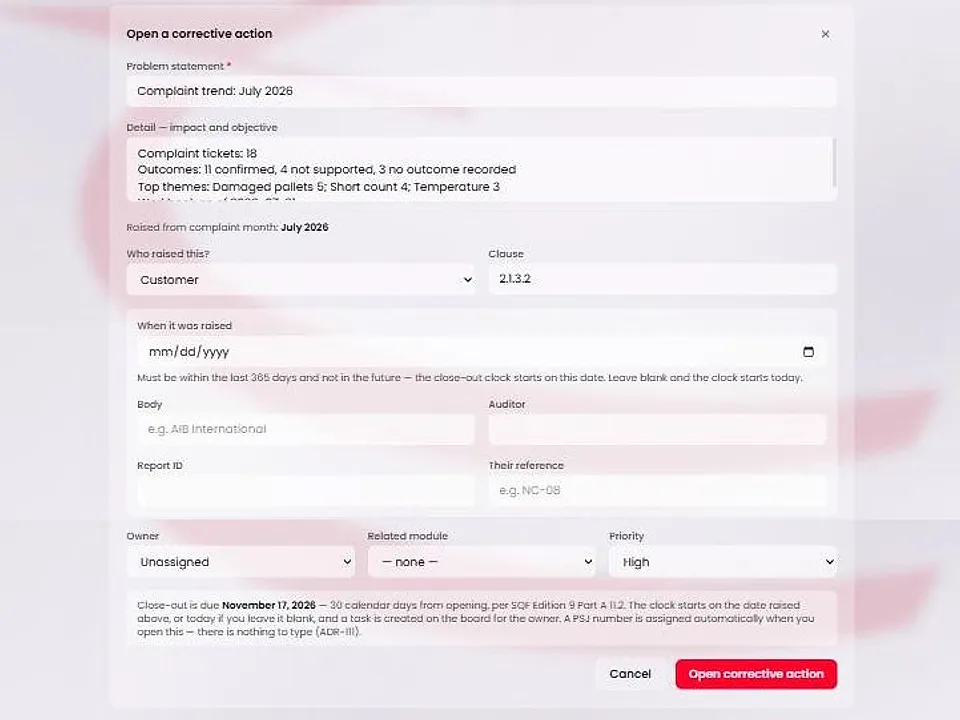
Open PSJ takes you to Corrective Actions (PSJ) with the Open a corrective action form already started. Nothing is saved yet, and no PSJ number is used until you press Open corrective action.
Check what is filled in
The Problem statement reads “Complaint trend: July 2026”, with the month you chose. The Detail box holds that month's ticket count, the outcome counts that were recorded and the top themes with their counts. A month typed by hand shows its typed causes instead.
Who raised this? is set to Customer and Clause is set to 2.1.3.2. A read-only line, “Raised from complaint month”, names the month.
Meridian adds no percentage, no comparison with another month and no sentence calling the trend bad. You can edit everything except the month link.
Open the corrective action
Press Open corrective action. The PSJ is saved against that month, and the month link cannot be changed afterwards.
If the month does not exist for your site, nothing is created and no PSJ number is used.
Follow the chip back and forth
Back on the Complaints page, the month shows a chip with the PSJ number and its status. Choose it to open the PSJ. The PSJ shows its month the same way.
Open PSJ stays on the row, because a second trend in the same month is possible. The chip is what warns you that one already exists.