Meridian guide
Approve forms that are waiting for approval
Why a form cannot be filed until site leadership approves it, how to approve many forms in one go, and who signs a form when it is filed.
See why filing is refused
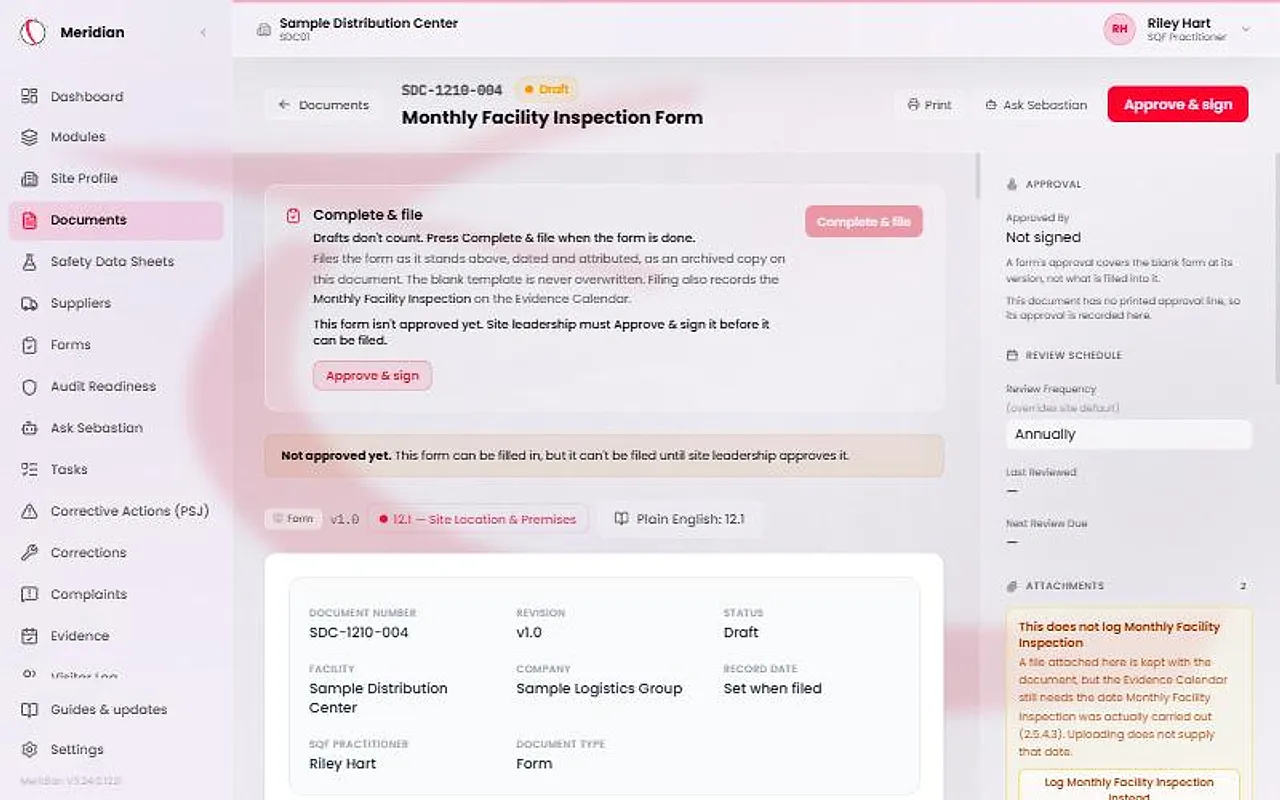
A form can be filled in while it is a Draft, Under Review or Active, but it can be filed only while it is Active. Until then Complete & file is greyed out and the page says “This form isn't approved yet. Site leadership must Approve & sign it before it can be filed.”
On the forms QR page, a form that is not approved is listed with the tag “Not approved yet” and cannot be opened. If someone reaches it anyway, the page says “This form isn't approved yet. Ask your SQF Practitioner.”
Tip
A form that was already Active before this release can still be filed, even though it reads Needs signature. It only needs its signature renewed.
Open Forms waiting for approval
Site leadership opens Forms waiting for approval from the Documents page or from Forms & Checklists. The link shows how many forms are waiting. Nobody else sees it.
The list holds every form that is a Draft, Under Review, or Active with an approval that is not signed or is out of date. Each row shows the document number, the title and why the form is waiting. Press Open beside a row to read the form first.
Pick the forms and type your name once
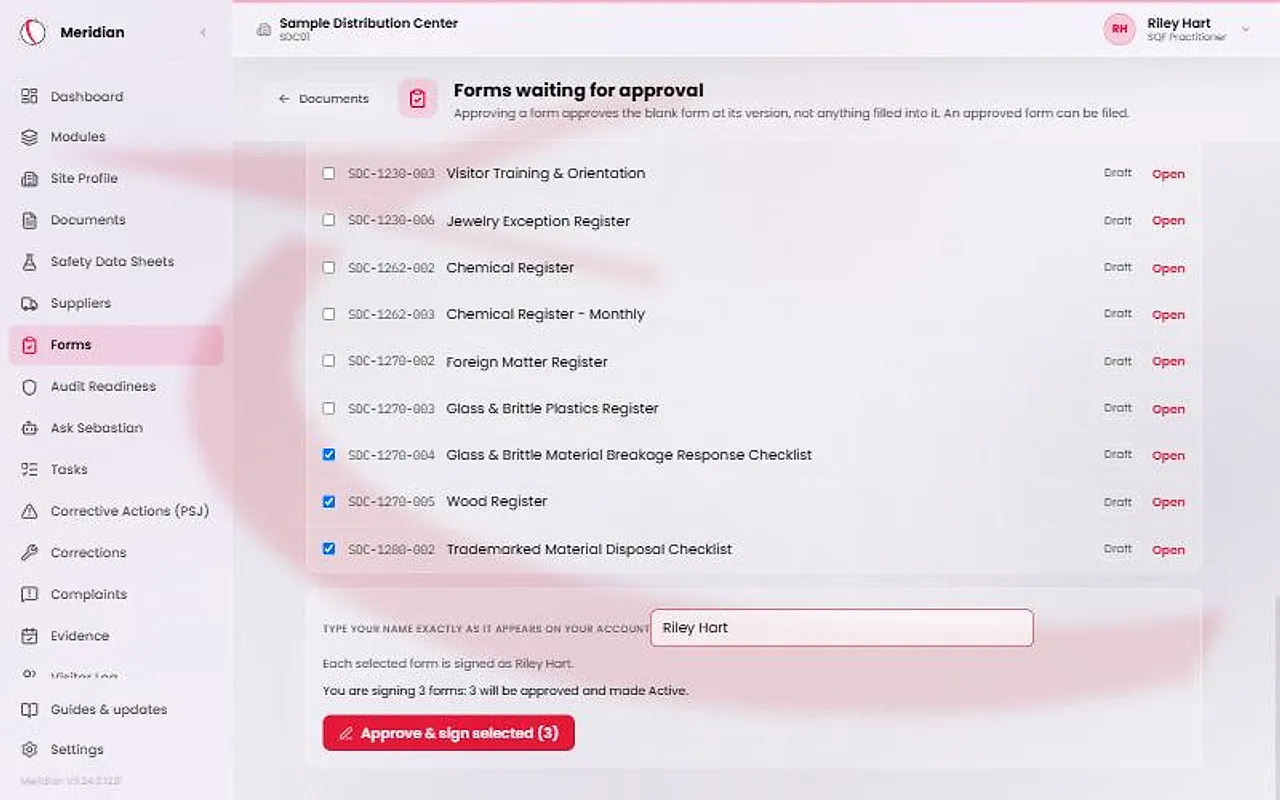
Tick the forms you want to approve, or tick Select all. Type your name exactly as it appears on your account. You type it once for the whole batch.
A line under the box says what will happen, for example how many forms will be approved and made Active. Signing a form that is already Active records its review and sets its next review date.
Approving a form approves the blank form at its version, not any answers filled into it. The approval goes out of date only when the form's version changes or its annual review falls due.
Press Approve & sign selected
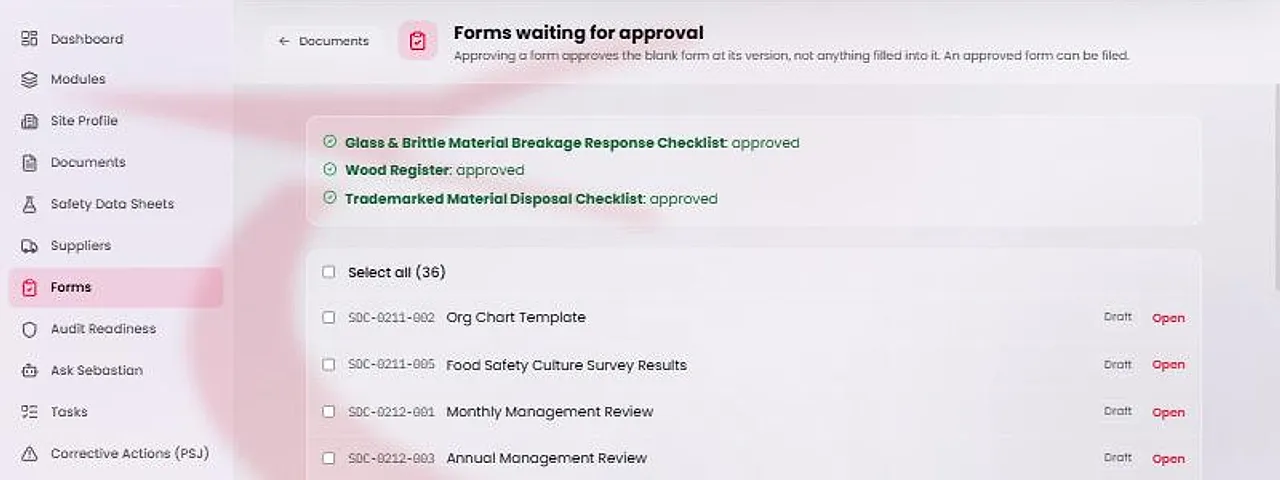
Press Approve & sign selected. Meridian signs the forms one after another, each as you. Each form gets its own decision, and the Results list says approved or refused beside each title.
A refusal does not stop the others. The usual reason is a name that does not match your account. It is the same for every form, so correct the name and sign the ones that were refused.
Know who signs at filing
When a signed-in person files a form, Meridian names them from their account and signs the form's filer line for them. The Complete & file card tells you which line you will sign and as whom. An account with no name on file, or one that was disabled or removed from the site, cannot file.
Someone filing from the forms QR page types their name once. The filed copy marks it as a name typed, not signed in. The name and the filing date are stamped into the filed copy.
Every filed copy keeps the approval it was filed under, even after the form is revised or approved again.