Meridian guide
Approve and sign a document
Make a document Active with Approve & sign, read what its signature lines say, sign off documents that need a signature, and reopen an approved policy for revision.
Open the document and press Approve & sign
Open Documents, then choose a document. A document that is a Draft or Under Review has an Approve & sign button at the top of its page. Only site leadership (an admin, a site manager or the SQF practitioner) sees it.
Approve & sign is the only way to make a document Active. Meridian sets the status, the version and the review dates when you sign.
Tip
The button waits while you have unsaved edits. Let the page finish saving, then press it.
Type your own name
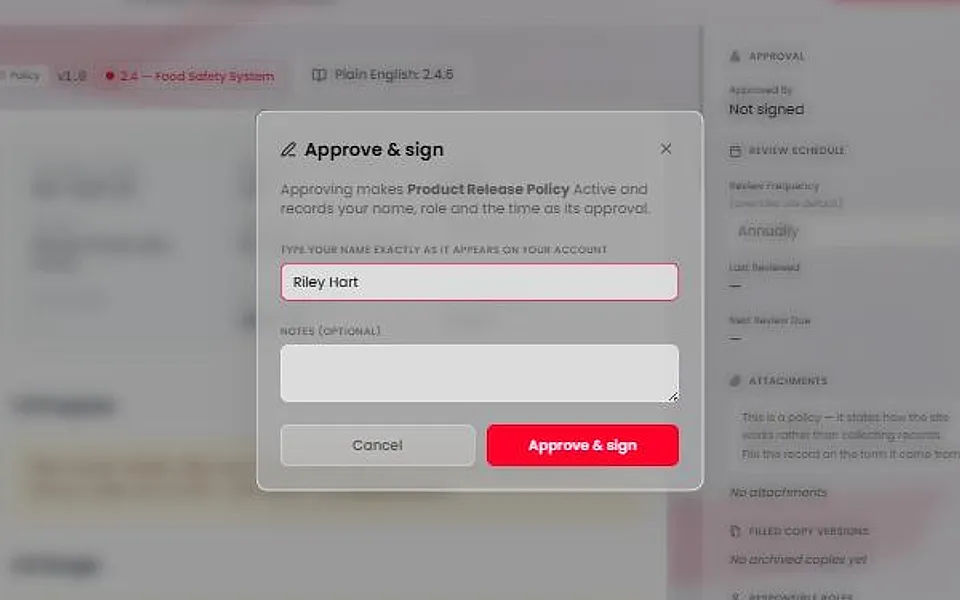
A dialog titled Approve & sign opens. Type your name exactly as it appears on your account. Capital letters and extra spaces do not matter. Add a note if you want one, then press Approve & sign.
Meridian records your name, your role and the time as the document's approval. If the name does not match your account, Meridian says why and signs nothing.
Caution
An account with no name on file cannot sign. Ask an administrator to add your name. If your role or site access changed, sign out and back in before you sign.
Read the signature lines
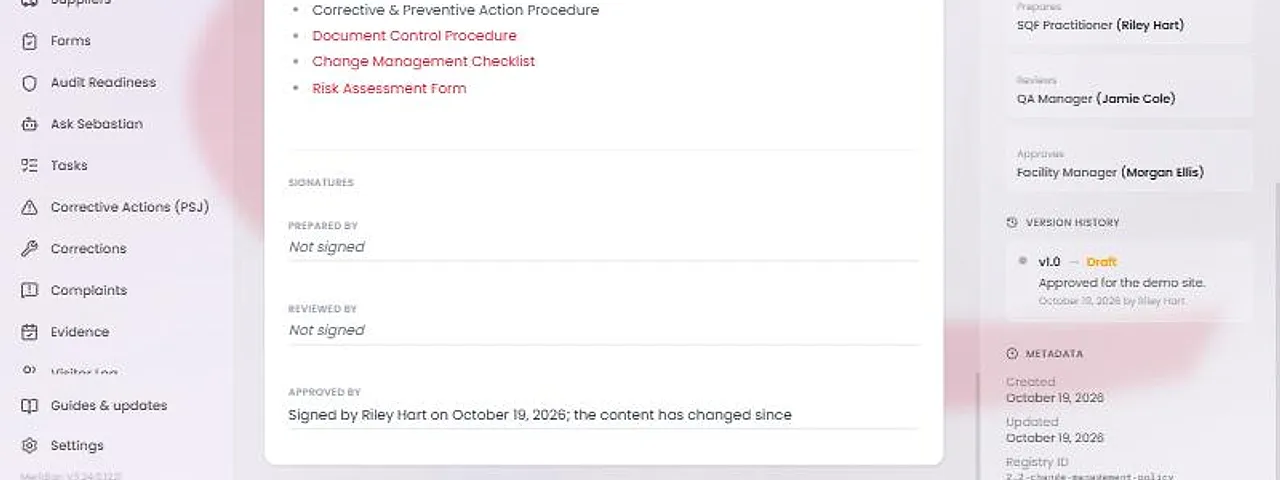
A signature line reads one of three ways. A current signature says Signed by, then the person's name, role and date. A signature that is out of date says the content has changed since, because the document was edited after it was signed. “Not signed” means nobody has signed the line.
Meridian never fills a line in from the Site Profile or from the review date. The Approval panel beside the document says the same thing.
Prepared By and Reviewed By lines are optional. Anyone who can edit documents can press Sign on one while the document is a Draft or Under Review. Another person's current signature cannot be signed over until the document changes.
Find documents that need a signature
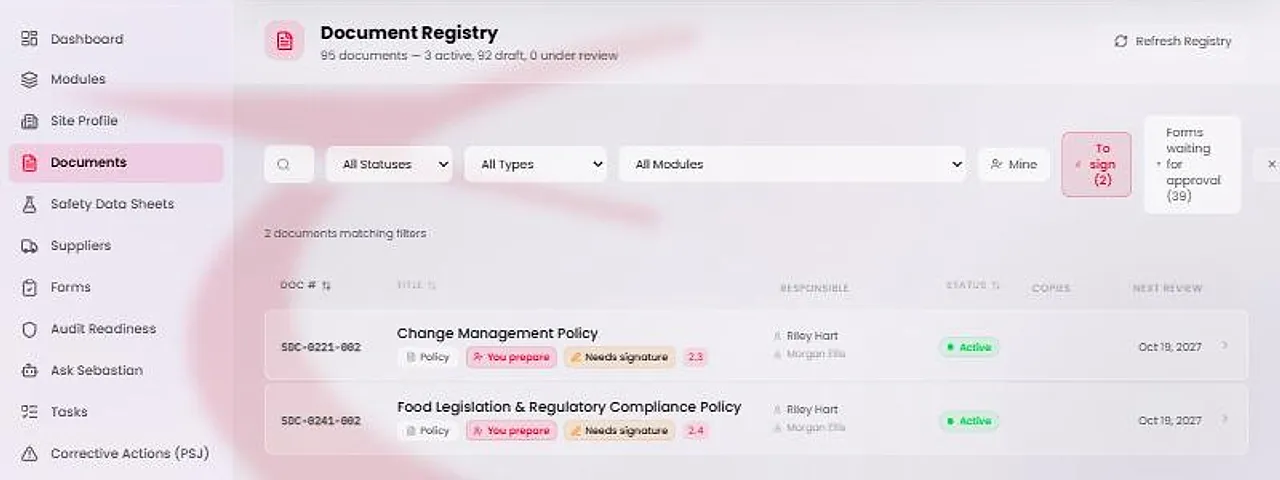
A document that was Active before this release stays Active, shows a Needs signature badge and prints Not signed. On the Documents page, press To sign to list every document that needs a signature. The number on the button is the size of the job. Active forms without a current approval are listed too.
Open one and press Mark Review Complete. A dialog titled Complete review asks you to type your name again. Press Sign & complete review. That signs the approval for the document as it is now, records who reviewed it and sets the next review date.
Tip
Mark Review Complete appears when a review is due or a signature is needed. Until then the page shows Reviewed and the date.
Revise an approved document
An approved policy or work instruction is locked. To change it, press Change Status, choose Start revision, then press Confirm Transition. The document becomes Under Review and can be edited.
Its approval reads out of date as soon as the content changes. When the revision is ready, press Approve & sign again. The version moves up one step, for example from v1.0 to v1.1.
The annual review is a re-signature too. Mark Review Complete records who reviewed and starts the next cycle.
Caution
If a save is refused because the document was approved while you were editing, the page says so and turns read-only. Reload the page, then use Start revision.