Meridian guide
File a form with the date it was done
Meridian dates a filing by the day the form says the work was done, never by the day it was uploaded. See where that date comes from and what counts from it.
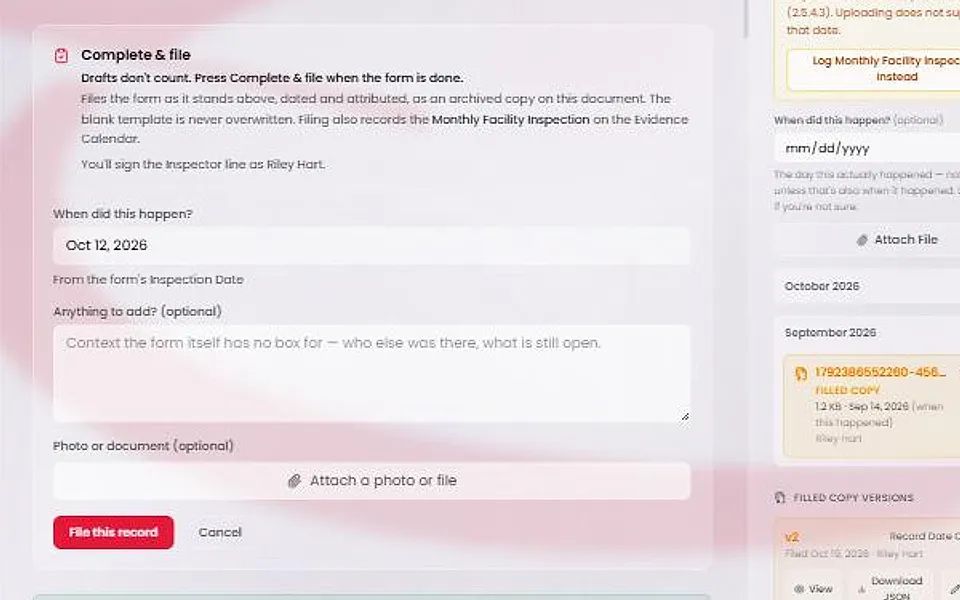
Fill in the form and press Complete & file
Open the form from Documents or from Forms & Checklists and fill it in. Saving on the page keeps a draft, and a draft counts for nothing. When the form is done, press Complete & file.
A form can be filed only while it is Active. If it is not, see the guide on approving forms that are waiting for approval.
Check the date the filing will carry
If the form has a date of its own, such as an inspection date, a meeting date or a test date, the filing panel shows that date and you cannot edit it there. It reads “When did this happen?” with “From the form's Inspection Date” underneath. Change the date on the form and the panel follows.
If that date is empty, filing waits. The panel says “Fill in the form's Inspection Date first”.
If the form has no date of its own, such as the recall checklist, the org chart or a register, the box starts blank and is required. Meridian will not file until you say when it happened: “Say when this happened before filing.”
Caution
Meridian never fills in today's date. The latest date it accepts is today at your facility. A form filed from the forms QR page can be dated no more than 30 days back.
File the record
Add a note or attach a photo or file if you want to, then press File this record. A line confirms the day with “Recorded as done on” and the date.
Filing the same answers twice adds no second copy, and Meridian tells you so.
Watch Last done and Next due
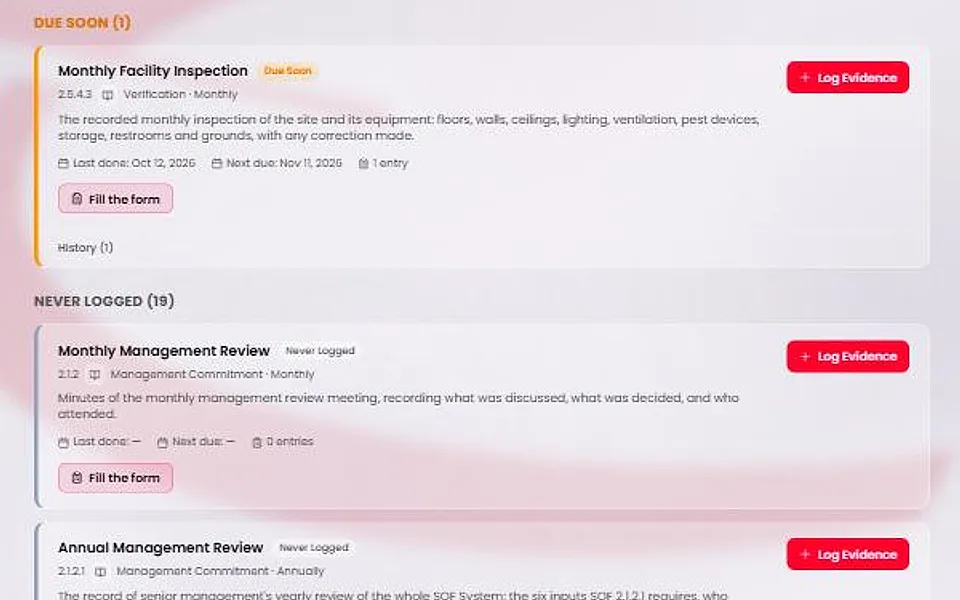
Next due counts from the date you filed under. A February inspection filed in October is done in February, and its next due date counts from February. The Monthly Management Review roll-up and the review periods use the same day.
On the Evidence Calendar, each record's card shows “Last done” and “Next due”.
A back-dated filing closes an overdue task only when it brings the item current. If it does not, the task stays open on purpose, because closing it would hide that the item is overdue.
Find the upload date, and fix a wrong date
Screens lead with the done date. The day a copy was uploaded shows only in history, for example “Filed Oct 17, 2026”, and only for an older copy that states no date. A copy saved automatically with no done date reads “Saved copy (no done date)” and falls in no month.
To fix a wrong date on a filed copy, site leadership opens the document, finds the copy under Filled Copy Versions and presses Correct. Give a reason. If the form has its own date, that date wins over anything typed.