Meridian guide
Open a PSJ from an internal audit gap
Site leadership can turn a gap in the audit report into a Problem Solving Jacket that already names the audit and clause, and follow it back to the report.
Find the gap in the report
Open the audit's report. A gap is a clause the audit found Partially compliant or Non-compliant, and gaps are listed under Findings. Beside each saved gap on the screen is an Open PSJ button.
Site leadership (an admin, a site manager or the SQF practitioner) sees the button. Everyone else sees “Site leadership opens a PSJ from a gap.” Anyone who answers can record a gap, but only site leadership opens the PSJ.
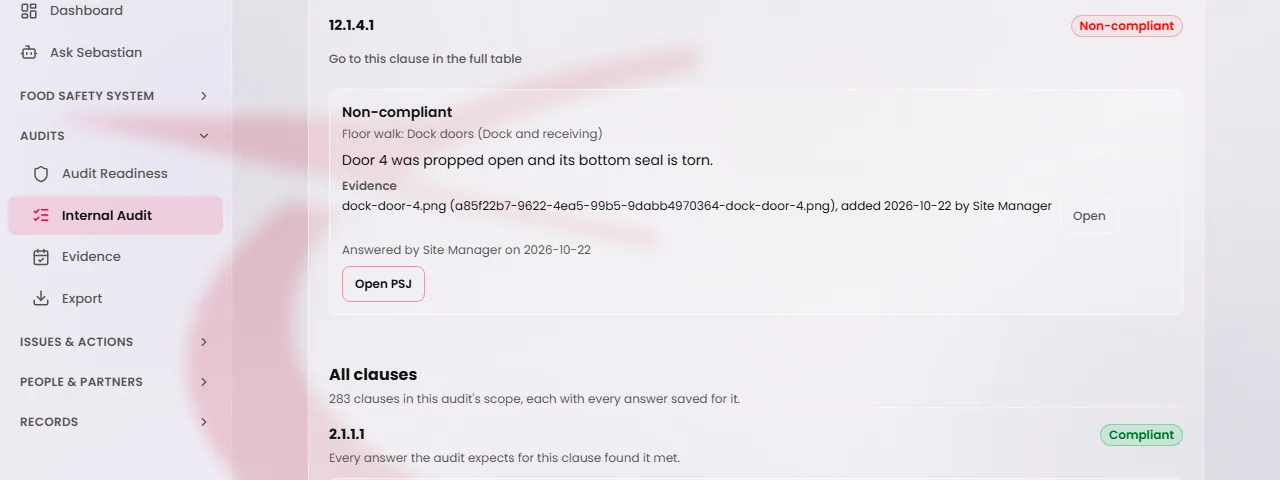
Press Open PSJ
Open PSJ takes you to Corrective Actions (PSJ) with the Open a corrective action form already started. Nothing is saved yet, and no PSJ number is used until you press Open corrective action.
Caution
From a draft report, a later save to that answer makes the link stale, and Meridian refuses to open it. Reload the report and press Open PSJ again.
Check what is filled in
The title reads like “Internal audit 2026:” followed by the question. The description holds the audit year and clause, the area for a floor walk item, the result, the note, the overall note and the names of the files the answer cites. You can edit the title and the description.
Who raised this? is set to Site (internal), and the Clause is the clause of the gap. Those two cannot be changed. A line reads like “Raised from internal audit 2026, clause 2.4.1.1. Who raised it and the clause are set by that finding.” The related module is set from the clause.
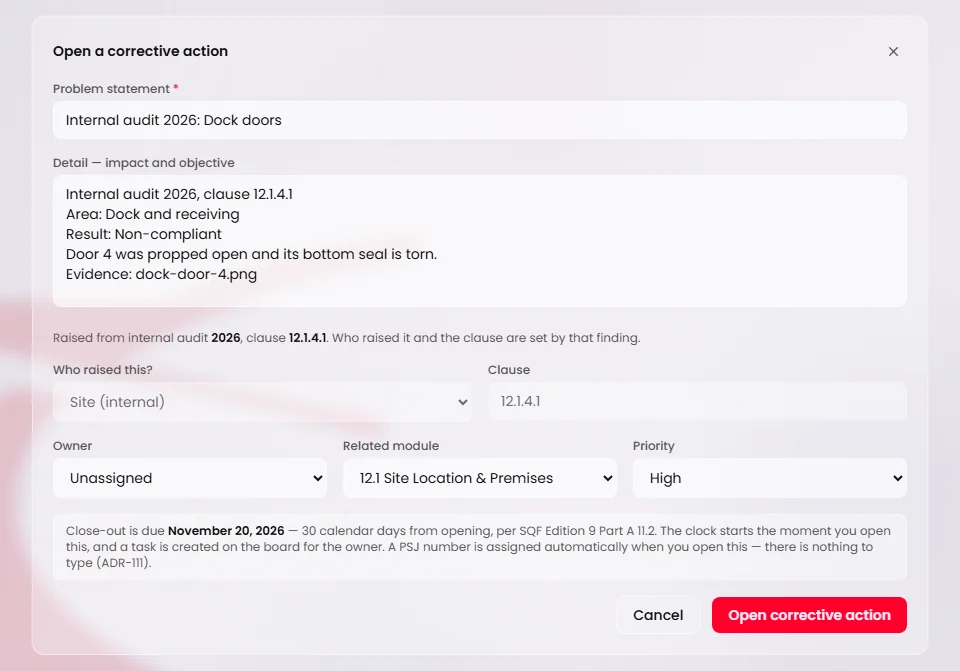
Open the corrective action
Press Open corrective action. The PSJ is saved with the audit and clause it came from, and that link cannot be changed afterwards.
Follow the PSJ back to the report
On the PSJ, a line reads like “Raised from internal audit 2026, clause 2.4.1.1 (submission 160)”, with a link, See the finding in the audit report. A PSJ raised from a draft report says “draft answer, revision” and a number where this says “submission”, and its link reads Open the current audit report and its history.
In the report, a gap shows how many PSJs are already open for it. Current follow-up PSJs lists each one as a chip with its status today, the clause, and which version of the audit it came from. A second PSJ for the same gap is possible, and the count tells you one already exists.
These PSJs are not part of the printed report, and closing a PSJ never changes a finding.