Meridian guide
Submit the internal audit and print its report
See what still stops the audit being submitted, submit it, read and print the report, and check its status on Audit Readiness.
See what stops Submit
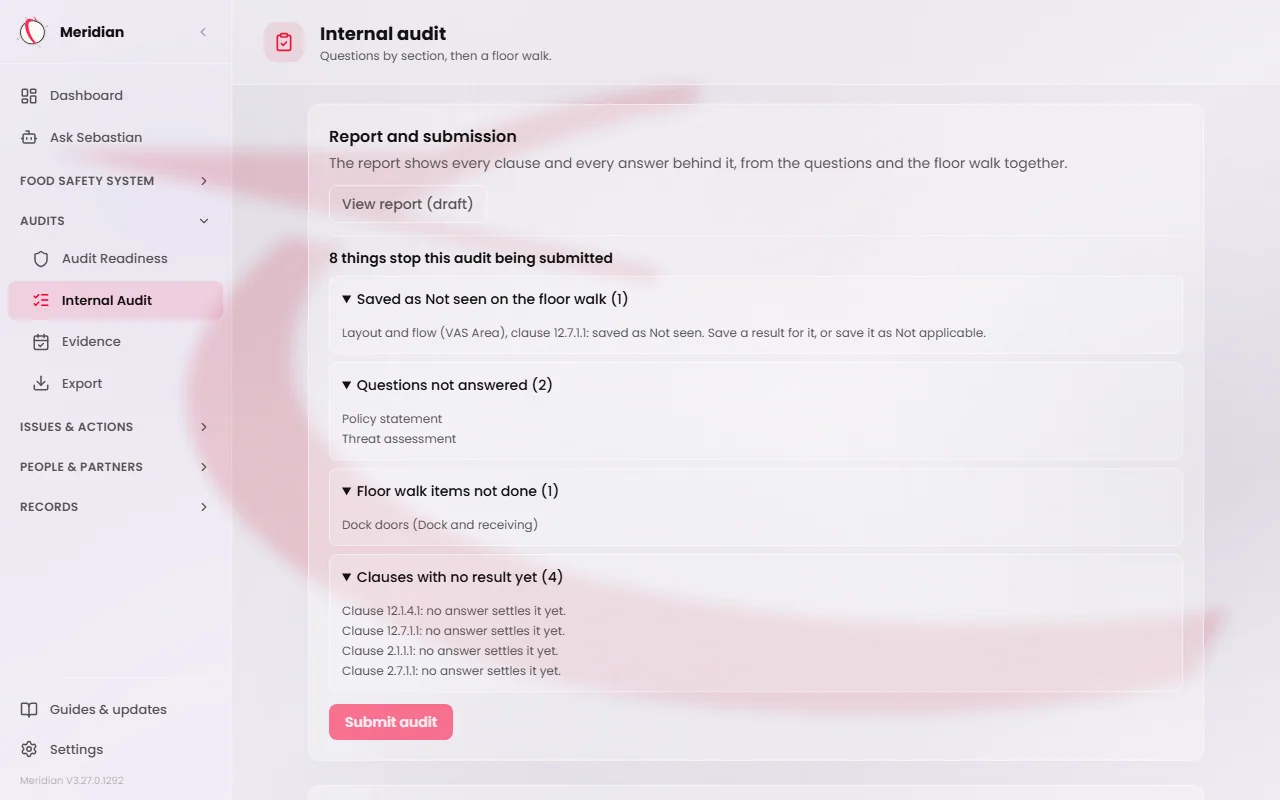
On the audit home, the Report and submission panel lists, in plain words, everything that still stops the audit being submitted. It opens with a count, for example “3 things stop this audit being submitted”, then groups the lines under Saved as Not seen on the floor walk, Questions not answered, Floor walk items not done, Answers that need fixing and Clauses with no result yet.
Submit audit is greyed out while anything is listed. When nothing is, the panel says “Nothing this screen can see stops this audit being submitted.” Only people who can answer see Submit.
Caution
The list shows what this screen can see. Meridian checks everything again when you submit, and shows a refusal as written.
Look at the draft report
View report (draft) opens the report as it stands, marked “Draft - not submitted”. Anyone who can read the audit can open it. Use it to look over the findings before you submit.
Submit the audit
Press Submit audit. A box asks you to confirm. It says the answers are frozen as a submission you can print, the audit becomes read-only, and submitting does not close any finding. Press Confirm submit.
Meridian takes you to the report for that submission. The audit home now reads Submitted, revision and a number, with a View the report button. The number counts every save made to the audit, so it is usually in the hundreds; it is how Meridian tells one submission from another.
Caution
Only an admin who holds the site can reopen a submitted audit. See Reopen a submitted internal audit.
Read the report
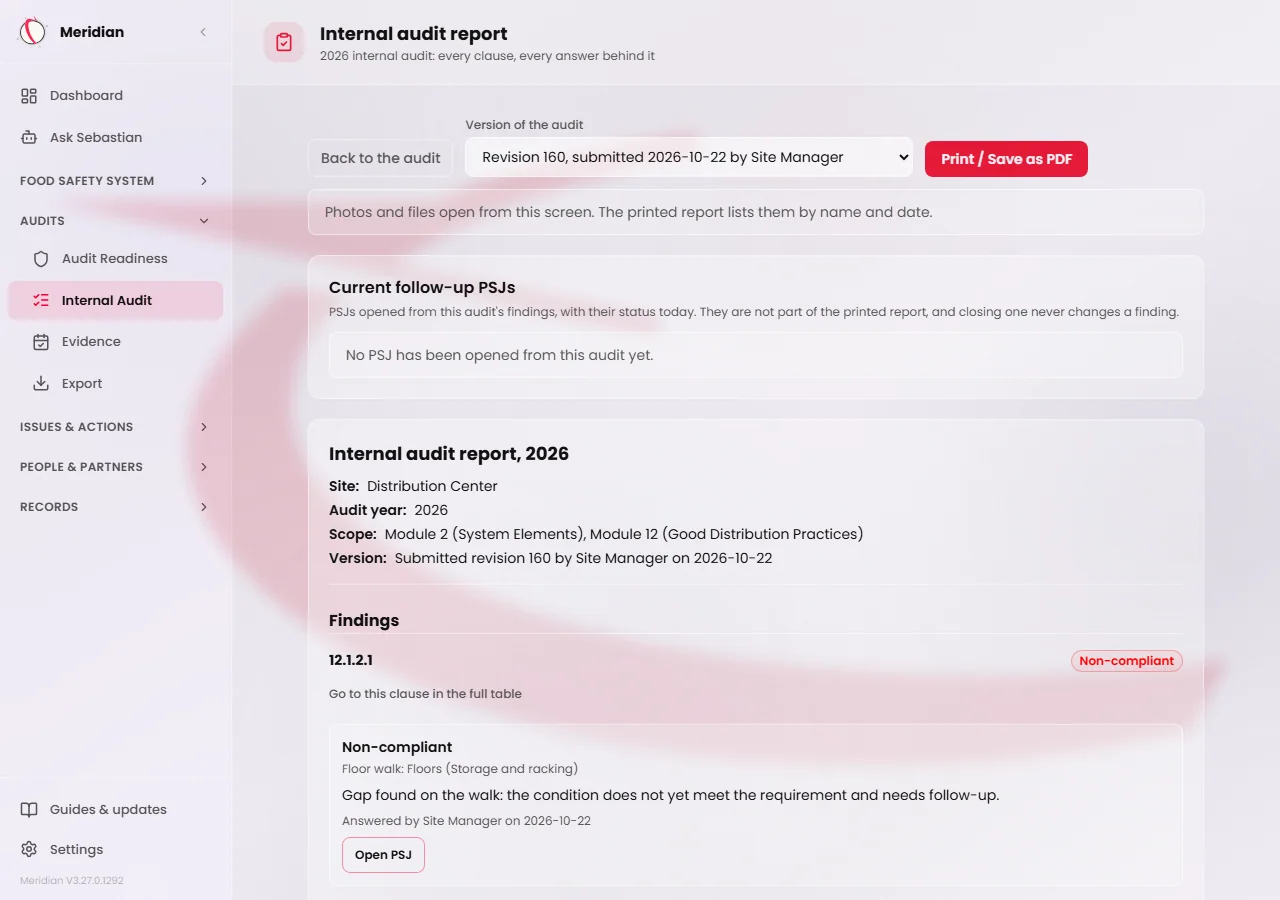
The report starts with the site, the audit year, the scope (Module 2 and the modules the site declared) and the version, for example “Submitted revision 160” with who submitted it and when. Floor walk areas that were switched off are named with the reason a person wrote.
Findings come first. Below them, All clauses lists every clause in scope with every answer saved for it: its verdict, notes and files, and the question or floor walk item that answered it.
The Version of the audit list switches between submissions. Choose an earlier revision to read what that submission said. It prints the same later.
Open files and photos
Photos and files open from the report on screen with Open file. The page says so: “Photos and files open from this screen. The printed report lists them by name and date.”
Print the report
Press Print / Save as PDF. The printed copy keeps the findings, the clauses and the answers behind them, lists each file by name and date, and carries the document footer. Open file buttons, Open PSJ buttons and the Current follow-up PSJs list are on screen only.
Print waits until the report has loaded without a problem. A report that could not be read prints nothing.
Tip
To print an earlier submission, choose it in Version of the audit first. See Read the footer on a printed page for what the footer says.
Check the status on Audit Readiness
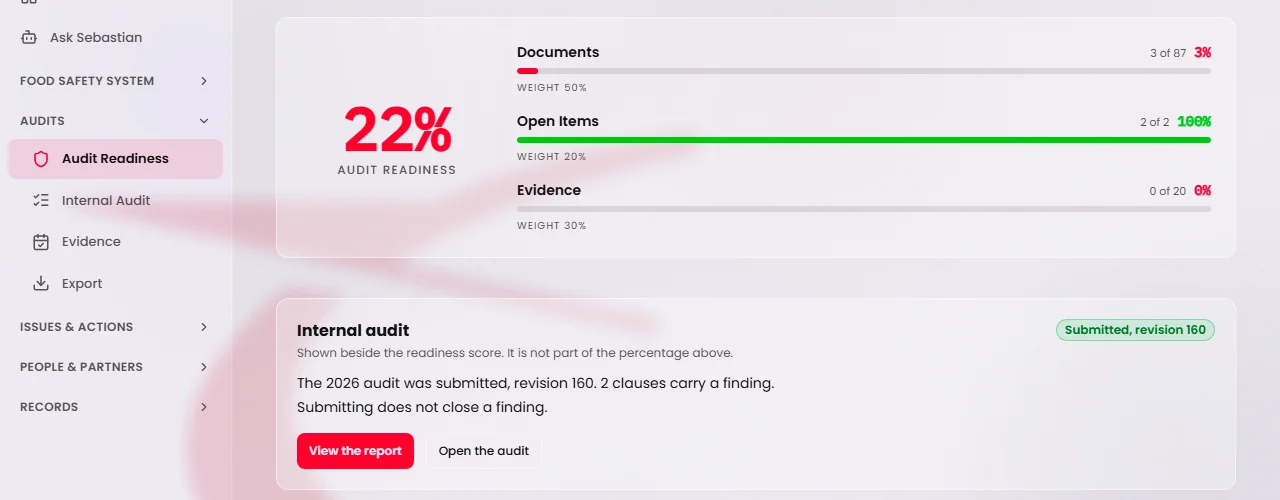
In the sidebar, open Audits and choose Audit Readiness. The Internal audit panel sits beside the readiness score. It reports on the current year's audit, and the year turns over at midnight Eastern.
Its badge reads Not started, In progress, Reopened, or Submitted with the revision number. A submitted audit says how many clauses carry a finding and that submitting does not close a finding. The panel links to View the draft report or View the report, Open the audit, or Go to Internal audit.
A site that only has the older clause checklist sees Older checklist in progress or Older checklist filed, with a link to it. Meridian does not read that checklist's answers here.
Tip
The panel is not part of the readiness percentage. It says so: “Shown beside the readiness score. It is not part of the percentage above.”