Meridian guide
Do the internal audit questions
Start the year's internal audit, work through its questions by section, and see what Meridian shows you and what only you can check.
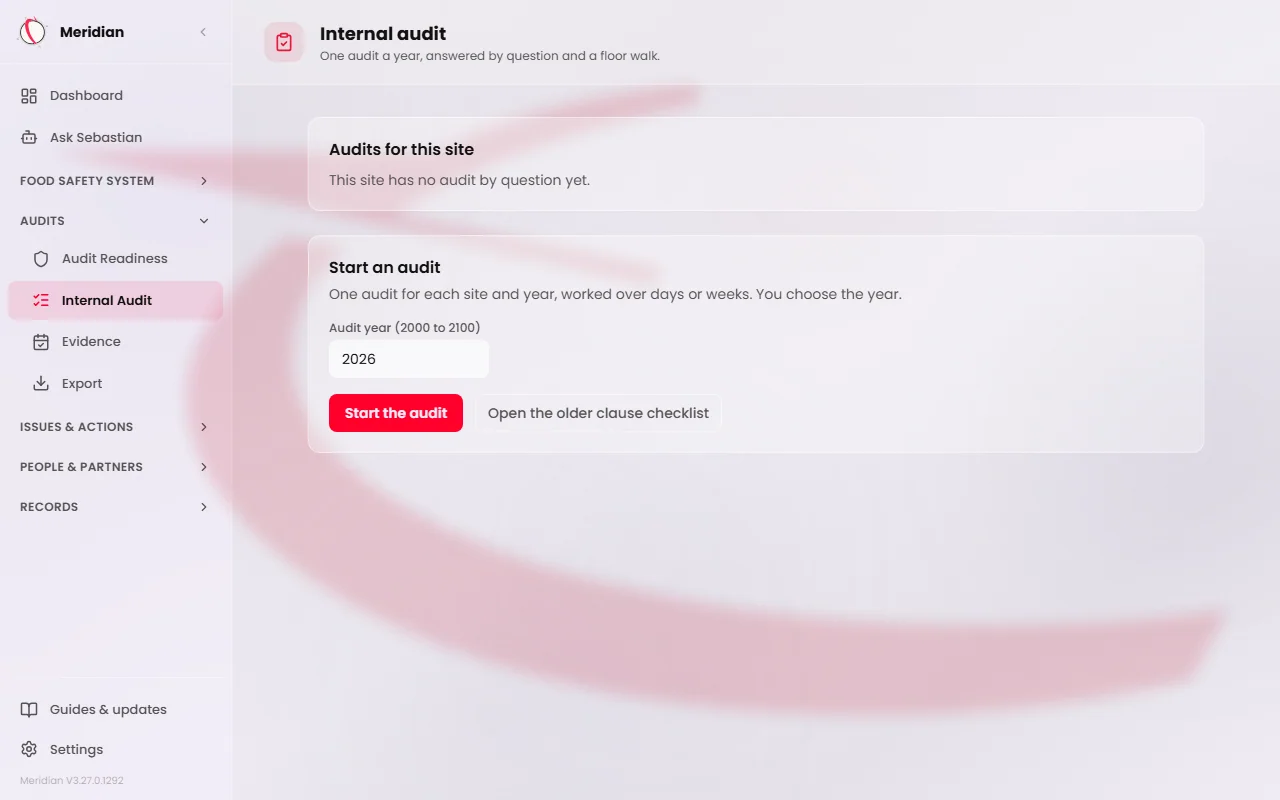
Start the year's audit
In the sidebar, open Audits and choose Internal Audit. The page lists this site's audits. In the Start an audit box, type the audit year and press Start the audit. A site keeps one audit for each year, and you can work on it over days or weeks. If the year already has an audit, the button changes to Open the audit for that year, for example Open the 2026 audit.
Anyone on the site team can answer: an admin, a site manager, the SQF practitioner or a contributor. A viewer can read the audit, and the page says “You can read this audit. Answering takes contributor access or higher.”
Tip
If the site has an older clause checklist that has not been filed, a notice says so. It does not stop you starting, and starting the new audit does not change or file the older checklist.
Read the audit home
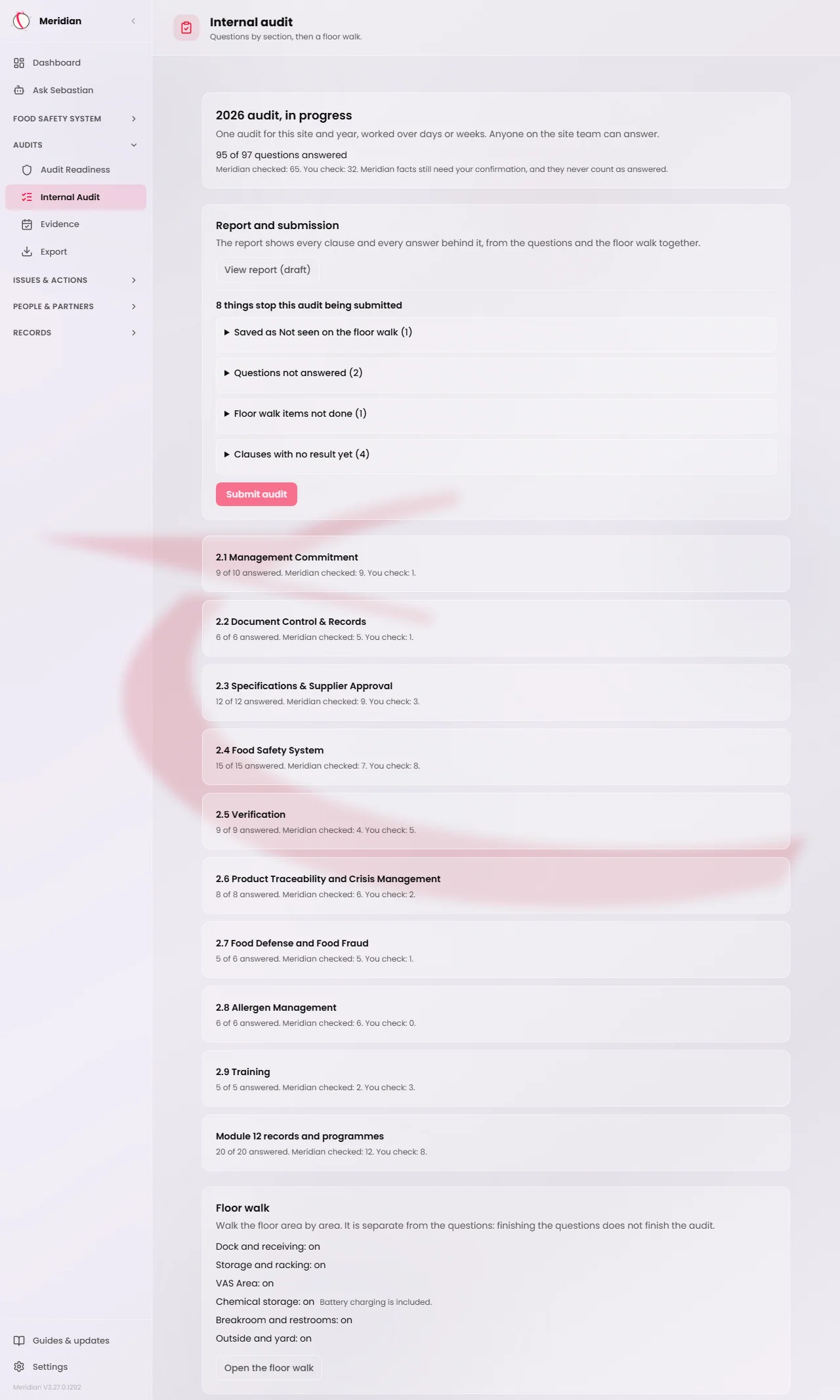
The audit home counts the questions answered. A question counts only when every clause on it has a saved verdict and a note or a file. Next to the count, “Meridian checked” and “You check” say where Meridian read something for a question and where it did not. Meridian facts still need your confirmation, and they never count as answered.
Below that is one row for each section: 2.1 to 2.9, then Module 12 records and programmes, and Module 11 records at a site that declared Module 11. Choose a section to open its questions.
The Floor walk panel is separate. Finishing the questions does not finish the audit. See Walk the floor for the internal audit.
Read a question
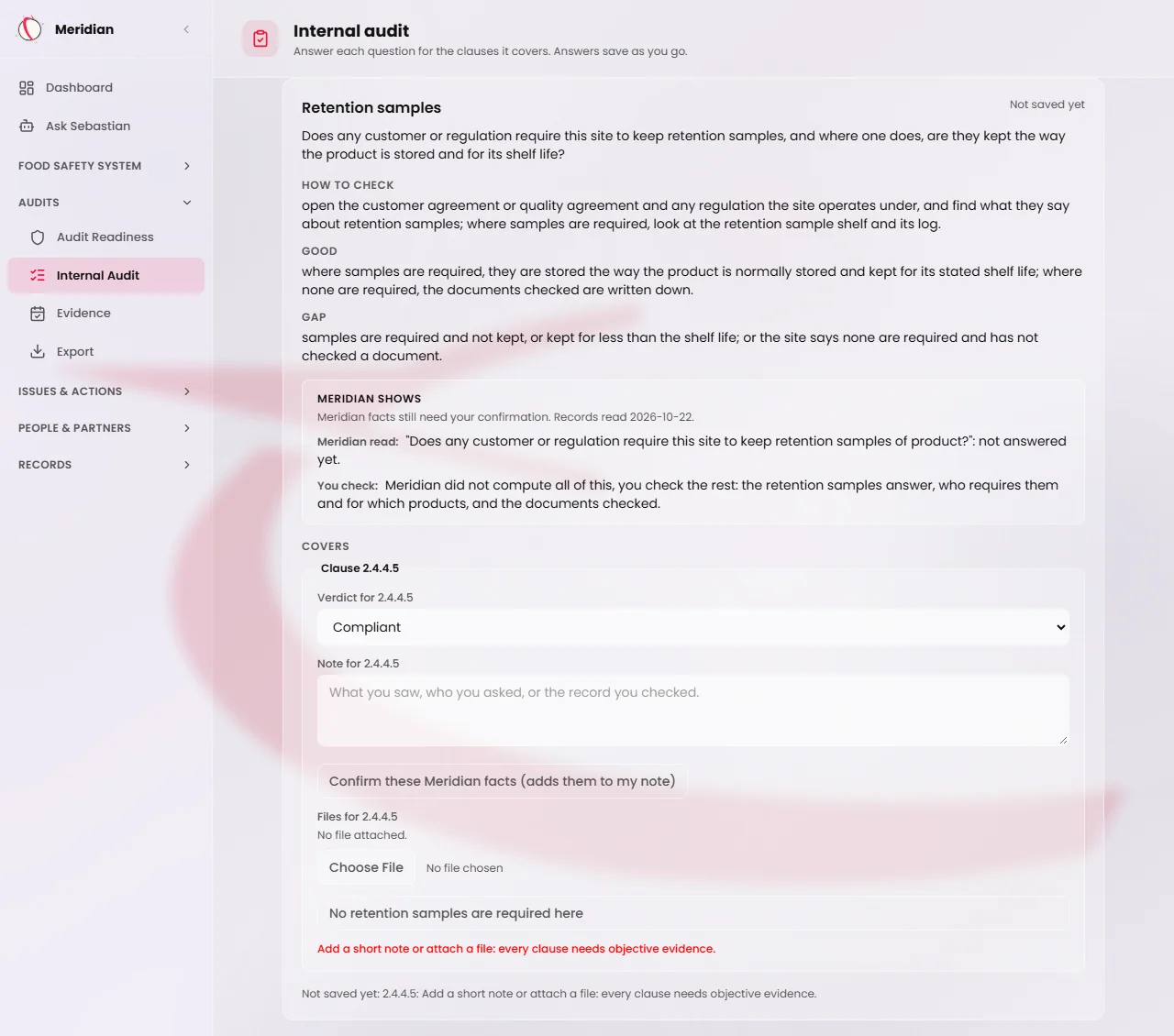
Each question card has a heading, the question itself, and the parts the question has: How to check, Good, Gap and Upload. Upload names a file to attach, when the question has one.
Under Covers, each clause the question settles has its own row with its own verdict, note and files. No clause is answered on behalf of another. At a site that declared Module 11, the Module 11 clauses get their own rows under Module 11 sites, and neither module's answer decides the other's.
See what Meridian shows and what you check
Where Meridian holds something that bears on the question, a Meridian shows box lists it from your documents, standing answers, training records and suppliers. Each line starts with a label. Meridian read is a record Meridian looked at. Could not read means the read failed, which is never a zero. You check is something Meridian does not work out and never estimates.
These lines are facts to check. They are never a verdict. If Meridian could not read the site's records, the box says so and you answer from your own checks.
Choose a verdict and write the note
For each clause, choose Compliant, Partially compliant or Non-compliant. Then write a note: what you saw, who you asked, or the record you checked. Or attach a file under Files for that clause. Open file shows it again later.
Every verdict needs a note or a file. Partially compliant and Non-compliant also need a note saying what was wrong, even when a file is attached. Remove beside a file takes it off that clause only. The file stays with the audit.
Caution
Not applicable is not in the verdict list. It comes only from a confirmed standing answer, as described below.
Confirm these Meridian facts
When Meridian read something for a clause, the clause shows a button, Confirm these Meridian facts (adds them to my note). Choose a verdict first. Until you do, the button is greyed out and the page says “Choose a verdict first. Meridian facts are never a verdict.”
Press it and Meridian adds the facts to that clause's note, under anything you wrote, and attaches the documents they cite. It works on one clause at a time.
Tip
Read each line before you press the button. What it adds becomes part of your note.
Mark a clause Not applicable from a standing answer
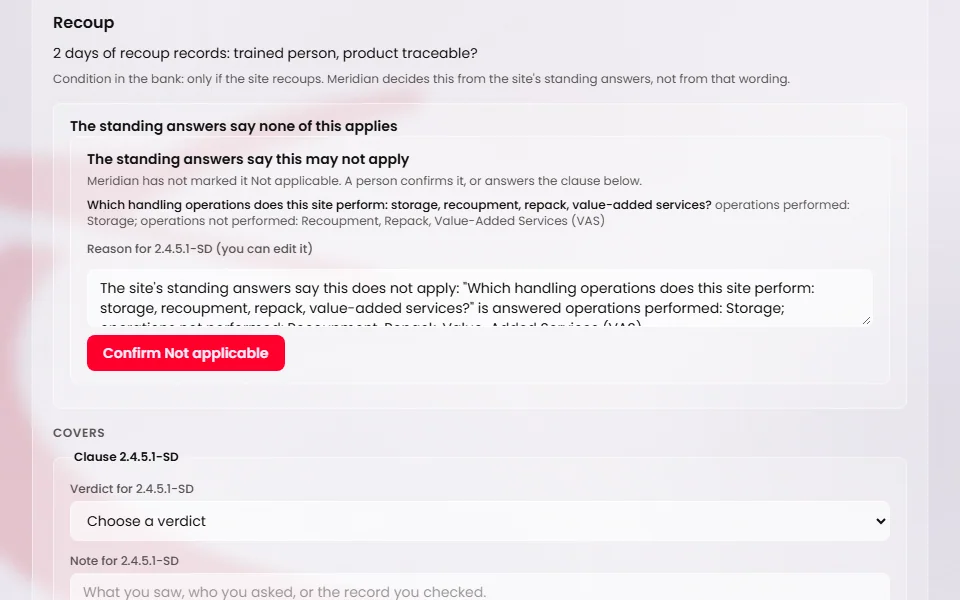
A clause is Not applicable only when a confirmed standing answer removes it. When one would, the clause says “The standing answers say this may not apply” and shows the answer behind it. Meridian has not marked anything. Read the reason, edit it if you need to, and press Confirm Not applicable.
When a standing answer removes every clause on a question, the card says “The standing answers say none of this applies” and one Confirm Not applicable covers the whole question. When it removes only some clauses, each of those clauses has its own button, and the choice is saved with the rest of the question. Answer this clause instead undoes it before then.
Once saved, the clause reads Not applicable with the standing answer behind it and who confirmed it and when. Module 2 clauses are never Not applicable. A question whose clauses are all Not applicable moves to the Not applicable list at the foot of the section, with the answer behind each one.
If the standing answer changes later, the clause reads “Standing answer changed - check this clause again” and counts as outstanding until you decide again.
Tip
Answering No for an operation your site does not do is what lets Meridian propose Not applicable for some clauses. See Answer Yes or No for each operation.
Let it save, and know what the messages mean
Each question saves itself shortly after you stop typing, once every clause on it has a verdict and a note or a file. The card says Saving, then Saved, and names who gave the answer and the day.
Not saved yet means something is still missing, and the card says what. Could not save offers Try saving again. Changed by someone else means another person saved the question first. Your text stays, and Show the saved answer instead lets you look at theirs. Nothing is overwritten.
Text you typed but did not save is kept in your browser tab for 12 hours, even if you leave the page. When you come back, a notice says “Unsaved draft restored. Not saved yet.” and offers Save and Discard. It is cleared when you save, discard or sign out.
Caution
Saving needs a connection. Closing the tab clears text that is not saved yet.