Meridian guide
Manage suppliers
Keep one record for each supplier: its type, risk, status, evidence and reviews. See what needs attention, and import a list from a spreadsheet.
Open the Suppliers page
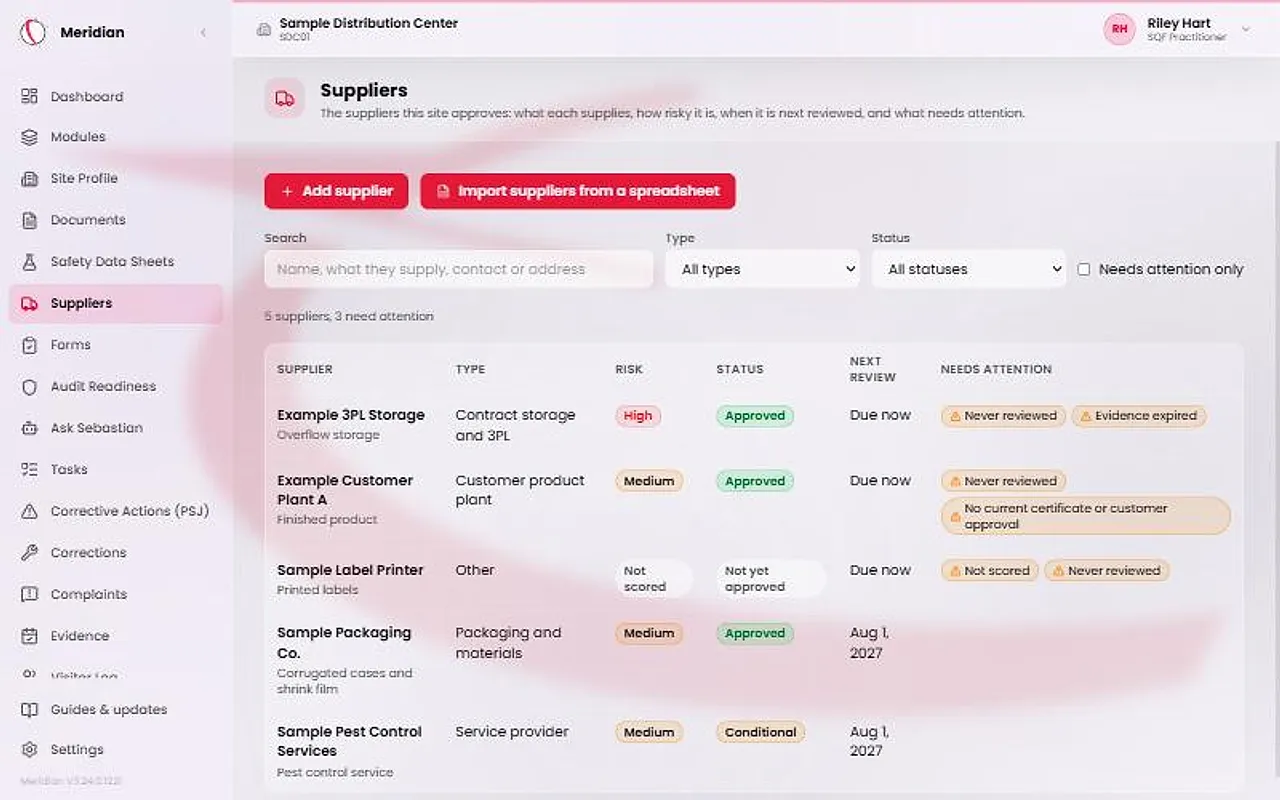
In the sidebar, open People & Partners and choose Suppliers. The page lists one record for each supplier and counts them, for example “5 suppliers, 3 need attention”. Everyone on the site can read it.
Admins, site managers, the SQF practitioner and contributors can add suppliers, evidence and reviews. A viewer can only read. Search by name, what a supplier supplies, contact or address, filter by Type and Status, or tick Needs attention only.
Add a supplier
Press Add supplier. Enter the Name, which is required, and choose the Type: Customer product plant, Packaging and materials, Service provider, Contract storage and 3PL, or Other.
Add what they supply, their address, contact name, phone and email. For a service provider, also describe the service and the training its staff need.
A new supplier starts as Not yet approved.
Score the risk and set the review frequency
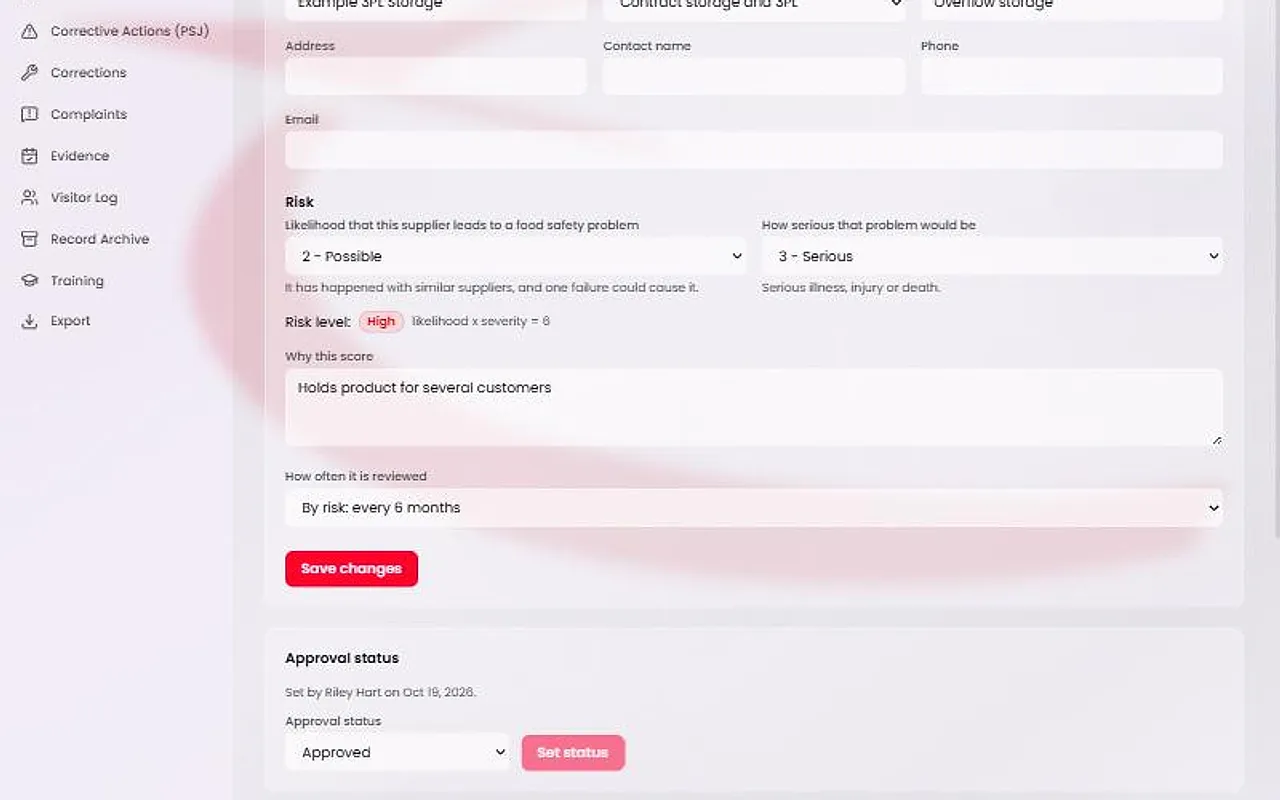
Open the supplier. Under Details and risk, choose the likelihood that this supplier leads to a food safety problem (1 - Unlikely, 2 - Possible, 3 - Likely) and how serious that problem would be (1 - Minor, 2 - Moderate, 3 - Serious). Write the reason in Why this score.
Meridian works out the risk level: likelihood times severity, with 1 or 2 Low, 3 or 4 Medium and 6 to 9 High. A supplier you have not scored shows Not scored, never Low.
How often it is reviewed starts at every 6 months for High, 12 for Medium and 24 for Low. Choose The site's own frequency to enter 1 to 60 months. A contract service provider is reviewed at least every 12 months, whatever you enter.
Set the approval status
Under Approval status, site leadership chooses Approved, Conditional, Not approved or Emergency only, then presses Set status. The page shows who set it and when.
A contributor can add and describe a supplier but cannot approve it.
Attach evidence
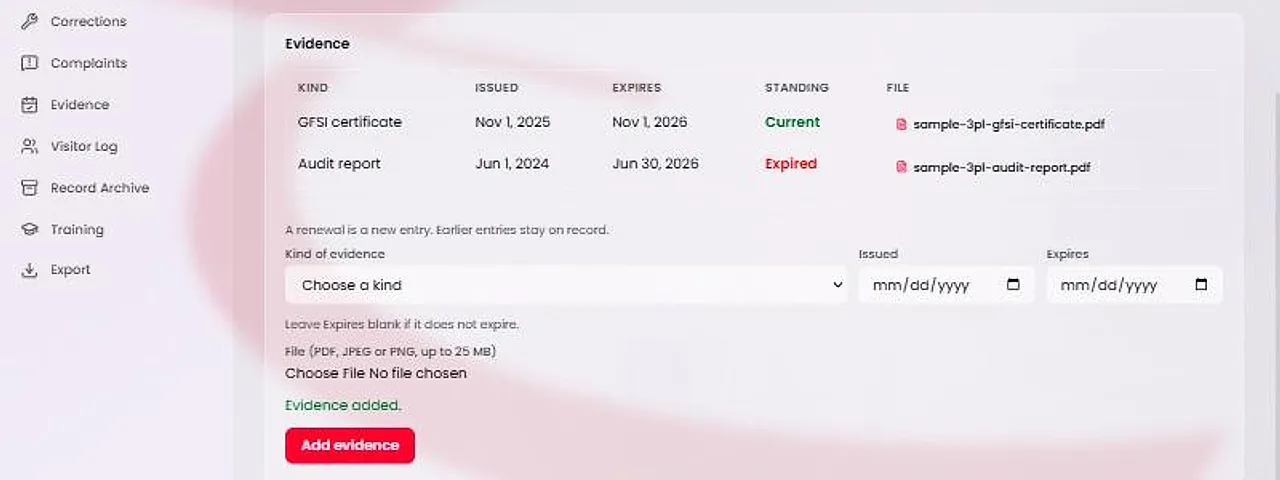
In Evidence, choose the Kind of evidence: GFSI certificate, Customer approval, Certificate of analysis, Audit report, Agreement, License or Other. Enter the Issued date and the Expires date, and leave Expires blank if it does not expire. Choose the file, a PDF, JPEG or PNG up to 25 MB.
A renewal is a new entry. Earlier entries stay on record, and nothing is ever deleted. Each entry shows Current or Expired.
For a customer's product plant, the evidence is a current GFSI certificate obtained through the customer, or else the customer's written approval.
Record reviews
In Reviews, enter the day under Reviewed on, choose the Outcome, Satisfactory, Action required or Not satisfactory, and add Notes. Reviews cannot be changed or removed. Record a new one when the supplier is reviewed again.
The next review is the last review plus the review frequency. A supplier that has never been reviewed shows Due now.
Act on the flags, or import a list
A supplier that needs attention shows flags: Not scored, Never reviewed, Review overdue since a date, Evidence expired, or, for a customer's product plant, No current certificate or customer approval. Meridian sends no email or reminder, so open the page to see them.
To add or update many suppliers at once, press Import suppliers from a spreadsheet and choose an .xlsx, .xls or .csv file. A preview shows every row and every warning before anything is saved.
A new supplier starts as Not yet approved, and a status column in the file is never read. The guide Import suppliers from a spreadsheet covers the columns, scores, reviews and updating suppliers that are already on the list.