Meridian guide
Walk the floor for the internal audit
Walk the six areas, record Meets, Gap or Not seen for each item, add photos from a phone, and switch an area off or add your own.
Open the floor walk
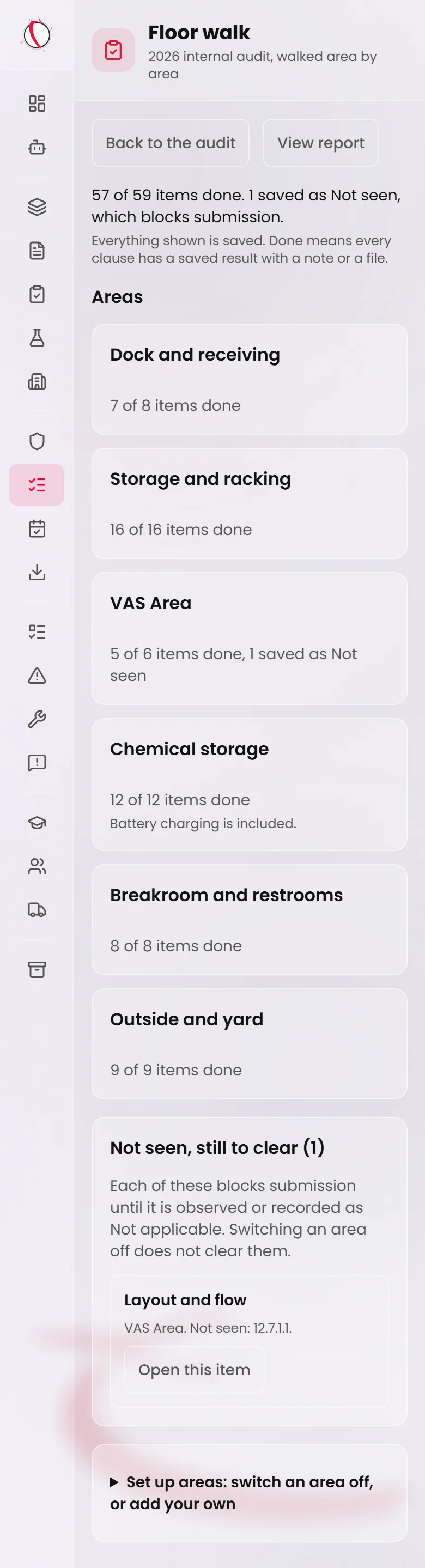
Open the year's audit and press Open the floor walk in the Floor walk panel. The page is built for a phone and works on a computer too. The panel lists the six areas and whether each is on or off.
The areas are Dock and receiving, Storage and racking, VAS Area, Chemical storage (battery charging is included), Breakroom and restrooms, and Outside and yard. Under Areas, each one shows a line such as “3 of 11 items done”. Done means every clause on the item has a saved result with a note or a file.
Open an area and an item
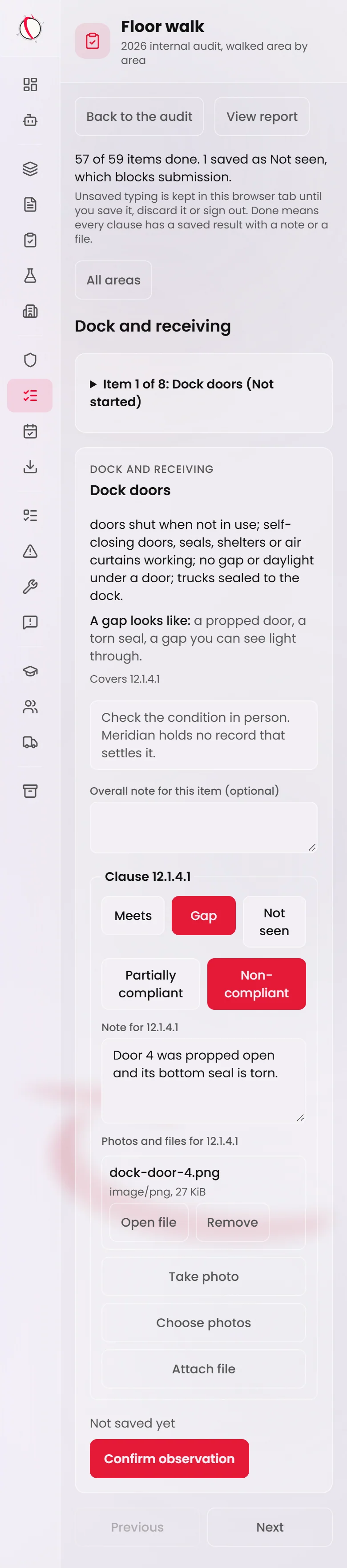
Choose an area. The page shows one item at a time, starting at the first item that is not done. Use Previous and Next to move, or open the list at the top, which reads like “Item 2 of 11”, to jump to an item. All areas takes you back.
Each item shows its area, what to look for, “A gap looks like:” and Covers, the clause numbers it settles. If Meridian holds records that bear on the item, they are listed too. If not, the card says “Check the condition in person. Meridian holds no record that settles it.”
Record Meets, Gap or Not seen
Each clause on the item has three buttons: Meets, Gap and Not seen. Nothing is chosen for you.
Meets: add a note, or a file. Say what you saw, who you asked, or the record you checked. Gap: choose Partially compliant or Non-compliant, and describe the gap in the note. Not seen: explain what stopped you seeing it and who can show you. The clause is saved for follow-up and is not audited yet.
At a site that declared Module 11, each Module 11 clause is its own row under Module 11 sites, with its own Check line. Neither module's answer decides the other's.
Caution
A clause saved as Not seen stops the audit being submitted until it is observed.
Add photos and files
Under each clause, Take photo opens the phone's camera where the browser allows it. Choose photos opens the gallery and takes several at once. Attach file takes any file Meridian accepts, such as a PDF or a spreadsheet. Photos must be JPEG, PNG or HEIC, up to 25 MiB.
A file counts only after it has uploaded and attached. While it uploads, the clause says Uploading and the file name. If it fails, the clause says why and offers Try again or Dismiss, and the file is not on the clause. Remove takes a file off that clause only. Nothing already stored is deleted.
Tip
The overall note for the item is optional. Use this note for all observed clauses copies it onto each clause that has a result and no note yet. It never replaces a note you wrote.
Confirm the observation
Press Confirm observation at the bottom of the item. The floor walk does not save while you type. The card says Not saved yet until you confirm, then Saved. If a file is still uploading, wait for it to finish.
If a clause is missing something, the card says “Some clauses need attention before this can be confirmed.” and shows what each one needs, for example “Choose Meets, Gap or Not seen.” or “Describe the gap.”
Text you typed but did not confirm is kept in your browser tab for 12 hours, and comes back with “Unsaved draft restored. Not saved yet.” and the choice to Save or Discard. If someone else confirmed the same item first, the card says “Someone else saved this after you opened it.” Your text stays and nothing is overwritten.
Clear the items saved as Not seen
An item saved as Not seen blocks Submit. On the area list, Not seen, still to clear lists every one, in every area, with a count. Press Open this item, observe the clause, and confirm Meets or Gap.
An item in a switched-off area is listed too, because switching an area off does not clear it. If the standing answers have since made every clause of an item Not applicable, the item offers Save as Not applicable. The Not seen marker stays until you save it.
Switch an area off or add your own
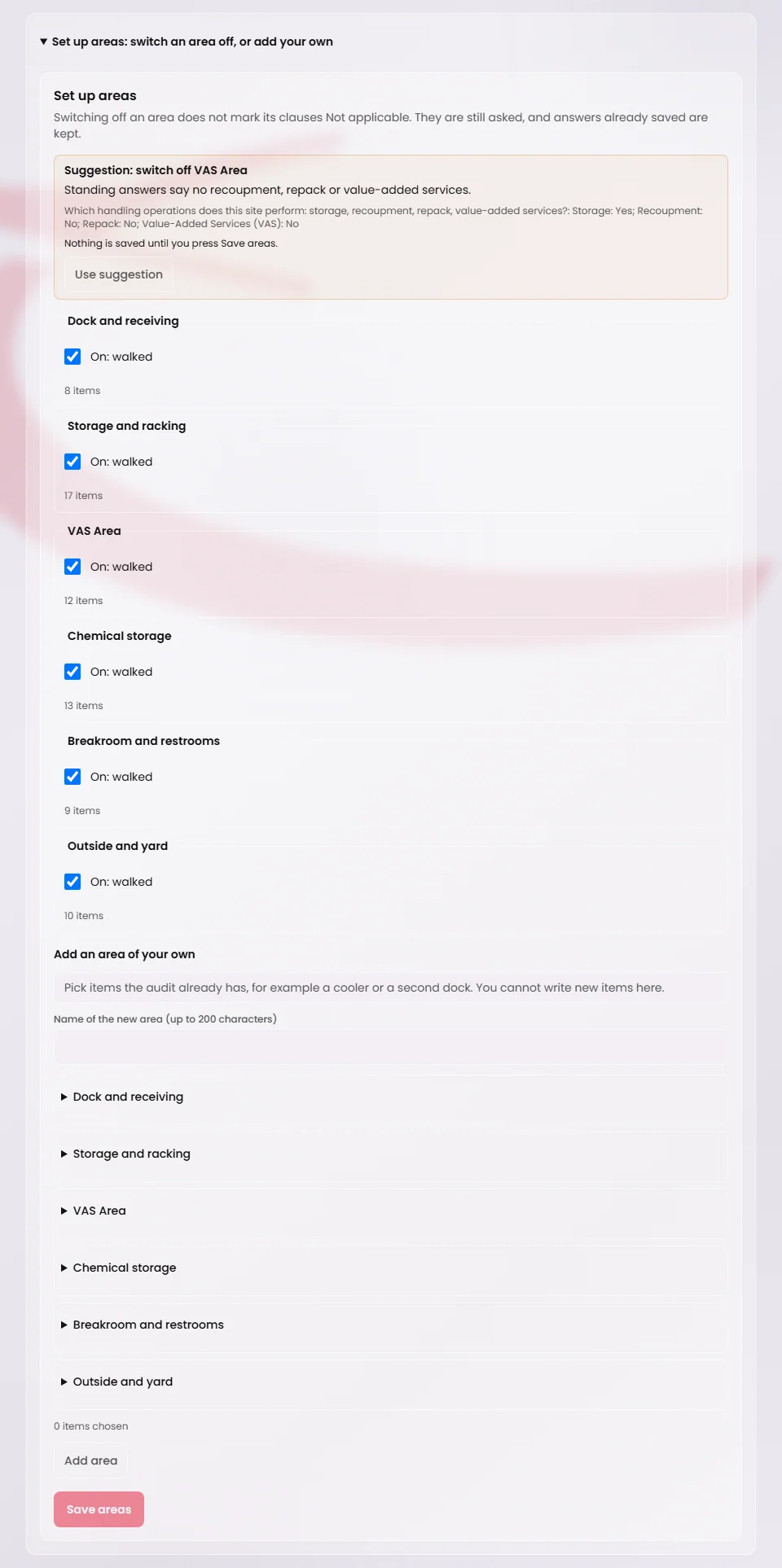
On the area list, open Set up areas: switch an area off, or add your own. Nothing is saved until you press Save areas.
To switch an area off, untick its box, which reads “On: walked”, and write why in Why is it off? A reason is required. Switching an area off does not make its clauses Not applicable. They are still asked, answers already saved are kept, and the page names any clause only that area covers. Switch the area back on, or put its item in an area of your own.
To add an area of your own, name it under Add an area of your own, tick the existing items it should hold, such as a cooler or a second dock, and press Add area. You cannot write new items. A site can add up to 20 areas.
When the Operational Profile answers No to Recoupment, Repack and Value-Added Services (VAS), a note reads “Suggestion: switch off VAS Area” and shows the answers behind it. Use suggestion fills in the form with the reason, and you still press Save areas. A blank answer is never read as No, and VAS Area is the only area Meridian ever suggests switching off.
Tip
The suggestion appears only after the site has answered No for those three operations. See Answer Yes or No for each operation.