Meridian guide
Build the Hazard Analysis Workbook
Describe your product risk groups, score each hazard, list your CCPs and preventive controls, import a spreadsheet if you keep one, and approve the workbook.
Open the workbook and state its scope
The Hazard Analysis Workbook is the hazard analysis that section 4.5 of the HACCP Plan refers to. Add it with the banner on the Documents page if your site does not have it, then open it.
Section 1.0 asks for three things in your own words: Scope, Key assumption about product exposure, and Data notes (verify before approval). Scope and the key assumption are required. Meridian never states your products, hazards or controls for you.
Describe the product risk groups
Section 3.0 holds one row for each group of products. Give each a Group ID, a name, examples, primary packaging, built-in safety barrier, consumer use, shelf life, storage requirement and any regulatory or process note.
The SKUs and SKUs with allergens columns are counted from your Material List. You do not type them.
Score the hazards
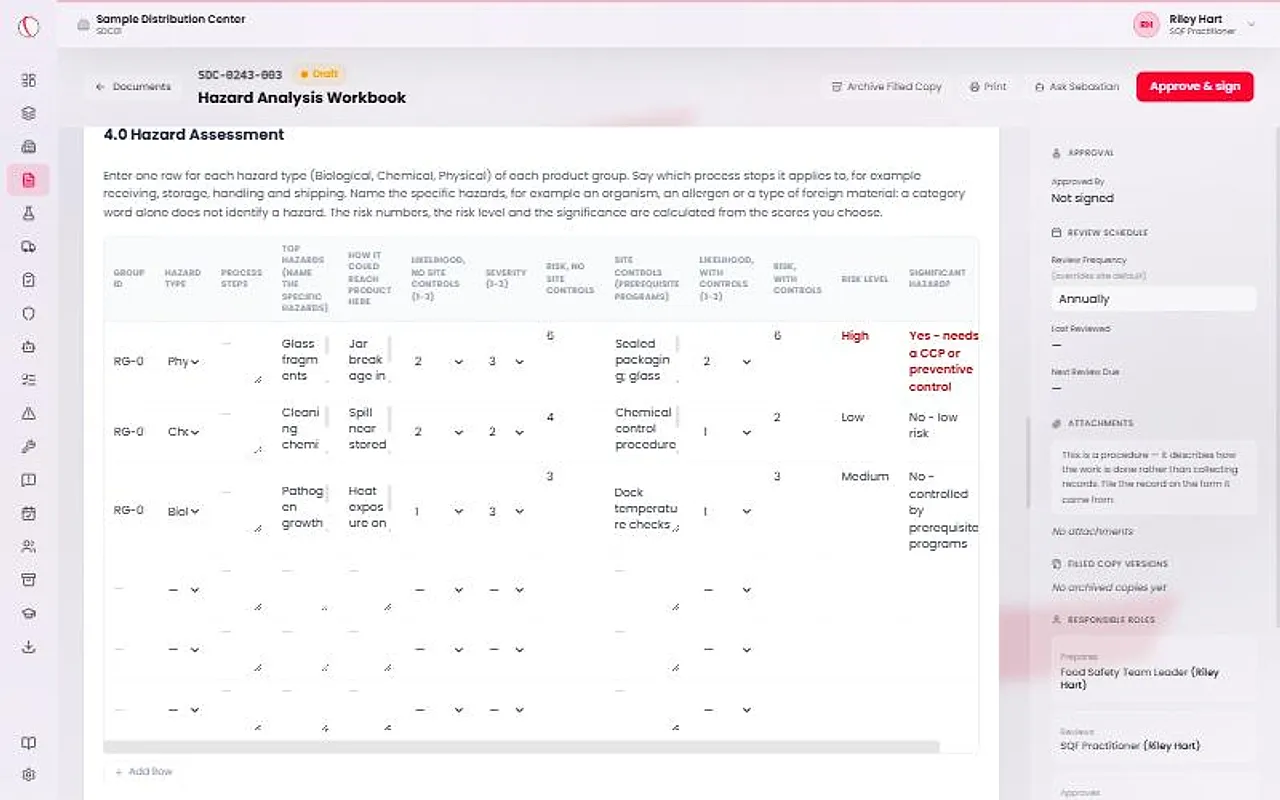
Section 4.0 holds one row for each hazard type, Biological, Chemical or Physical, for each group. Use the same Group ID. Name the specific hazards. A category word alone does not identify a hazard.
Choose Likelihood, no site controls, Severity and Likelihood, with controls, each from 1 to 3. List your site controls.
Meridian works out the risk. It multiplies likelihood by severity: 1 or 2 is Low, 3 or 4 is Medium and 6 to 9 is High. A hazard is significant when it is still High with your site controls in place, and a significant hazard needs a CCP or a preventive control.
Caution
You cannot type a risk number. The screen, the print and the summary all use the same arithmetic, so they always agree with the scores you chose.
List the CCPs and preventive controls
Section 5.0 is the register. Give each control a Control ID, choose its Type, CCP or Preventive control, and name the Group ID and hazard type it controls. Then fill in the critical limit, monitoring, frequency, who monitors, corrective action, verification, records and validation.
A significant hazard counts as covered only by a row with a type, the same Group ID and the same hazard type. If your analysis found no significant hazards, tick “No CCPs or preventive controls are needed: no significant hazards were found.”
Import a spreadsheet
If your site keeps its hazard analysis in a spreadsheet, site leadership can press Import from spreadsheet (.xlsx) while the workbook is a Draft or Under Review. Meridian finds columns by their names, not their positions.
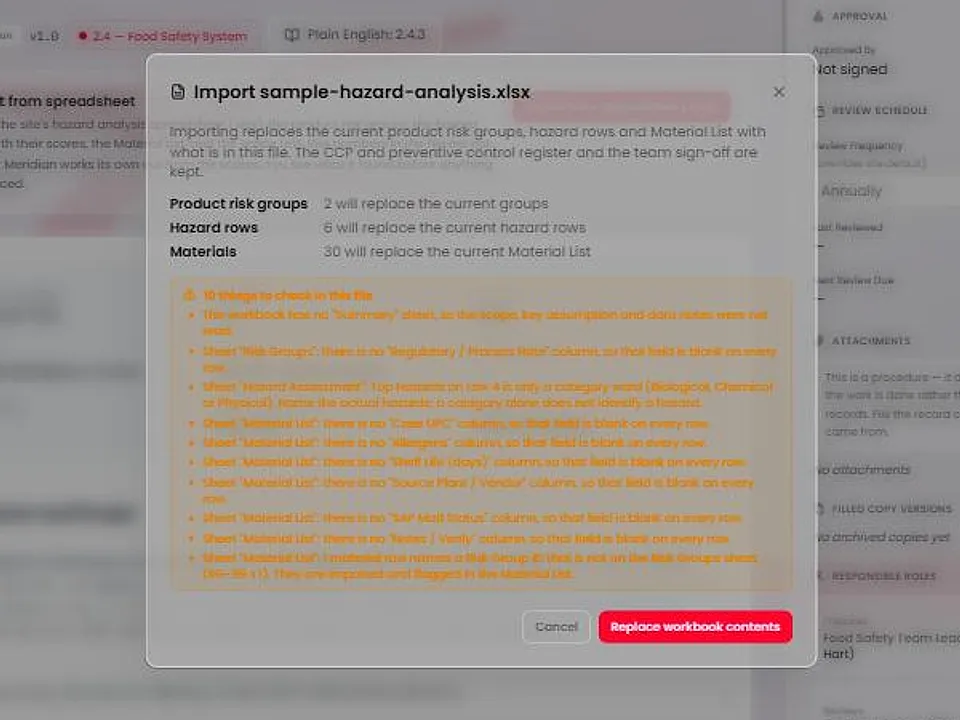
A preview opens first. It counts the groups, hazard rows and materials it found and lists everything to check. Press Replace workbook contents to go ahead, or Cancel to change nothing.
The import replaces the product risk groups, the hazard rows, the Material List and the scope text. The CCP and preventive control register and the sign-off are kept. Risk numbers in the file are not copied. Meridian works out its own.
Caution
If two columns could be the same field, for example Severity and Severity (1-3), the import is blocked until you rename one of them.
Search the Material List
Below the workbook on screen, the Material List holds your SKUs. Search by material number or description, filter by risk group, and page through 100 rows at a time. Press Download CSV to save the rows shown.
A row whose group is not in your product risk groups is flagged. The printed workbook shows only the SKU counts for each group and the total.
Read the warnings and approve
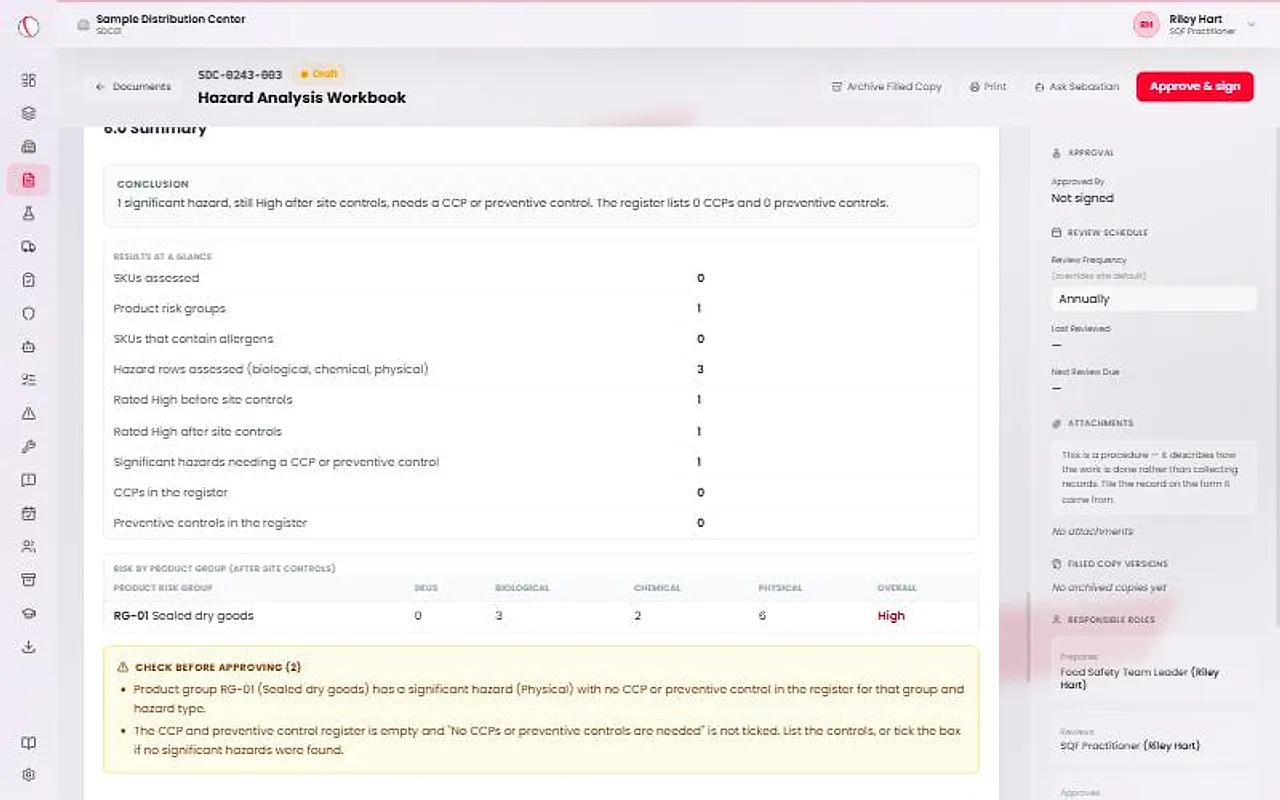
Section 6.0 shows results at a glance, risk by product group and a conclusion. Under it, Check before approving lists what to look at: a significant hazard with no control in the register, an empty register where nobody has said none is needed, hazards named only by category, and similar.
The warnings do not block approval. When you are satisfied, site leadership presses Approve & sign. Once the workbook is Active, it and its Material List are locked until Start revision.