Meridian guide
Print the OS&D Hold Entry
Answer one Site Profile question, approve the OS&D Hold Entry, print it on one page, and keep the filled sheets on your site's own OS&D board.
Answer the Site Profile question
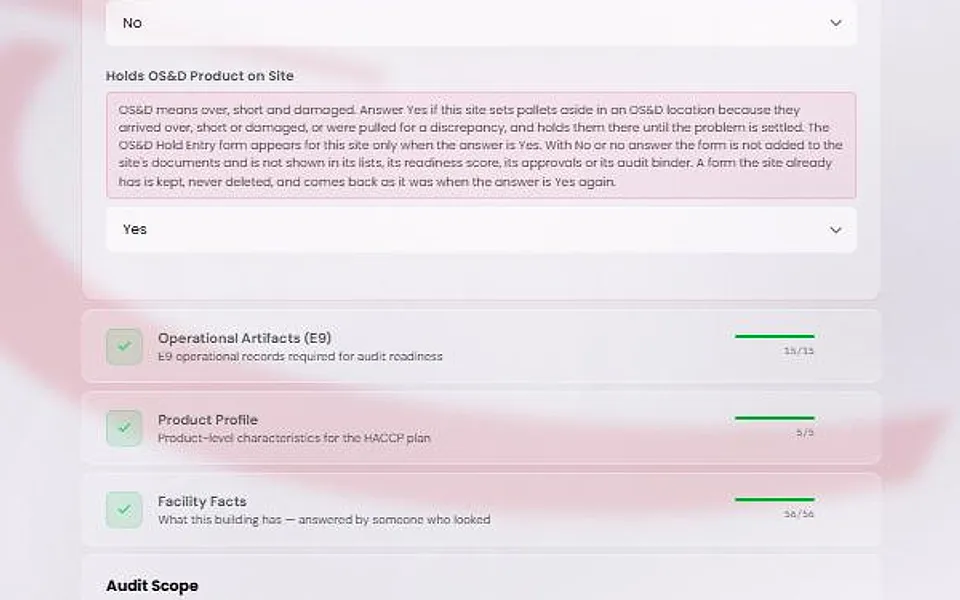
Open Site Profile, then Operational Profile, and set “Holds OS&D Product on Site”. OS&D means over, short and damaged. Answer Yes if your site sets pallets aside in an OS&D location because they arrived over, short or damaged, or were pulled for a discrepancy, and holds them there until the problem is settled.
With Yes, the OS&D Hold Entry is available to your site. With No, or no answer, the form is hidden everywhere, and nothing is deleted.
Add the form
On the Documents page, press the Add button in the new documents banner. The OS&D Hold Entry appears in your list. See the guide on adding the new documents.
Approve it
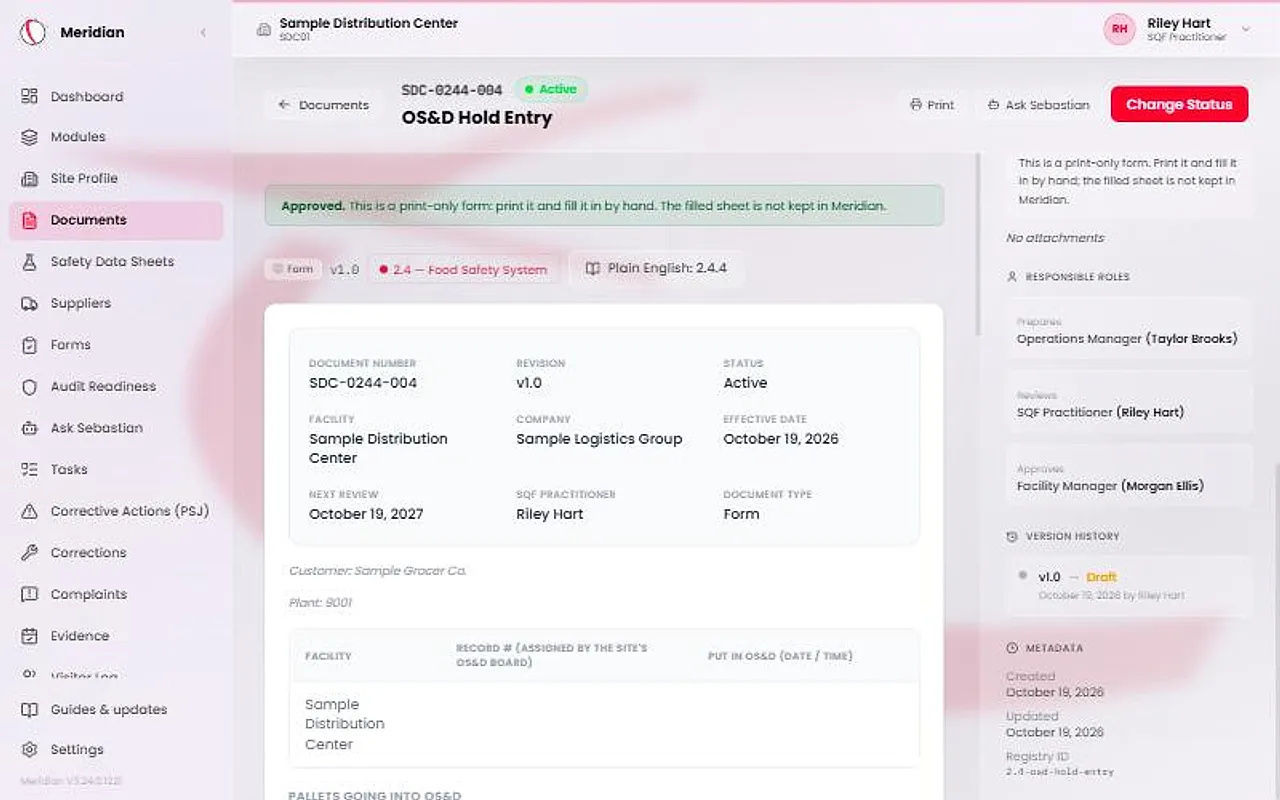
Open the OS&D Hold Entry. The page shows the blank form, read-only. Until it is approved, a banner says “Not approved yet”. Site leadership presses Approve & sign.
Meridian fills in the facility, customer and plant from your Site Profile, the approver from Approve & sign, and the document number from its own numbering.
Print one page
Press Print. The sheet prints on one page and carries the control footer. Print as many copies as you need and fill them in by hand.
The sheet has a Record # that your site's OS&D board assigns, the date and time put in OS&D, up to eight HU numbers, the material, batch and quantity, a reason, a status, notes, who added it, and a Resolve block.
Caution
Meridian holds only the blank form. The page cannot be filled in, saved or filed, and the form is not on the Forms menu or the forms QR page.
Keep the filled sheets on your OS&D board
Filled sheets go into your site's own OS&D board, which assigns the record number. Meridian does not file or keep them.
To stop using the form, change the Site Profile answer to No. The form is hidden, not deleted, and it returns as it was if you answer Yes again.