Beacon VTS as sculpture: a faceted concrete and brushed-steel polyhedron with a glowing amber core.

No. 01

Beacon VTS

Visibility · 2024

Concrete, brushed steel, production data.

Multi-facility production tracking for Value Added Services.

“Every build, every hour, every facility — accountable.”

$432,000+ in documented cost avoidance.

On view · Live

Visit live site

Beacon VTS is the production tracking platform for Ryder Supply Chain Solutions' Value Added Services network. It connects build schedules, labor allocation, hour tracking, and material consumption into a single tenant-aware system that operations leaders can actually trust. Originally built for Buckner DC, Beacon now serves multiple facilities across the VAS footprint and has documented over $432,000 in cost avoidance since launch.

  1. Build Schedule

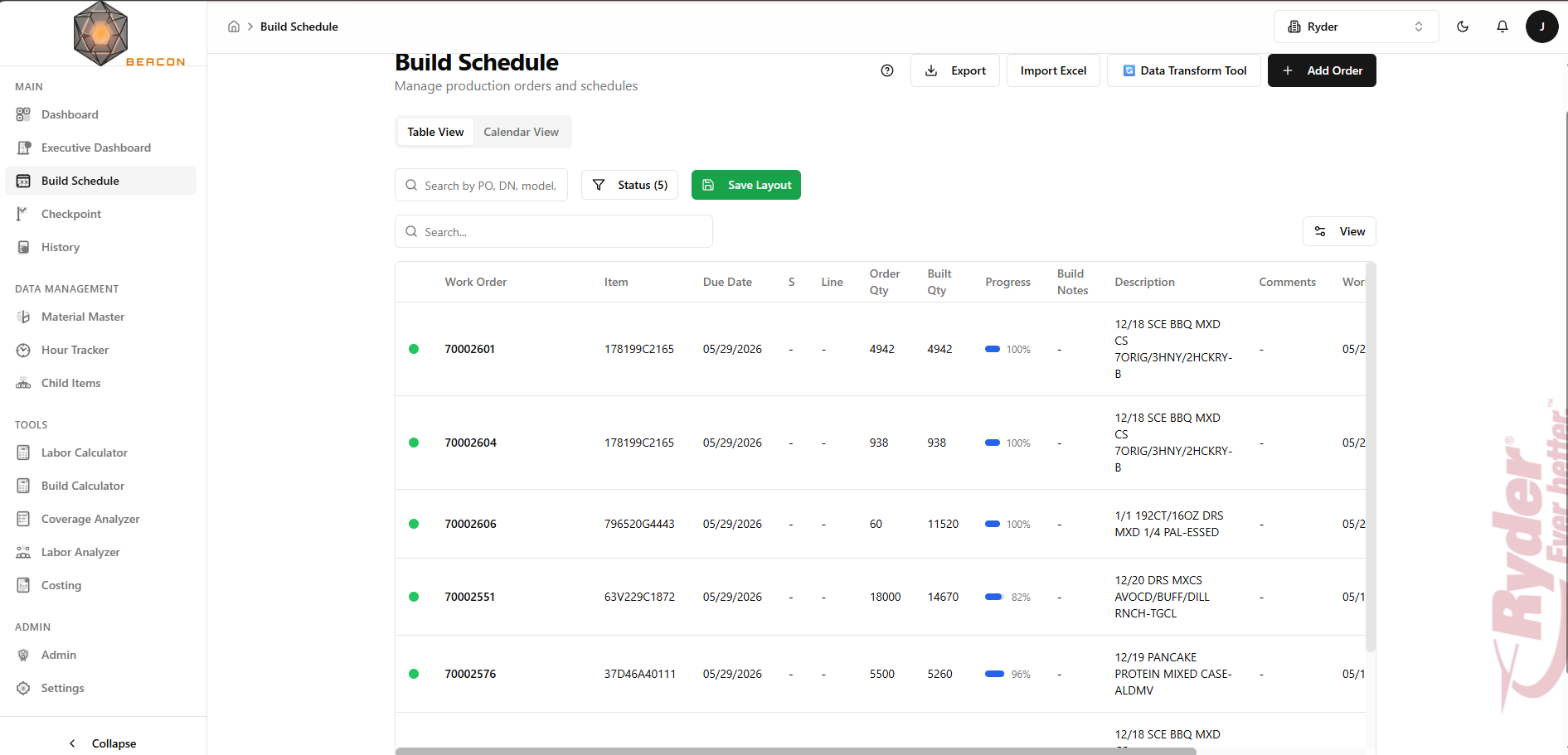
    Production runs across facilities with Excel imports, calendar and table views, and real-time status. The single source of truth for what's being built and when.

  2. Hour Tracker

    Capture labor against active build orders. Multi-job tracking, scheduled worker assignments, and daily export to payroll-ready formats.

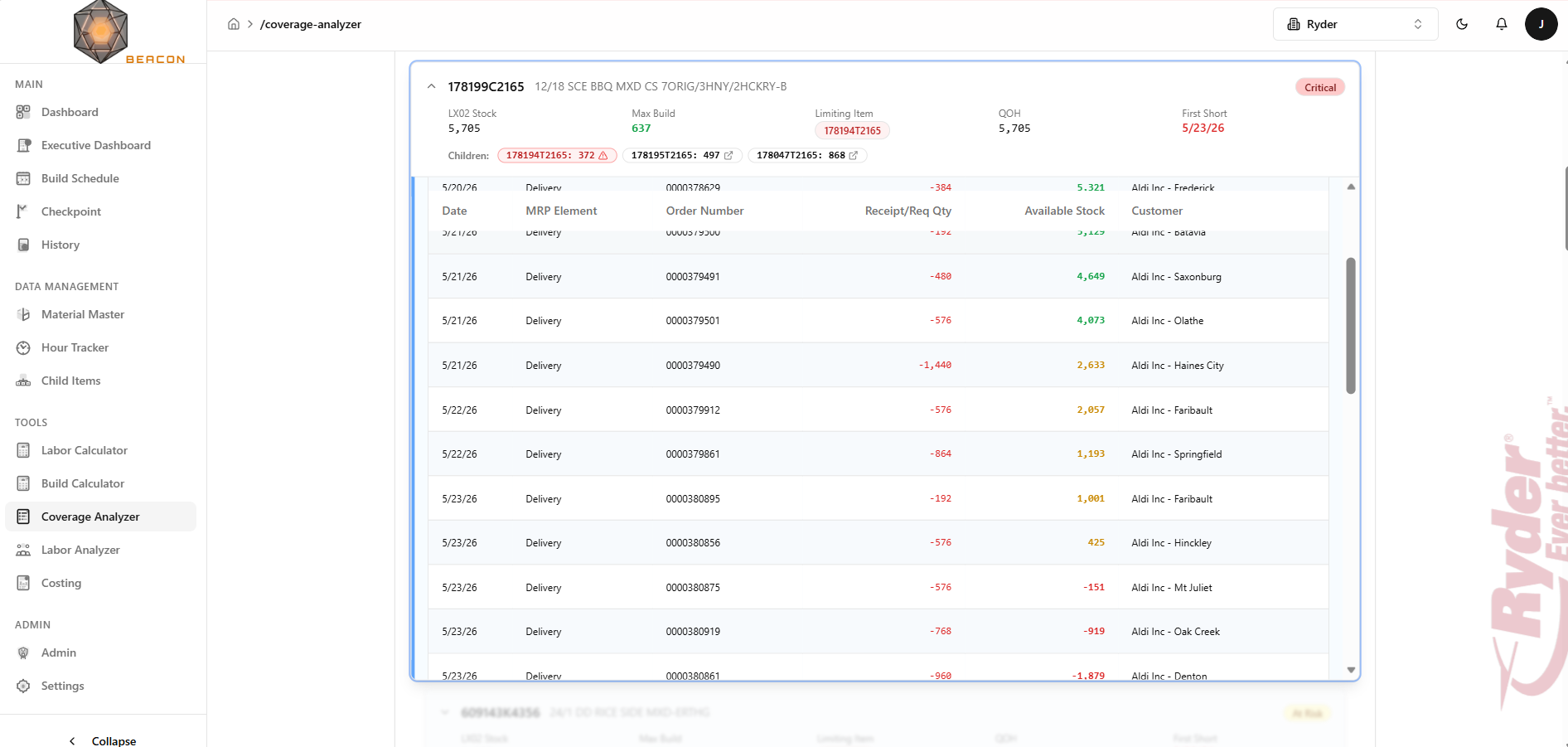
  3. Coverage Analyzer

    Material coverage analysis with SAP integration. Identifies child-item shortages against the build schedule before they hit the floor.

  4. Labor Calculator

    Per-shift staffing models against forecast demand. Plans labor cost before the schedule is committed.

  5. Material Master

    Centralized child item catalog with PAI (Process Assembly Instructions) and embedded assembly images.

  6. Executive Dashboard

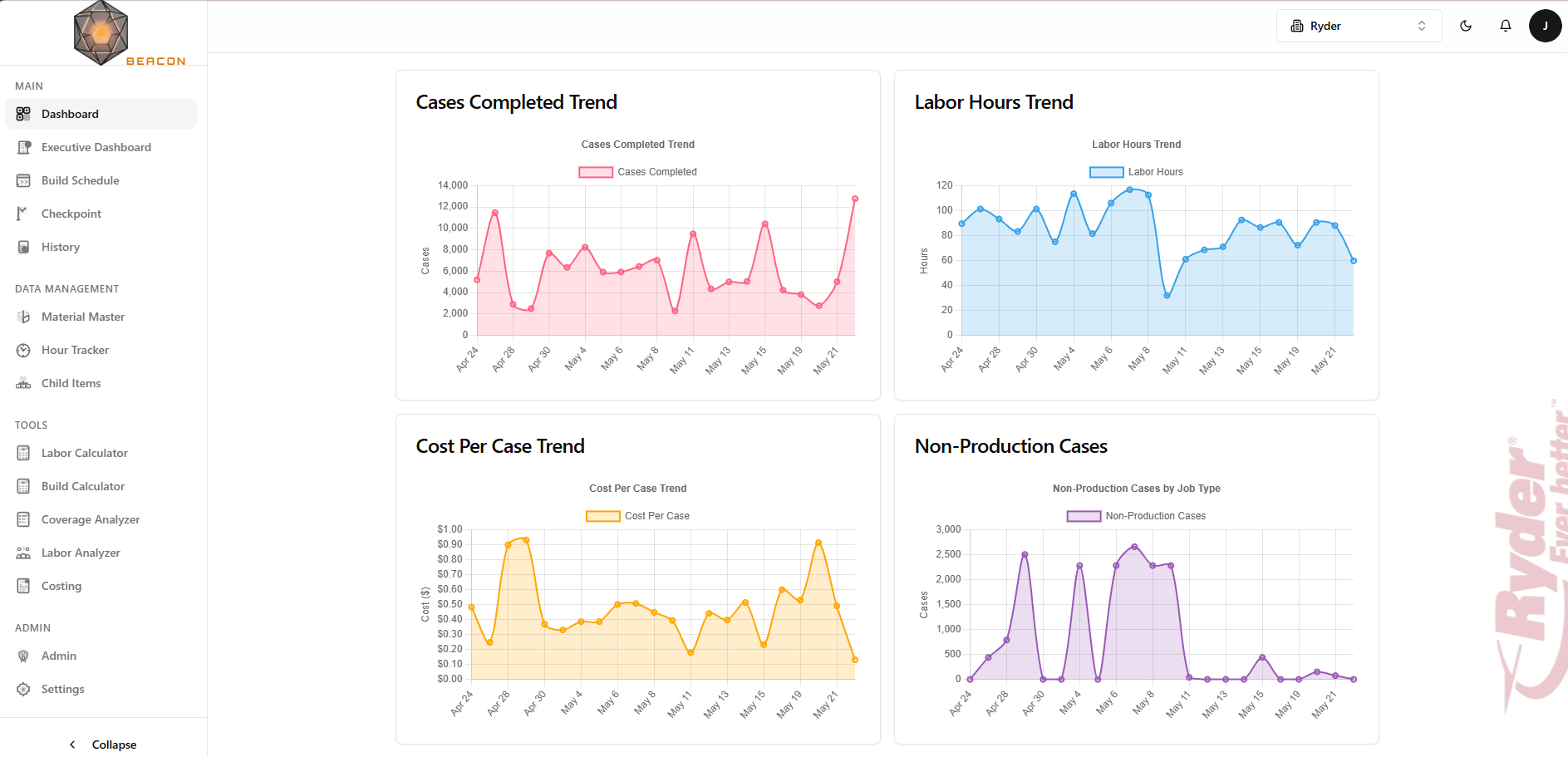
    Cross-facility KPI rollup for leadership — throughput, cost, efficiency, and quality at a glance, drillable to site level.

  7. Checkpoint

    Real-time build progress with popout displays designed for floor monitors.

  8. History

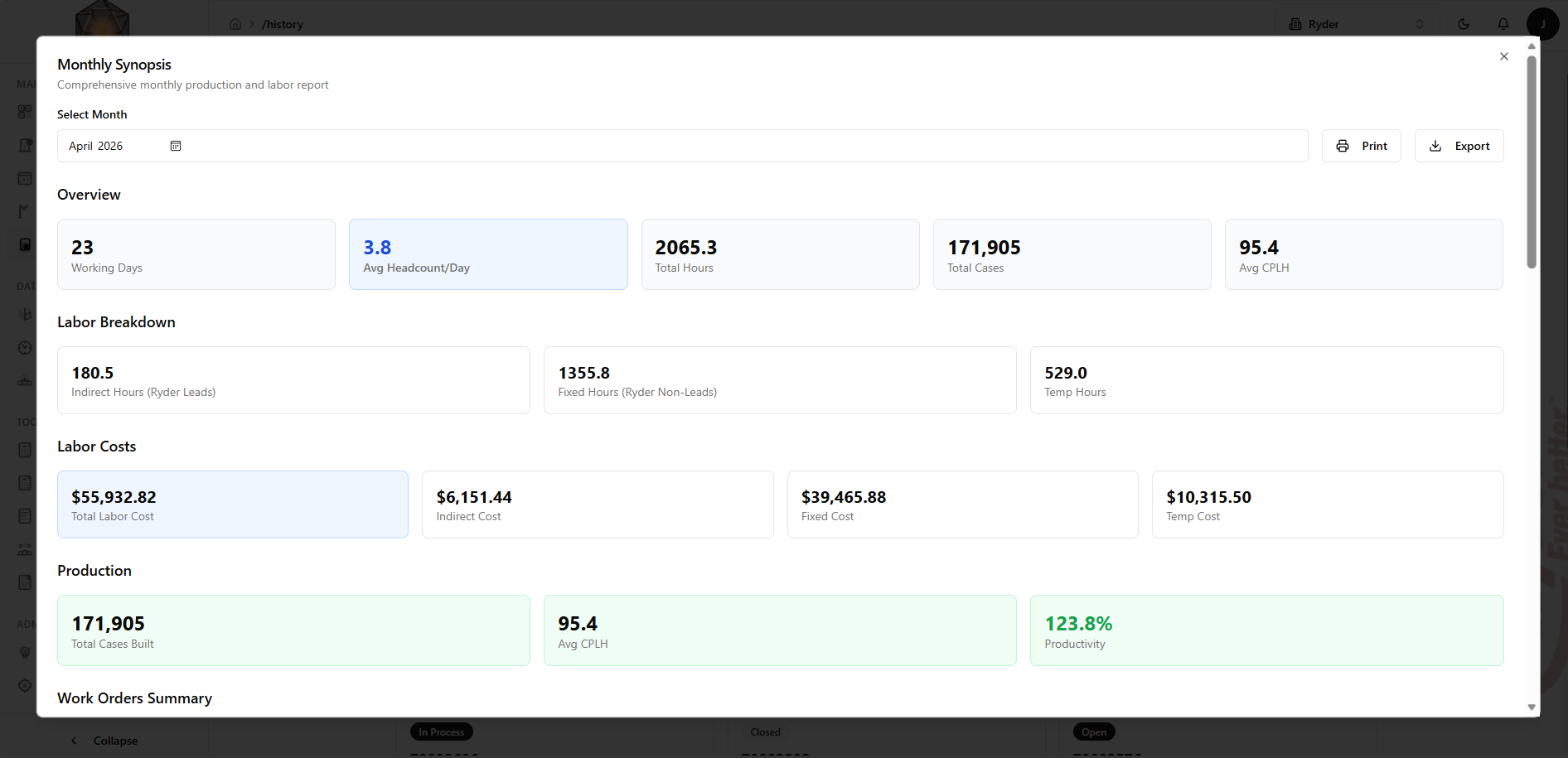
    Daily, monthly, and yearly synopsis reports with PDF and Excel export. The audit trail for every build that ever ran.
  1. 2.165.0

    New

    How-to
    • SKU page, Stages: the last (finishing) stage now has a Crew box. Leave it blank and it runs with the SKU's crew, as before. Type a number (for example 5 for “Pack shippers”) and that stage runs with that crew.
    • That crew is used everywhere the stage runs: Labor Planner blocks and the order tray, Suggest schedule, the crew prompt on Start Line, Changeover and Pull Forward, console and board pace, and Shift Review's planned crew and run time.
    • The finishing stage now shows its clock hours on the SKU page, like earlier stages.
    • Fixed: Shift Review's plan for a finishing-stage order uses the SKU's pallet size instead of leaving planned pallets blank, and the plan saved at Wrap up PO matches the one Shift Review shows.
  2. 2.164.0

    New

    How-to
    • Checkpoint Live: Start Line and Changeover offer stage work (for example “60170116 · Fill inners — 1,320 inner displays”). The crew prompt suggests the stage's crew, and Pallet Complete counts the stage's own unit and pallet size.
    • One line can change over from one stage to the next, and two lines can run two stages of the same PO at the same time. Each stage is wrapped up on its own.
    • Line totals on the console, line cards and boards count finished units only. A line that ran only stage work shows its stage units against its stage plan instead of 0.
    • Boards: an earlier stage's goal rate, target and order progress use the stage's own standard and unit; the finishing stage's goal uses its own steps only. TV boards show stage progress too.
    • Shift Review shows one row per PO and stage, posts one record per PO and stage, and lists stage records on the receipt. Only finished units count toward Built Qty and “Close finished orders”.
    • Daily Synopsis and its email add a “Stage work” table. CPLH leaves stage hours out, and History's CPLH matches.
    • Fixed: submitting Shift Review no longer trims a later stage block against the finished units left; dropping a finishing-stage order on the planner sizes it with the SKU's crew.
  3. 2.163.1

    Fix

    How-to
    • Labor Planner: saving the plan keeps each block's stage. Before, a saved stage block came back as a plain block, so its units would have counted as finished units.
    • Checkpoint Live doesn't offer earlier-stage work in Start Line or Changeover yet — line cards say “Stage work starts on the floor in the next release.” Finishing-stage and unstaged work start as before.
Earlier releases (36)
  1. 2.163.0

    New

    How-to
    • SKU page: Build in stages. Name the stages in run order, give each its unit, how many go into one finished unit, how many fit on a pallet and its crew, and pick which steps belong to it. The last stage is the finishing stage; a stage with no steps takes a typed rate per person-hour.
    • SKU page and Costing: a per-stage table shows each stage's hours and labor, then material, fixed roles, markup and the total, which matches the quote.
    • Labor Planner: a staged order shows one line per stage in its own units (for example “Build displays — 8,000 displays left”). A stage block is sized by its window and the stage's crew; only finished units count toward progress.
    • Hour Tracker: a staged SKU's PO asks which stage. Earlier stages record their own units (for example “displays done”); only the finishing stage counts finished cases.
    • Ferrara quotes bill the crew at paid hours (8 paid for every 7.5 worked). Orders already posted keep the price they were charged.
    • Not on the floor yet: Checkpoint Live, boards and Shift Review don't know about stages until the next release.
  2. 2.162.0

    New

    How-to
    • Idle lock: a screen nobody touches shows the “I'm still here” warning after 59 minutes and locks at 60. Before, it locked after 15. Unlocking still takes your password, nothing on screen is lost, and a locked screen still signs out after 8 hours.
    • SKU page: Clock Hours is the Work Hours on screen divided by the crew, at the quantity in the box. Before, it always used 1,000 units, so 60008691WIP showed 27.41 hours for a 273-unit order; it now shows 7.50.
    • Costing: the material picker is searchable. Type part of a SKU or its description to find it.
    • Costing: a step count that comes from the BOM can be typed over for that quote only. The row shows the auto figure and a reset; a saved quote reopens with the typed counts. The SKU, the planner and the boards keep the BOM count.
  3. 2.161.0

    New

    How-to
    • Shift Review: beside Submit Shift Review, “Email the daily synopsis to 2 recipients” is ticked by default, and submitting emails the day's Daily Synopsis. Untick it for a test. If no recipients are saved, a note points to Settings → Email.
    • After submit, the review shows “Emailed to 2 recipients at 3:58 PM” with Send email again, or “Email not sent” with Send email. Send email again rebuilds the email from the current numbers, for example after Retry posting hours. Sending never blocks or undoes the submit.
    • The email opens with the day's numbers, and a red box names any order or line whose hours did not post and why. Below are the Shift Review table, Work Orders (with Billing when it is on), Materials, Labor and Line Performance, laid out to read in Outlook, on a phone and in dark mode.
    • History → Daily Synopsis: Send Email sends this same layout. Numbers corrected: hours counted twice for a PO with two hour entries in a day, line cases counted once per worker, and headcount that left out roles like Line Captain. A day that fails to load says “Couldn't load the synopsis for this day. Try again.”
    • Add Order and Edit Order: one PO is one SKU. A second SKU on a PO that already has an open order is refused, and the message says which SKU holds it (for example “PO 1063437 is already 60170091 — one PO is one SKU.”). Reopening a closed order onto such a PO is refused too.
  4. 2.160.1

    Fix

    How-to
    • Labor Planner: when one PO carries two SKUs, each SKU's block is measured against its own order quantity. Before, the second SKU's block could shrink but never grow.
    • Labor Planner: the Qty box keeps the whole number you type (for example 781) and saves on Enter, Done, or clicking away. It no longer stops at the first digit and can be cleared with backspace. If the number is more than the block can hold, it saves the most it can and says so, for example “Max 500 for this block”.
  5. 2.160.0

    New

    How-to
    • SKU page costing: type a quantity and press Save as default, and the SKU opens at that quantity for everyone (for example 310 instead of 1,000). Reset to 1,000 clears it.
    • Duplicate SKU and Save as new SKU copy the saved quantity.
  6. 2.159.0

    New

    How-to
    • Checkpoint Live: if Material Master's pallet size changes while an order runs, the console says so and offers “Use N from now on”. Pallets already counted keep their size.
    • If another screen takes over the line, this screen turns red and says taps here are not being saved, with Take back once the other tablet stops checking in.
    • The pallet button confirms only after a pallet is saved and shows when it was last saved. A slow save locks the button so a pallet can't be counted twice.
    • After a changeover, the first cases go to the new order, not the previous one.
    • Shift Review: the line row no longer totals headcount; each order row shows its own crew.
  7. 2.158.0

    New

    How-to
    • Material Master: Duplicate SKU copies a SKU, with its group, BOM, pallet setup, step changes and crew, under a new number.
    • Checkpoint Live: while downtime runs, the bottom DOWNTIME button becomes END DOWNTIME, and the reason is saved when downtime starts so a reload keeps it.
    • The SKU page's Cost / Unit is the full cost before markup, including the LTO and QA share.
  8. 2.157.3

    Fix

    How-to
    • Material Master → Groups: Save stops and says why when a step's count is over 1,000. Before, the step was quietly dropped while the screen kept showing it.
    • Step counts say “Times per case” or “Times per pallet”, and the group's step table shows the unit. Counts are never a whole order's total.
    • After saving, the group shows exactly what was saved, and lists anything that could not be kept.
  9. 2.157.2

    Fix

    How-to
    • Server upkeep: Beacon's server functions now run on Node.js 22 ahead of Google retiring Node.js 20 on October 30.
    • Removed unused sign-in lockout code that never ran. Signing in works exactly as before.
  10. 2.157.1

    Fix

    How-to
    • A started order from an earlier day or another line sits in the planner at the time it started; the line's later orders move back behind it.
    • The Checkpoint console no longer flashes “Not connected” every 30 seconds, which closed the crew question mid-entry.
    • SAAG board: “Today's Schedule” draws each order at its planned time instead of bunching them at the left edge.
  11. 2.157.0

    New

    How-to
    • Start Line and Changeover offer any order that isn't finished this week, including this line's unfinished orders from earlier days.
    • Changeover also lists other lines' open orders; starting one moves it onto today's plan for this line.
    • “Whole order” on the console and SAAG board counts units built earlier this week before that day's Shift Review is submitted.
  12. 2.156.1

    Fix

    How-to
    • The synopsis and test emails, the labour analyzer and the production scheduler use the site's time zone for “today” instead of the server's clock (UTC), which treated the evening as already being tomorrow.
  13. 2.156.0

    New

    How-to
    • Each site has a time zone; Checkpoint, the SAAG board and the planner use it instead of the screen's own clock.
    • SAAG board: the PO is in the top bar and the item number and description are in the centre band.
    • Board and console show “Today” and “Whole order” progress for the PO.
  14. 2.155.1

    Fix

    How-to
    • Reports work out productivity from units built during the session; units entered as built before connecting still count in every total.
    • Shift Review no longer holds back an order because of another line's starting count.
  15. 2.155.0

    New

    How-to
    • Line already running when you connect? In the console, tap “Built before connecting” and enter what was already built. It counts toward the order and the day, but not toward units per hour or efficiency, so your first hour no longer shows 200%+.
    • SAAG board: the day total now says how much was entered at the start (for example “900 entered at start”), and “This order” shows only the order running now, not the whole day.
    • Shift Review: units entered at the start go to the order they were built for.
    • Feedback tab: the label now fits inside the tab.
  16. 2.154.1

    Fix

    How-to
    • The SAAG board no longer shows crew or headcount.
  17. 2.154.0

    New

    How-to
    • New Feedback tab on every page: send a bug or suggestion with up to 3 screenshots.
  18. 2.153.0

    New

    How-to
    • Only Inventory Status 0001 counts as available stock in Coverage.
    • A banner announces new versions with a “Refresh now” button; TV boards reload themselves.
  19. 2.152.0

    New

    How-to
    • Settings → Permissions has its own Checkpoint Live row, separate from the Labor Planner.
  20. 2.151.2

    Fix

    How-to
    • Admins can save Email Settings, and Send Test Email works with one address per line.
  21. 2.151.1

    Fix

    How-to
    • SAAG board links work on unattended screens such as Yodeck TVs.
  22. 2.151.0

    New

    How-to
    • SAAG board links can be shown inside Yodeck and OpsBox.
  23. 2.150.0

    New

    How-to
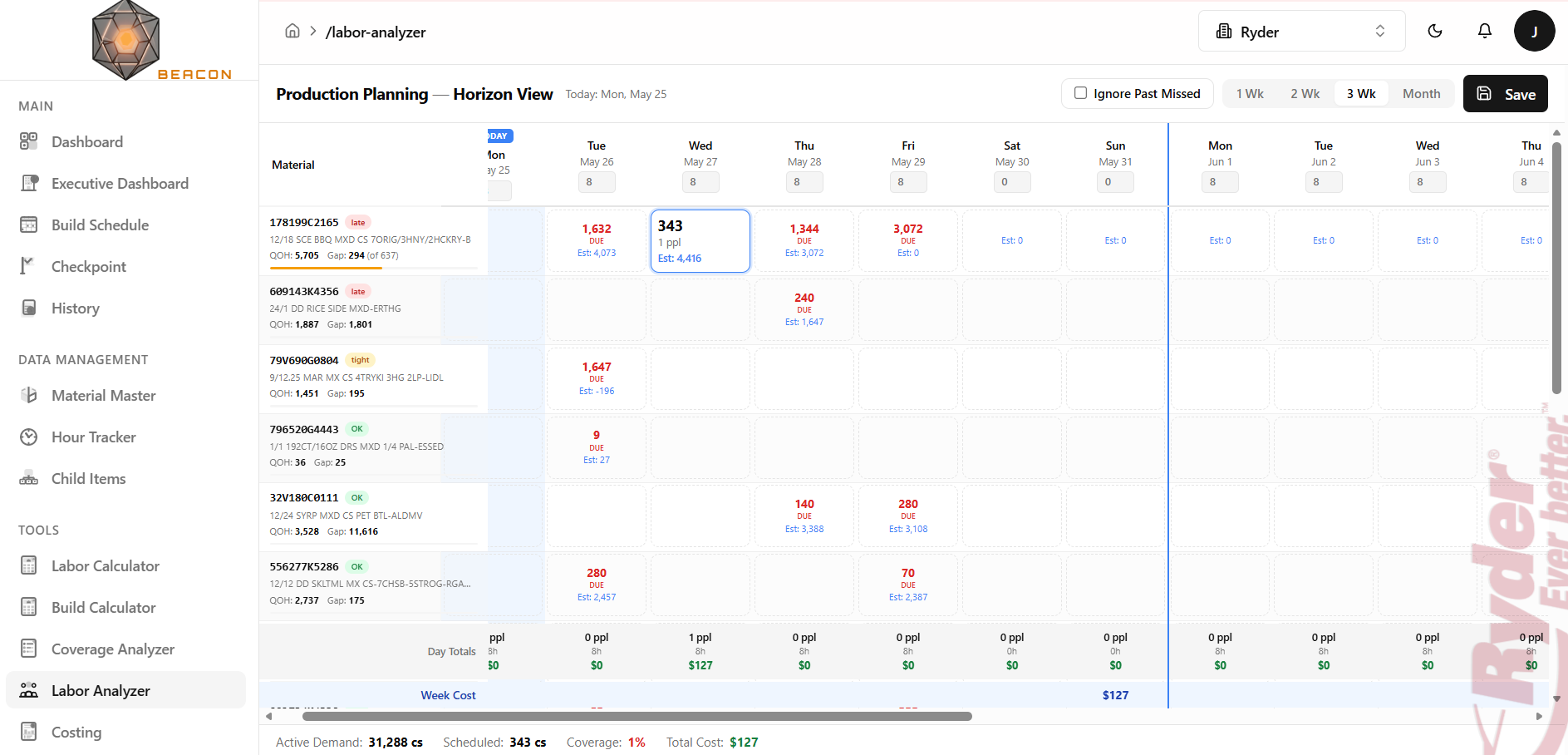
    • Pull forward in Checkpoint Live now asks how many hours you will run, and Beacon works out the target units from the standard rate.
    • New “Fill week on this line” in the Labor Planner plans the rest of a PO day after day on the same line until it is planned or the week ends.
  24. 2.149.1

    Fix

    How-to
    • Group step multipliers save correctly.
  25. 2.149.0

    New

    How-to
    • Admins can make a user choose their own password at next sign-in (Admin → User Management → Edit). New users start with it on.
    • Add Order fills Work Center from the material's group, using the same name your schedule uploads use. You can still type over it.
  26. 2.148.0

    New

    How-to
    • Reopen & close works on any day, and a line's session counts on the day it ran, whenever it is closed.
  27. 2.147.1

    Fix

    How-to
    • Due dates read the same day everywhere: the week tabs, upload preview, past-due list, calendar and export.
  28. 2.147.0

    New

    How-to
    • Customer Orders opens on This week, with Next week and All tabs. The due date decides the week.
    • Import Schedule only changes the weeks your file covers and never touches this week's orders.
    • Coverage counts only next week and later against the stock file, so this week's orders no longer make next week look short.
    • The labor planner's order tray lists the week you are looking at, with a Show all open orders switch.
  29. 2.146.0

    New

    How-to
    • Labor planner: Roll balance to next day plans the rest of a PO on the next working day, on the same line, as much as fits.
  30. 2.145.0

    New

    How-to
    • Shift Review keeps a receipt of what was posted: who submitted, then units, hours and Build Schedule progress for each PO.
  31. 2.144.0

    New

    How-to
    • Posted days show each order's result in the labor planner: Built, N units short, Never ran or Not posted.
    • After Submit, Shift Review offers to close finished orders. Orders built to full quantity come ticked.
  32. 2.143.0

    New

    How-to
    • Marking an order Allocated (material on the floor) takes it off the stock snapshot, so later orders for the same items stop showing short.
  33. 2.142.0

    New

    How-to
    • Shift Review lists everything still open above the table, one row per line, each with its own fix button.
  34. 2.141.2

    Fix

    How-to
    • Close & adjust here also wraps up any PO still open on that line.
  35. 2.141.1

    Fix

    How-to
    • Order tray tiles keep their full size and the tray scrolls, instead of squeezing tiles flat.
  36. 2.141.0

    New

    How-to
    • Export every movement step, build step and group to Excel from Material Master → Steps, then upload corrections through Seed data.