Beacon how-to · October 2026
What's new: Oct 24, 2026
The Labor Planner's Qty box now keeps the number you type. Submitting a Shift Review can email the Daily Synopsis, laid out to read well on a phone. A PO now holds one SKU.
- v2.160.1
- v2.161.0
1. Patch notes v2.160.1 – v2.161.0 Oct 24, 2026
- v2.161.0
- Email on submit: beside Submit Shift Review, “Email the daily synopsis to 2 recipients” is ticked by default. Submitting emails the day's Daily Synopsis. Untick it for a test. If no recipients are saved, a note points you to Settings → Email.
- Sent or not sent: after submit, the review shows “Emailed to 2 recipients at 3:58 PM” with Send email again, or “Email not sent” with Send email. Send email again rebuilds the email from the current numbers, for example after Retry posting hours. Sending never blocks or undoes the submit.
- What the email carries: the day's numbers on top, with a red box naming any order or line whose hours did not post and why. Then the Shift Review table, Work Orders (with Billing when it is on), Materials, Labor and Line Performance. It is laid out for email, so it reads the same in Outlook, on a phone and in dark mode.
- History → Daily Synopsis: Send Email sends this same layout. Numbers corrected: hours counted twice for a PO with two hour entries in a day, line cases counted once per worker, and headcount that left out roles like Line Captain. If a day fails to load, it says “Couldn't load the synopsis for this day. Try again.”
- One PO, one SKU: Add Order and Edit Order refuse a second SKU on a PO that already has an open order, and say which SKU holds it. Reopening a closed order onto such a PO is refused too.
- v2.160.1
- Planner blocks grow again: when one PO carries two SKUs, each SKU's block is measured against its own order quantity. Before, the second SKU's block could shrink but never grow.
- Qty box: it keeps the whole number you type (for example 781) and saves on Enter, Done, or clicking away. It no longer stops at the first digit and can be cleared with backspace. If the number is more than the block can hold, it saves the most it can and says so, for example “Max 500 for this block”.
2. Planner: the Qty box takes the whole number
On the Labor Planner, select a block on the day's plan. The block's panel shows its Window, Hours and This Block, and a Qty box. Two things are fixed.
Each SKU is measured against its own order
One PO can carry two SKUs. Before, the second SKU's block was checked against the first SKU's order, so you could make it smaller but never bigger. Now every SKU's block is measured against that SKU's own order quantity.
Example: the second SKU on a PO is ordered for 500. Its block can now grow as far as 500, not just shrink.
The Qty box keeps what you type
- Select the block and click in Qty.
- Type the whole number, for example 781. Backspace clears the box if you want to start again. Before, the box stopped after the first digit.
- Press Enter, click Done, or click anywhere else. Any of the three saves it.
If the number is more than the block can hold, Beacon saves the most the block can hold and says so. Type 781 into a block that holds 500, and the box settles on 500 with “Max 500 for this block” under it.
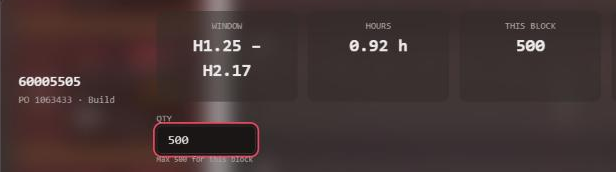
Screenshot is from Beacon's test site; the PO and item shown are demo data.
3. Shift Review emails the Daily Synopsis
When you submit a Shift Review, Beacon can now email the day's Daily Synopsis for you. Before, someone had to open History and press Send Email.
Before you submit
Beside Submit Shift Review there is a tick box, Email the daily synopsis to 1 recipient. It is ticked by default. The number is how many recipients are saved for the site.
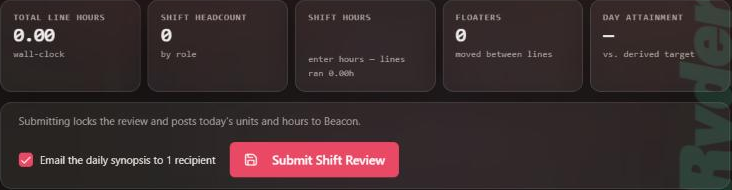
- Leave it ticked and press Submit: the review is submitted and the email goes out.
- Untick it first if this is a test and nobody should get an email.
- If no recipients are saved, there is no tick box. A note says “No synopsis email recipients are set — Settings → Email.” Recipients are kept in Settings → Email.
After you submit
Near the bottom of the submitted review, you see one of two lines:
- “Emailed to 1 recipient at 12:08 AM”, with a Send email again button.
- “Email not sent”, with a Send email button.
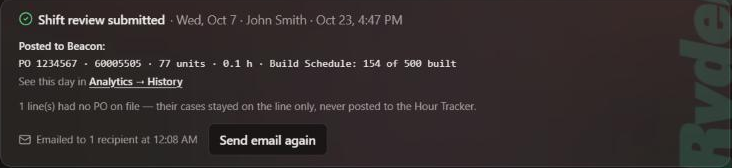
Send email again builds the email fresh from the day's current numbers. Example: an order's hours did not post, so the first email opened with a red box. You press Retry posting hours, then Send email again, and the new email carries the corrected numbers.
Sending never blocks or undoes the submit. If the email fails, the review is still submitted. Press Send email to try again.
Screenshots are from Beacon's test site; the review, names and numbers shown are demo data.
4. What's in the email
The email is the day's Daily Synopsis. Here it is from the top.
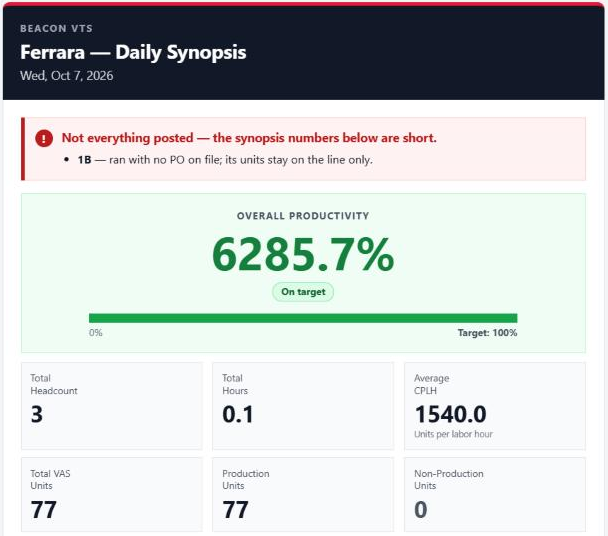
The three email pictures come from a test day on Beacon's test site with only a few units, so the percentages and totals are not real. Look at the layout, not the figures.
The day at a glance
The top of the email has the site name and the day. Under it:
- A red box when something did not post. It names each order or line and says why. The reasons are: units with no labor hours, hours already entered by hand, a line that ran with no PO, or a save that failed. Example: “1B — ran with no PO on file; its units stay on the line only.”
- Overall Productivity with a bar and a label: On target, Below target or Well below target.
- Six tiles: Total Headcount, Total Hours, Average CPLH (units per labor hour), Total VAS Units, Production Units and Non-Production Units.
The Shift Review table
Next is the Shift Review table, with every line opened up to its orders. Each cell with two numbers reads actual / planned. Headcount is per order, so a line's own row shows none.
When an order's efficiency is 300% or more, the cell shows 300%+ with check rate under it. That is your cue to check the rate for that item before believing the number.
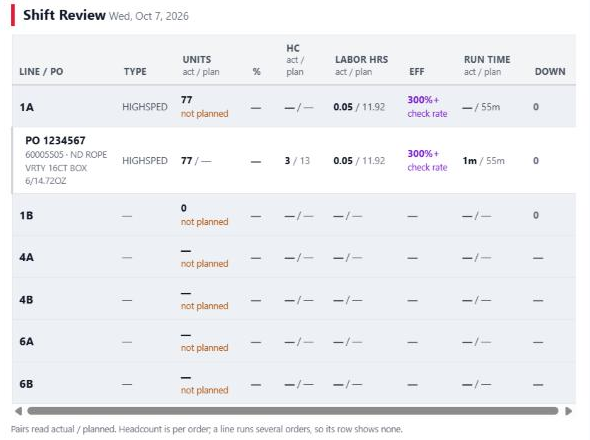
The tables below
After the Shift Review table come the Work Orders Summary, then Materials Breakdown, Labor and Line Performance. When billing is on for the site, a Billing table and its totals (Total Billed, Total Actual Cost and Total Margin) sit under the work orders.
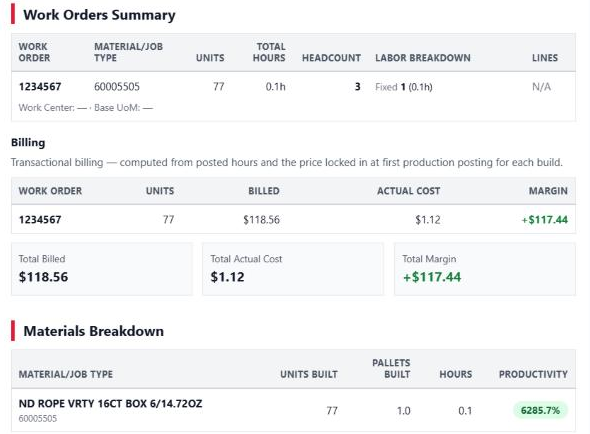
Made for email
Every number sits right under its own label, and the tables keep their columns. It reads the same in Outlook on a desktop, on a phone and in dark mode. The footer shows when the email was sent, in the site's own time zone.
5. History → Daily Synopsis
Three changes for the Daily Synopsis you open in History.
Send Email sends the new layout
In History → Daily Synopsis, Send Email now sends the same layout as the Shift Review email. The daily email Buckner sends from History looks different from today on. The numbers are the same; the layout is easier to read.
Numbers corrected
Three things were wrong in the synopsis, and are fixed:
- A PO with two hour entries in one day (for example a sub-assembly session) had its hours counted twice.
- Line cases were counted once per worker.
- The day's headcount left out roles like Line Captain.
The synopsis is now worked out from the day's own hour records, the same way the Shift Review email does it. Example: one Buckner day's line cases read 2,356 before and 1,158 after. History works the numbers out each time you open a day, so past days show the corrected figures too. An email already sent keeps the numbers it went out with.
A day that fails to load says so
If a day can't be loaded, the Daily Synopsis now says “Couldn't load the synopsis for this day. Try again.” Before, it left the last day's numbers on screen.
6. One PO, one SKU
A PO holds one SKU. Add Order and Edit Order now refuse a second SKU on a PO that already has an open order, and they tell you which SKU holds it.
Example: PO 1063437 already has an open order for 60170091. You try to add an order for 60008563 on the same PO. Beacon stops and says “PO 1063437 is already 60170091 — one PO is one SKU.”
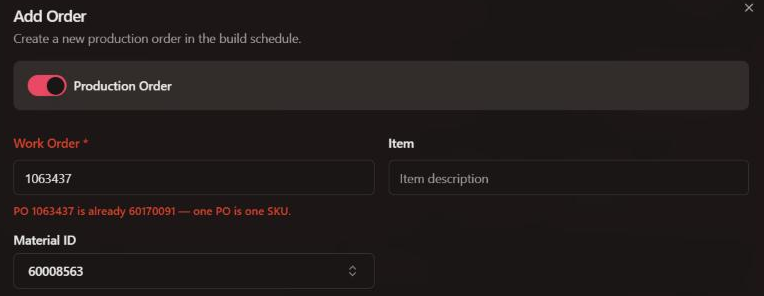
- Reopening a closed order onto a PO that another open order holds for a different SKU is refused the same way.
- Uploads work as they did before.
- If a PO truly needs a different SKU, close or fix the existing order first.
Screenshot is from Beacon's test site; the PO and SKUs shown are demo data.