Beacon how-to · October 2026
New this week
These changes went live in Beacon between Oct 7 and Oct 10 (v2.141.0 to v2.149.0). Each section is one task, with a picture for every step.
On the tablet, CLOSE PO is now WRAP UP PO. It means the line is done with that PO for today. “Close” now always means something is finished: Close order (the order is done) or closing a line.
1. Export your steps to Excel
Use this to review every step outside Beacon, then fix them in Beacon or upload the corrected file back.
Get the file
- Go to Material Master → Steps.
- Click Export to Excel. You get one file with every movement step, every build step and every group, whichever list is showing.
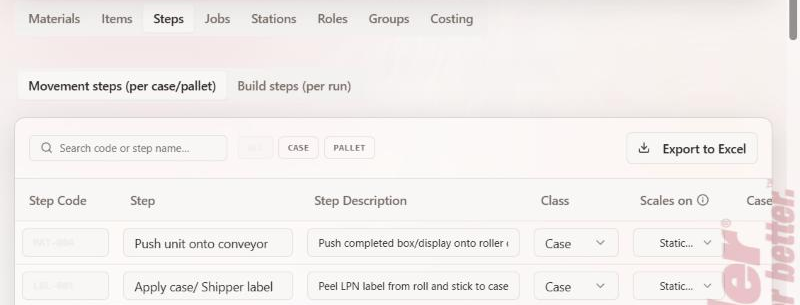
The Export button at the very top of Material Master exports materials, not steps.
What is in the file
| Tab | What it holds | What you can change there |
|---|---|---|
| Instructions | How to use the file, plus anything to fix before uploading it back | Nothing. Read it first. |
| Time_Observations | Every step: code, name, description, cycle times, build stage | Name, description, cycle times, Pre-Build or Post-Build |
| One tab per group | The steps that group runs and how often | Frequency, and which steps are on the list |
Send corrections back
- Make your changes in Excel and save. Keep the tab names and column headings as they are.
- In Beacon, go to Material Master → Materials and click Seed data.

- Click Choose File, pick your file, then click Import. A preview shows every change before anything is saved.
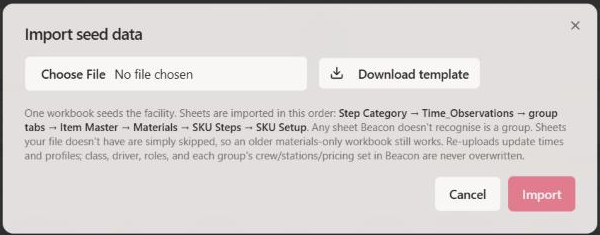
The upload does not change role, driver, Case or Pallet, or Active. Change those on the Steps tab.
Careful: a group tab replaces that group’s whole step list. Delete a row and that step leaves the group. To leave a group alone, delete its whole tab from the file.
2. Close out the day in Shift Review
The coordinator does this at the end of the shift. It posts the day’s units and hours to Beacon.
Before you start: each line captain wraps up their POs on the tablet (WRAP UP PO) and then taps END SHIFT.
- Open Shift Review. If anything is still open, a short list sits above the table:
2 to close before you can submit
. There is one row per line, and each row has its own button.
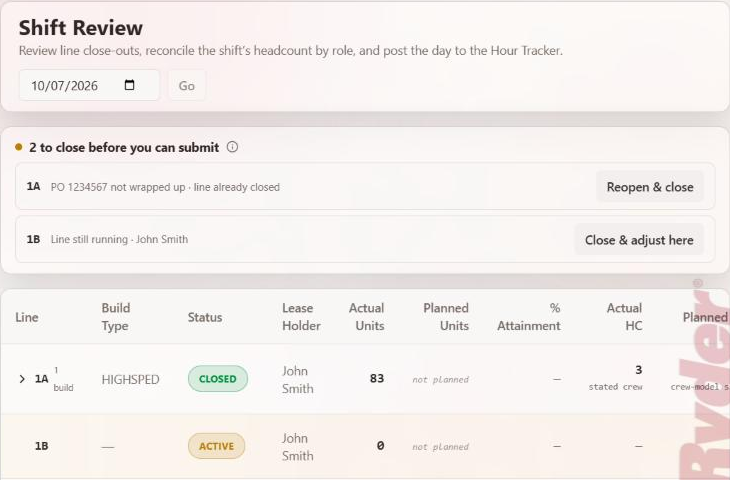
- Fix each row with its button.
- Line still running → click Close & adjust here. Check the headcount, then click Confirm Close Out. This also wraps up any PO still open on that line.
- PO not wrapped up · line already closed → click Reopen & close. The same window opens with the crew already filled in. Nothing changes until you click Confirm Close Out.
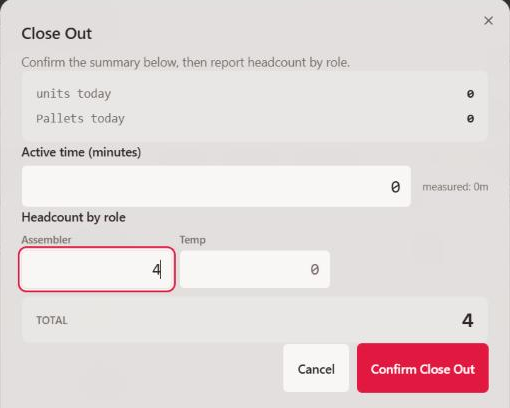
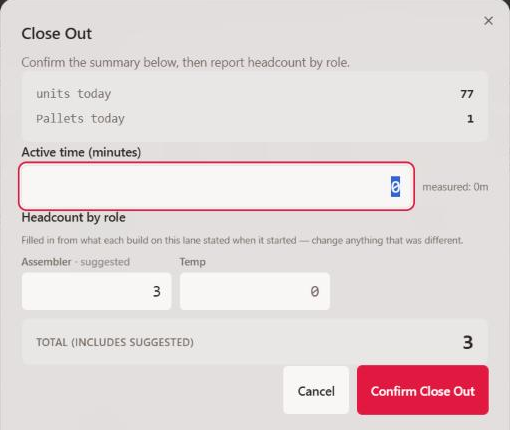
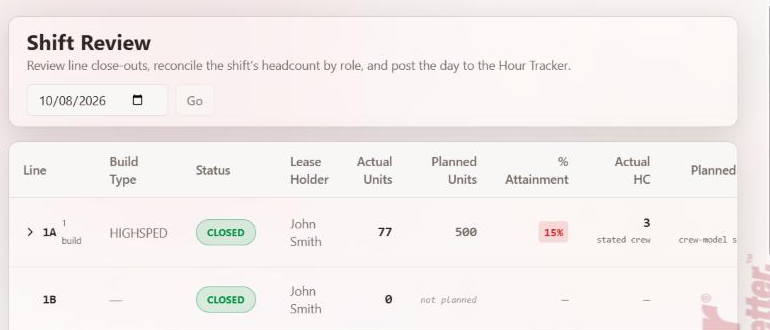
- When everything is closed, the list disappears. Check the table: units, crew and hours for each line.
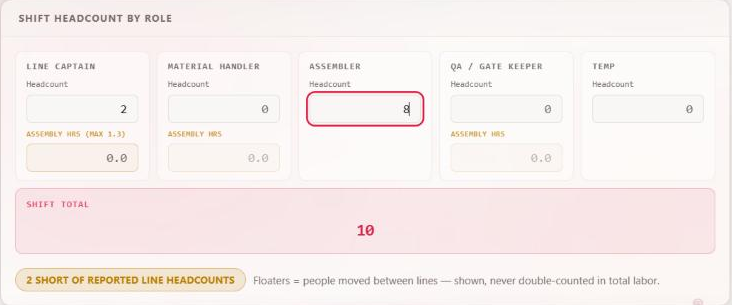
- Under the table, enter how many people worked the whole shift in each role. Read the yellow note under the total. It tells you when your count does not match what the lines reported.
- Click Submit Shift Review. The Build Schedule gets the units built, the hours are logged, and the labor planner marks the day as posted.

When it is done, a receipt stays at the bottom of the page: who submitted, then one line per PO that posted, with its units, hours and where the Build Schedule stands. It is still there if you come back later.

Posted days are listed under Analytics → History (the link is on the receipt). They do not appear on the Hour Tracker screen, which is only for typing in a day by hand.
Close finished orders
- Right after Submit, a short list appears under the review: Close finished orders? Every order posted today is on it. Orders built to their full quantity are already ticked.
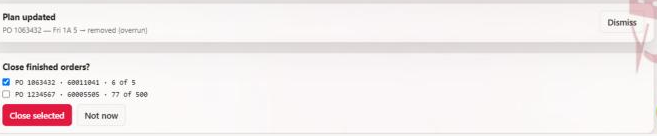
- Tick any other order you are finished with, then click Close selected. To leave everything open, click Not now. Beacon closes the ticked orders, takes their blocks off the rest of this week’s plan, then tells you what it did.

A PO shared by two orders shows no checkbox. Close those from Customer Orders: click … on the row, then Close order.
3. Mark an order Allocated (material on the floor)
Do this once an order’s material has been pulled to the floor. That material is no longer in the stock snapshot, so Beacon stops counting the order as needing stock, and later orders for the same items stop showing short because of it.
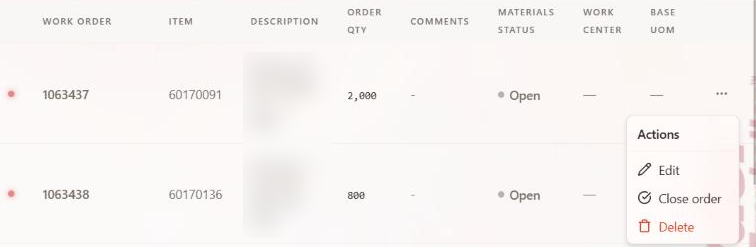
- Go to Build Schedule → Customer Orders and find the order. Click … at the end of its row, then Edit.
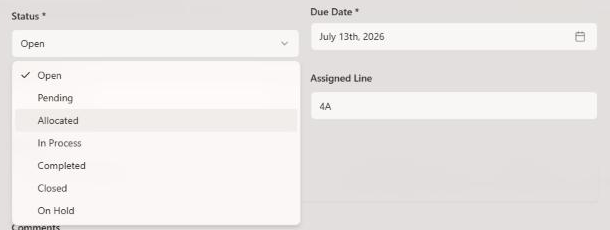
- Set Status to Allocated, then click Update Order.
- The Materials Status column now shows Allocated. The order drops off the Coverage tab. It stays in Customer Orders, the labor planner, Checkpoint Live and Shift Review.

Only mark an order once its material is on the floor. Marked too early, it hides a real shortage. To see every allocated order, filter Customer Orders by Status → Allocated. To undo, set it back to Open. Only Allocated works this way: In Process still counts against stock.
4. This week and Next week
Orders now belong to a week, from their due date (weeks run Monday to Sunday). This keeps this week’s orders safe while next week is loaded and planned.
- Customer Orders opens on This week: orders due this Monday to Sunday, plus open orders that are past due. Next week shows next Monday to Sunday. All is the full list. The counts are on each tab.
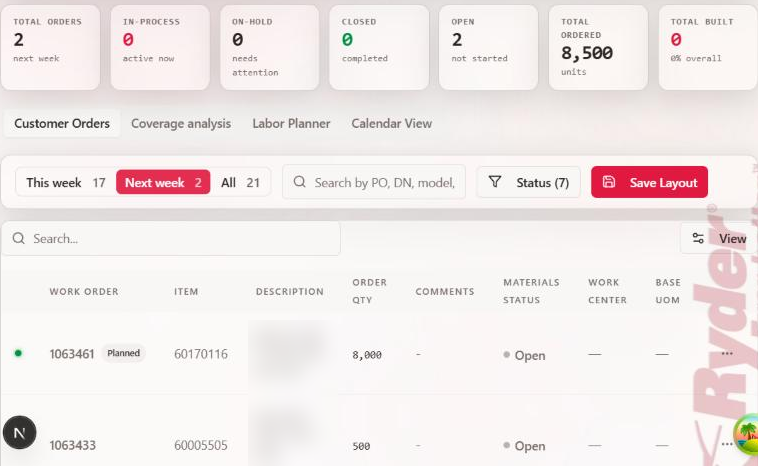
- Load next week’s schedule as usual with Import Schedule. It only changes orders in the weeks your file covers, and never touches this week’s orders. Do not delete this week’s orders to make room.
- Coverage now only counts orders due next week or later against the stock file. This week’s material is already on the floor, so this week’s orders no longer make next week’s look short.
- In the labor planner, the order tray lists the week you are looking at. To see every open order, turn on Show all open orders at the top of the tray.
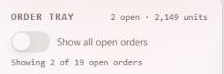
The due date decides the week. If an order shows in the wrong tab, fix its due date (Edit). A past-due order stays in This week until you close it or roll it.
5. Labor planner: posted days and closed orders
Nothing to do differently. Once a day is posted in Shift Review, the planner shows how each order did that day, in the week view and the day view alike:
- Built: the line built what was planned, or more.
- N units short: the line built less than planned.
- Never ran: the day was posted but this order wasn’t built.
- Not posted: nobody posted that day yet.

An order that has been closed shows Closed on its blocks for days not yet posted, so its mark no longer disappears.
Roll the balance to the next day
- Double-click a block to open its panel. This block shows the units in this block, and Running total shows how much of the order is planned through this day.

- Click Roll balance to next day. The block you clicked stays where it is. Beacon plans the rest of the PO on the next working day, on the same line after what is already there, as much as fits that day. A message says how much it placed and how much is still to plan.
- To keep going, open the new block on the next day and click it again. From the last working day of the week, it goes to next week’s first working day after you confirm (that also saves this week’s plan).
6. Labor planner: order tray tiles
Nothing to do differently. When the tray held more orders than fit on the screen, the tiles were squeezed flat and the text overlapped. Now every tile keeps its full size and the tray scrolls.
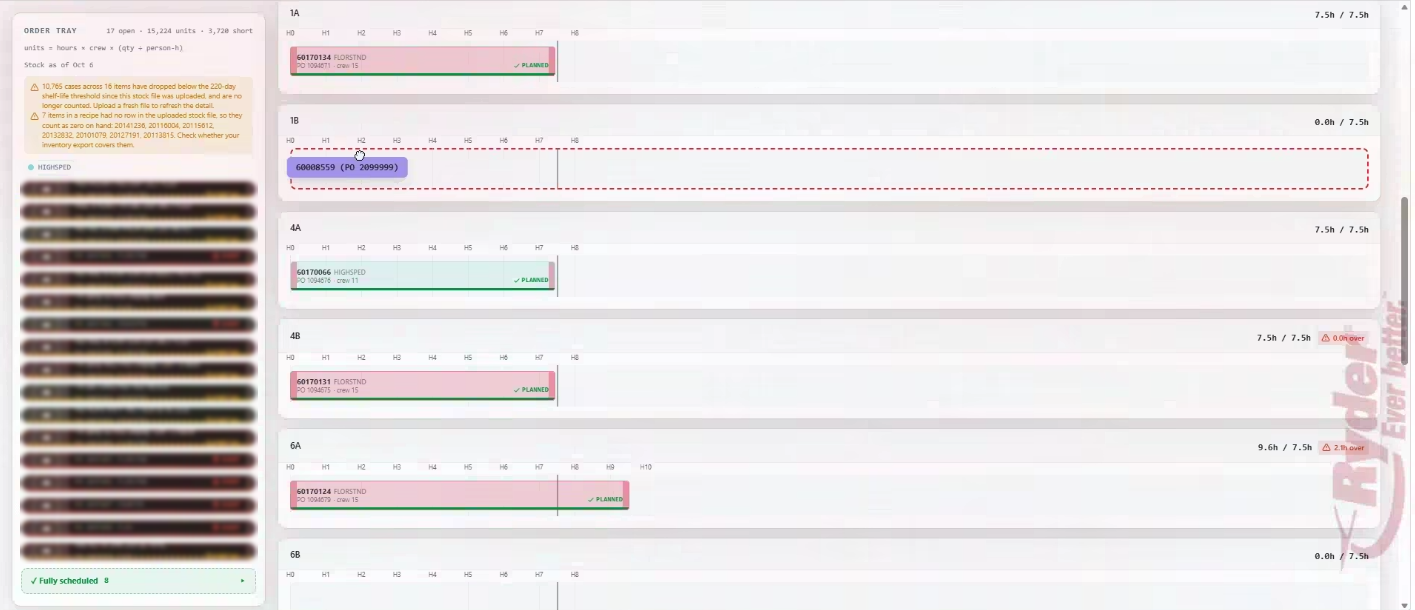
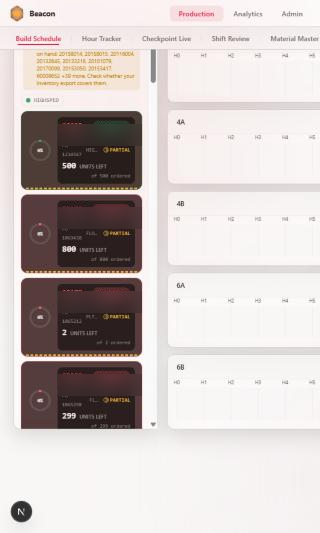
If descriptions are cut off with “…”, drag the tray’s right edge to make it wider.
7. Make users choose their own password
Do this for anyone who was given a temporary password, such as line captains set up with a shared one.
- Go to Admin → User Management. Click … on the person’s row, then Edit.
- Tick Must change password at next sign-in, then click Update User. New users you add have it ticked already.
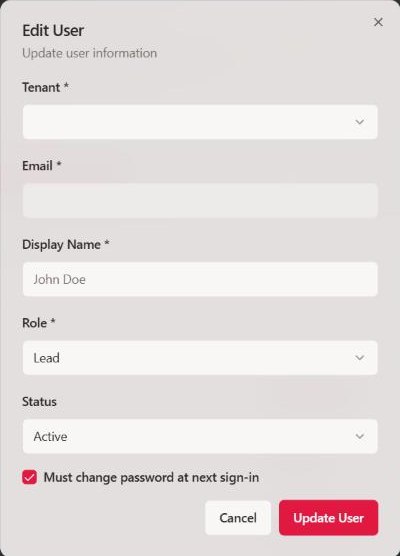
- The next time that person signs in, Beacon asks them to choose a new password before anything else. They enter the temporary password, then their new one twice (at least 8 characters, different from the old one). After that, Beacon works as normal.
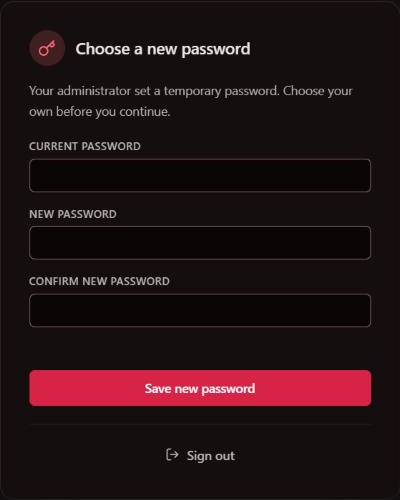
It takes effect the next time they sign in or reload the page; it does not interrupt someone who is already working. Anyone can also change their own password any time under their name → Profile.
8. Add Order: Work Center fills itself
Nothing to do differently. When you pick a material in Add Order, the Work Center field fills in from the material’s group, using the same work-center name your schedule uploads use. You can type over it, and it never replaces something you typed.
