Beacon how-to · October 2026
What's new: v2.164.0
Stages now run on the floor. Checkpoint Live, the line boards and Shift Review know which stage a line is running, count it in that stage's own unit, and post it as stage work — only the finishing stage counts finished cases.
- v2.164.0
1. Patch notes v2.164.0 Oct 25, 2026
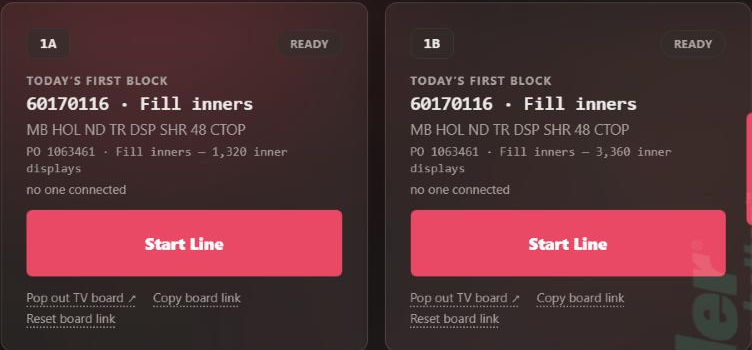
- Start stage work: Start Line and Changeover offer planned stage work, for example 60170116 · Fill inners — 1,320 inner displays. The crew prompt suggests the stage's crew, and Pallet Complete counts the stage's unit and pallet size (420 inner displays a tap).
- Both ways of running stages: one line can change over from one stage to the next, and two lines can run two stages of the same PO at the same time. Each stage is wrapped up on its own.
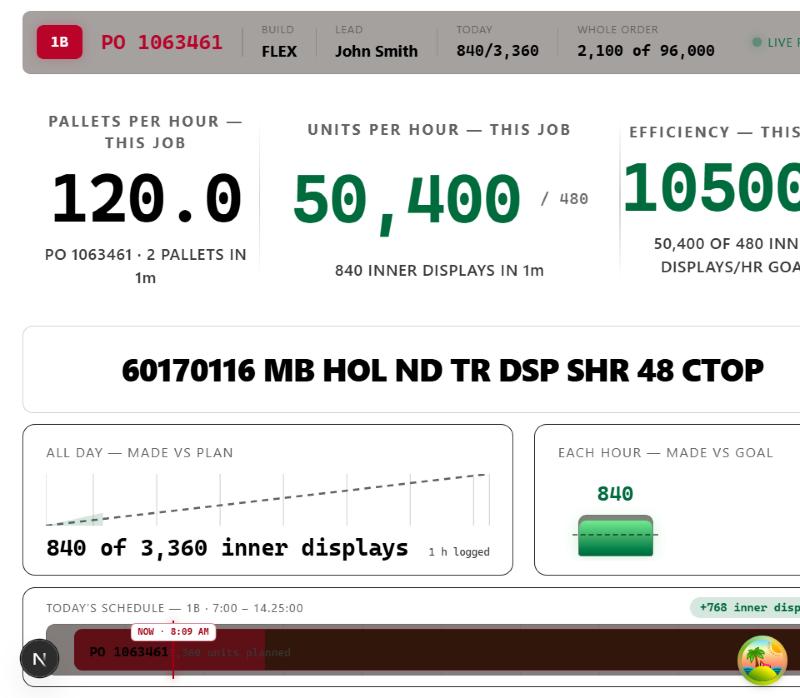
- Line totals: the console, line cards and boards count finished units only. A line that ran only stage work shows its stage units against its stage plan instead of 0.
- Boards: an earlier stage's goal rate, target and order progress use the stage's own standard and unit; the finishing stage's goal uses its own steps only. TV boards show stage progress too.
- Shift Review: one row per PO and stage, one posted record per PO and stage, and stage records on the receipt. Only finished units count toward Built Qty and Close finished orders.
- Synopsis: a Stage work table on screen and in the email. CPLH leaves stage hours out, and History's CPLH matches.
- Fixed: submitting Shift Review no longer trims a later stage block against the finished units left; dropping a finishing-stage order on the planner sizes it with the SKU's crew.
Screenshots are from Beacon's test site; the SKU, PO and figures are demo data.
2. Plan the stages
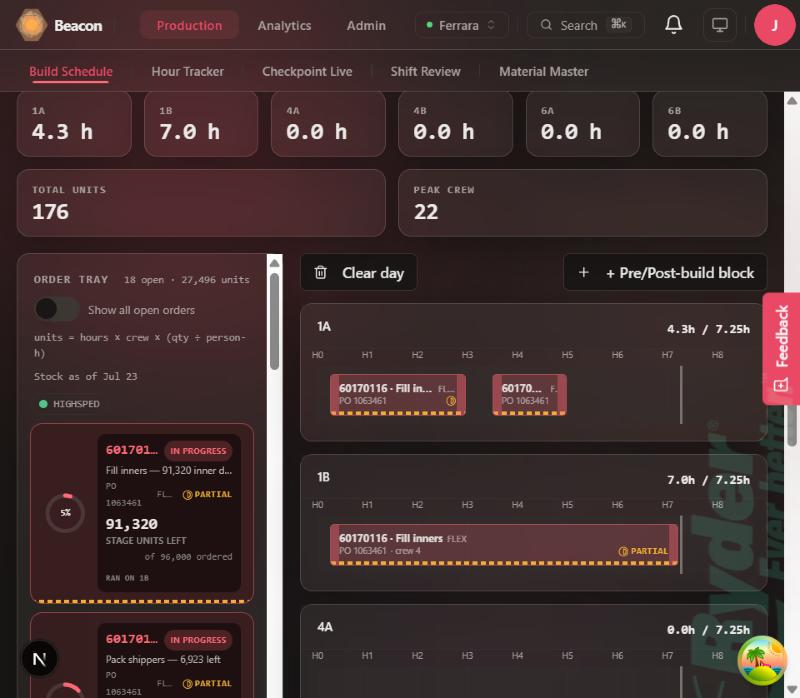
Set up the SKU's stages on its SKU page (see the v2.163.0 how-to), then plan each stage in the Labor Planner like any other block. Each stage block keeps its stage when you save the plan. The day's Total units counts finished units only.
3. Start stage work
- On Checkpoint Live the line card names the stage and its units. Press Start Line.
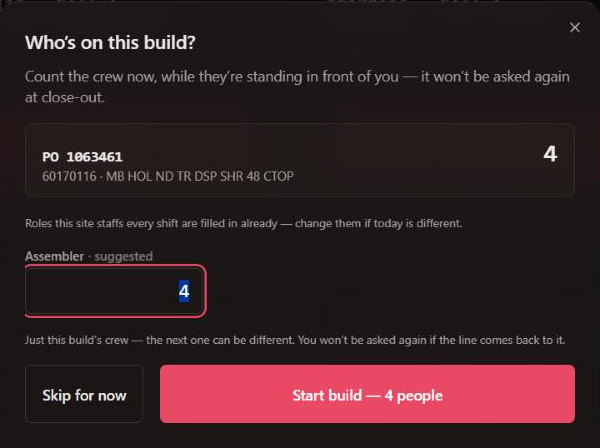
- The crew prompt suggests the stage's crew (4 for Fill inners). Count who is there and press Start build.
- Tap Pallet Complete for each pallet. Each tap adds the stage's pallet size in the stage's unit.
4. Change over to the next stage
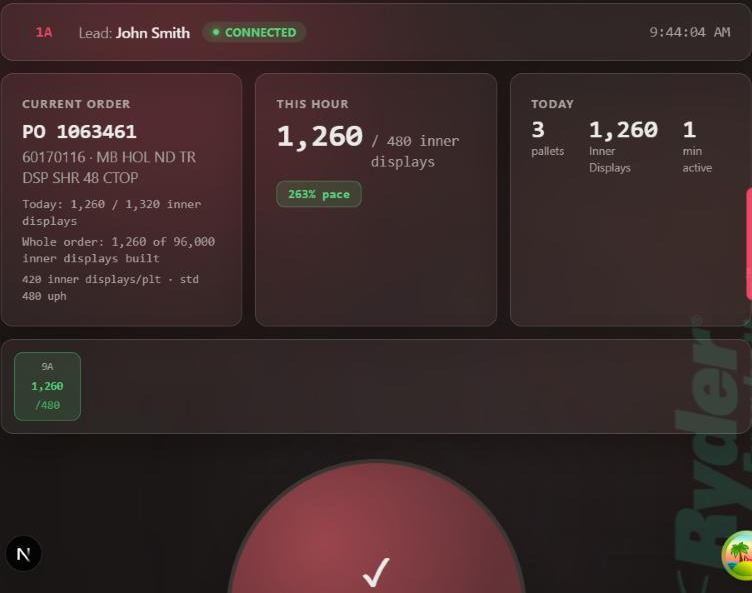
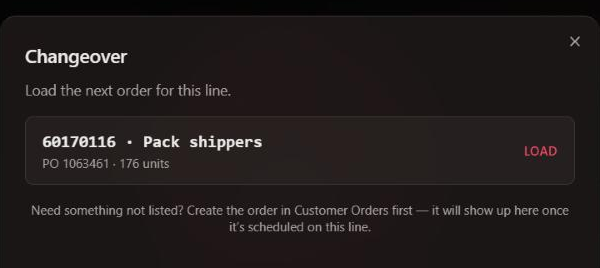
When the line is done with a stage for the day, press Wrap up PO — it shows the stage's units, here 1,260 inner displays. Then press Changeover and load the next stage. Its crew prompt suggests the SKU's crew (12 for Pack shippers).
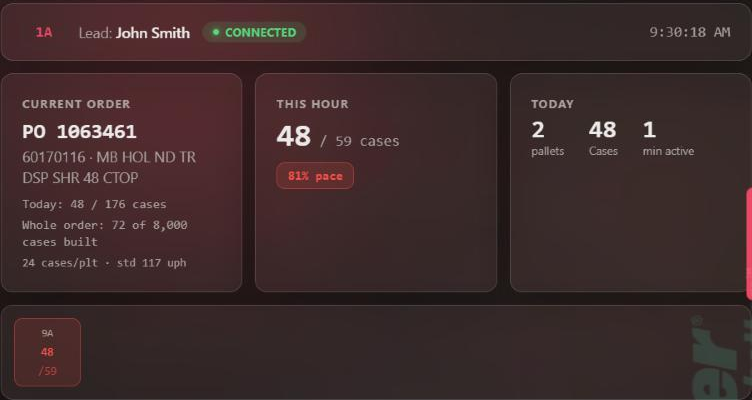
Two lines can also run two stages of the same PO at the same time — one fills inners while the other packs shippers. Each line counts its own stage.
5. Boards and line totals
A line that ran only stage work shows that stage's units against its stage plan:
A line that ran stage work and finished work counts finished units only, actual and plan alike:
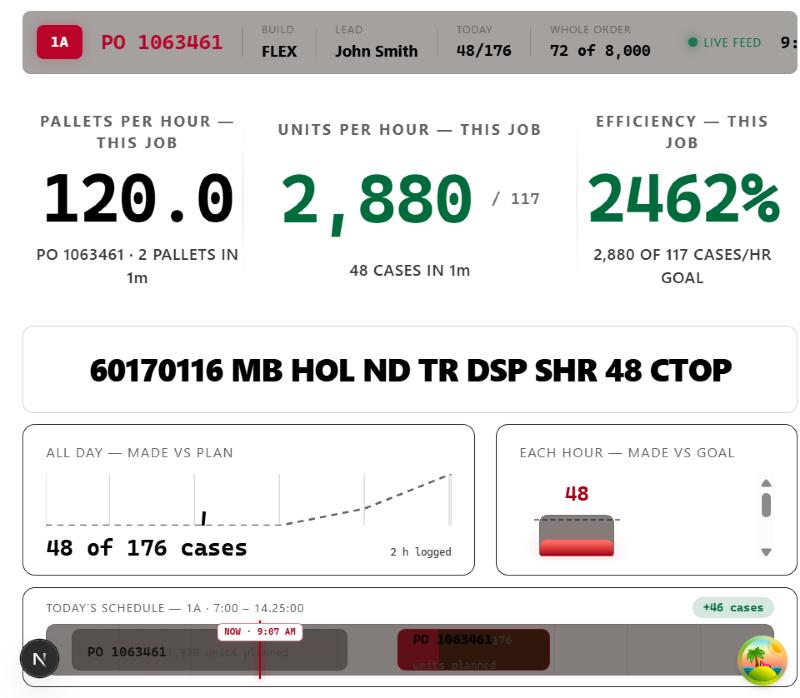
The per-hour rates in these demo shots are high because the demo ran for a couple of minutes.
6. Shift Review and posting
Shift Review shows one row per PO and stage that ran. Each stage row uses that stage's plan, unit and crew. The line row counts finished units only (a line that ran only stage work shows 0 finished units there).
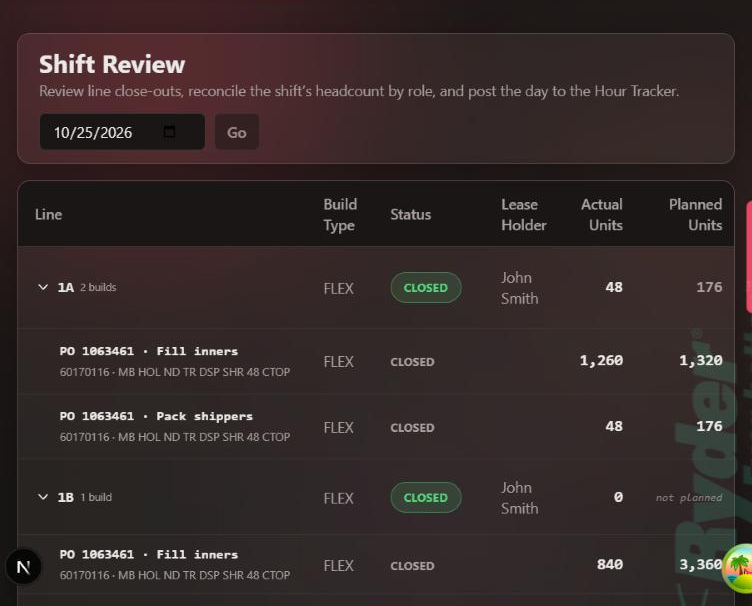
Submitting posts one record per PO and stage. The stage record carries the stage units and 0 cases; only the finishing record counts toward Built Qty. The receipt lists both.
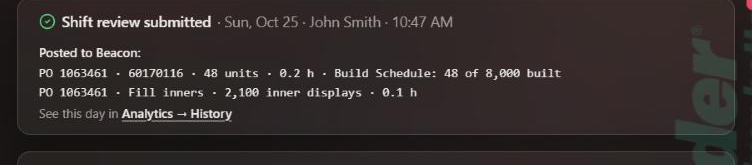
7. Synopsis
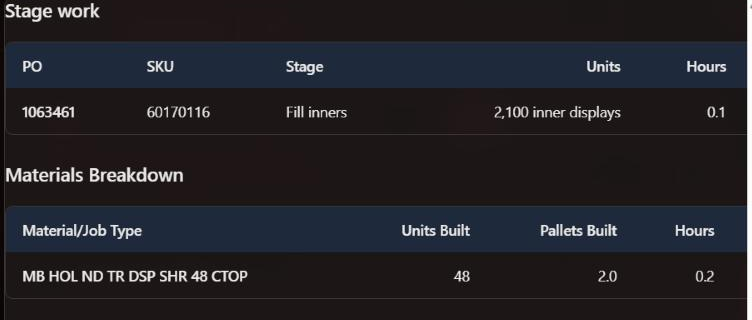
The Daily Synopsis and its email add a Stage work table: PO, SKU, stage, units in the stage's own unit, hours and efficiency against the stage's standard. The finished tables are unchanged, and CPLH leaves stage hours out.