Beacon how-to · October 2026
What's new: v2.163.0
A SKU that is built in more than one pass can now be set up as one SKU with stages — planned, costed and tracked stage by stage. Ferrara quotes now bill the crew at paid hours.
- v2.163.0
- v2.163.1
1. Patch notes v2.163.0 – v2.163.1 Oct 24, 2026
- v2.163.1
- Stage blocks stay staged: saving the Labor Planner now keeps each block's stage. Before, a saved “Build displays” block came back as a plain block, so its displays would have counted as finished units.
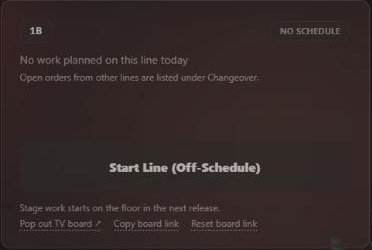
- Floor waits for stage support: Checkpoint Live doesn't offer earlier-stage work in Start Line or Changeover yet. Line cards say “Stage work starts on the floor in the next release.” Finishing-stage and unstaged work start as before.
- v2.163.0
- Build in stages: on the SKU page, name the stages in run order, give each its unit, how many go into one finished unit, how many fit on a pallet and its crew, and pick which steps belong to it. The last stage is the finishing stage. A stage with no steps takes a typed rate per person-hour.
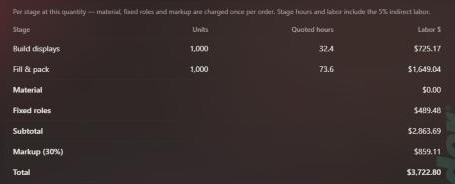
- Cost per stage: the SKU page and Costing show each stage's hours and labor, then material, fixed roles, markup and the total — the same total as the quote.
- Planner: a staged order shows one line per stage, in its own units and in run order. A stage block is sized by its window and the stage's crew. Only finished units count toward the order's progress.
- Hour Tracker: a staged SKU's PO asks which stage. Earlier stages record their own units; only the finishing stage counts finished cases.
- Paid hours: Ferrara quotes bill the crew at 8 paid hours for every 7.5 worked. Orders already posted keep the price they were charged.
2. Build a SKU in stages
Some SKUs are built in more than one pass with different crews — Shanklin fills inner displays with 11 people, then packs 12 inners into a shipper with 5; Buckner builds empty displays one day and fills them later. Instead of a second SKU or an invented PO for each pass, the SKU now carries its stages.
- On the SKU page, open Build Steps and press Build in stages.
- For each earlier stage fill in Name, Unit, Per finished unit, Per pallet and Crew. The last stage is the finishing stage: it uses the SKU's own pallet size and crew.
- In the step list, pick the stage each step belongs to. Steps you leave alone belong to the finishing stage.
- Press Save stages. To undo it, press Stop building in stages.
A stage that has no steps (most Buckner SKUs run on a typed cases per hour) takes a typed Rate / person-hr in its own unit instead. A stage with neither is marked incomplete and cannot be planned.
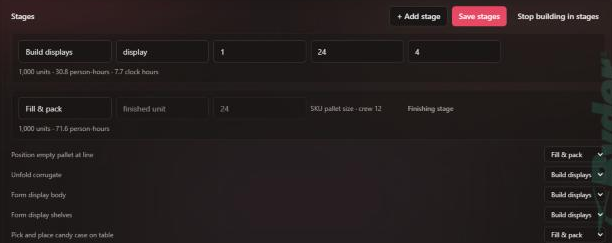
Screenshots are from Beacon's test site; the SKU and its figures are demo data.
3. What each stage costs
Under the quote on the SKU page (and in Costing) a table splits the order by stage: each stage's quoted hours and labor, then material, fixed roles and markup, charged once per order. The rows add up to the quote's total.
4. Planning stages
In the Labor Planner a staged order shows one tray line per stage, in run order and in that stage's units — for example Build displays — 8,000 displays left above Fill & pack — 7,099 left.
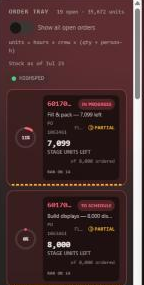
Drag a stage onto a lane. The block is sized by the window and the stage's own crew: a 6-hour window with 4 people offers about 778 displays.
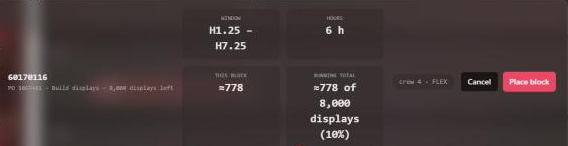
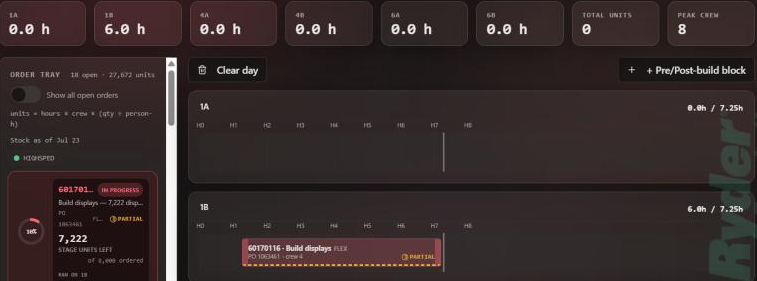
Earlier-stage blocks never count as finished units: the order's progress and the day's Total units only move with the finishing stage. Stage units entered in the Hour Tracker come off that stage's units left for days that are posted, the same way finished cases do.
5. Hours by stage
In the Hour Tracker, choosing a PO whose SKU is staged adds a Stage picker.


Only the finishing stage's entries count finished cases toward the order. Earlier stages' hours still count in total hours and cost, and their units count toward that stage's productivity.
6. Ferrara quotes at paid hours
Ferrara's crew is paid for 8 hours for every 7.5 they work. Quotes now bill the crew that way, so a quote matches the payroll behind it. Example: Shanklin 60008691 at 310 units moved from $9.64 to $10.22 a unit (the planning sheet says $10.26).
Fixed roles, the indirect %, crew size and cost-plus sites (Buckner) are unchanged. The quote line says so: (paid hours: 8 per 7.5 worked). Orders already posted keep the price they were charged; new orders take the new price when they first post.