Beacon how-to · October 2026
What's new: Oct 14, 2026
How to enter a catch-up count, read the updated SAAG board, and send feedback with screenshots.
- v2.151.0
- v2.152.0
- v2.153.0
- v2.154.0
- v2.154.1
- v2.155.0
1. Patch notes v2.151.0 – v2.155.0 Oct 13–14, 2026
- v2.155.0
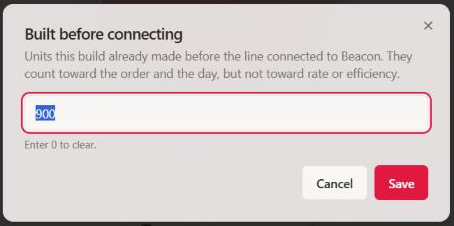
- Line already running when you connect? In the console, tap Built before connecting and enter what was already built. It counts toward the order and the day, but not toward units per hour or efficiency, so your first hour no longer shows 200%+.
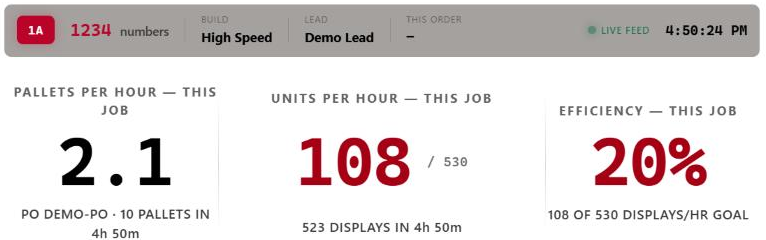
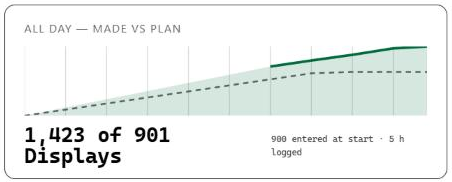
- SAAG board: the day total now says how much was entered at the start (for example “900 entered at start”), and This order shows only the order running now, not the whole day.
- Shift Review: units entered at the start go to the order they were built for.
- Feedback tab: the label now fits inside the tab.
- v2.154.1 — The SAAG board no longer shows crew or headcount; the board faces the customer.
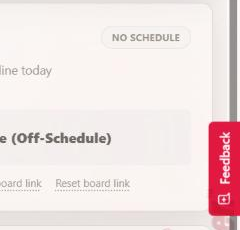
- v2.154.0 — A new Feedback tab on every page lets you report a bug or suggest an improvement, with screenshots.
- v2.153.0 — Coverage counts only Inventory Status 0001 as available stock; re-upload the snapshot once. A banner tells you when a new version is out, with a Refresh now button. TV boards reload themselves.
- v2.152.0 — Settings → Permissions has its own Checkpoint Live row. Locking someone out of the Labor Planner no longer takes away their line.
- v2.151.2 — Admins can save Email Settings (synopsis recipients); Send Test Email works with one address per line.
- v2.151.1 — SAAG board links work on unattended screens such as Yodeck TVs.
- v2.151.0 — SAAG board links can be shown inside Yodeck / OpsBox.
2. Line already running? Use “Built before connecting”
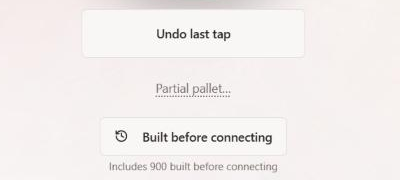
If the line was building before you connected to Beacon, enter what was already built once with this button — not with Partial pallet. It counts toward the order, the day and Shift Review, but never toward units per hour, efficiency or pace. Your first hour no longer shows 200%+.
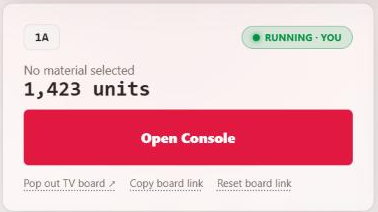
- Open the console for your line.
- Under Partial pallet…, tap Built before connecting.
- Enter the units already built and tap Save.
- The console shows “Includes N built before connecting”. Made a mistake? Open it again and enter the right number — or 0 to clear it.
Why
Partial pallet adds to the current hour, so a big catch-up number looks like one very fast hour. This button keeps it out of every rate.
3. What the SAAG board shows now
- No crew or headcount on the board.
- Units per hour, pallets per hour, efficiency, the hourly bars and pace use only what was built during the session.
- The day total includes the starting count and says so: “900 entered at start”.
- This order shows only the order on the line.
4. Send feedback (with screenshots)
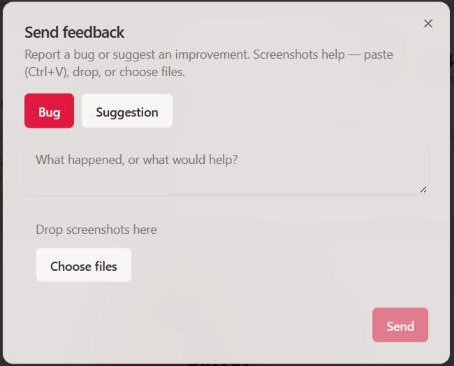
- Click the red Feedback tab on the right edge of any page.
- Choose Bug or Suggestion and describe it.
- Add screenshots: press Win+Shift+S to snip, then Ctrl+V in the dialog — or drop files, or choose Choose files (up to 3).
- Tap Send. You will see “Thanks, sent.” It goes straight to the Beacon team with the page you were on.
5. For admins
- Checkpoint Live permission (Settings → Permissions): use the Checkpoint Live column to control who can start and run lines; the Labor Planner column now only controls the planner.

Fig. 8View-only on the planner, still able to run lines. - Email Settings: admins can now save the synopsis recipient list.
- Inventory snapshot: only Inventory Status 0001 counts as available. Re-upload the snapshot once so Coverage updates.
- New version banner: when Beacon updates, a banner says so — click Refresh now. TV boards refresh by themselves.