Beacon how-to · October 2026
What's new: Oct 21, 2026
Duplicate a SKU, give it its own quote quantity, keep End Downtime within reach, and know every pallet tap is saved. Group steps no longer disappear when you save.
- v2.157.3
- v2.158.0
- v2.159.0
- v2.160.0
1. Patch notes v2.157.3 – v2.160.0 Oct 21, 2026
- v2.160.0
- Default quote quantity: on a SKU page, type a quantity in Costing and press Save as default. The SKU then opens at that quantity for everyone, for example 310 instead of 1,000. Reset to 1,000 clears it.
- Duplicate SKU and Save as new SKU copy the saved quantity.
- v2.159.0
- Pallet size fixes mid-run: if Material Master's pallet size changes while an order is running, the console says so and offers “Use N from now on”. Pallets already counted are not changed.
- Taken over: if another screen takes over the line, this screen turns red and says taps here are NOT being saved, with Take back once the other screen has gone quiet.
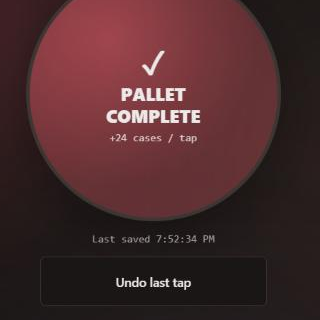
- Taps that save: the pallet button confirms only once a pallet is saved, shows when it was last saved, and says clearly if one did not save. A slow save keeps the button locked so a pallet can't be counted twice.
- Changeover: the first cases after a changeover go to the new order, not the previous one.
- Shift Review: the line row no longer shows a headcount total; each order row shows its own.
- v2.158.0
- Duplicate SKU: every SKU page has a Duplicate SKU button that copies the SKU under a new number.
- End Downtime: while downtime is running, the bottom DOWNTIME button becomes END DOWNTIME, and the reason (Break, Lunch, ...) is saved when downtime starts, so a reload no longer loses it.
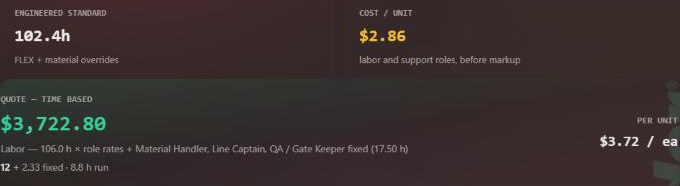
- Cost / Unit: the SKU page shows the full cost per unit before markup, including the LTO and QA share.
- v2.157.3
- Group steps no longer disappear on save: in Material Master → Groups, Save now stops and says why when a step's count is over 1,000. Before, that step was quietly dropped while the screen kept showing it.
- Counts say their unit: the count box reads “Times per case” or “Times per pallet”, and the group's step table shows the unit (for example “1 / case”). Steps that scale from the bill of materials show “auto”.
- After saving, the group shows exactly what was saved. If anything could not be kept, a message lists it.
2. Step counts are per case or per pallet
A step's count is how many times it happens for one case (case steps) or one pallet (pallet steps). Beacon multiplies it by the order for you. It is never the total for a whole order.
- Each case holds 12 inner displays, and “Build inner display cases” happens once per inner display: enter 12.
- Not 3,720. That is 12 × 310 for one 310-case order, and Beacon would read it as 3,720 per case.
- A slip sheet goes on after each of 7 layers: enter 7 on the pallet step, not 63 for a 9-pallet order.
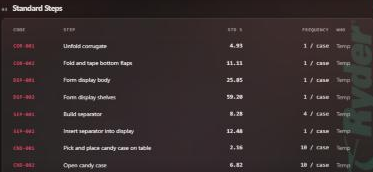
Not sure of a count? Take the total from your time study and divide it by the order's cases, or by its pallets for a pallet step.
3. Save stops when a count is over 1,000
No step happens more than 1,000 times for one case or pallet, so a bigger number is almost always an order total. The count box turns red and says so.
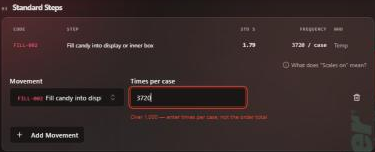
If you press Save Group anyway, nothing is saved and a message names the group, the step and the number:

Screenshots are from Beacon's test site; the groups shown are demo data.
4. What you see after saving
After Save Group, the group shows exactly what Beacon saved. If something you typed could not be kept (for example the same step added twice, or a markup over 1,000%), a message titled “Saved — some entries were not kept” lists it, so nothing changes on screen without you being told.
Before this release, a count over 1,000 was dropped without a warning. If a group is missing steps you remember adding, open it, add the steps again with per-case or per-pallet counts, and save.
5. Duplicate a SKU
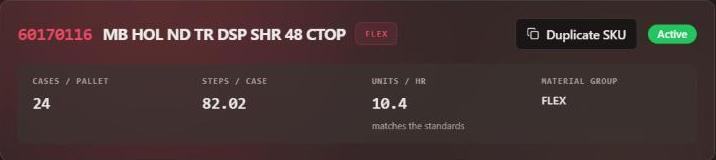
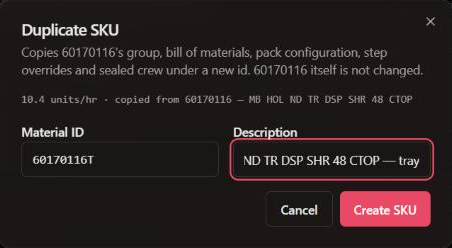
Open a SKU in Material Master and press Duplicate SKU. Give the copy a new SKU number and a description. Beacon copies the group, bill of materials, pallet setup, rate, the SKU's own step changes and its own crew, then opens the copy.
- On the copy, use Edit steps to delete the steps this part of the build doesn't do.
- Set the copy's crew with Override stations & crew for this SKU (the button reads Edit stations & crew once the SKU has its own crew).
- Press Use the standards when it appears, so the copy's rate matches its steps.
6. Cost / Unit means the whole cost
The SKU page's Cost / Unit now shows everything except the markup: the crew's labor plus the LTO and QA share. Before, it showed crew labor only, which read low against costing sheets. Per Unit beside the quote is the same figure with the markup added.
7. End Downtime is where you started it
On the Checkpoint Live console, while downtime is running, the DOWNTIME button at the bottom becomes END DOWNTIME and shows the reason. The banner at the top still works too.

The reason you pick is saved the moment downtime starts. If the screen locks and reloads, or another tablet picks the line up, the downtime still ends as a Break or Lunch, so it stays out of productivity.
8. Know every pallet tap is saved
The pallet button flashes only once the pallet is saved, and Last saved under it shows when. If a pallet does not save, a red message says so. If a save is slow, the button says “Still saving — don't tap again” and stays locked until it finishes, so one pallet can't be counted twice.
9. If another screen takes the line
Only one screen at a time can record a line. If someone else picks the line up on another tablet, this screen turns red and says taps here are not being saved, so no pallets go missing unnoticed.
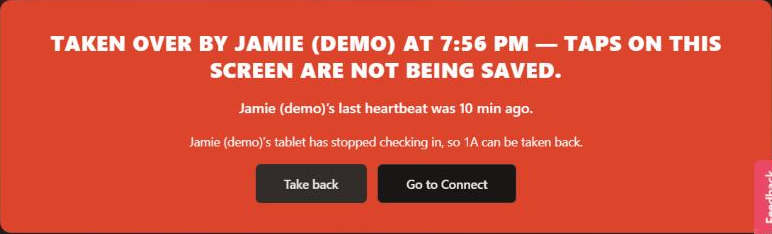
If the other tablet is still checking in, there is no Take back: the card says who is running the line. Ask them to hand it back.
10. Fix a wrong pallet size while the order runs
If the pallet size is corrected in Material Master while an order is running, the console notices and asks before changing anything:
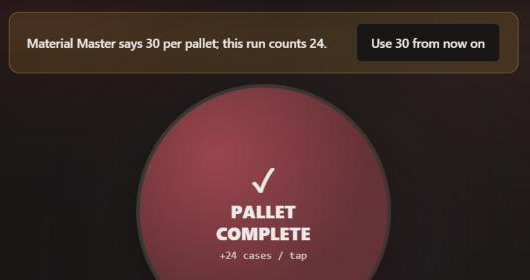
Pallets already counted keep the size they were counted at, and Undo last tap won't remove a pallet counted before the change. Correct those at close-out.
11. Shift Review: headcount is per order
The line row's Actual HC and Planned HC now show “—”. Adding up each order's crew made a line look like 38 people when the same 19 ran two orders, and there is no way to tell from the orders alone who stayed and who swapped. Each order's row shows its own crew, and the shift total comes from the headcount entered at shift level.
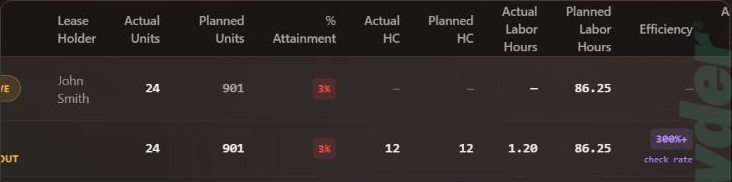
Screenshots are from Beacon's test site; orders and names shown are demo data.
12. Open a SKU at its own quote quantity
The Quantity box in a SKU page's Costing section starts at 1,000. If you usually quote a SKU at a different size, save that size once:
- Type the quantity in Quantity, for example 310.
- Press Save as default. The button only appears when the box differs from the SKU's default, and only for people who can edit materials.
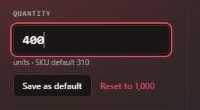
From then on the SKU opens at that quantity for everyone at the site, and the caption under the box says SKU default 310. The costing tiles work it out at that quantity straight away.
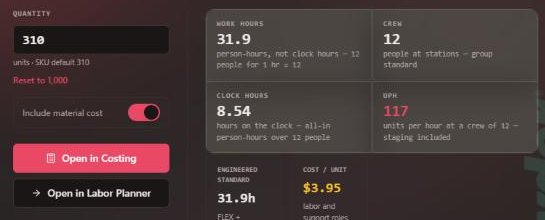
Clock Hours and UPH don't change with the quantity: they always describe a 1,000-unit run, so SKUs can be compared. Work Hours and the quote follow the box.
Reset to 1,000 clears the saved quantity. Duplicate SKU and Save as new SKU copy it to the new SKU.
Screenshots are from Beacon's test site; the SKU shown is demo data.