Beacon how-to · October 2026
What's new: v2.162.0
A screen left alone stays open for an hour before it locks. Clock Hours on the SKU page follows the quantity you type. Costing finds a material by typing, and a quote can type over a step count that comes from the BOM.
- v2.162.0
1. Patch notes v2.162.0 Oct 24, 2026
- v2.162.0
- Idle lock is now 60 minutes: a screen nobody touches shows the “I'm still here” warning after 59 minutes and locks at 60. Before, it locked after 15. Unlocking still takes your password, nothing on screen is lost, and a locked screen still signs out after 8 hours.
- Clock Hours follows the quantity: on the SKU page, Clock Hours is the Work Hours on screen divided by the crew, at the quantity in the box. Before, it always used 1,000 units, so 60008691WIP showed 27.41 hours for a 273-unit order; it now shows 7.50.
- Searchable material picker: on the Costing tab, type part of a SKU or its description to find the material.
- Type over a BOM count: on the Costing tab, a step count that comes from the BOM can be typed over for that quote only. The row shows the auto figure and a reset; empty means auto. A saved quote reopens with the typed counts. The SKU, the planner and the boards never see them, and Save as new SKU does not carry them.
2. Idle lock: 60 minutes
Beacon locks a screen that has been left alone, so nobody else can work under your name on a shared PC. That used to happen after 15 minutes. At Ferrara's request it now waits an hour.
What you see
- After 59 minutes with no mouse, keyboard or touch, a card appears in the bottom-left corner counting down from a minute.
- Press I'm still here, or move the mouse or press any key, and the screen stays open.
- If nobody does, the screen locks at 60 minutes. Enter your password to pick up exactly where you left off.
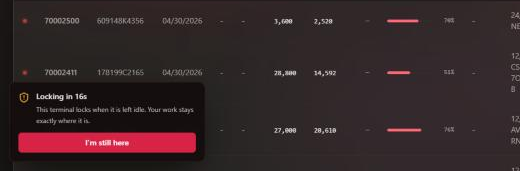
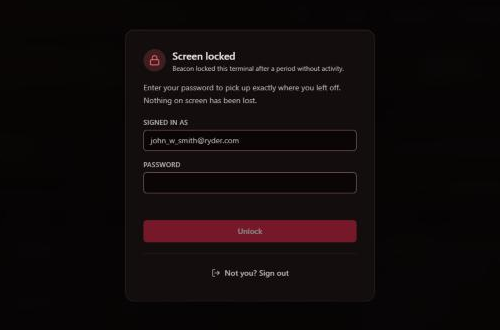
Nothing else changed: the warning and lock screens look the same as before, and a screen that stays locked for 8 hours still signs out.
Screenshots are from Beacon's test site.
3. Clock Hours on the SKU page
The Costing strip on a SKU page reads left to right: Work Hours, Crew, Clock Hours, UPH. Clock Hours is now simply the Work Hours you see divided by the crew, at the quantity in the box.
Before, Clock Hours always worked on 1,000 units, whatever the box said, so it did not match the Work Hours beside it. Example: 60008691WIP at 273 units showed Work Hours 82.5, Crew 11 and Clock Hours 27.41. It now shows 7.50 (82.5 ÷ 11).
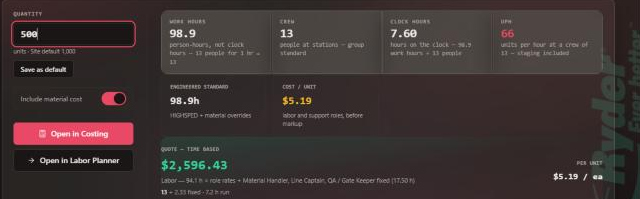
Screenshot is from Beacon's test site; the SKU's figures are demo data.
4. Costing: search and type over
Find a material by typing
On Material Master → Costing, click Select material and type part of a SKU or its description. Typing shr dsp lists every shroud display.
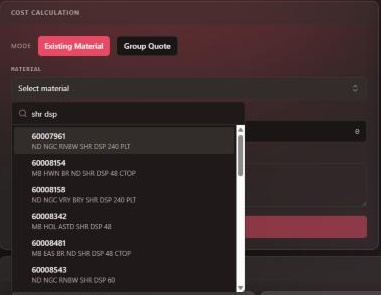
Type over a count that comes from the BOM
Some steps take their count from the BOM: how many times the step runs per case or per pallet is worked out from what goes into the build. On the Costing tab those rows can now be typed over for the quote you are working on:
- Type the count you want into the row's box. The row keeps showing the auto figure beside it, for example auto 7.0.
- To go back, press the row's reset, or clear the box. Empty means auto.
- Save the quote as usual. When you reopen it, your typed counts come back with it.
A typed count belongs to that quote only. The SKU itself, the Labor Planner and the boards keep using the count from the BOM, and Save as new SKU does not carry typed counts. If the BOM is simply wrong, fix it on the SKU instead.