Beacon how-to · November 2026
Shift Review and Hour Tracker
At the end of the shift the coordinator reviews every line, counts the people by role, and submits the day. Submitting posts the units and hours to Beacon. This page has five short how-tos: run the review, enter the headcount, submit and read the receipt, check hours in the Hour Tracker, and add hours by hand when a line did not use the tablet. To fix a day that is already submitted, see Fix a shift.
Known issues: read these first
includedwhen that order posted nothing. After you submit, only the orders listed under
Posted to Beaconwere posted. Check that list.
Screenshots are from Beacon's test site (shown as “Demo Site”). The orders QA-3101, QA-3102 and all numbers are demo data, not real production data.
1. How to run Shift Review
Who: coordinator or above. When: at the end of the shift, after the lines are closed.
Before you start
- The line captains have closed their lines on the tablets (see Checkpoint how-tos).
Steps
- Go to Production and click Shift Review. It opens on today. To look at another day, change the date at the top right and click Go.
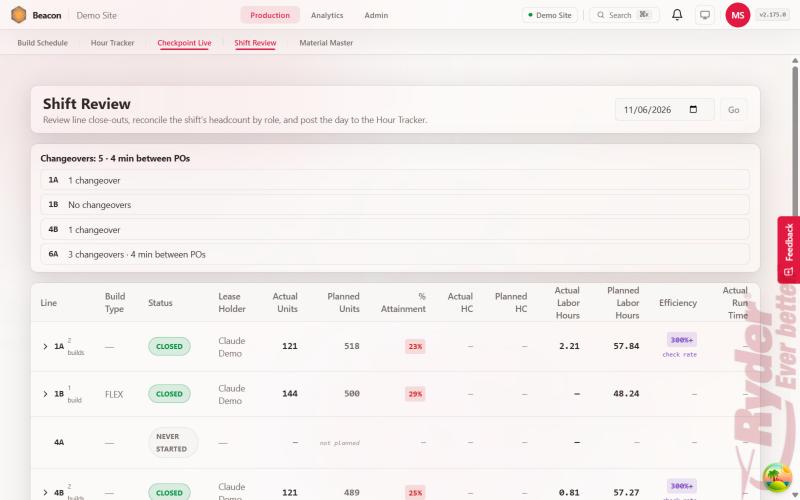
- Read the changeover strip. The first box says how many changeovers there were and the minutes between orders, for example
Changeovers: 5 · 4 min between POs
. Below it, each line gets one row:1 changeover
,No changeovers
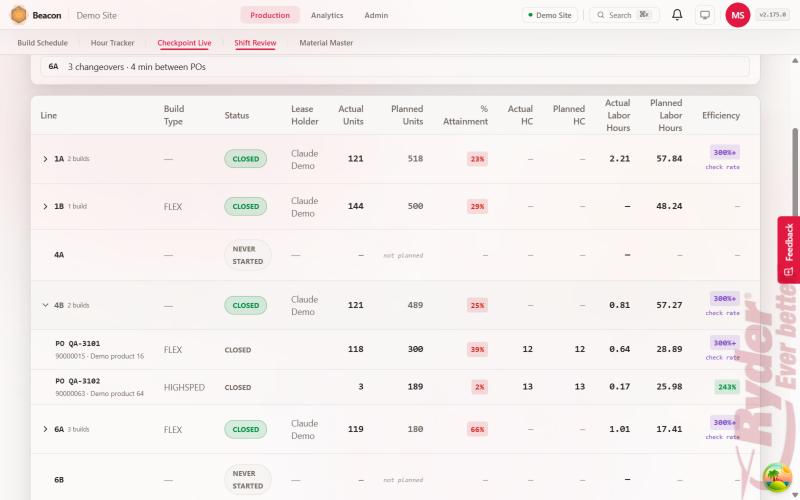
. - Read the line rows. There is one row per line. Status says CLOSED, running or NEVER STARTED. Lease Holder is the person who ran the tablet. Then come units, labor and efficiency (see the list below the pictures).
- Open a line to see its orders. Click the little arrow at the start of the row. Each order the line ran gets its own row.
- Read the checklist, if one is shown. A box above the table says
N to close before you can submit
when a line is still running or an order is not wrapped up. Each row has a button: Close & adjust here for a running line, Reopen & close for a line that was closed too soon. Fix every row. When the box is gone, you can submit. A second box,Check before you submit
, only advises. It never stops you. - Scroll sideways in the table to see Run Time, Downtime and the Reopen button on each line.
What the columns mean
- Actual Units / Planned Units: what the line built, and what the Labor Planner planned for it.
- % Attainment: actual ÷ planned. Red means well under plan.
- Actual Labor Hours: person-hours: people × time. Twelve people for 3 minutes is about 0.6 hours. It is not clock time.
- Planned Labor Hours: what the plan allowed.
- Efficiency: planned hours compared with actual hours. More than 100% is faster than plan. A very high number such as
300%+ check rate
usually means the standard rate or the hours are wrong, not that the line was super fast. Check them before you trust it. - Total line hours (a tile lower on the page,
wall-clock
) is clock time the lines ran. It is smaller than person-hours when many people work at once. They are two different measures.
to close before you can submitchecklist to come.
Example
If something goes wrong
- A line shows 0 units or no hours. The pallets may not have been counted, or the line was closed with no taps. Reopen it (the Reopen button on its row), have the captain count, and close it again. For past days see Fix a shift.
- A message names a line by a long code instead of its name. It is the same line. Look it up in the table.
- The page says
No lines are configured yet
for the first few seconds. Wait. It fills in. - An orange box says
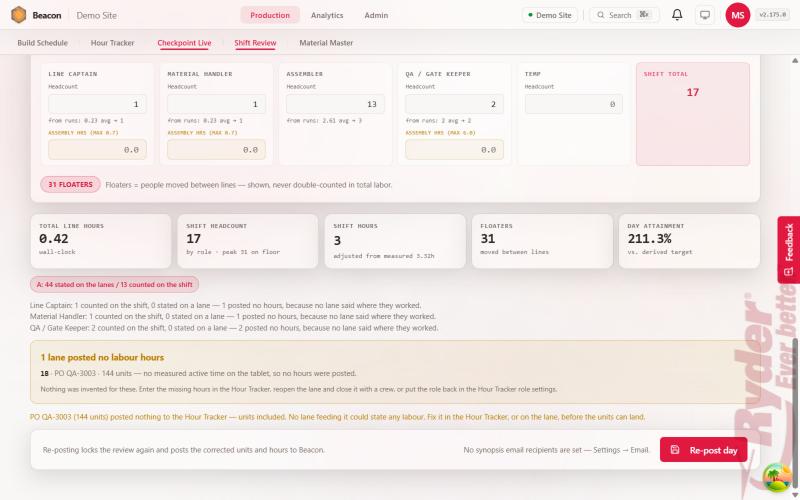
1 lane posted no labour hours
. No hours were measured for that order. Nothing was made up. Add the hours in the Hour Tracker (how-to 5), or reopen the line and close it with a crew.
2. How to enter the shift headcount by role
Who: coordinator or above. When: after you have read the lines and before you submit.
Before you start
- Get the real number of people who worked the shift, by role, from your sign-in sheet or your lead. Count each person once, even if they moved between lines.
Steps
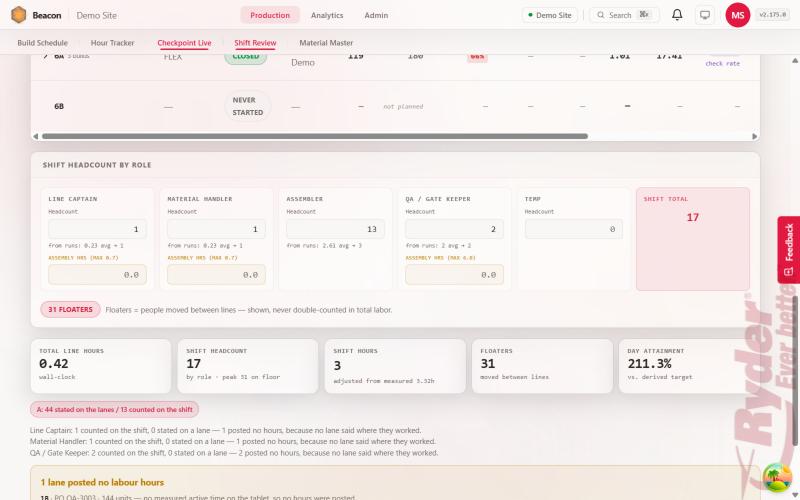
- Scroll down to SHIFT HEADCOUNT BY ROLE.
- There is one box for each role: Line Captain, Material Handler, Assembler, QA / Gate Keeper and Temp. Under each box a small line shows what the tablets counted, for example
from runs: 2.61 avg → 3
. - Type the real number of people for each role. Leave a role at 0 if nobody worked it.
- Check SHIFT TOTAL on the right. It is the sum of the boxes.
- Read the red or amber notes under the tiles. They tell you when the lane crews and your shift count do not match.
Example
If something goes wrong
- A note says
1 counted on the shift, 0 stated on a lane — 1 posted no hours
. You counted someone, but no lane said where they worked, so they got no hours. Add their hours in the Hour Tracker, or put the role on the lane. - The Floaters tile shows a number. Floaters are people who moved between lines. They are shown, but never added twice into the total.
- The boxes are grey and will not take typing. The day is already submitted. Reopen it first (how-to 3).
- The Daily Synopsis later shows a different number. See the known issues. Yours is the right one.
3. How to submit the day and read the receipt
Who: coordinator or above. When: every line is closed, nothing is left in the checklist, and the headcount is in.
Before you start
- No
to close before you can submit
box is showing. - The SHIFT HOURS tile has the hours worked. If it is empty, Beacon stops the submit with
Shift hours needed
and tells you how long the lines ran.
Steps
- Scroll to the bottom. The bar says
Submitting locks the review and posts today's units and hours to Beacon.
- If you see a box
Email the daily synopsis to N recipients
, leave it ticked only if you want the email to go out now. - Click Submit Shift Review.
- When it finishes, a receipt appears:
Shift review submitted
, the day, your name and the time. - Read
Posted to Beacon
. There is one line for each order that was posted: units, hours and how much of the order is built. - A box
Close finished orders?
may appear. Tick an order only if it is completely finished. Then click Close selected. If you are not sure, click Not now.
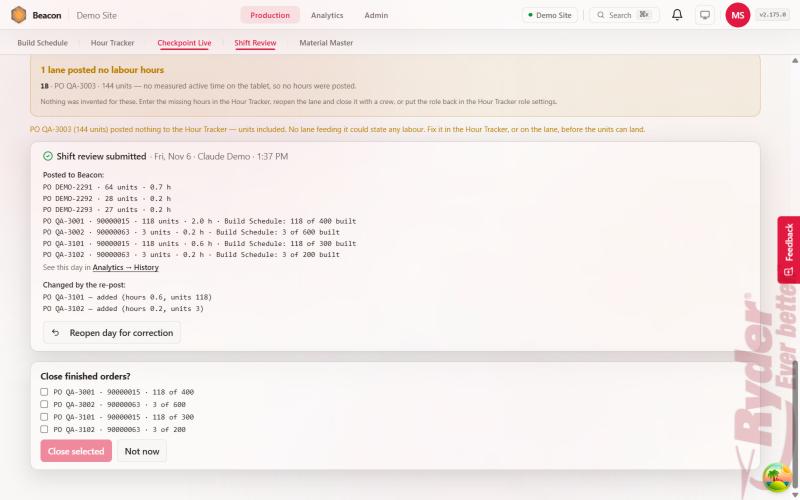
Example
4B closed after submit, and click Reopen day. A message says
Day reopened for correctionand the button at the bottom is now Re-post day. You click it. The receipt now lists QA-3101 (118 units, 0.6 h) and QA-3102 (3 units, 0.2 h), and says
Changed by the re-post: QA-3101 — added (hours 0.6, units 118).
If something goes wrong
- The receipt says
Hours partially posted — PO … failed. Retry posting below.
Click Retry posting hours. - You need to change something after you submitted. Click Reopen day for correction. It needs a reason. Fix what you need, then click Re-post day. For older days see Fix a shift.
- An order is missing from
Posted to Beacon
, but the page said its units were included. See the known issues. Add its hours in the Hour Tracker (how-to 5).
4. How to check hours in the Hour Tracker
Who: coordinator or lead. When: before you save hours, or after, to be sure the day looks right.
Steps
- Go to Production and click Hour Tracker.
- Check Work Date at the top. It opens on today.
- Fill in the order (see how-to 5). As you type, the tiles at the top add up: total units, and hours for each role.
- Look at Pallets next to the units, for example
≈1.5 pallets
. It is an estimate from the pallet size. - Look at the bar at the bottom:
1 of 1 order(s) ready
, the date and the number of crew heads entered. - To see a day that is already posted, click Analytics and then History and choose the dates.
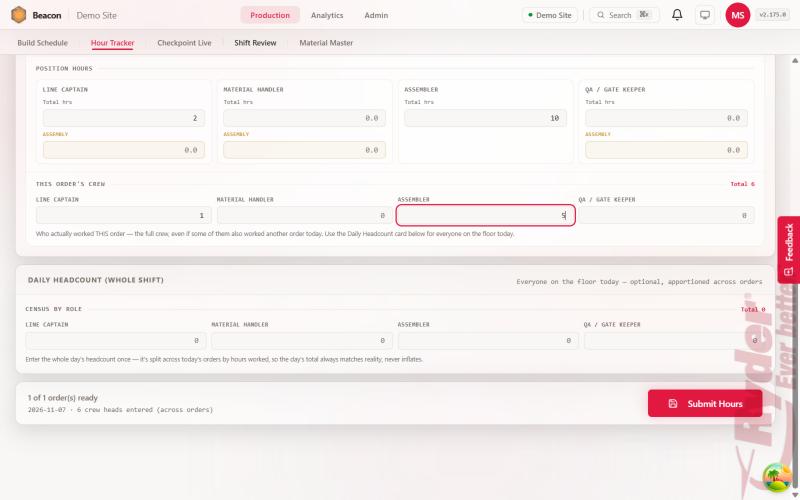
Example
If something goes wrong
- The date is wrong. Hours are saved on the date at the top. Fix the date before you click Submit Hours.
- The page says
No orders added yet
for a day you know had work. That is normal. The page does not load posted hours. Look in History. - The pallet line is missing. The material has no pallet size.
5. How to add hours by hand in the Hour Tracker
Who: coordinator or lead. When: a line did not use the tablet, or hours are missing from the day.
Before you start
- You have the order number, the date, the units built, the hours for each role and the crew.
Steps
- Go to Production → Hour Tracker.
- Set Work Date to the day the work was done.
- Click Add Order.
- Under Production Order, pick the order. Leave Work Type on Unit build (units).
- Type Units Completed.
- Under Position Hours, type the total hours for each role that worked. Leave the others at 0.
- Under This Order's Crew, type how many people of each role worked this order.
- Optional: at the bottom, under Daily Headcount (whole shift), type everyone on the floor that day. Beacon splits it across the day's orders by hours.
- Click Submit Hours.
- You see
Hours saved successfully
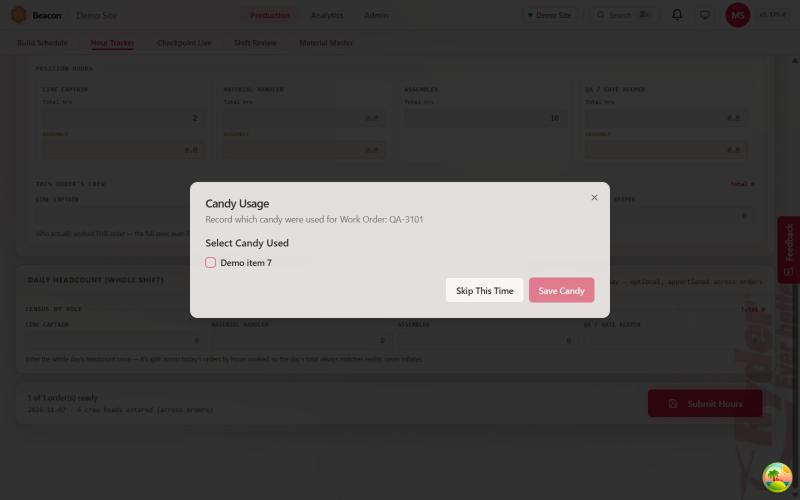
. A boxCandy Usage
may open. Click Skip This Time unless you know which candy was used. - You see
All orders processed successfully
and the form clears.
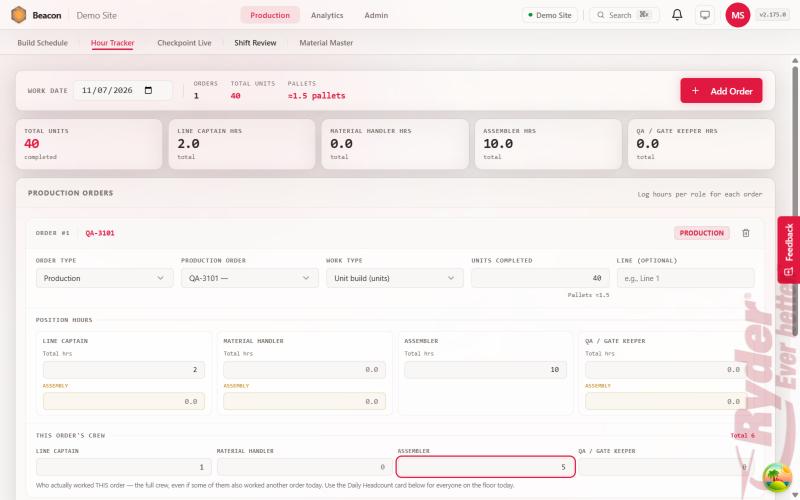
Example
1 of 1 order(s) ready · 6 crew heads. You click Submit Hours and see
Hours saved successfully.
If something goes wrong
- Beacon says
Please add at least one order with units completed
. Units completed is 0. A build order needs units. - The order is not in the list. It is not in the Build Schedule yet. Add it there first.
- You saved the wrong date. Ask a lead who can correct it. See Fix a shift.