Beacon how-to · November 2026
Checkpoint: running a line on the tablet
Checkpoint is how a line tells Beacon what it built, when it stopped and who was on it. The line captain does it on the line tablet, from start of shift to close-out. This page has seven short how-tos, one for each job on the tablet. Do them in this order on a normal shift.
Known issues: read these first
Screenshots are from Beacon's test site (shown as “Demo Site”). The orders QA-3101 and QA-3102 and every number are demo data, not real production data.
1. How to start a line
Who: line captain (or any lead) on the line tablet. When: when work starts on the line.
Before you start
- Today's order is on the Labor Planner, on your line (see the known issues above).
- You know how many people are working the order. You will be asked.
Steps
- On the tablet, go to Production and click Checkpoint Live.
- Find your line's card, for example 4B. It says READY and shows today's first order.
- Tap Start Line.
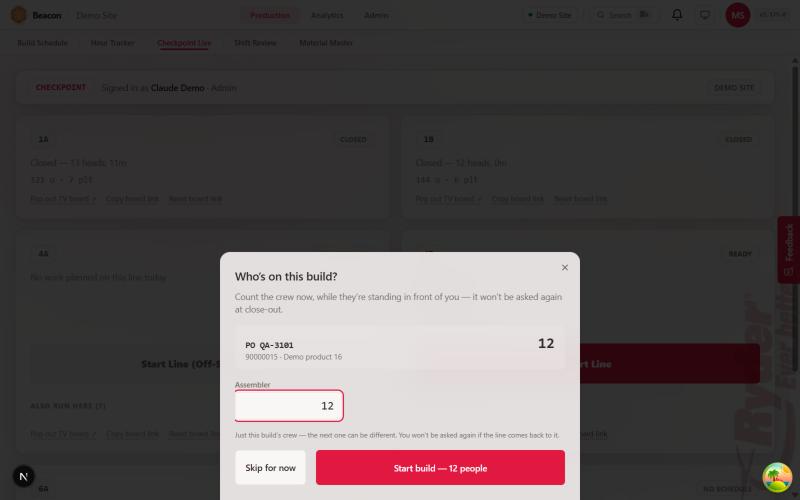
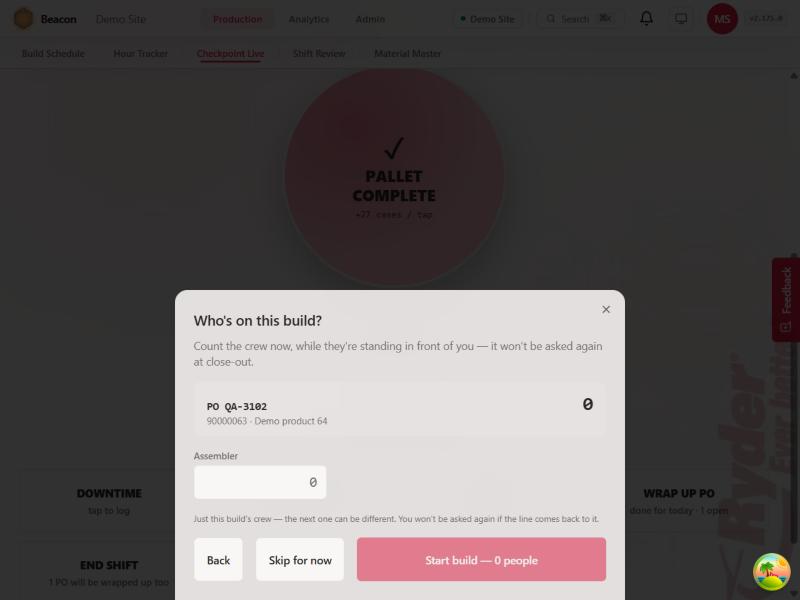
- The box
Who's on this build?
opens. Count the people standing in front of you now. - Type that number in the Assembler box. The big button changes to, for example, Start build — 12 people.
- Tap that button. The console opens.
- When the first pallet is done, tap PALLET COMPLETE (see how-to 2).
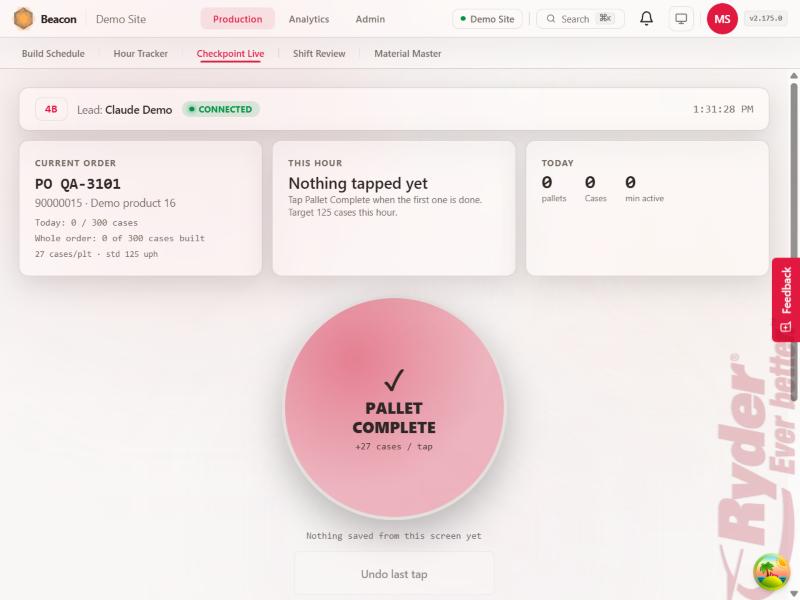
27 cases/plt: that is what one tap will add.
Example
Today: 0 / 300 casesand
27 cases/plt. The line card on the Checkpoint Live page now says RUNNING · YOU.
If something goes wrong
- No Start Line button, or your order is missing. The order is not on the Labor Planner for today on this line. Ask the planner to place it. Do not use the grey Start Line (Off-Schedule) button for a normal order: it starts a line with no order and no crew question.
- The start button stays grey. The crew box is 0 or has letters in it. Type a whole number, 1 or more.
- You pressed Skip for now. The line starts with no crew count. Beacon does not ask again at close-out, so use the Crew button on the console to set the crew now.
2. How to count pallets on the tablet and undo a wrong tap
Who: line captain. When: every time a full pallet comes off the line.
Steps
- When a full pallet is done, tap the big PALLET COMPLETE button once.
- Look at the top of the screen. Today goes up by one pallet and by the cases on a pallet (for example +27).
- Wait a second or two before the next tap. Two fast taps count as one.
- If you tapped by mistake, scroll down a little and tap Undo last tap. It takes away the last tap.
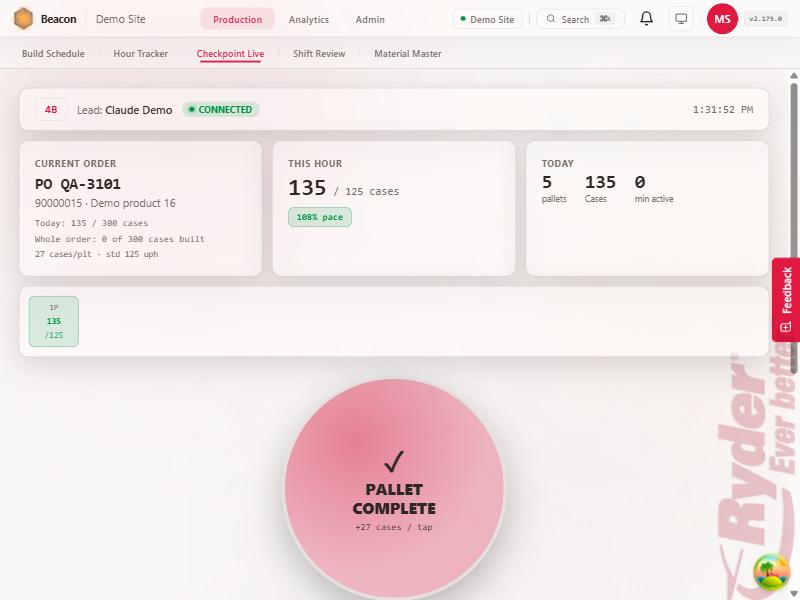
This hourcompares the cases with the hour's target (125) and shows the pace.
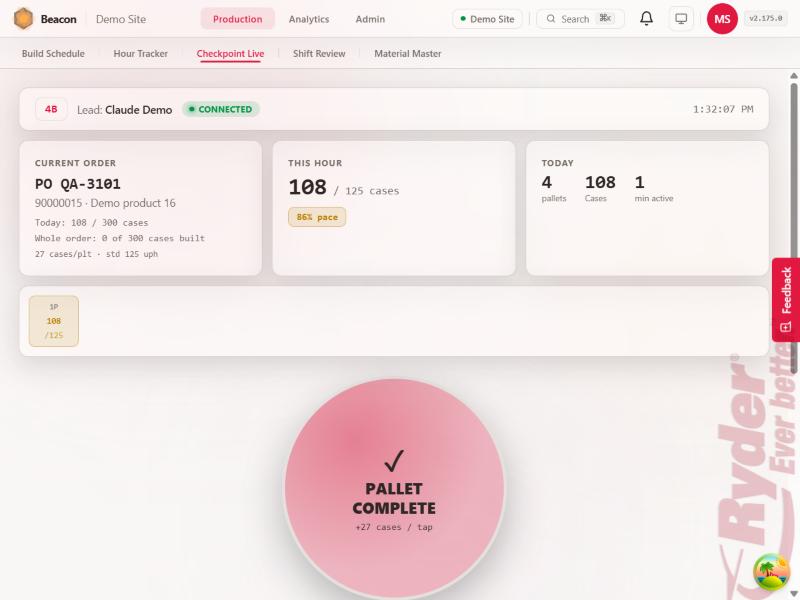
Example
If something goes wrong
- Taps do nothing. A downtime is running. Taps are ignored until you end it (how-to 4).
- Each tap adds only +1 case. The material has no pallet size set. Tell the planner or the material master owner. Meanwhile, add the real cases with Partial pallet… (how-to 3).
- You counted too many. Undo takes away the last tap, one at a time. Do not guess: count the pallets on the floor first.
3. How to enter loose cases
Who: line captain. When: cases are done but they do not make a full pallet (a part pallet at the end of an order).
Steps
- On the console, scroll down a little and tap Partial pallet… (a small link under Undo last tap).
- In the box
Partial cases
, type the number of loose cases. - Tap Add cases.
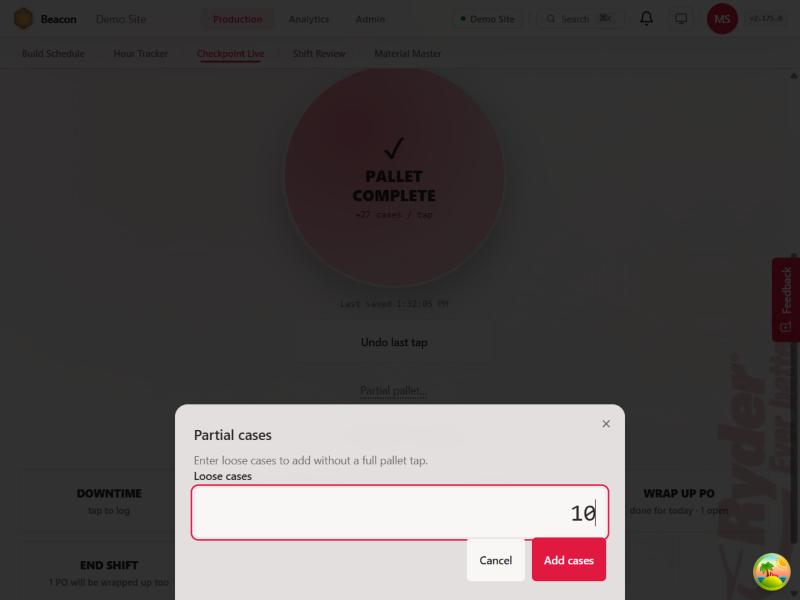
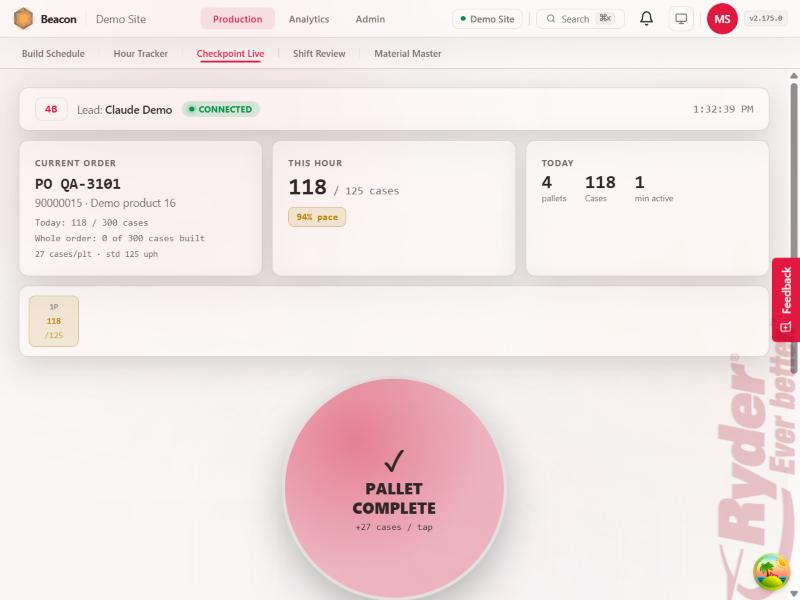
Example
If something goes wrong
- You typed a minus number. Beacon does not take it. To take cases away use Undo last tap for a pallet, or ask a coordinator to correct the day in Shift Review.
- Cases were built before the tablet was connected. Use Built before connecting, just below, instead. Those cases count in the totals but not in the pace.
4. How to log downtime, lunch and break
Who: line captain. When: the line stops for a reason, or the crew goes to lunch or break.
Steps
- On the console, scroll down and tap DOWNTIME.
- Pick the reason: Mechanical, Material, Changeover, Break, Lunch or Other.
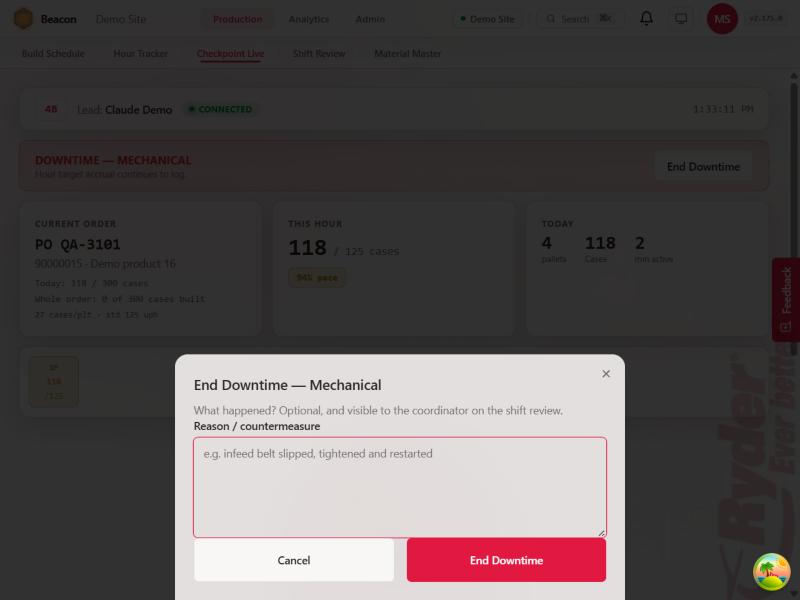
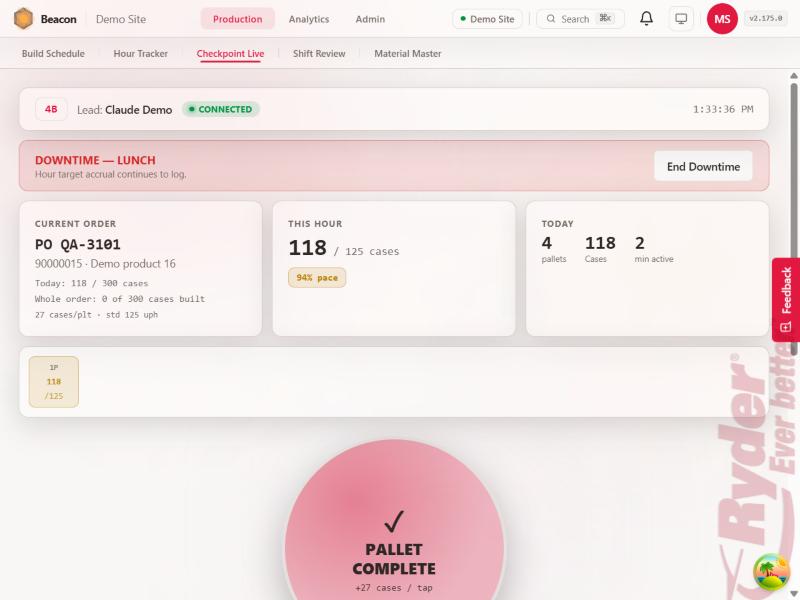
- A red bar appears at the top, for example
DOWNTIME — MECHANICAL
. The clock for the stop is running. - When the line is running again, tap End Downtime.
- Beacon asks
What happened?
Type a short note, for example what you fixed. The note is optional. The coordinator sees it in Shift Review. - Tap End Downtime in the box. The red bar goes away.
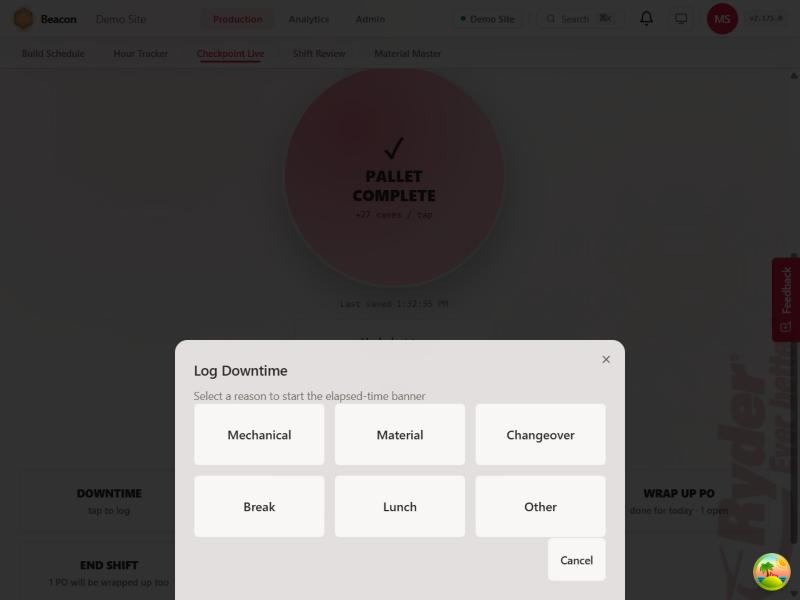
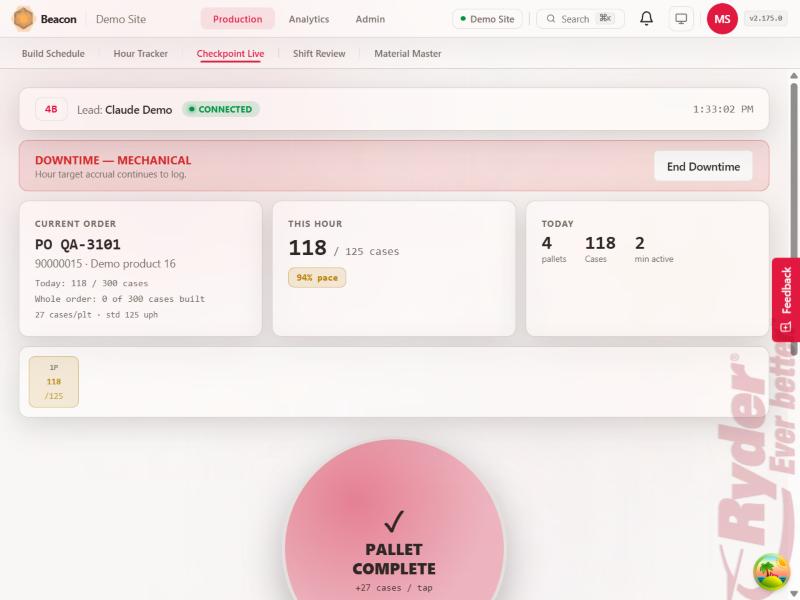
Example
DOWNTIME — MECHANICAL. You tighten the belt, tap End Downtime, type
Infeed belt slipped, tightened and restartedand tap End Downtime. A little later the crew goes to lunch: DOWNTIME → Lunch, and End Downtime when they are back. On this test site lunch is unpaid, so Beacon takes lunch minutes out of the labor hours.
If something goes wrong
- The bar is still red after lunch. Someone forgot End Downtime. Pallet taps are ignored while it is red. Tap End Downtime and carry on.
- You are changing to the next order. Do not log it as downtime. Use CHANGEOVER (how-to 5).
5. How to change over to the next order
Who: line captain. When: the line moves to the next order on the same shift.
Before you start
- The next order is on the Labor Planner, on this line, for today. The CHANGEOVER button says
1 queued
when one is waiting.
Steps
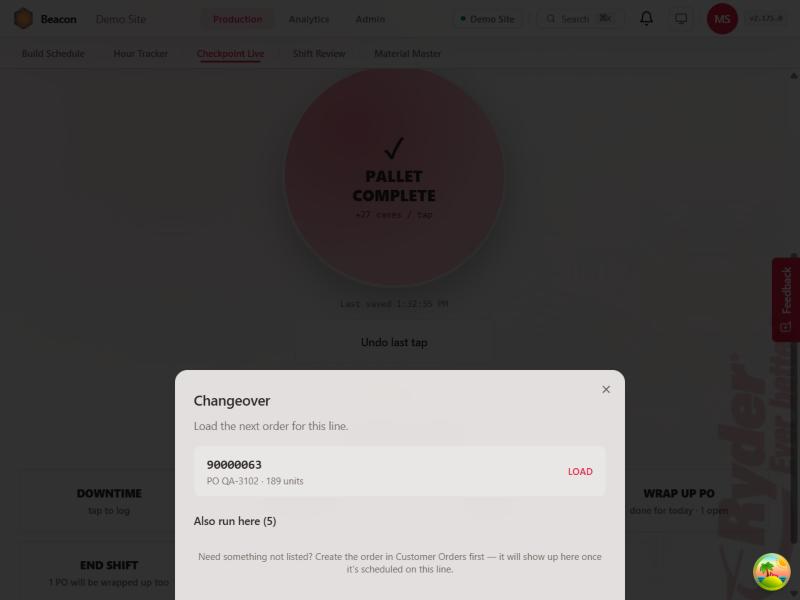
- On the console, scroll down and tap CHANGEOVER.
- The box
Changeover
lists the orders planned on this line. The order that is running now is not in the list. - Tap LOAD next to the order you are starting.
- Count the crew for the new order and type it in the Assembler box.
- Tap Start build. The console now shows the new order.
- Wrap up the first order when it is done (how-to 6). A changeover does not do that for you.
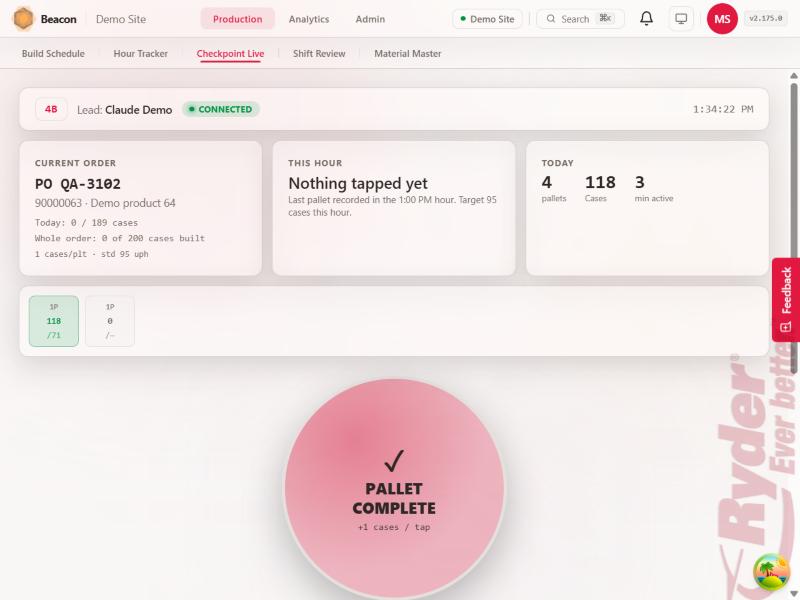
Example
Today: 0 / 189 cases. The line total at the top still says 4 pallets and 118 cases, because QA-3101's cases are still part of today.
If something goes wrong
- The list is empty or your order is missing. The order is not on the Labor Planner for this line today. The box says the same in small print: it only shows orders scheduled on this line. Ask the planner.
- Every tap adds only 1 case. The new material has no pallet size. See how-to 2.
- You loaded the wrong order. Do not tap pallets. Tell a coordinator before you close out so they can correct it in Shift Review.
6. How to finish (wrap up) an order
Who: line captain. When: an order is done for today. The line keeps running on the next order.
Steps
- On the console, scroll down and tap WRAP UP PO. It says
done for today
and how many orders are still open. - The box
Which PO are you wrapping up?
lists every order the line ran today, with its cases and its minutes on the line. Tap the order that is finished. - Check the crew on the next screen. It shows the crew you typed when the build started.
- Tap Wrap up this PO. The line keeps running.
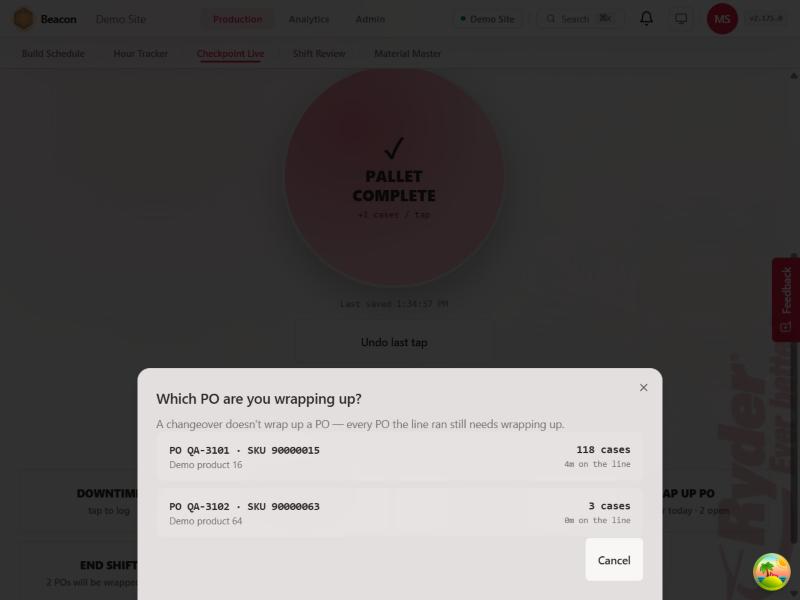
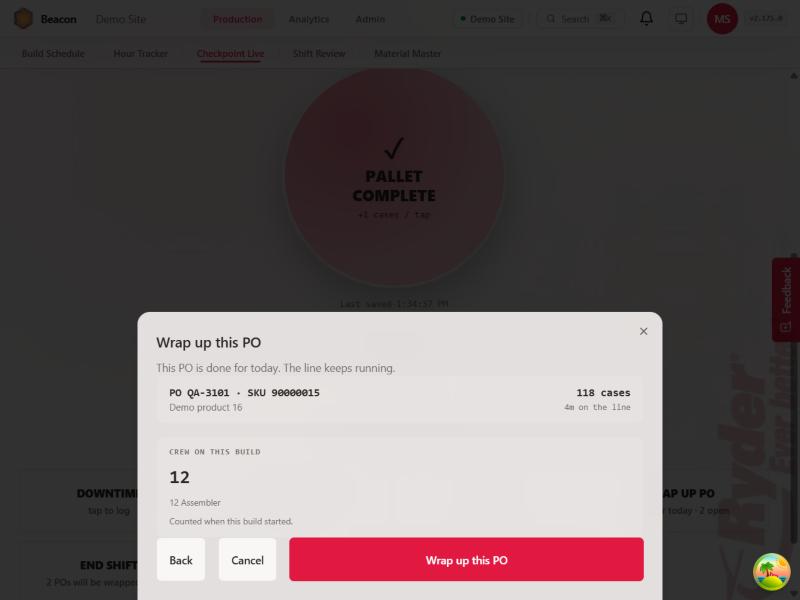
Example
1 open, and END SHIFT says
1 PO will be wrapped up too.
If something goes wrong
- You forgot to wrap up an order. END SHIFT wraps up the orders still open. If you close the line without it, Shift Review lists the order and a coordinator finishes it there.
- You picked the wrong order. Tap Back or Cancel before you confirm.
7. How to close out a line at the end of the shift
Who: line captain. When: the last order is done and the line stops for the day.
Before you start
- All downtime is ended (no red bar).
- You know the real pallet count for the shift. Beacon does not warn you if it is 0.
Steps
- On the console, scroll down and tap END SHIFT.
- The
Close Out
box shows cases today, Pallets today and Active time (measured), and the time the line ended. - Read the numbers. If they are wrong, tap Cancel and fix them first.
- Tap Confirm Close Out.
- The screen says
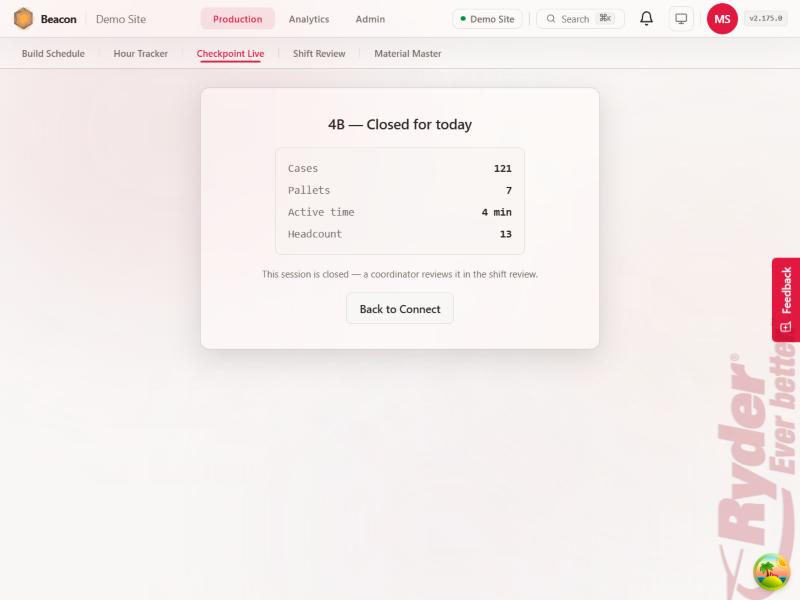
4B — Closed for today
with the totals and the headcount. Nothing on it can be tapped. Tap Back to Connect to leave.
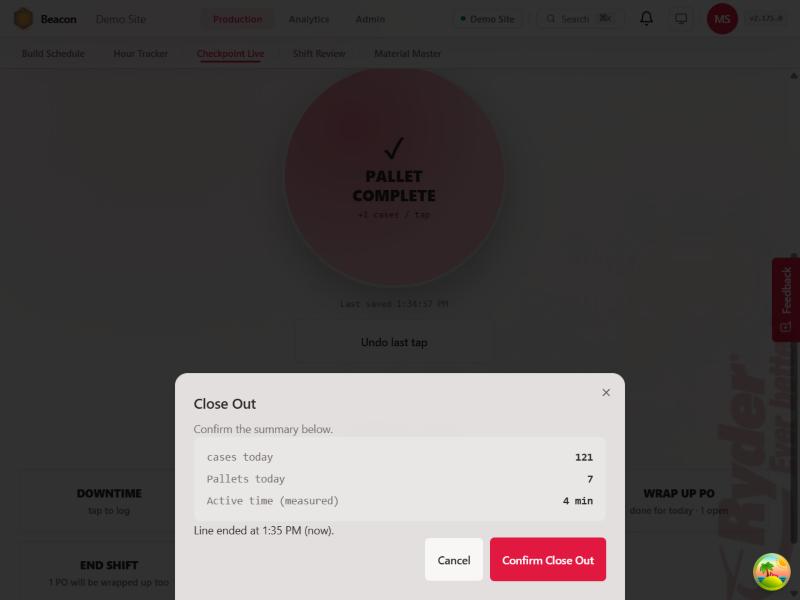
Example
If something goes wrong
- Pallets today shows 0. Beacon will still let you confirm. Do not. Count the floor and tap the pallets first, or ask your coordinator.
- Active time is very short. The clock starts at the first pallet tap (see the known issues). Tap the first pallet soon after you start a line next time.
- You closed too early. Tell your coordinator. They can reopen the line in Shift Review. See Shift Review how-tos and Fix a shift.