Beacon how-to · November 2026
Measured changeover: set up, Start, and the first pallet
Changeover now stops the old PO and puts the line in set-up. Beacon times the changeover from the old PO's stop to the new PO's first pallet, less the time one pallet takes to build. Those minutes are the new PO's changeover, kept apart from its rate.
- v2.176.0
- Plan vs Actual: v2.178.0
- Fix a missed changeover: v2.185.0
- Downtime warning + remove the downtime: v2.188.0
- Synopsis counts changeover: v2.189.0
- Typed changeover shows what counts: v2.191.0
1. What's new
- One more tap. Tap CHANGEOVER, pick the next PO as before, set up the line, then tap Start. See it
- The first pallet decides the minutes, not the Start tap. Tapping Start early or late does not change them. How
- Changeover time is its own time on the PO you changed over to. It is in cost and hours. Plan vs Actual grades it on its own. New in v2.189.0: the synopsis counts it like downtime. Why
- Shift Review flags a changeover over twice the plan. Example
- Plan vs Actual leaves changeover out of “over standard” too. A PO is no longer over standard because of its set-up time. See it
- New: fix a missed changeover in Shift Review by picking the PO switch. You pick “PO A → PO B” and type the minutes. They land on PO B, not on whatever hour you typed. How
- New: a PO smaller than one pallet still gets its changeover measured. Beacon measures it to when the PO ended. How
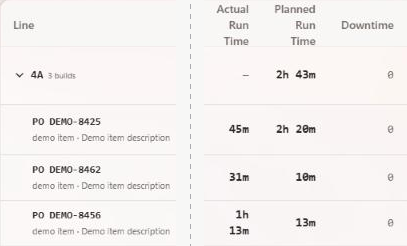
- New: Actual Run Time leaves the changeover out. A PO that changed over for 30 minutes after an early Start no longer shows those 30 minutes as run time. Example
- New: Changeover is no longer a downtime reason. The CHANGEOVER button is the one way to log it. Why
- Fixed: the line card shows this PO’s count against this PO’s plan, not the whole day’s units. This Hour keeps its count after a close and reopen. See it
- New: Shift Review warns when downtime was logged during a changeover. Downtime wins the minutes, so that changeover counts less than it ran, down to 0. A coordinator can now remove that downtime in Close & adjust. Example
- New in v2.191.0: a typed changeover shows what it will count, lists the downtime in its way, and can take it off in the same fix. The tablet reminds the lead not to log a changeover as downtime. How
Screenshots are from Beacon's dev site. The POs named DEMO-… and all their numbers are demo data, not real production. Item numbers and descriptions are hidden.
2. Changeover, then Start
- Tap CHANGEOVER and pick the next PO. If Beacon asks who is on the build, count the crew as usual.
- The PO that was running stops. The console shows Setting up PO … · 12 min with a big Start button (Fig. 1). The minutes count up while you set up.
- When the line is ready, tap Start. The new PO's targets and the board switch to it.
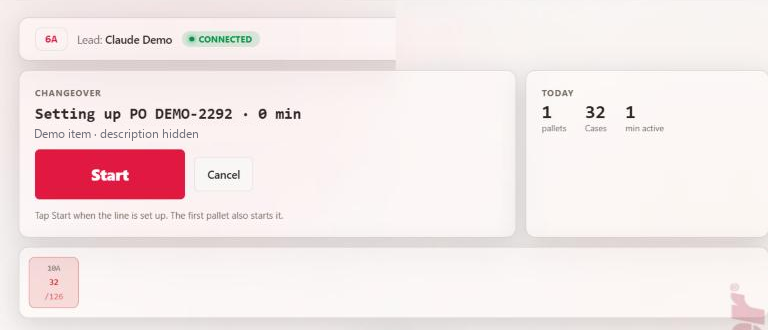
While the line is setting up you can still log downtime, wrap up the old PO, change your pick with CHANGEOVER, or end the shift. Undo, partial pallets, the starting count and crew changes wait until the new PO starts.
Start Line after a WRAP UP, Pull Forward and Also run here work the same way: the line sets up first. The day's first PO starts at once, as before. Its set-up is start-up, not a changeover.
3. Forgot Start? The first pallet starts it
If the line was set up and built a pallet before anyone tapped Start, just tap PALLET COMPLETE. Beacon starts the new PO at that tap and counts the pallet to the new PO, at the new PO's pallet size. Nothing is lost.
4. How the minutes are counted
Start: when the old PO stopped on that line. That is the Changeover tap, or the WRAP UP tap when the next thing the line did was start a different PO.
End: the new PO's first pallet, less the time one pallet takes at standard. One pallet's time is the pallet size divided by the standard rate at the crew you counted.
Changeover tapped at 9:00. The new SKU is 180 units a pallet at a standard 120 units an hour, so one pallet takes 90 minutes. The first pallet is tapped at 10:40.
Changeover = 9:00 to 9:10 = 10 minutes. From 9:10 to 10:40 the line was building that first pallet: that is run time on the new PO.
| What happened | Changeover minutes |
|---|---|
| Start tapped at once, first pallet 70 min later, one pallet = 60 min | 10 min (the first pallet decides, not the Start tap) |
| WRAP UP at 9:00, Start Line at 11:00, first pallet 11:50, one pallet = 45 min | 9:00 to 11:05 = 125 min (the wait counts, and it is flagged: see section 7) |
| Lunch logged during the set-up | Lunch minutes come off: they are downtime, never also changeover |
| The SKU has no standard | One pallet's time = the gap between the first and second pallet |
| No standard and only one pallet | Ends at the Start tap, labelled “pallet time unknown” |
| A PO smaller than one pallet (no pallet tapped), and the line then moved to another PO | Measured to when the PO ended, less the standard time to build what it made. Labelled “to close”. New. |
| The shift ended before the first pallet (End Shift, or the line closed) | Ends at the Start tap, labelled “no pallet”. End-of-shift time includes clean-up, so it is not counted as changeover. |
| Days before this update | Not measured: shown as the gap between runs, posted exactly as before |
5. Cancel and End Shift
Tapped Changeover by mistake? Tap Cancel. The old PO picks up as if nothing happened. Nothing is saved.
End Shift during a set-up drops the set-up. The line ends when the old PO stopped, so the set-up minutes are not charged.
6. The board and the line card
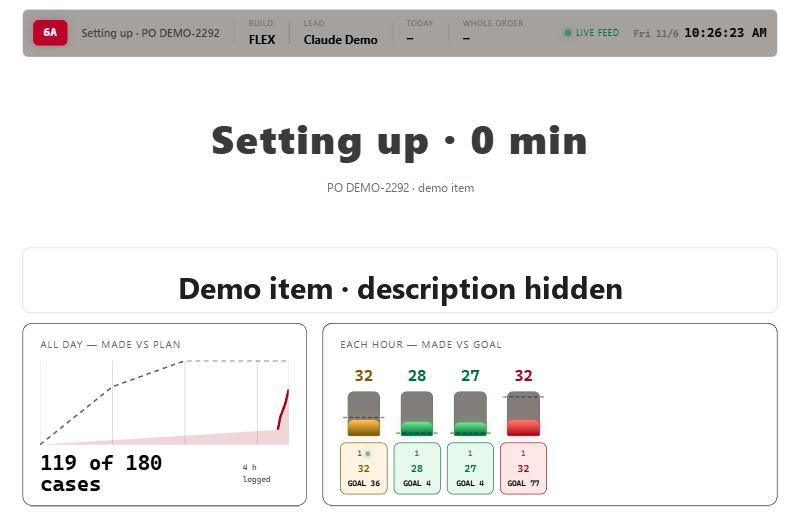
The TV board and the line's card on the Connect screen show Setting up · N min and the PO coming next, in place of the old PO's pace and goal.
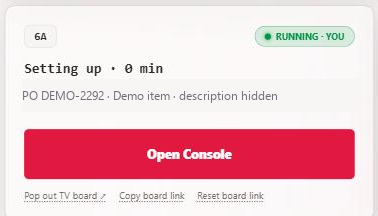
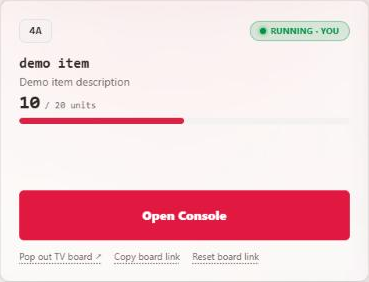
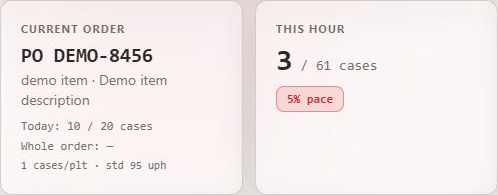
Fixed: the card counts the running PO. Once the line is running, the card’s count is that PO’s units next to that PO’s plan, the same figure the console shows. Before, it showed the whole day’s units against one PO’s plan, for example 224 / 20 on a line that had built 10 of a 20-unit PO (Fig. 4).
Fixed: This Hour after a close and reopen. Closing a line ends it at its last pallet. After a reopen in the same hour, the console’s This Hour read “Nothing tapped yet”, even though units were built earlier that hour. It now counts the whole hour for the item on the line (Fig. 5).
7. Long changeovers on Shift Review
A changeover over twice the site's plan (Ferrara's plan is 15 minutes) shows in Check before you submit. It does not stop Submit. If part of it was waiting, not set-up, the coordinator should know why.
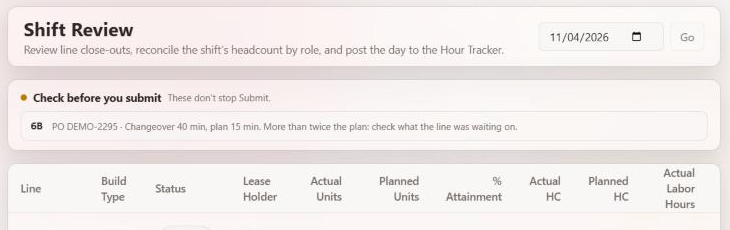
Shift Review also flags downtime logged inside a changeover: section 11.
8. Fix a missed changeover
Sometimes the line changes over but Beacon doesn’t see it. The lead taps Start right away. Then the PO is too small to ever tap a pallet. The set-up time ends up counted as that PO’s run time. A coordinator fixes it in Shift Review.
- In Shift Review, open the line’s Close & adjust here.
- Under Add changeover, find the PO switch. Each one reads like 8:32 AM · PO A → PO B · measured 3 min (no pallet), with the times each PO ran under it (Fig. 7).
- Type the minutes the line really took to change over. Beacon refuses a figure longer than PO B ran. Under the box, Beacon shows what will count. If downtime logged in the same time is cutting it, the downtime is listed with a tick box (section 11).
- Give a reason for the fix, then Confirm Close Out.
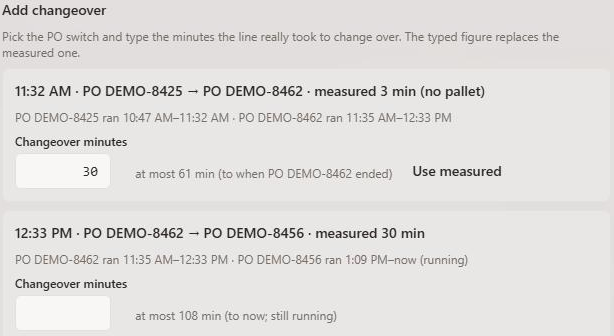
The minutes you type go on the PO you changed over to, starting where the old PO stopped. They replace the measured figure, which stays on screen beside it (“typed 30 · measured 3”). Hours, cost, rates, the synopsis and Plan vs Actual treat them like a measured changeover.
Actual Run Time leaves the changeover out. If the lead tapped Start early, the part of the changeover after Start no longer counts as run time (Fig. 8).
Changeover is gone from the Downtime list, on the tablet (Fig. 9) and in Close & adjust. Downtime stays in a PO’s rate. Changeover is kept out of it. Logging it as downtime also put it on whichever PO owned that hour, which is how a fix landed on the wrong PO.
Only Coordinators and above see Close & adjust. A fix is recorded with who made it and why, and it shows in the Weekly Synopsis under “Fixes this week”.
9. Changeover hours and your rates
Changeover minutes × the new PO's crew = its changeover hours. They are posted on the PO you changed over to, inside its hours.
- In: the PO's cost, the day's total hours, labor and the role table.
- In, from v2.189.0: the hours the synopsis divides by: Overall Productivity, units per assembly hour, Materials and Line Performance. They count changeover like downtime. More
- Out: the hours Plan vs Actual, the rate check and margin by SKU divide by. They grade the running; the changeover is graded on its own against the plan.
6 people, a 40-minute changeover into PO DEMO-2295. Total hours for the day: 30.00, the same as before. Hours Plan vs Actual divides by: 26.00, down by exactly the 4.00 changeover hours (40 min × 6 people). From v2.189.0 the synopsis divides by all 30.00.
Set-up minutes used to sit inside a PO's run time. Now they are taken out of the rate. A line with two 20-minute changeovers in an 8-hour day reads about 9% higher units per labor hour than the same day would have before. Week-over-week rate charts that cross the update date are not like for like.
v2.189.0 puts changeover back into the synopsis’s rates, so synopsis figures are like for like again across both dates.
A long wait after a WRAP UP before the next PO used to come off posted hours as idle when it was over 30 minutes. It now counts as that PO's changeover, so it is charged and flagged.
10. Changeover in Plan vs Actual
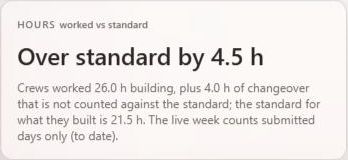
Plan vs Actual (Analytics → Plan vs Actual) compares the hours a crew worked on a PO with the standard hours for what they built. Changeover hours now stay out of that comparison, the same as in units per labor hour.
- Out: Over standard, the hours column (worked / earned), units per person-hour (pace) and the Over standard tab.
- In: the hours a PO actually took, hours by role and labor cost.
Morning start-up works the same way. The start-up time on a line's first PO is in its hours and cost, and left out of over standard and pace. Plan vs Actual names it beside changeover, for example “plus 4.0 h of changeover and 1.5 h of start-up that are not counted against the standard”.
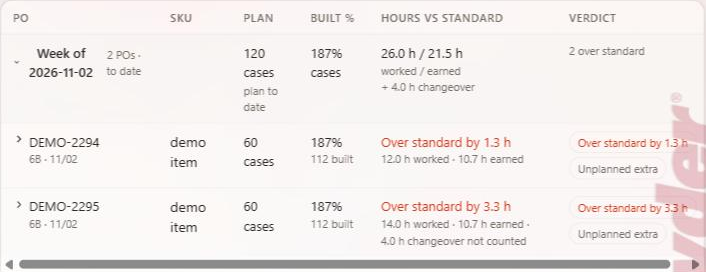
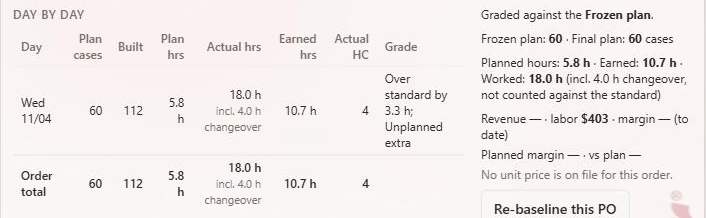
PO DEMO-2295 took 18.0 hours, 4.0 of them changeover. The standard for what it built is 10.7 hours. It is graded on 14.0 hours, so it reads over standard by 3.3 h. Before this update it would have read over by 7.3 h. Its labor cost still counts all 18.0 hours.
Wherever changeover was left out, Plan vs Actual says how much. The Hours card names it (Fig. 10):
So does each PO's row, and the week's total (Fig. 11). A PO with no changeover reads exactly as before, like DEMO-2294 here.
Open a PO's day-by-day to see all its hours. Actual hrs and Worked include the changeover and say how much of it there was (Fig. 12).
Days graded before this update keep their grade. A day only shows changeover here if it was posted after measured changeover went live and graded after this update.
11. Downtime during a changeover
Tap CHANGEOVER for a changeover. Don’t also log downtime for it. Beacon counts every minute once, and downtime wins: downtime logged during a changeover comes off the changeover. A changeover can end up counting 0.
The lead taps CHANGEOVER at 8:06. The new PO’s first pallet comes at 8:30. One pallet takes about 7 minutes at standard, so the changeover ran 17 minutes (8:06 to about 8:23). The crew also logged 25 minutes of Other downtime in the 8:00 hour. All 17 minutes go to downtime, so the changeover counts 0 min. The end-of-shift report’s Changeover column reads 0.
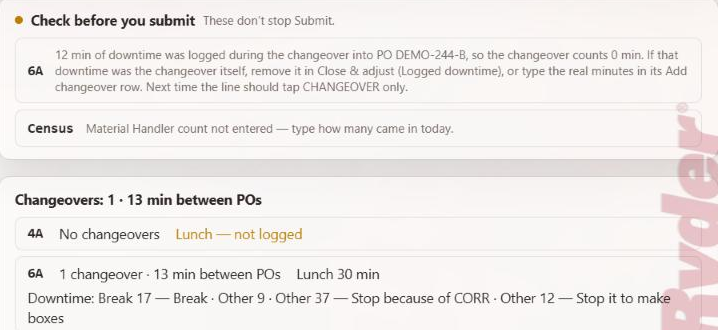
Shift Review now says so. The warning sits in Check before you submit, with the line, the minutes of downtime, the PO and what the changeover counts (Fig. 13). It does not stop Submit, and it changes no minutes.
| Logged inside the changeover | Warning? |
|---|---|
| Mechanical, Material, Break or Other downtime | Yes |
| Lunch only | No. A lunch inside a changeover is real lunch. |
| Lunch and another stoppage in the same hour | Yes. Beacon cannot split one hour’s downtime. |
| No downtime | No |
Close & adjust shows the same count on an open line. The same changeover reads 0 min with the 25 minutes logged (Fig. 14), and 17 min without them (Fig. 15).
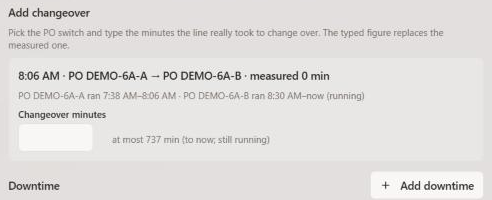
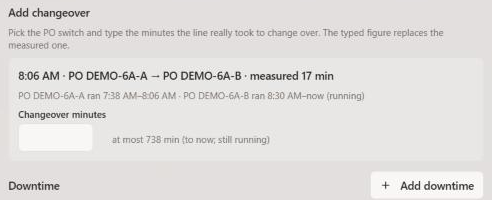
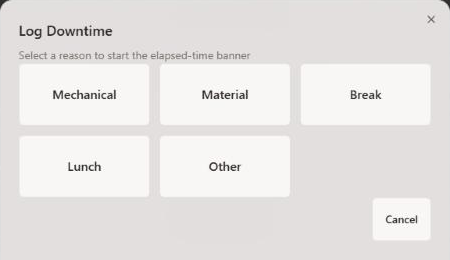
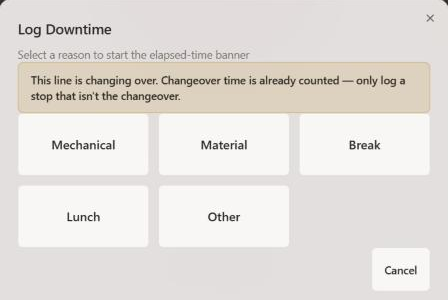
The line: tap CHANGEOVER and don’t log downtime for the changeover too. While the line is changing over (from the Changeover tap until the new PO’s first pallet), the tablet’s Downtime sheet says so (Fig. 16). If the line really stopped for something else during the changeover (waiting for material), logging that downtime is right, and the warning is only a heads-up.
The coordinator: if that downtime was the changeover itself, take it off. Open the line’s Close Out (Close & adjust here, or Reopen first on a closed line) and find it under Logged downtime. Click Remove on “8:00 AM · Other 25”, type a reason and confirm. The box tells you first what the changeover will count (“6B’s changeover into PO DEMO-6B-B will count 17 min”). Then the changeover reads 17 min, the warning is gone, and that hour’s Downtime is 0. Steps and screenshots: Remove or change logged downtime. Or type the real minutes in the switch’s Add changeover row and tick the downtime there (see below).
If the downtime was real (the line waited on material during the changeover), leave it. The warning is only a heads-up.
A typed changeover shows what it will count
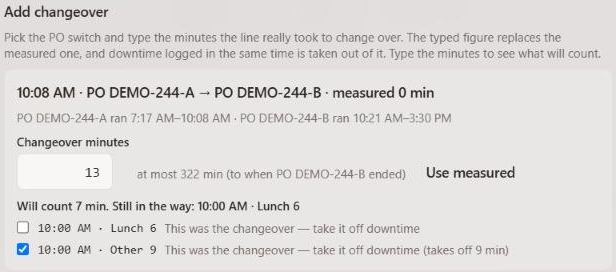
Downtime logged in the same time also comes off a changeover you type. Before this, typing 13 minutes into a changeover with 15 minutes of downtime in its hour slot still counted 0, and the screen didn’t say so. Now the Add changeover row shows the figure that will count as you type, and lists the downtime in the way.
- Open the line’s Close & adjust here (Reopen first on a closed line) and type the minutes in the switch’s Changeover minutes box.
- Read the line under it: Will count 7 min. Still in the way: 10:00 AM · Lunch 6 (Fig. 17).
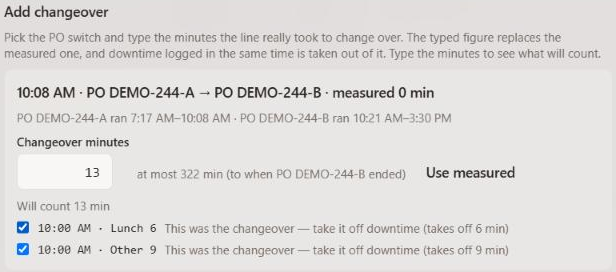
- Each entry in the way has a tick box: This was the changeover — take it off downtime. Other and the other stoppages start ticked. Lunch and Break never start ticked, because taking them off puts those minutes back on pay. Tick or untick to match what really happened, and the figure updates (Fig. 18).
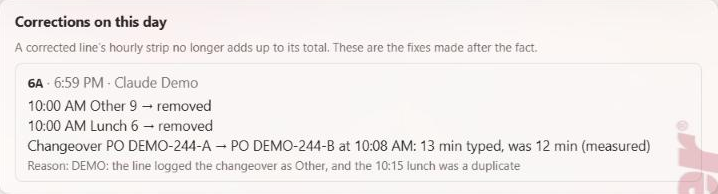
- Give a reason and Confirm Close Out. The ticked entries are lowered and listed with the fix (Fig. 19).
- Ticking only takes off what helps. Beacon lowers a ticked entry only by the minutes that free the changeover. If an unticked Lunch still covers the changeover, the ticked entry says it doesn’t free any minutes, and nothing is taken off.
- One entry, one fix. An entry ticked here shows as lowered under Logged downtime too. If you change it there yourself, your change wins and the tick steps aside.
- Lunch at the wrong time elsewhere in the day (the rest of a 30-minute lunch) is still fixed under Logged downtime.
Screenshots are from Beacon’s dev site. The POs named DEMO-… and all their numbers are demo data, not real production.
12. Questions
Can we tap Start right away to keep the changeover short?
No. The first pallet decides the minutes. Tapping Start early only moves the board and the targets sooner.
We wrapped up a PO and waited for material. Is that changeover?
Yes, if the next thing the line did was start a different PO. If the wait was not set-up, log it as downtime (the Material reason) while it happens: downtime minutes come off the changeover.
Why does the hours column in Plan vs Actual show fewer hours than the day-by-day?
The column shows the hours graded against the standard: worked hours less changeover. The day-by-day shows every hour the PO took. The difference is the changeover, and both say so.
Can we still log a changeover as downtime?
No. Changeover is no longer on the Downtime list on the tablet or in Shift Review. Tap CHANGEOVER on the console, or fix a missed one in Shift Review (section 8). Changeover time is its own time, out of the rates. Downtime stays in them, so logging it both ways counted it twice. Changeover downtime logged before this update still shows.
We closed a line to fix it, then reopened it. Why did This Hour say “Nothing tapped yet”?
Closing ends the line at its last pallet. Before this update, the console only read the part of the hour after the reopen. It now adds the whole hour for the item on the line. The units were never lost. It is still better to fix a line after it is done for the day: closing it cuts the minutes between the last pallet and the reopen.
The line changed over for 17 minutes, but Beacon counts 0. Why?
Downtime was logged during the changeover. Every minute counts once, and downtime wins, so those minutes came off the changeover. Shift Review flags it (section 11). If the downtime was the changeover itself, a coordinator removes it in Close & adjust under Logged downtime, or types the real minutes in the Add changeover row and ticks it there (a typed changeover shows what it will count). Next time, tap CHANGEOVER and don’t also log downtime for it.
We changed the crew before the first pallet. Does that matter?
No. The changeover still ends at the first pallet, whichever crew built it.