Beacon how-to · November 2026
Fix counts, lunch and downtime in Shift Review
A coordinator can now fix a PO's units and pallets, add a lunch or break nobody tapped, add a run that was never started on the tablet, and take back a stop that was logged by mistake, right in the Close Out box. Every fix keeps the measured number, your name and your reason.
- v2.180.0
- Remove or change logged downtime: v2.188.0
- Line's hours start at Start Line: v2.192.1
Screenshots are from Beacon's test site. POs DEMO-2241 to DEMO-2294 and DEMO-4A are demo data, not real production numbers.
1. What's new
The coordinator's Close Out box (Close & adjust here, or Reopen then close on a closed line) has four new parts:
- Counts per PO. One row per PO, with the measured units and pallets and a box beside each.
- Downtime. Add a lunch, break or other stop that nobody tapped on the tablet.
- Missed runs. Add a PO that ran but was never started on the tablet, with its times, crew, units and pallets.
- Logged downtime. New. Remove a stop that was logged by mistake, lower its minutes, or change its reason. How
- Reason for the fix. Required as soon as you change anything.
2. Who can fix, and for how long
- Coordinators, Admins and Super Admins. Leads still see measured counts only at End Shift.
- Only on a day that isn't submitted. If it is, click Reopen day for correction at the bottom of Shift Review first, with a reason.
- Ferrara: 48 hours. A coordinator can fix a day until 48 hours after that day ends. A Monday shift can be fixed until the end of Wednesday. After that, the boxes are hidden and the page says “Past the 48-hour fix window. An Admin can still fix this day.” An Admin can still fix it, with a reason.
3. Fix units or pallets on a PO
- Open the line's Close Out: Close & adjust here for a line still running, or Reopen at the right end of a closed line's row, then Close & adjust here.
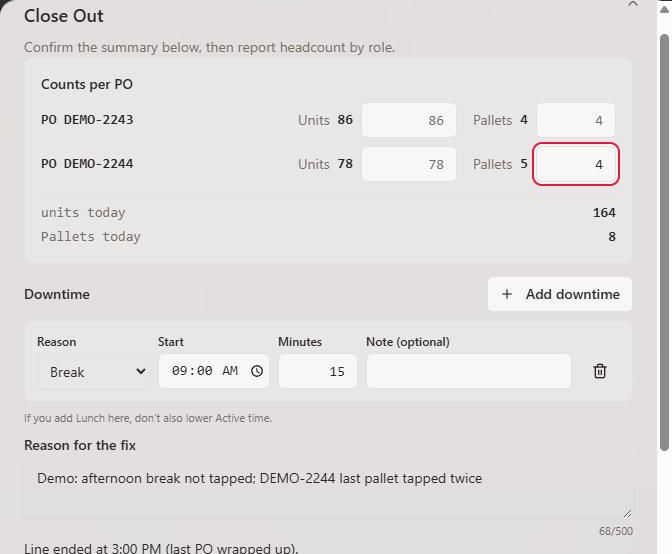
- Under Counts per PO, type the right number in the PO's Units or Pallets box. Leave a box empty to keep the measured number.
- Check units today and Pallets today under the rows. They add up the rows, so you never type a line total.
- Type the Reason for the fix and click Confirm Close Out.
- Click Submit Shift Review, or Re-post day on a reopened day.
4. Add a lunch or break nobody tapped
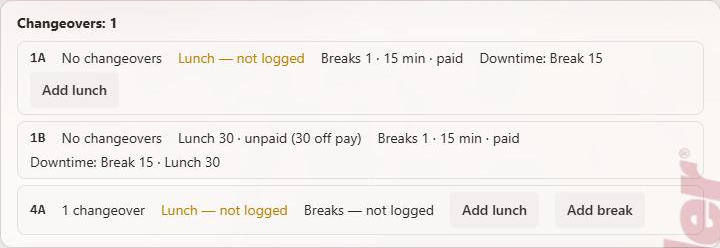
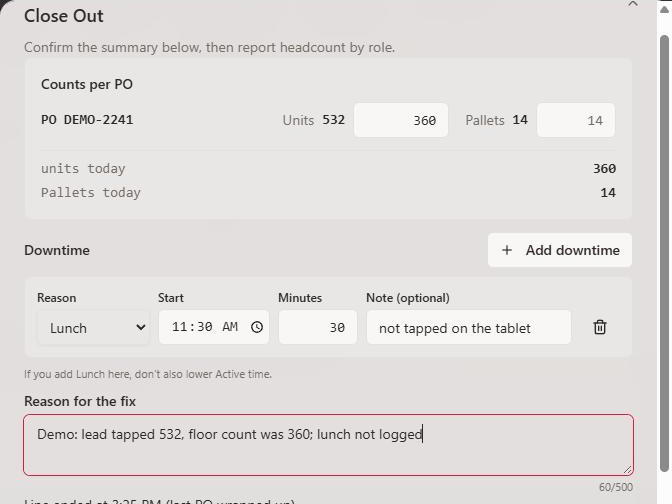
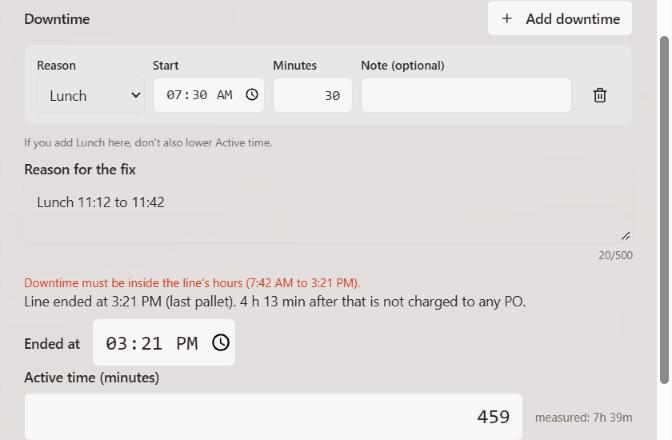
- In the line status strip above the table, click Add lunch or Add break on a closed line. The Close Out box opens with Lunch 30 or Break 15 filled in. (You can also click + Add downtime in any Close Out.)
- Type the Start time. Change the minutes if they were different. Add a note if it helps.
- Type the Reason for the fix, click Confirm Close Out, then submit or re-post.
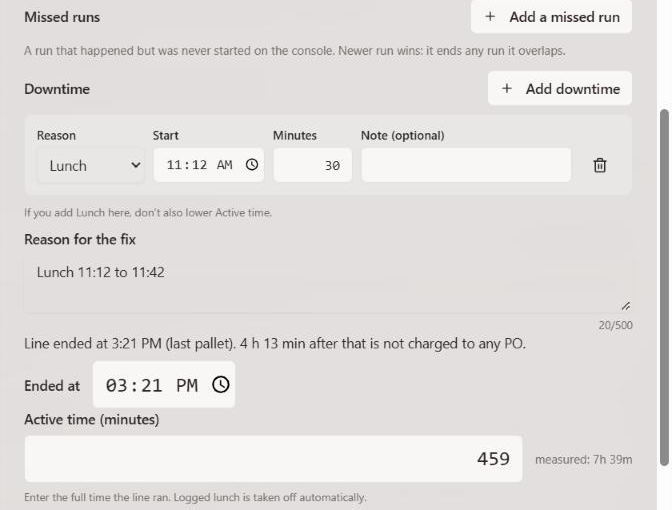
The box refuses a stop outside the line's hours (“Downtime must be inside the line's hours (7:00 AM to 3:00 PM)”) and warns when the time overlaps downtime already logged.
The line's hours start at Start Line (v2.192.1)
The line's hours run from Start Line to the end the box shows. That is the same start the Active time is measured from. Before this fix they started at the first pallet tap, so a lunch taken before anyone tapped was refused.
5. Remove or change logged downtime
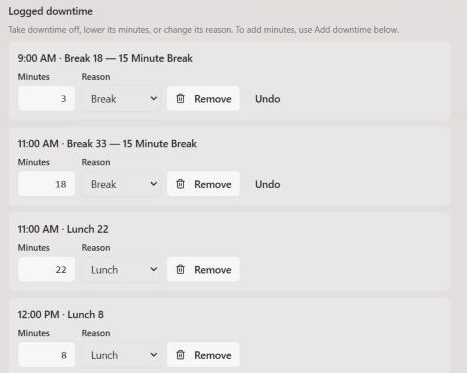
A stop logged by mistake can now come back off. In the same Close Out box, under Counts per PO, a Logged downtime list shows every stop on the line, one row for each hour and reason: “8:00 AM · Other 25” or “11:00 AM · Break 33 — 15 Minute Break”. Each row has three things you can do:
| To | Do this |
|---|---|
| Take it off | Click Remove. The minutes go to 0. |
| Lower it | Type a smaller number in Minutes. To add minutes, use + Add downtime: it is the one way to add, so a stop is never booked twice. |
| Change the reason | Pick another Reason. The minutes and the note come along. Changeover is not on the list (tap CHANGEOVER on the tablet, or use Add changeover). A Changeover stop logged before v2.185.0 can be changed to another reason. |
- Open the line's Close Out: Close & adjust here for a line still running, or Reopen at the right end of a closed line's row, then Close & adjust here. (The Add lunch button opens it on a closed line too.)
- Under Logged downtime, click Remove, type a smaller number, or pick another reason. Undo puts a row back.
- Read the amber lines under the reason box. They say what the fix will move, before you confirm it (see below).
- Type the Reason for the fix and click Confirm Close Out. Then submit, or re-post the day.
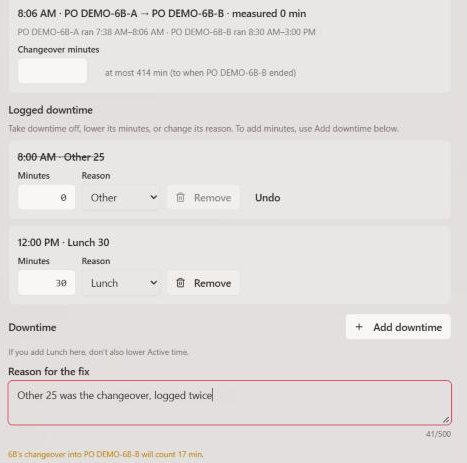
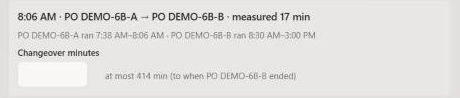
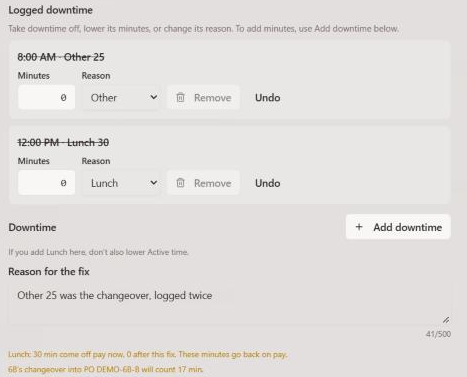
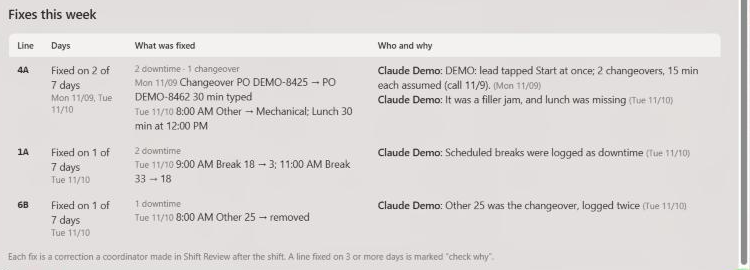
Line 6B tapped CHANGEOVER at 8:06, and the next PO's first pallet came at 8:30. The changeover ran 17 minutes. The crew also logged 25 minutes of Other. Downtime wins the minute, so Beacon counted the changeover as 0. Click Remove on “8:00 AM · Other 25” (Fig. 5). Once you confirm, the changeover reads 17 min (Fig. 6), the warning on Shift Review is gone, and that hour's Downtime is 0. See Downtime during a changeover.
What the box warns you about
These are warnings, not stops. Nothing is saved until you confirm.
| You take off… | The box says |
|---|---|
| A Lunch, at a site that does not pay Lunch (Ferrara) | “Lunch: 30 min come off pay now, 0 after this fix. These minutes go back on pay.” Posted hours go up by those minutes when you re-post. Only 30 minutes a day come off pay, so lowering a 45 minute Lunch to 35 changes no pay and shows no warning. |
| Downtime that was inside a changeover | “6B's changeover into PO DEMO-6B-B will count 17 min.” |
| Downtime that sat in an idle gap between two runs | “40 min of this downtime sat in an idle gap between runs. Without it that gap is idle time, so active (paid) time drops by 40 min.” |
Good to know
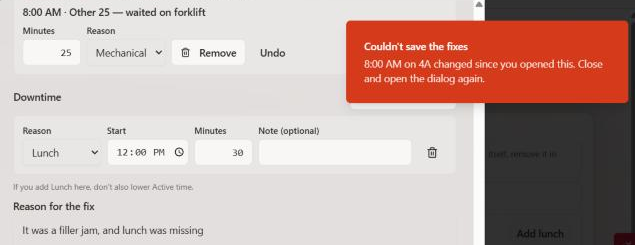
- If the hour changed while you were in the box (the lead logged more downtime in that hour), Confirm Close Out refuses: “8:00 AM on 4A changed since you opened this. Close and open the dialog again.” Nothing is saved. Close the box, open it again and redo the fix, so you never wipe a stop you did not see.
- An old hour that mixes reasons and was never split (“Mechanical; Material 20”) is one row. You can remove it, or change all of it to one reason. You can't lower just part of it.
- Minutes logged with no reason (a stop on the tablet where nobody picked one) are their own row, “9:00 AM · No reason 10”, next to the hour's other rows. Pay counts them as neither Lunch nor Break, so the list never files them under one. Remove them, or pick the reason they were. If you add a Lunch to that hour, the Lunch is its own row and the 10 stays a “No reason” row.
- One Confirm can do both. You can fix a logged stop and add a missed Lunch in the same box. The fix is applied first, and the amber lines already count what you add: remove a Lunch 45 and add a Lunch 30 and the box does not claim pay changes.
- Same rules as every fix: Coordinator and up, inside the fix window, on a day that is not submitted, with a reason.
Where it shows
- The line's Downtime column and notes drop by what you took off. Closed POs' downtime is worked out again, so Actual Run Time follows.
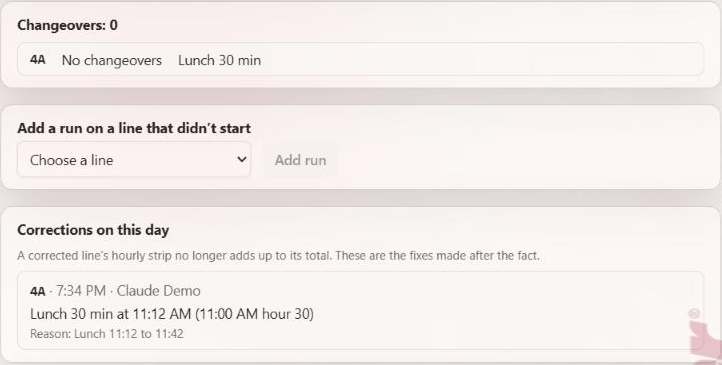
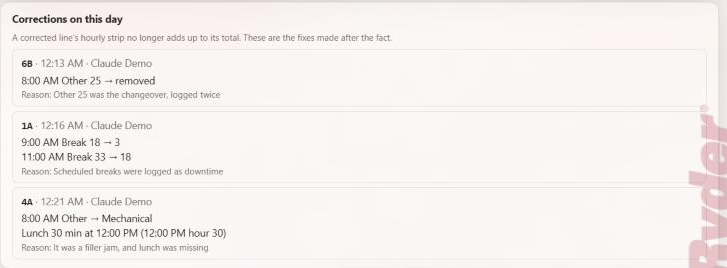
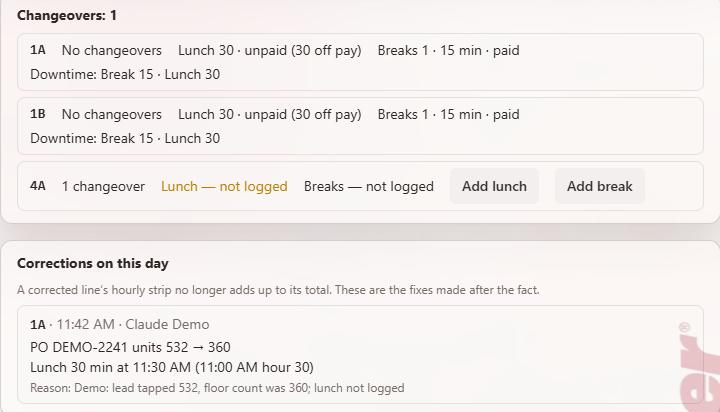
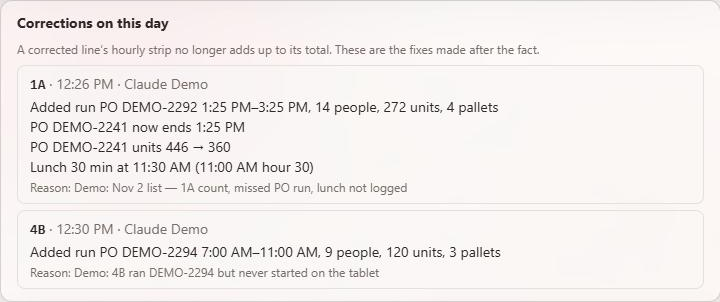
- Corrections on this day lists each change with your name, the time and your reason (Fig. 9).
- Fixes this week in the Weekly Synopsis, and the weekly email, count it as a downtime fix and say what you did (Fig. 10).
- Posted hours change only when you re-post the day.
6. Lunch and Break on every line
The strip above the table shows, for every line, whether Lunch and Break were logged and which one is paid. A missing Lunch is amber because it changes pay. A missing Break is plain. Each downtime shows with the note typed on the tablet.
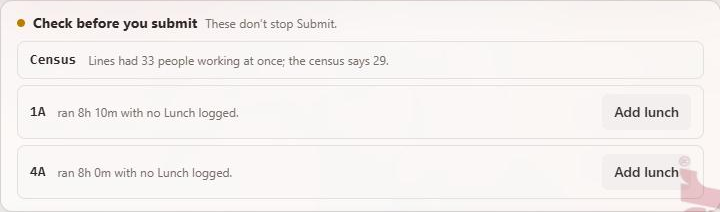
A line that ran 5 hours or more with no Lunch also gets a row under Check before you submit, with an Add lunch button. It never stops Submit.
7. Add a run nobody started
Use this when a PO really ran on a line but the lead never started it on the tablet (for example the PO wasn't in the Changeover list).
- Open the line's Close Out (Reopen then Close & adjust here, or an Add lunch button). Click Add a missed run.
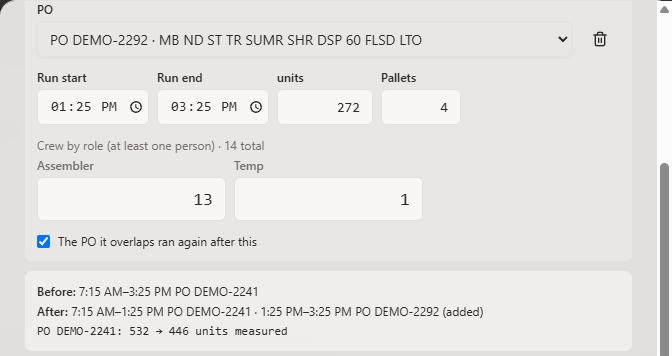
- Pick the PO from this week's plan (or Other PO… to type it and pick the SKU). Type Run start, Run end, the units and pallets the run built, and the crew by role.
- Check the Before and After lines. The PO that was showing on the tablet then gives up that time. If it carried on after the missed run, leave The PO it overlaps ran again after this ticked.
- If that PO's own count was wrong too, type it in its Counts row (the box shows what Beacon measures once the run is in). Give a reason, confirm, then submit or re-post.
A line that never started at all (it shows Never started): under the Corrections list, pick the line in Add a run on a line that didn't start and click Add run. The same Close Out opens with one empty run. Nothing is saved until you confirm.
8. What changes when you confirm
- The posted numbers change at Submit or Re-post day, not before. Each PO posts the units and pallets you typed.
- Hours: an added Lunch comes off the line's posted hours (crew × minutes, at most 30 a day). A Lunch you remove goes back on pay. A count fix doesn't change hours.
- The measured number is kept beside the typed one, and the hourly strip stays as measured. That is why a corrected line's hours no longer add up to its total; the Corrections list says why.
- Every fix is recorded with your name, the time, the reason, and the before and after. Nobody can edit or delete that record.
- Lines you don't touch post exactly as before.