Meridian guide
Make a document Active
Making a document Active signs it with the names from your Site Profile. See who will be named, confirm, read the approval, and know what a filed copy of a form prints.
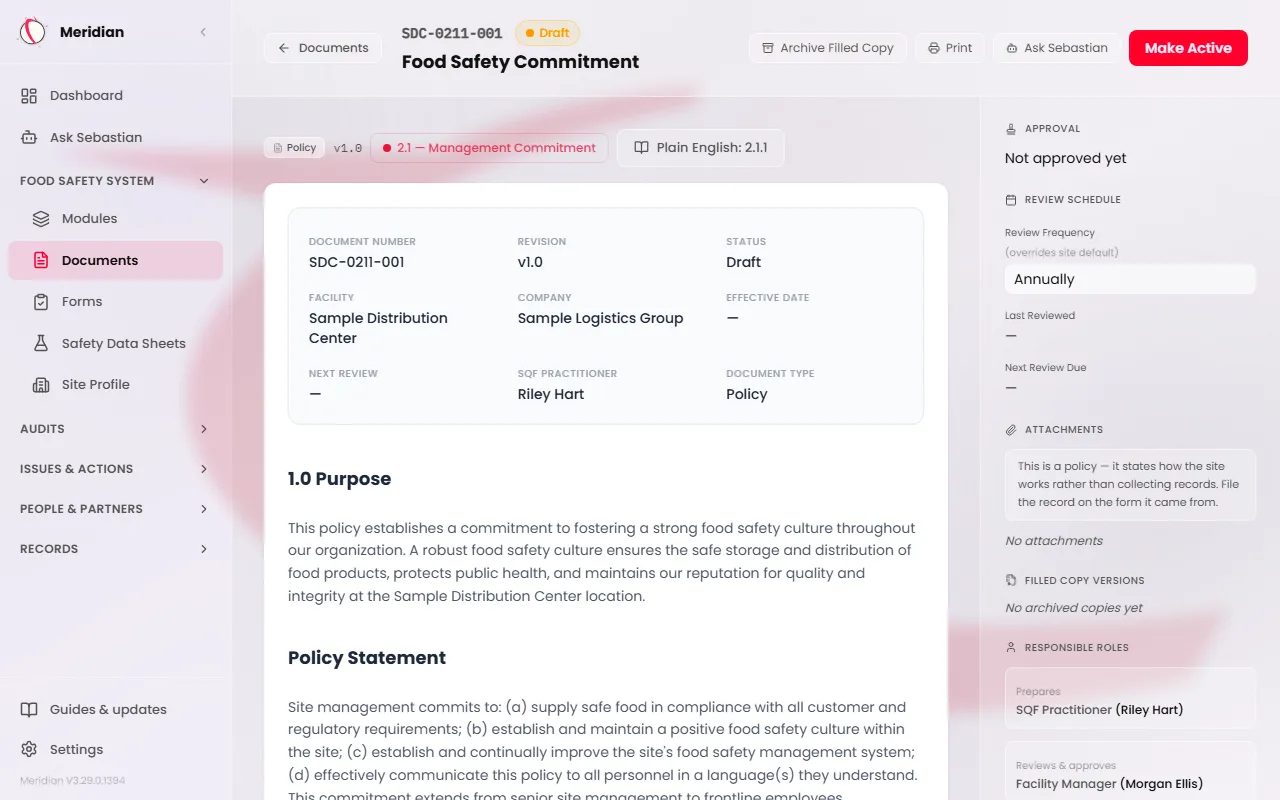
Open the document and press Make Active
Open Documents, then choose a document. A document that is a Draft or Under Review has a Make Active button at the top of its page. Only site leadership (an admin, a site manager or the SQF practitioner) sees it.
Until then the Approval panel beside the document reads Not approved yet. Make Active is the only way to make a document Active, and it signs the document in the same step.
Tip
On a policy or work instruction, Make Active waits while you have unsaved edits. Let the page finish saving, then press it.
Check the names, then confirm
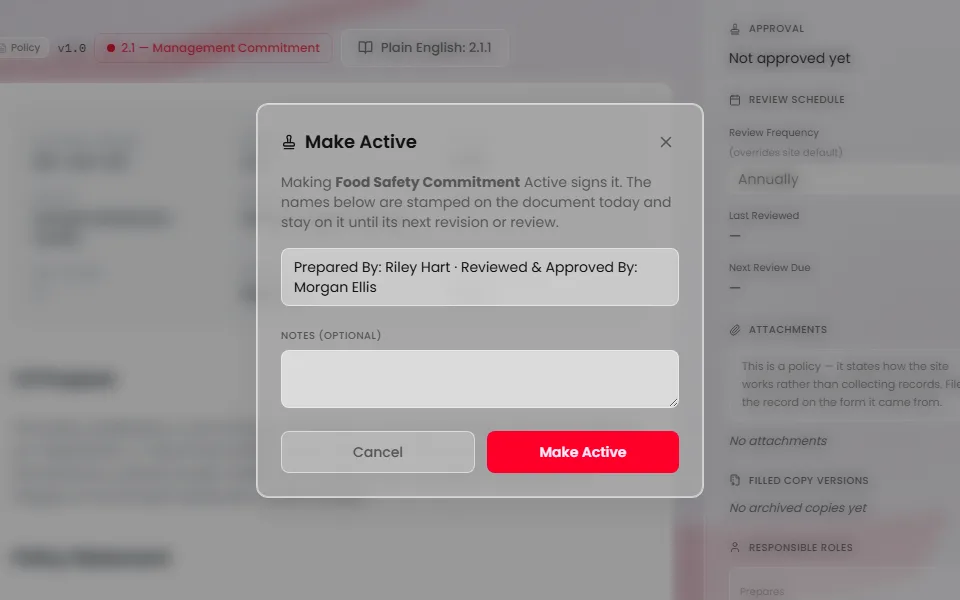
A dialog titled Make Active opens. It says that making the document Active signs it, and it shows the two names that will be stamped: Prepared By, the SQF Practitioner on your Site Profile, and Reviewed & Approved By, the Facility Manager on your Site Profile. Nobody types a name.
Add a note if you want one, then press Make Active. Meridian sets the status, the version and the review dates, and stamps both names with today's date.
On a form, the dialog adds that the approval covers the blank form at its version, not anything filled into it. On a document that is Under Review, it says which version the document becomes, for example v1.1.
Caution
If the Site Profile names no SQF Practitioner or no Facility Manager, the button is greyed out and the dialog says which one is missing, with a link to Site Profile. Add the name there, then make the document Active.
Read the approval
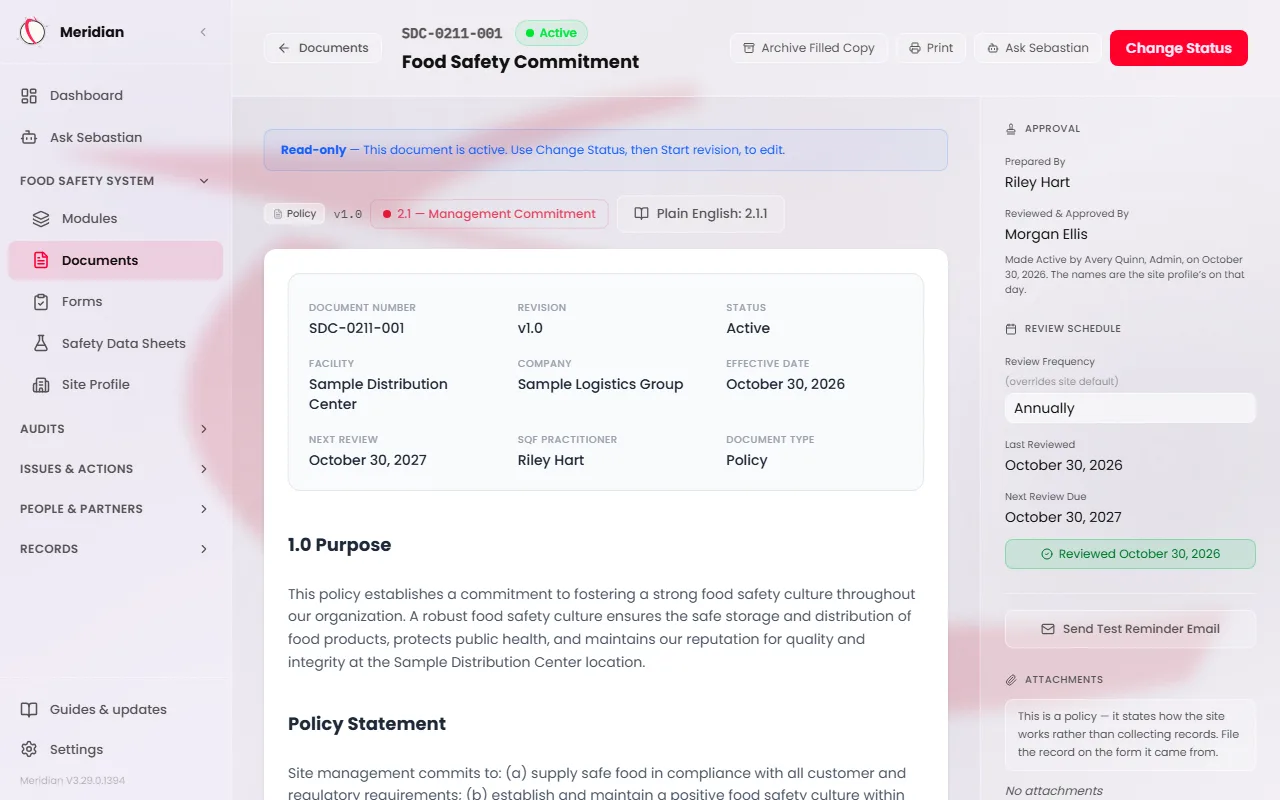
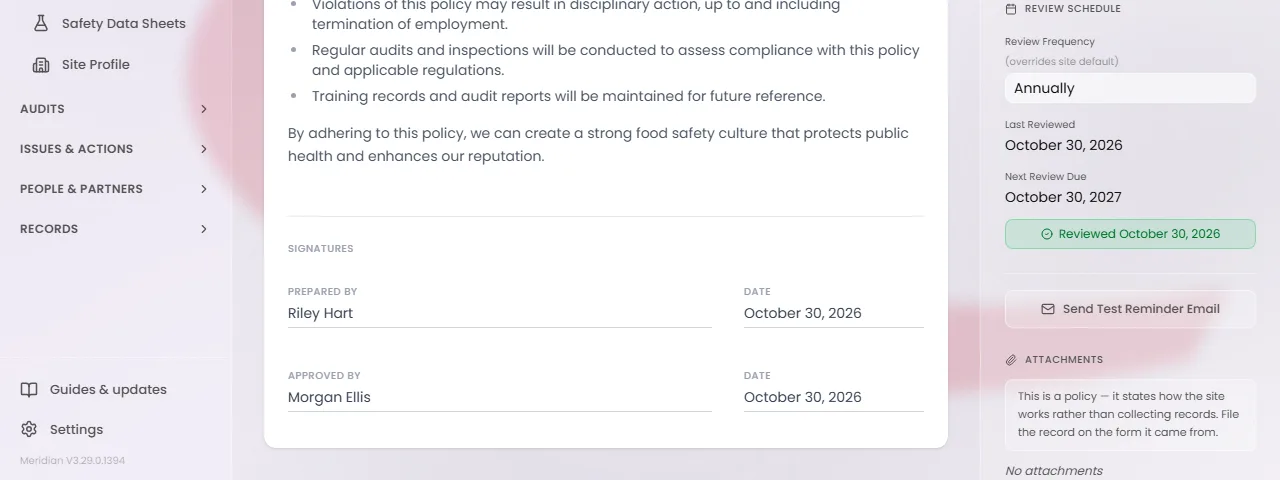
The Approval panel now lists Prepared By and Reviewed & Approved By with the stamped names. A line under them says who made the document Active and when, and that the names are the Site Profile's on that day.
The names are frozen on the document. If the SQF Practitioner or Facility Manager on the Site Profile changes later, an approved document keeps the names it was stamped with until its next revision or review.
Read the signature lines
The signature lines at the foot of the document print the stamped names and the date. On documents that used to have separate Reviewed By and Approved By lines, the two are now one line, Reviewed & Approved By. A document that only ever had Prepared By and Approved By keeps those two lines.
While a document is a Draft or Under Review, its lines read Not approved yet.
Know what a filed copy prints
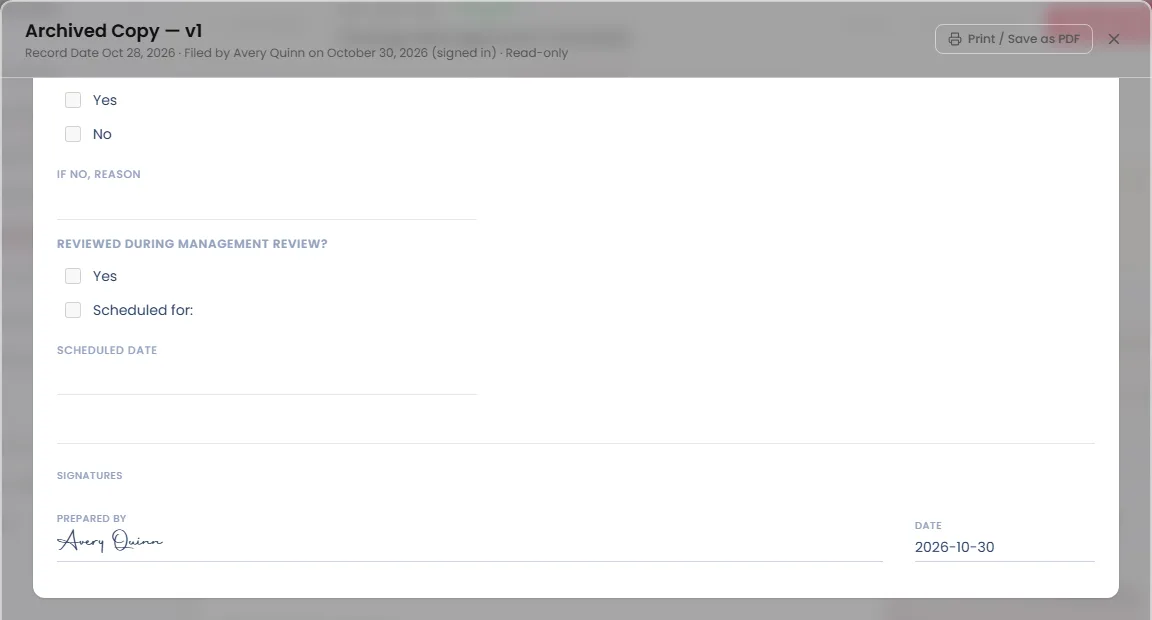
The stamp approves the blank document, never a filed record. A filed copy of a form, checklist or register is signed only by people. The person who filed it signs Prepared By.
A floor form or a sanitation sheet raises a review task when it is filed. Its filed copy shows Reviewed & Approved By, and the Approval cell in the page header, from the person who signed that review task. Until then it says the record has not been reviewed.
Every other filed copy has no Reviewed & Approved By line and no Approval cell. The footer still prints the revision and approval date of the form it was filed under.
Tip
Copies filed before 3.28.1 follow the same rule. The approval stored on them is kept as history and is no longer printed.
Revise a document, or complete its review
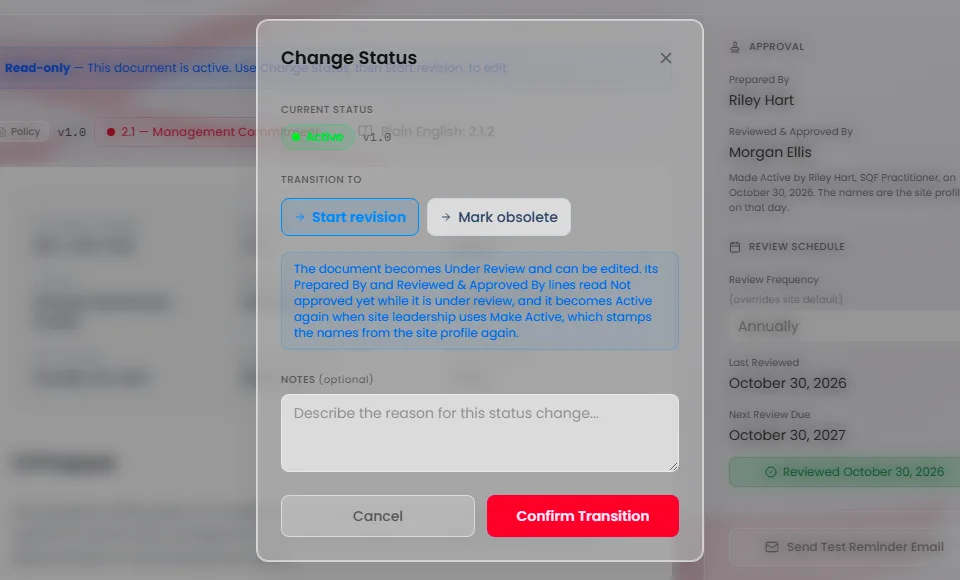
An Active policy or work instruction is locked. To change it, press Change Status, choose Start revision, then press Confirm Transition. The document becomes Under Review, its lines read Not approved yet, and it can be edited. When it is ready, press Make Active again. The names are stamped again and the version moves up one step.
When the annual review is due, press Mark Review Complete. A dialog titled Complete review shows the names that will be stamped. Press Complete review to stamp the document again and start the next review cycle.