Beacon how-to · November 2026
Daily Synopsis: cost and margin
For a site that bills per unit, the Daily Synopsis shows three costs side by side, and the two margins between them. One row per order, for one day, in a table right under the Cost and margin tiles.
- v2.184.0
- Per-order cost table: v2.188.0
- LTO planned with the SKU's own crew: v2.195.0
The pictures use demo data. The orders are named DEMO.
1. The cost table
Open History → Synopsis → Daily Synopsis and pick a day. Look for the heading Cost and margin. It has two parts, one under the other:
- Five tiles. The three costs and the two margins. Each tile says how many orders it adds up, like “2 of 3 orders”.
- A table with one row for each order that ran that day.
The table's columns, left to right:
- Line: the line the order ran on. An order that ran on two lines is still one row, like “4A, 4B”. Its cost is not split by line.
- PO
- SKU
- Planned Cost
- Actual Cost
- Customer Billing Cost
- Actual vs Planned Margin: dollars, with its % under them
- Actual vs Customer Billing Margin: dollars, with its % under them
The last row, Total, repeats the five tiles, with the same “n of m orders” under each figure.
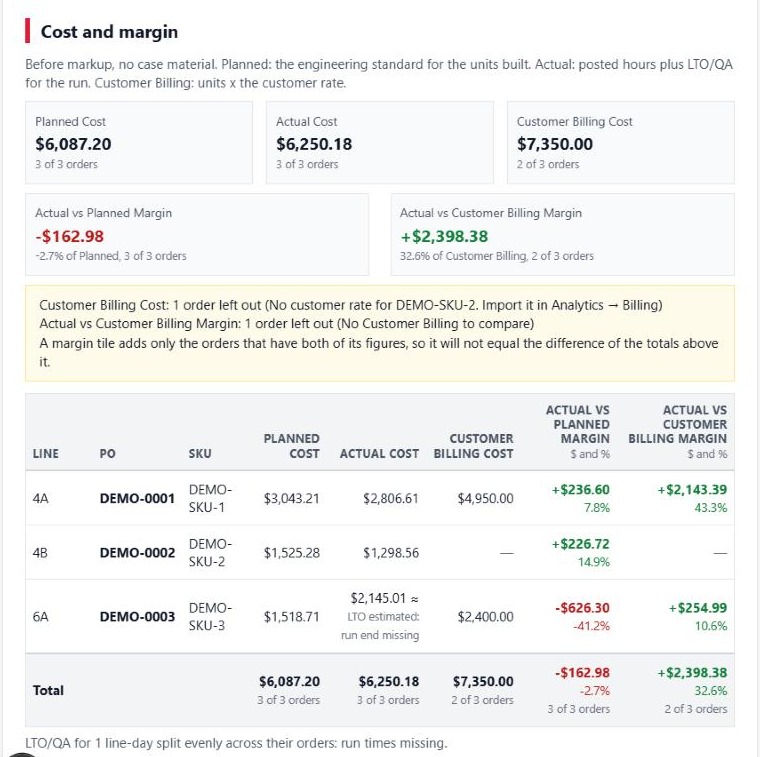
All costs are before markup. None of them includes case material.
ExampleRead one row
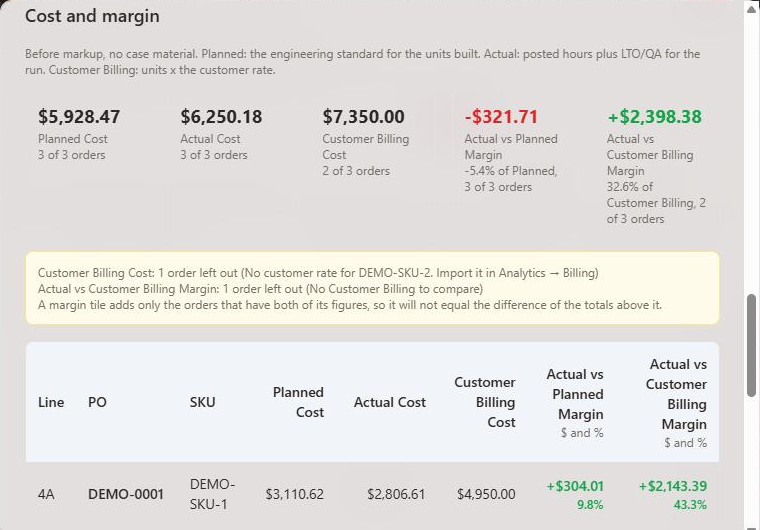
In Fig. 1, the first row is order DEMO-0001 on line 4A. Planned $3,110.62. Actual $2,806.61. Customer Billing $4,950.00.
- Actual vs Planned: $3,110.62 − $2,806.61 = +$304.01. That is 304.01 ÷ 3,110.62 = 9.8%. The day cost less than the plan.
- Actual vs Customer Billing: $4,950.00 − $2,806.61 = +$2,143.39. That is 2,143.39 ÷ 4,950.00 = 43.3%. The day made money at the customer's price.
Green is zero or above. Red is below zero: the third order that day, DEMO-0003, cost $763.52 more than planned (−55.3%). Each % is the margin divided by the column it is measured against: Planned, or Customer Billing.
WhereIt sits with the tiles, not with Work Orders
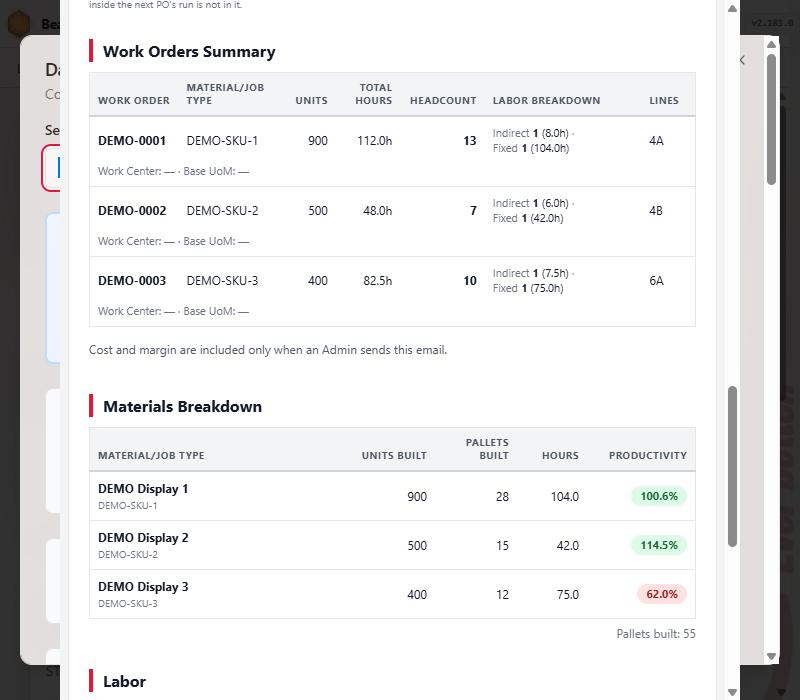
These figures used to be seven extra columns inside Work Orders Summary. They moved. Work Orders Summary has no money columns now, and the Daily Synopsis email has no second cost table under it.
If your site hides Work Orders Summary, the cost table still shows. It follows the box Cost and margin (totals and per-PO table), not the box Work Orders Summary (Settings → Email → Daily Synopsis — what to show). Untick Cost and margin and the tiles and the table both go.
The two margins used to be four columns, dollars and % each. They are two columns now, with the % under the dollars. The numbers are the same.
2. Planned Cost
What the engineering standard says the units built that day should cost, using the crew designed in Material Master. It is today's quote for that SKU, priced at the order quantity, for the units built.
- Built 700 of a 900 order, at $10 a unit? Planned is $7,000. A short day shows as a cost overrun, not as a saving.
- The LTO is planned for as long as the line should run. That is the order's standard hours divided by the SKU's own crew: the same crew the planner and Shift Review's Planned HC use. A full run of 7.5 working hours plans one paid 8 hour shift. A shorter run plans less.
ChangedThe LTO is planned with the SKU's own crew
Before this change, Beacon worked out the run as if the order had only as many people as it takes to finish in one shift. A small order on a big line looked like a few people working all day, so its LTO was planned for nearly a full shift. That extra LTO could hide a real labor overrun.
- Before: Beacon sized the crew at 4 people (29.7 ÷ 7.5, rounded up). The run came out at 7.4 hours, and the LTO was planned for almost a whole shift. The order showed a small profit even though its labor ran about $190 over.
- Now: 29.7 ÷ 15 people = a run of about 2 hours. The LTO is planned for those 2 hours, and the order shows the loss it really had.
- Small orders usually get a lower Planned Cost, because they no longer carry a shift of LTO they never needed.
- Big orders that run over several days can get a higher one. A 3,000-unit order on a 19-person line runs about 18 hours, and its LTO is now planned for all of them.
- The Line Captain's whole-run hours use the same run, so they match the Costing screen.
- Actual Cost does not change. Past days show the new Planned Cost, because Planned always uses today's quote.
3. Actual Cost
Actual is two parts added together.
- Posted hours times each role's rate. Every role and stage the order posted that day.
- The LTO (and QA) for the order's own run. Beacon takes the run's minutes and subtracts the unpaid downtime, which is the Lunch and Break time your site does not pay. Then it divides by 60, and charges those hours at the LTO rate, plus the indirect % if your site has it on.
Wall-clock time already includes the paid breaks, so nothing extra is added on top.
- One shift at most. A line-day never pays more than one paid shift of LTO. If two orders ran on the line that day, they share it by their minutes. The note under the table says “LTO capped at one shift on N line-days” when this happened.
- Already posted? If the LTO was posted as hours on that line-day, it is not charged twice.
- Run end missing. If an order's run has no end time, Beacon cannot know its minutes. It gives that order what is left of the shift. Its Actual shows ≈ and the words “LTO estimated: run end missing”. The note under the table counts those line-days.
4. Customer Billing Cost
Units built that day times the SKU's customer rate. It is rounded the same way the weekly bill is, so a week of days adds up to the bill to within a cent for each order.
Rates come from Analytics → Billing. If a SKU has no rate, Beacon does not guess. See section 6.
5. Who sees it
- Admins and above see the tiles and the table on the screen, and in the email when they send it.
- Everyone else sees the Daily Synopsis without any money. Nothing extra appears on their screen.
- Only a site that bills per unit gets this. Other sites' Daily Synopsis and email are the same as before.
- Monthly Synopsis and Weekly Synopsis do not change.
If someone who is not an Admin sends the email, it says so in one line where the table would be. If your site hides Work Orders Summary, the line stands on its own where the Cost and margin heading would be.
6. When a number is missing
A missing number shows as a dash, never as $0. Hover a dash on the screen to read why.
| You see | Why |
|---|---|
| Planned Cost: dash | The order has no single SKU, it is not production work, or Beacon has no steps it can price. |
| Actual Cost: dash | No hours were posted for the order that day. |
| Customer Billing Cost: dash | “No customer rate for” that SKU. Import it in Analytics → Billing. Or the rates could not be read right now. |
| A margin: dash | One of the two figures it needs is missing. |
Each total adds only the orders that have the figure, and says how many. A margin tile adds only the orders that have both figures. So a margin tile may not equal the difference of the tiles above it. A yellow note under the tiles counts what was left out and why.
Past days use today's steps and rates, so an old day can change if they change.