Beacon how-to · November 2026
The whole job is the standard, and manual rates
A SKU’s standard time now covers the whole job: staging, the line run and clean-up. Start-up and changeover time are allowed for when a PO is graded. An Admin can also turn off typed rates, so every rate comes from the steps.
1. What changed
- The standard is the whole job. Pre-build steps (staging), the line run and post-build steps all count. The planner, Build Schedule hours, the Checkpoint target, Plan vs Actual, Shift Review and the rates all use it. Details
- The planner button + Pre/Post-build block is gone. One SKU on one PO is one block.
- Start-up and changeover time count in the hours a PO is graded on. The standard gets an allowance for them. Details
- New setting: Manual rates (Admins only). Off means every rate comes from the steps. Details
2. The whole job is the standard
Before, the line run had one time and staging and clean-up were handled somewhere else. Now a SKU has one standard: staging + line run + clean-up. Every screen reads that same standard, so they agree.
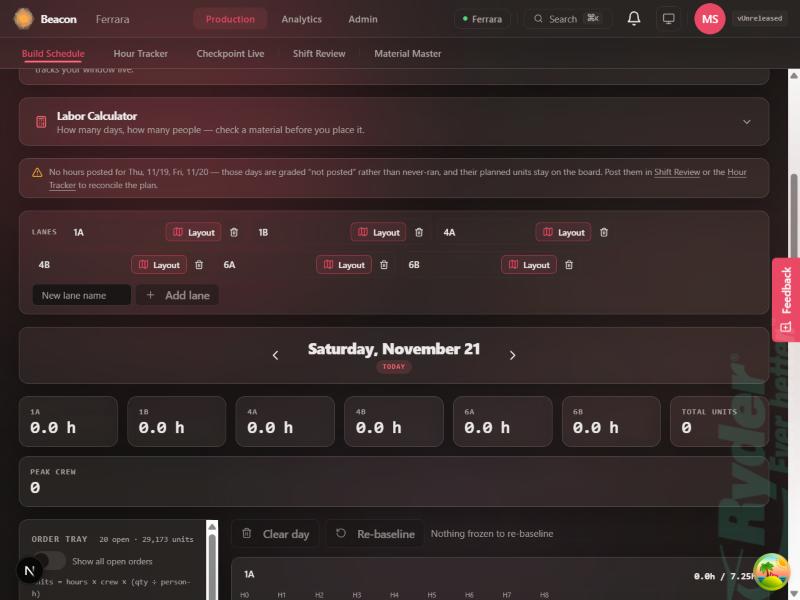
On the planner, one SKU on one PO is one block. You do not add a second block for staging or clean-up any more. That time is already inside the one block.
3. Start-up and changeover
Start-up and changeover are real time the crew spends. They now count in the hours a PO is graded on. So the standard gets an allowance for them, or the PO would look slow for no fault of its own.
There are two allowances. Each one only applies on a day that had it:
- Changeover: the planner’s changeover gap (15 minutes unless it is set) × the PO’s planned crew, on a PO-day that had a changeover.
- Start-up: your site’s start-up minutes × the planned crew, on the line’s first PO of a start-up day.
If Beacon doesn’t know the planned crew for a PO, that day keeps the old rule: no allowance, and the start-up and changeover time stay out of its graded hours.
Days posted before this change keep the old rule. More
4. Turning manual rates off
Who
Admins only. Settings → Production Standards → Manual rates.
What Off means
- Every SKU’s rate comes from its steps.
- Nobody can type a rate or set an override.
- A SKU with no steps shows No rate: add steps.
What happens when you turn it off
Beacon shows a confirm box first. It tells you the count, so you know how much will move.
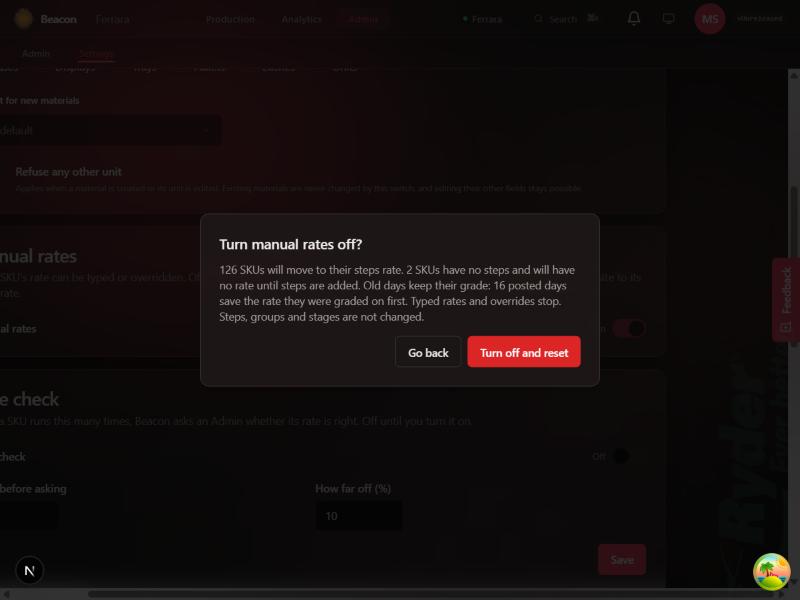
If you confirm, every SKU at the site moves to its steps rate once. Posted days keep the grade they already have.
While it is off, saving movement times, build steps or groups refreshes the rates by itself.
5. What the SKU page shows
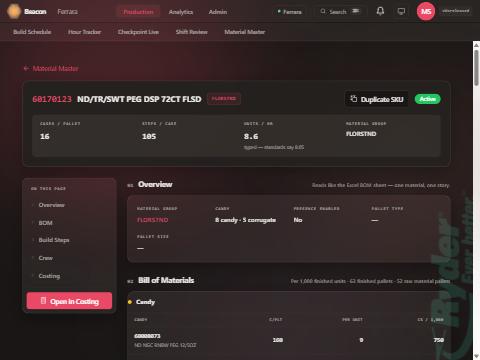
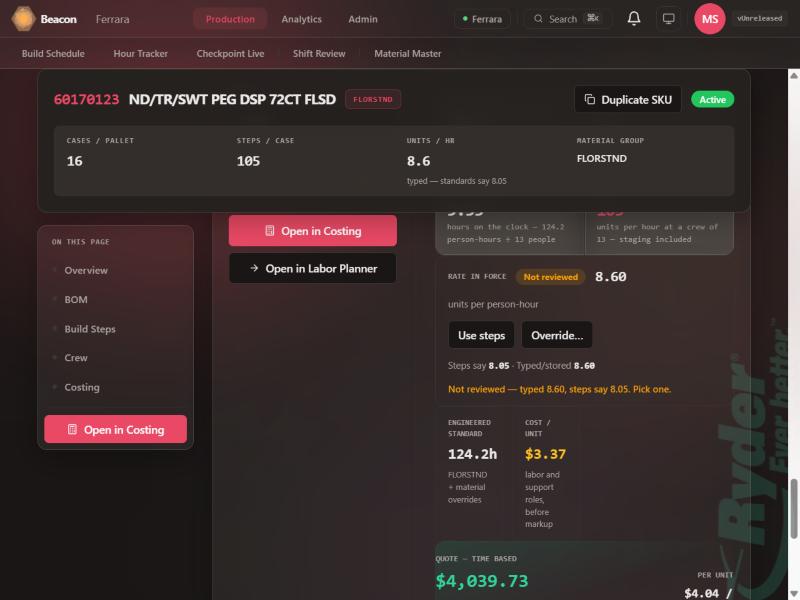
While manual rates are On
The SKU page can show two numbers: the typed rate and what the steps say.
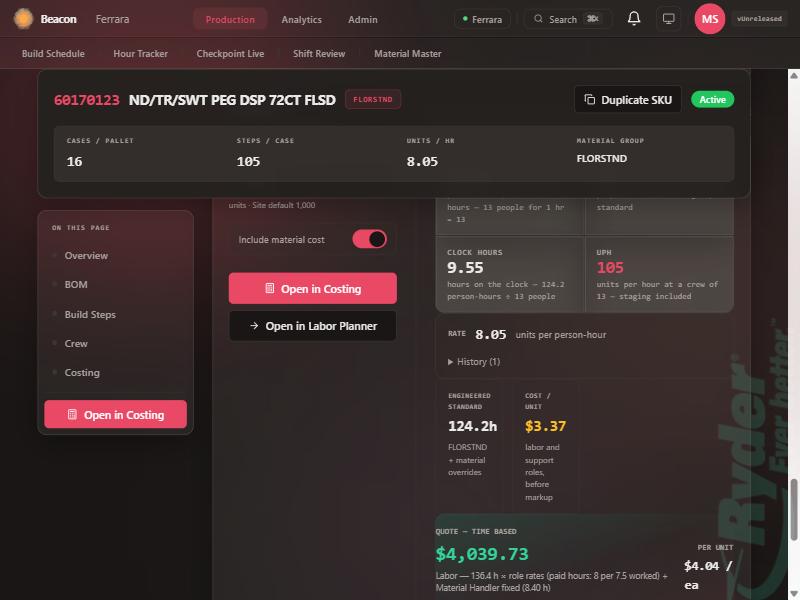
While manual rates are Off
The page shows one number, called Rate. It is the steps rate. The header and the Rate box agree. There are no Use steps or Override buttons, because there is nothing to choose.
6. Re-apply reset
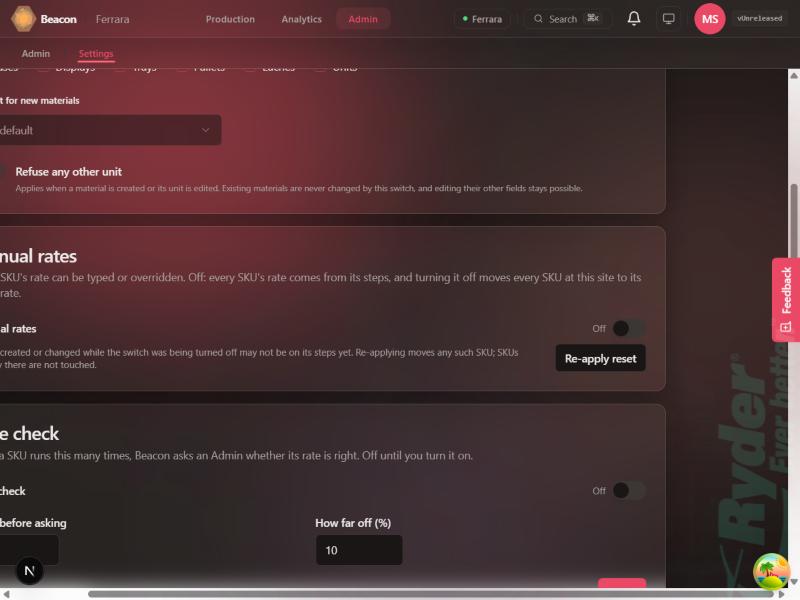
With Manual rates Off, Settings shows a Re-apply reset button. Use it if a SKU was missed, for example one that was added or fixed after the first reset. It moves any SKU that is not on its steps rate onto it.
If every SKU is already on its steps, it says Nothing will be written. Pressing it then changes nothing.

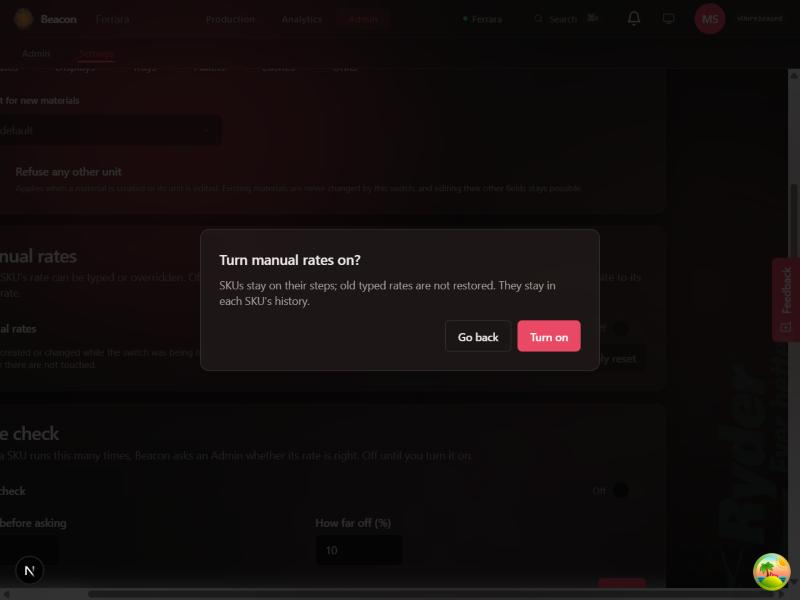
7. Turning it back on
An Admin can turn Manual rates back on. Beacon asks first: Turn manual rates on?
8. Old days keep their grade
- A day that is already posted keeps the grade it got. Turning Manual rates off does not rewrite it. The confirm box counts these days (16 in the example) so you can see it.
- Days posted before the start-up and changeover change keep the old rule for those hours.
9. Old rate-check cards
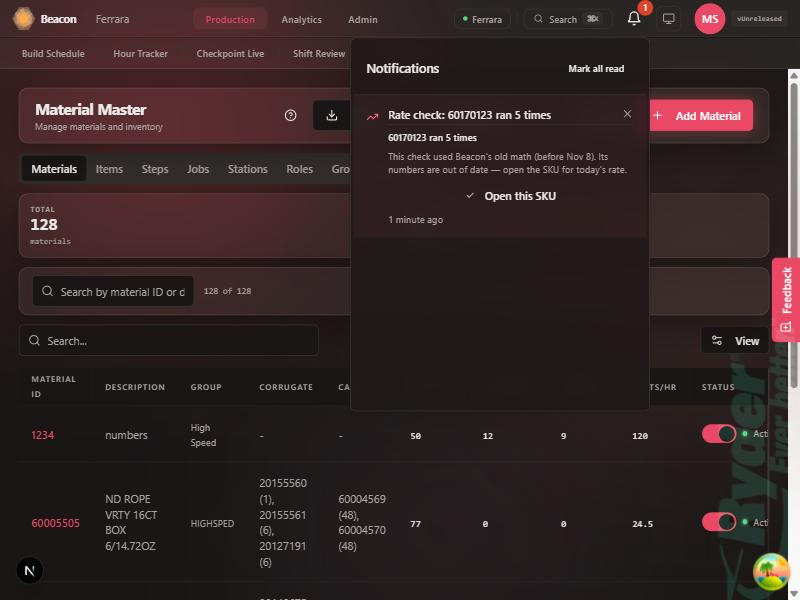
A rate-check card in the bell from before Nov 8 used Beacon’s old math, so its numbers no longer match the SKU. It now shows one line saying it is out of date, and an Open this SKU button. It shows no old numbers and no answer buttons.