Beacon how-to · November 2026
Steps: see which SKUs use each step
In Material Master → Steps, each step now has a Used in column listing the SKUs that run it, the same way Items shows which SKUs a candy goes into. Before you change a step's time, you can see every SKU it will move.
- v2.200.0
Screenshots are from Beacon's test site, so the SKU list is test data (SKU 1234 is a test SKU).
1. Patch notes
v2.200.0 Nov 2026
- New: Used in column on Steps. Every movement step and build step lists the SKUs that run it. See it
- Long lists stay short. A step on 100+ SKUs shows three, then +107 more. Click it for the full list, with a filter box. How
- Only SKUs that really run the step. A SKU that dropped the step, or has it set to 0, is not listed. Why
2. The Used in column
- Open Material Master → Steps.
- Stay on Movement steps (per case/pallet).
- Read the Used in column, right after Step Description.
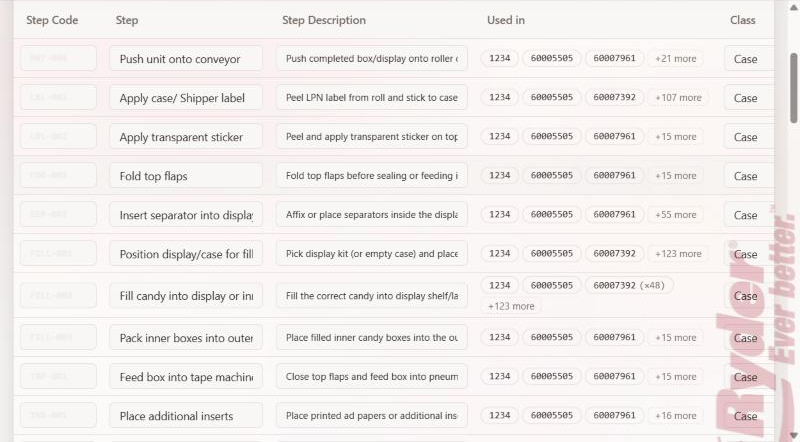
Reading a chip
- The chip is the SKU number.
- A number in brackets is how many times that SKU does the step. 60007392 (×48) on Fill candy into display means 48 times per case. No bracket means once.
- A faded chip is an inactive SKU.
- Not used means no SKU runs the step.
Hover over a chip to see the SKU's description, how often it does the step, and whether it's active.
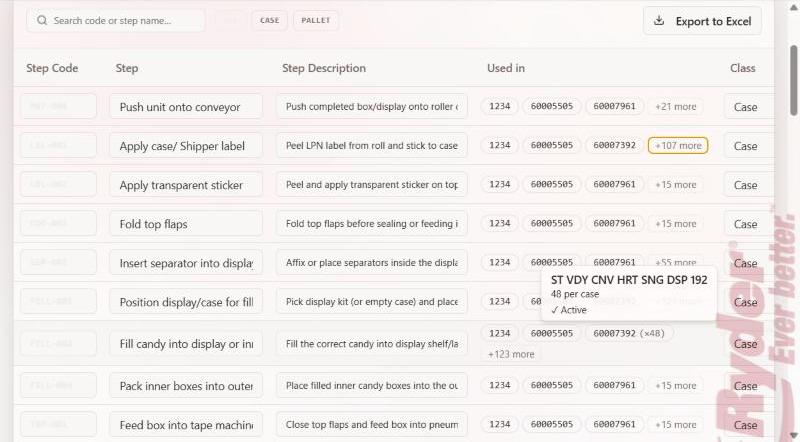
3. See every SKU
- Click +107 more (the number changes per step).
- The full list opens. The title says how many SKUs use the step.
- To find one SKU, type part of its number or description in Filter SKUs….
- Press Esc or click away to close it.
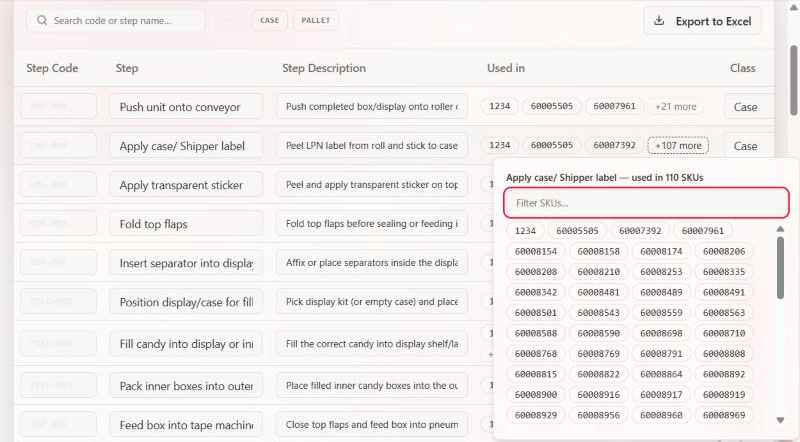
Example: before you change the time on Apply case/ Shipper label, open its list. It shows all 110 SKUs whose cost and rate will move with it.
4. Build steps
Click Build steps (per run). The same Used in column sits after Description. Here the bracket number is the step's frequency on that SKU (for example (×62)).
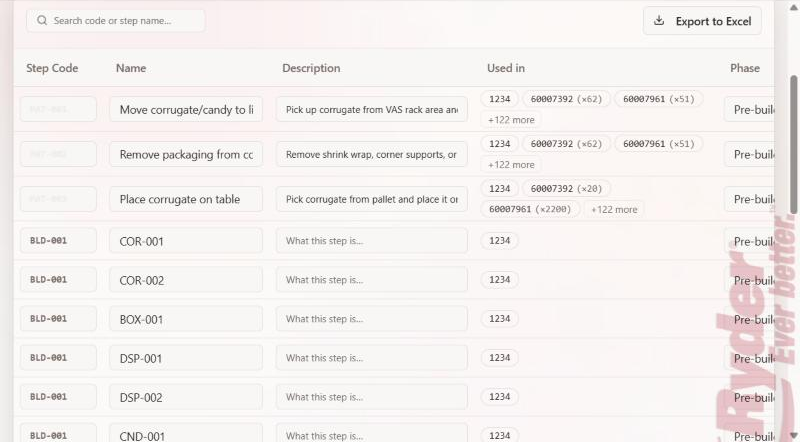
5. Questions
A step is on a SKU's group, but that SKU isn't listed. Why?
The list shows the steps each SKU really runs, the same list costing and the planner use. A SKU that removed the step from its own steps, or set it to 0, doesn't run it, so it isn't listed. A SKU with its own full step list doesn't take its group's steps at all.
Can I edit the list here?
No, it's read-only. Change a SKU's steps on its page (click the SKU in Materials), or a group's in Groups.
I just changed a group or a SKU, and the list didn't change.
Groups are read again each time you open Steps. SKU changes show after you reload the page.
Do arrow keys still move across the grid?
Yes. Used in is skipped, so the arrow keys go from Step Description straight to Class (or Phase).