Beacon how-to · November 2026
Step standards, overrides and the rate check
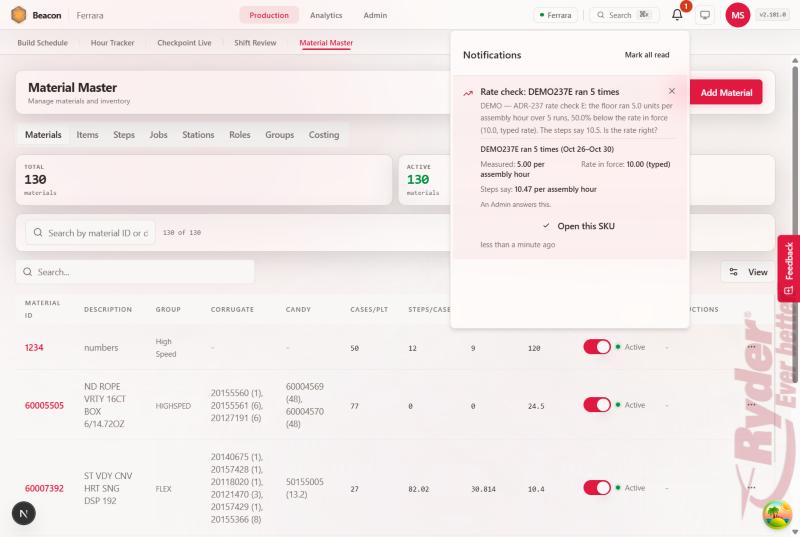
Every SKU now has one rate that every screen uses: its steps, or an override someone set on purpose while the steps get fixed. Beacon can also ask an Admin, after a SKU has run 5 times, whether its rate is right.
- v2.182.0
1. Patch notes
v2.182.0
- One rate in force per SKU. The SKU page says which: Steps, Override or Not reviewed. What each means
- Override a rate on purpose (Admin and above), with a reason and a review-by date. The planner, Checkpoint, the board and quotes use it until someone presses Use steps. How
- Nothing moved on its own. Every SKU starts as Not reviewed and keeps the numbers it had. What changes when
- The rate check works again, off until your site turns it on: after a SKU runs 5 times and the floor is 10% or more off, an Admin answers Keep, Use the measured rate, or Fix the steps. The rate check
- A posted day keeps its grade. Changing a rate later no longer changes the Productivity of days already posted.
Screenshots are from Beacon's test site. The SKUs DEMO237A to DEMO237E and their runs are demo data, not real production data. The release number is set when it ships.
2. Which rate is in force
Open a SKU (Material Master → click the SKU) and scroll to Costing. The Rate in force box shows one of these:
- Steps: the step standard is the rate. When a step time is corrected, the rate follows.
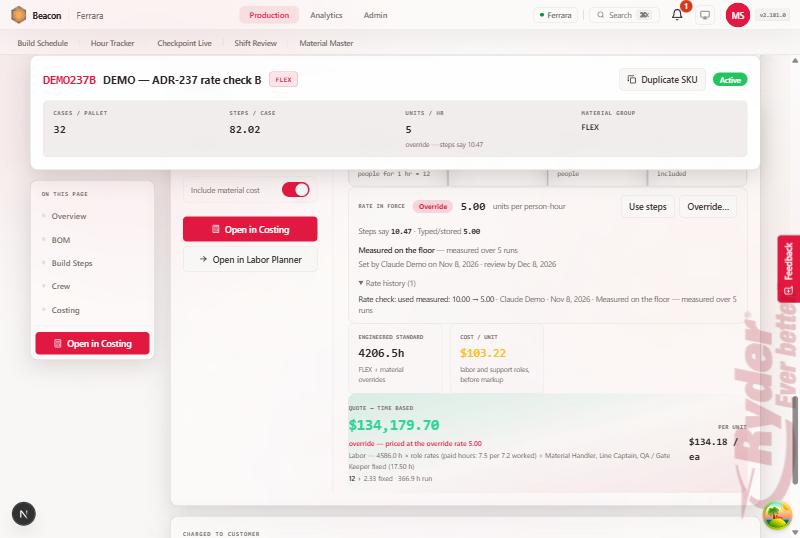
- Override: a rate someone set on purpose, with who, why and a review-by date.
- Not reviewed: nobody has picked yet. The box shows both numbers so you can pick one. Every SKU starts here.
- Typed: the SKU has no steps, so its typed rate is the only rate (as before).
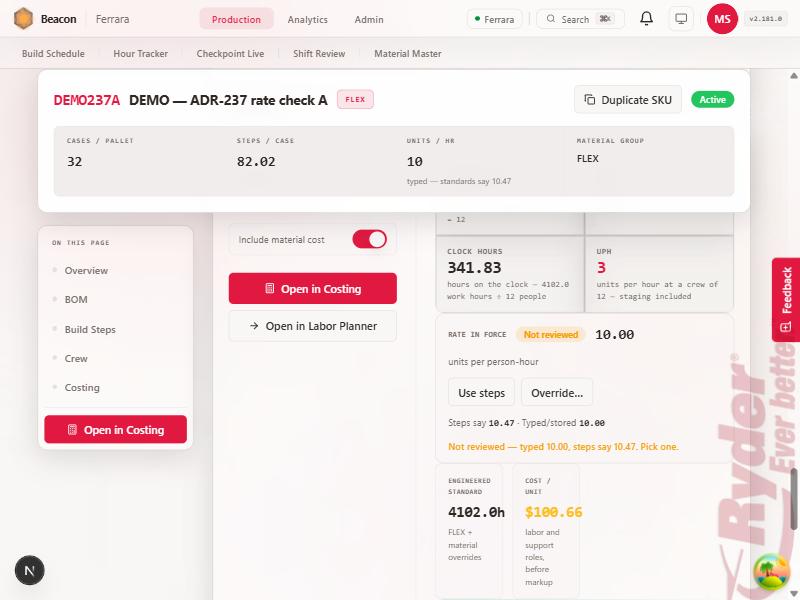
3. Set an override (Admin and above)
Use this when you know the steps are wrong and need the right number now, for example while a step is being re-timed.
- On the SKU page, in Rate in force, click Override….
- Type the rate (units per person-hour), pick Why, add a note, and check the Review by date (30 days by default).
- Click Save override.
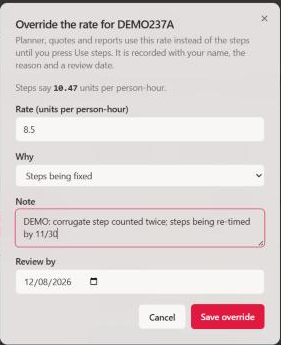
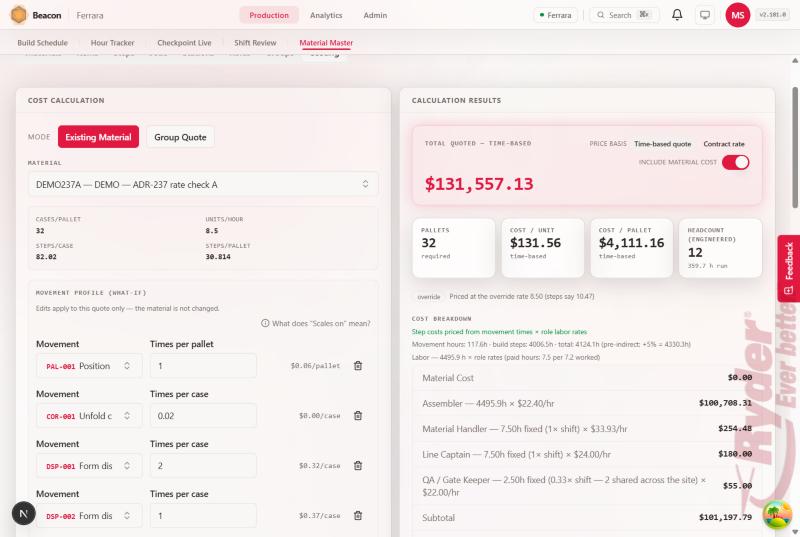
The box then shows the override, who set it, why and when to look again, and every change goes into Rate history. The quote on the page is priced at the override and says so.
4. Put a SKU back on its steps
When the steps are right (or fixed), click Use steps on the SKU page or in the review list. The override ends, the step standard becomes the rate, and the change is written into Rate history with your name.
5. Review every rate (Admin and above)
Material Master → Standard rates lists every SKU whose rate differs from its steps, every Not reviewed SKU, and every override (due ones first). Each row shows the typed rate, what the steps say, and what the floor measured over its posted runs.
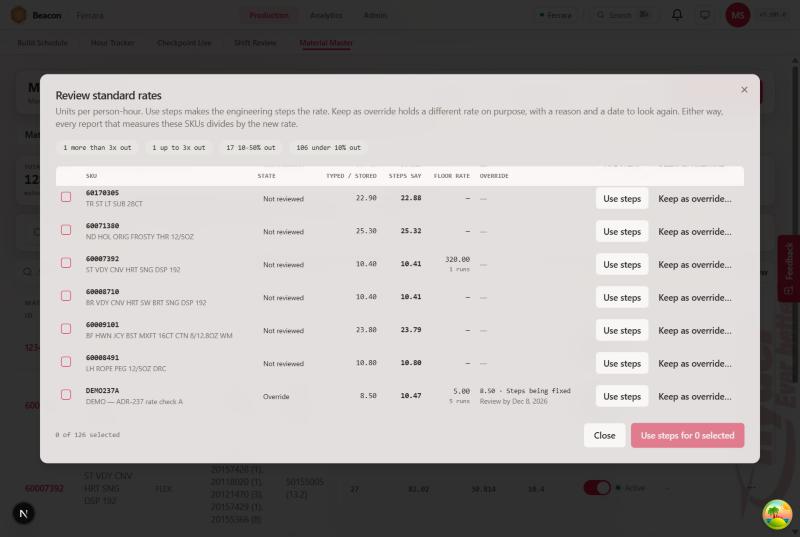
- Use steps: put that SKU on its steps.
- Keep as override…: keep its rate on purpose; a reason is required.
- Tick rows, then Use steps for N selected to do many at once.
6. The rate check
Settings → Production Standards → Rate check. It is off until your site turns it on. Set how many runs before asking (5) and how far off the floor must be (10%).
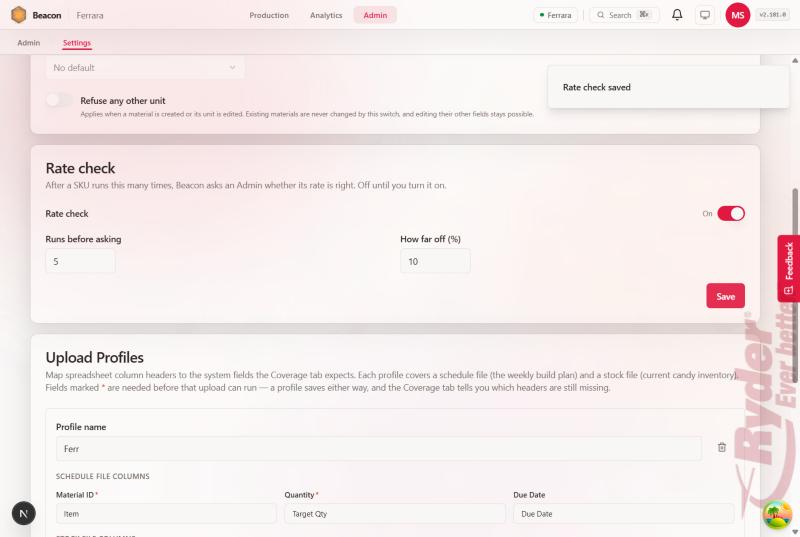
A run is one posted day of one order. The floor rate is units ÷ assembly hours (Line Captain and LTO hours are not counted), the same way Productivity is worked out. When a SKU reaches the run count and is off by the setting or more, a card appears in the bell.
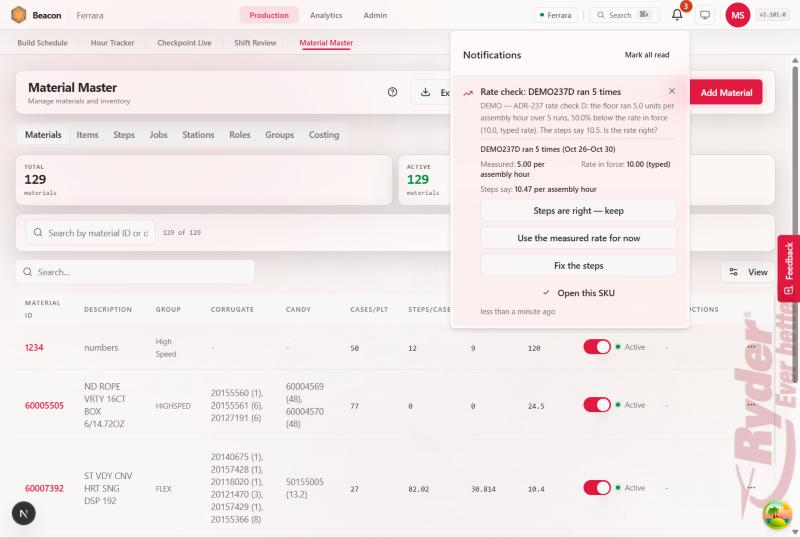
- Steps are right — keep: nothing changes. Say why (for example a new crew). Beacon asks again after 5 more runs.
- Use the measured rate for now: sets an override at the measured rate, marked “measured on the floor”, review in 30 days.
- Fix the steps: recorded, and the SKU page opens so the steps can be corrected.
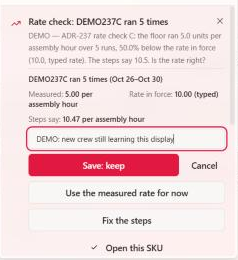
Every answer is saved on the SKU with your name and the runs it was based on. A card you close stays closed; the next question comes only after the next 5 runs. Coordinators see the cards but an Admin answers them.
7. What changes when
- Picking Steps changes the screens that used the typed rate before: the Daily Synopsis, History and the dashboards.
- Picking Override changes the screens that used the steps before: the planner, Checkpoint, the board and quotes.
- Days already posted keep their grade. Each posted day saves the rate it was graded on, so a later change does not rewrite it. Days posted before this release were never saved that way and still follow today's rate.