Beacon how-to · October 2026
What's new: v2.168.0
Beacon can now keep the plan as it stood before the shift and show how each order did against it. A site can also let Beacon close out the day on its own. Both are off until an Admin turns them on.
- v2.168.0
1. Patch notes
v2.168.0 Oct 29, 2026
- Plan vs Actual tracking in Settings → Shift Window. An Admin starts it. Each planned block is frozen before its shift, so later edits never rewrite what the plan was. How to start it
- Re-baseline. When the old plan is no longer fair, a Coordinator can make the current plan the new target for one order or one day, from today on, with a reason. How
- Shift Review Submit grades each planned order: on plan, ahead or short, with hours earned against hours worked. Grading never blocks Submit. What happens
- New Analytics → Plan vs Actual tab. The last 4 weeks plus this week, a verdict per order, hours by role, margin vs plan for Leads and up, and a CSV export. Read the tab
- Automatic close-out in Settings → Email. Off for every site until an Admin turns it on. At the cutoff, Beacon closes open lines at their last pallet, submits Shift Review, posts the hours and emails the synopsis. How it works
- Shift Review and Checkpoint times now show in the site's time zone, not the device's. Example
- Checkpoint Today tile: tapped cases show beside pallets, and a starting count shows as its own part. See it
Screenshots are from Beacon's test site. PO numbers and figures are demo data, not real production numbers. They were taken before the release, so the version badge in them reads v2.167.0.
2. Start Plan vs Actual
Who does it: an Admin, once per site. Nothing changes on the floor until it is started.
The planner changes all day. Orders get cut, moved and added. Without a saved copy, nobody can say later what the plan was. Tracking keeps that copy.
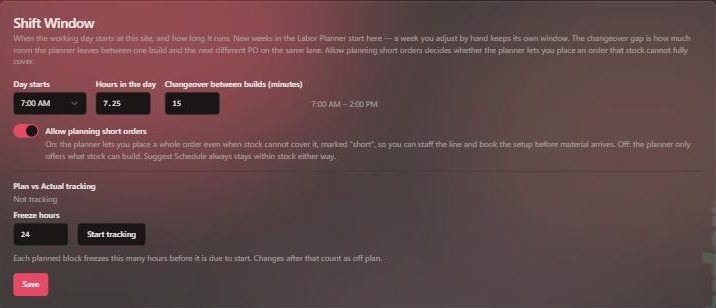
- Go to Admin → Settings → Labor Planner → Shift Window.
- Under Plan vs Actual tracking, set Freeze hours: how many hours before its start a planned block is frozen.
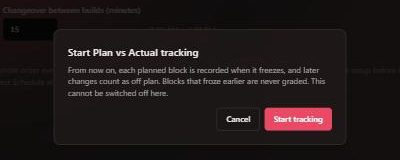
- Click Start tracking, then Start tracking again in the box that opens.
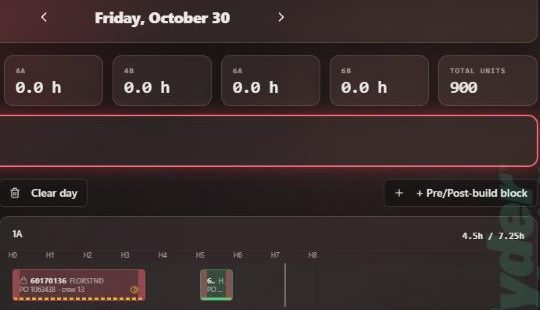
On the Labor Planner, a frozen block shows a small lock. Hover over it to see when it froze. Edits after that count as off plan.
3. Re-baseline a plan
Who does it: a Coordinator or above.
Sometimes the frozen plan is no longer a fair target. The customer cancels half an order, or pulls one off the day. Re-baseline makes the current plan the new target, so the line is not graded “short” for work nobody wanted.
- Open the day on the Labor Planner and click Re-baseline (next to Clear day).
- Pick This day or One order. For one order, choose the PO.
- Type the reason. It is required, and it shows on the Plan vs Actual tab.
- Click Re-baseline.
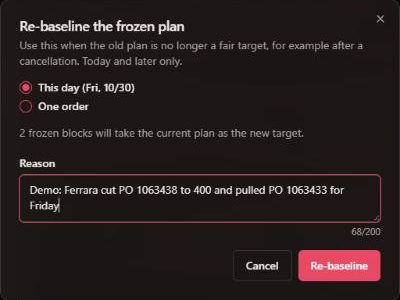
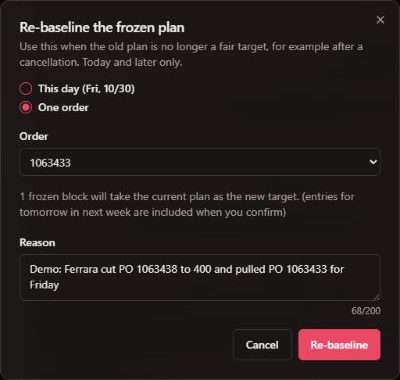
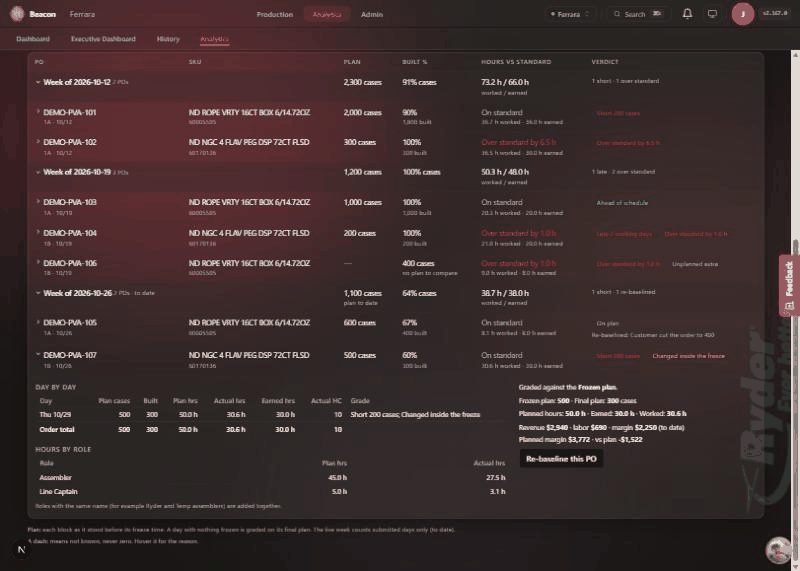
Re-baseline works from today on only. Past days keep the plan they were graded against. You can also re-baseline one PO from its row on the Plan vs Actual tab, with Re-baseline this PO.
4. Submit grades the day
Nothing new to do here. Close out and submit Shift Review the way you do now. When you click Submit, Beacon grades each planned order against its frozen plan:
- On plan built what the plan asked for.
- Ahead built it earlier than planned.
- Short built less than planned, and by how many.
It also compares hours earned (what the cases built are worth at standard) with hours worked (crew × time).
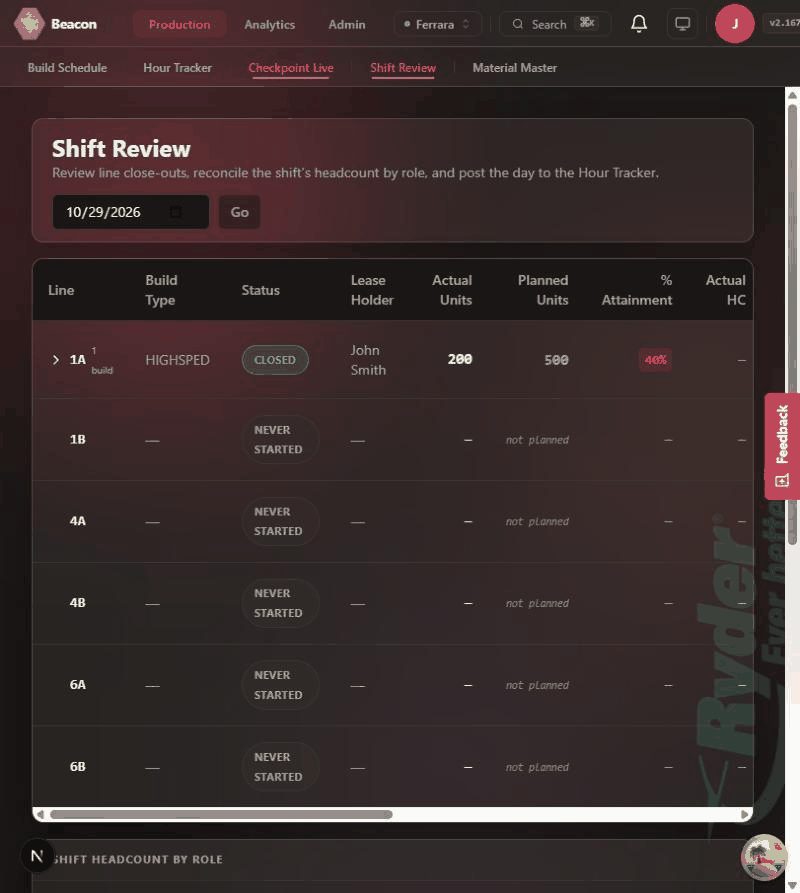
The grades show on the Plan vs Actual tab, not on Shift Review. If grading ever fails, Submit still goes through, and a message says the day could not be graded.
5. The Plan vs Actual tab
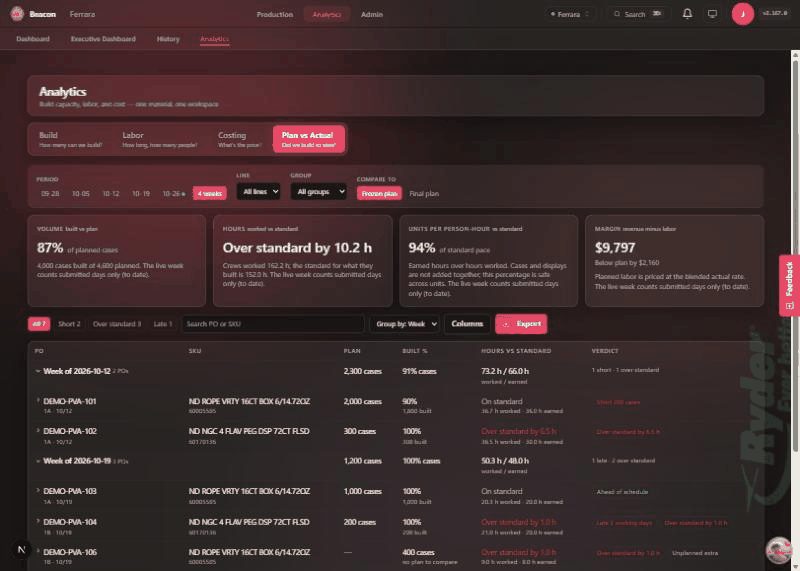
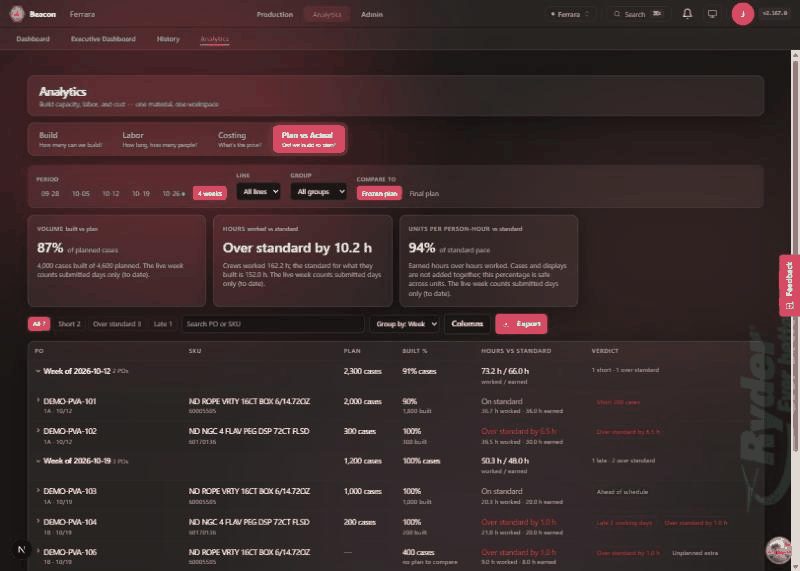
Go to Analytics → Analytics → Plan vs Actual. It shows the last 4 weeks plus this week. This week counts submitted days only, up to today.
The four cards
- Volume: cases built out of cases planned.
- Hours: hours worked against the standard for what was built.
- Units per person-hour: the pace, as a percent of standard.
- Margin: revenue minus labor, against plan. Leads and up only.
Verdict per order
Each order gets a verdict, for example Short 200 cases, Ahead of schedule, Late 2 working days, Over standard by 1.0 h, Unplanned extra or Changed inside the freeze. A re-baselined order shows its reason.
Use the chips above the table (Short, Over standard, Late) to see only those orders, or search by PO or SKU.
Drill down
Click an order to open it. You see it day by day, and hours by role: planned against actual for Assembler, Line Captain and so on.
Who sees money
Margin and dollars show to Leads and up only. Cost-plus sites see no money at all: the Margin card and the dollars are gone, and everything else stays.
Export
Click Export to download what is on screen as a CSV file you can open in Excel.
6. Automatic close-out
Off for every site. Nothing happens until an Admin turns it on for the site.
Some days nobody closes the lines or submits Shift Review before going home. Then the hours are not posted and the synopsis email never goes out. Automatic close-out does it at a set time.
Turn it on
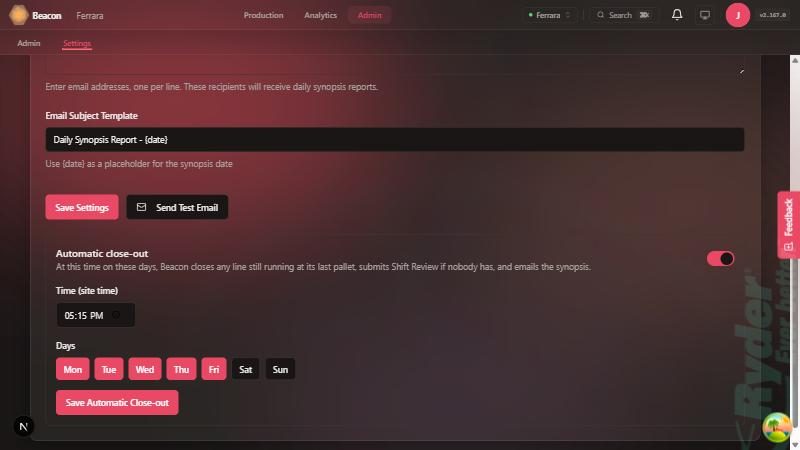
- Go to Admin → Settings and scroll to the Email settings.
- In the Automatic close-out card, switch it on.
- Set Time (site time) and pick the days.
- Click Save Automatic Close-out.
What it does at the cutoff
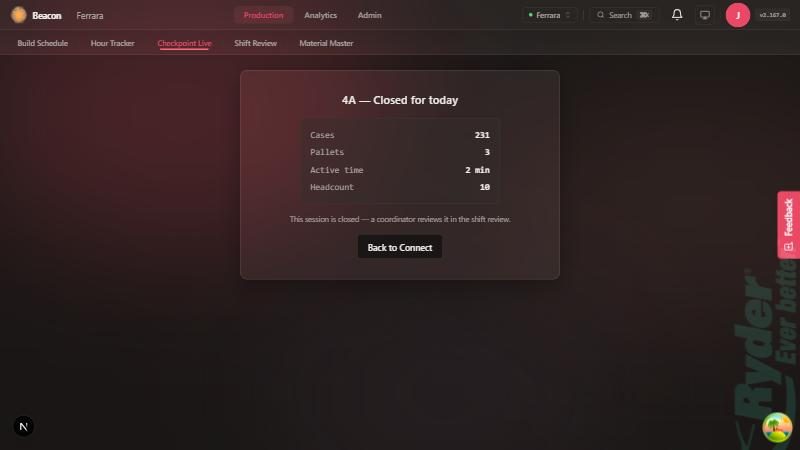
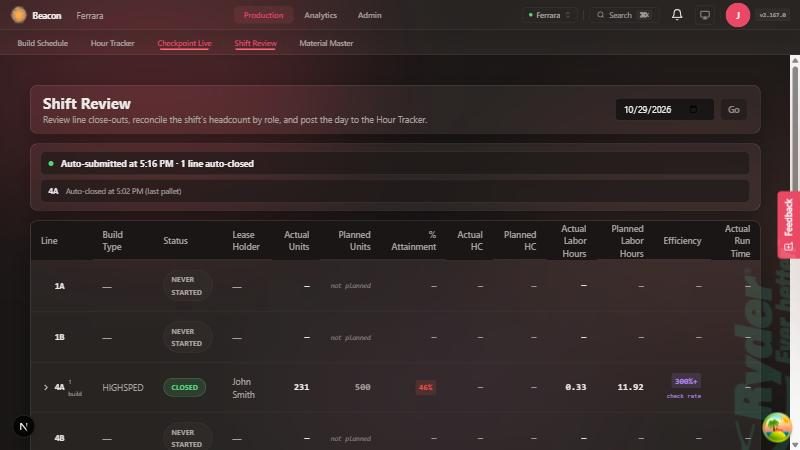
- Closes any line still open at its last pallet, not at the cutoff. Idle time after the last pallet is not counted.
- Submits Shift Review if nobody has. It is signed Beacon (automatic).
- Posts the hours, the same as when a person submits.
- Emails the Daily Synopsis to the site's list, with a note at the top that it was automatic.
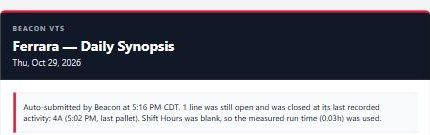
When it leaves the day for a person
- If a line was started after the cutoff, Beacon leaves that day alone. A person closes out and submits as usual.
- If someone already submitted Shift Review, Beacon does not submit again.
7. Times in the site's time zone
Times of day on Shift Review and Checkpoint now follow the site's time zone, not the zone the computer or tablet is set to.
No screenshot for this one. There is nothing to set: the site's time zone is already in Beacon.
8. Today tile: starting count
On the Checkpoint console, the Today tile shows pallets, then the cases you tapped today. If the line has a starting count (cases built before connecting), it shows under the cases as + N starting. It is no longer mixed into the tapped total.
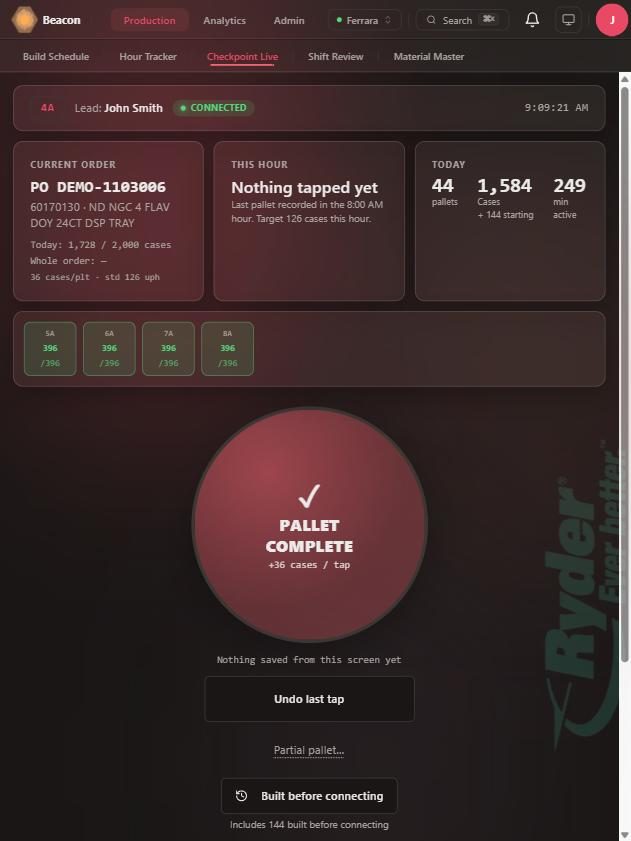
The Close Out sheet shows it the same way.
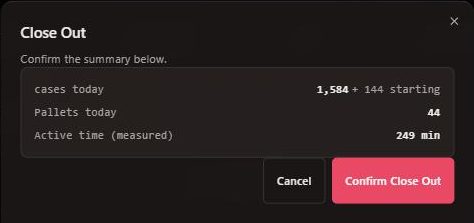
The order's total still counts the starting cases: Today: 1,728 / 2,000 on the console, and the day total on the line board. Rates and pace leave them out, as before.