Beacon how-to · November 2026
Line run and pre/post-build: why the planner and Material Master differ
The planner and Material Master can show different hours for the same order. Both are right. The planner times the line run. Material Master's Clock Hours adds the SKU's pre-build and post-build steps. Now both screens say which part is which.
- v2.196.0
Screenshots are from Beacon's dev site and show demo data. The worked example in section 3 is a real order, with its SKU, PO and site left out.
1. What changed
Two screens each get one new line of text. Nothing else moves.
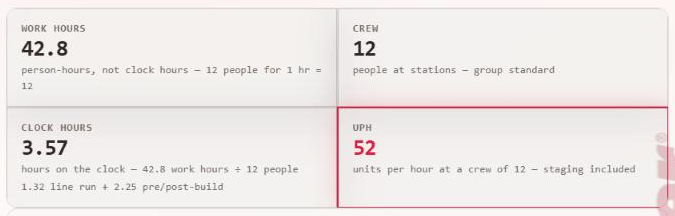
- Material Master: open a SKU and scroll to Costing. Under Clock Hours, a new line splits the figure into the line run and the pre/post-build time (Fig. 1). This is the Costing section on the SKU's own page, not the Costing tab.
- Labor Planner: double-click a build block to open its panel. Under Hours, a new line says whether the SKU's pre/post-build time is on the plan:
- line run · +0.04 h pre/post-build not on the plan means that time is not on the plan yet.
- line run · pre/post-build planned separately means the order has its own pre/post-build block. See both
- Nothing else changes. Block lengths, day totals, Suggest schedule, Checkpoint targets and quotes are the same as before. The new lines only explain the numbers.
2. Why there are two numbers
Same crew, same steps. The two screens answer different questions.
- The planner's build block is the line run. It is the time for the timed steps on the line itself. The Checkpoint target counts the same line run.
- Material Master's Clock Hours is all-in. It is the line run plus the SKU's pre-build and post-build steps.
- Pre-build steps get the material ready, for example moving and unwrapping it and setting it on the table.
- Post-build steps clear up after, for example moving pallets to staging and clearing packaging waste.
So the planner answers how long does the line run?
and Material Master answers how long is the whole job on the clock?
The planner only counts pre/post-build time when you give it its own block (section 4).
3. A worked example
A real order of 184 units, with a crew of 17. Clock hours are person-hours divided by the 17 people.
| Part | Person-hours | Clock hours (÷ 17) | Where you see it |
|---|---|---|---|
| Line run | 79.97 | 4.70 | The planner's build block: 4.7 h |
| Pre/post-build pre-build 2.52 + post-build 3.79 | 6.31 | 0.38 | The new line on both screens |
| All-in | 86.29 | 5.08 | Material Master's Clock Hours: 5.08 |
What the two screens say for this order:
- Material Master, Quantity 184: Clock Hours 5.08, and under it 4.70 line run + 0.38 pre/post-build.
- Labor Planner, the 184-unit build block: Hours 4.7 h, and under it line run · +0.38 h pre/post-build not on the plan.
4.7 h of line run + 0.38 h of pre/post-build = 5.08 h. Neither screen was wrong. They were counting different things.
- 6.31 ÷ 17 on its own is 0.37. Beacon prints 0.38, which is 5.08 − 4.70, so the line always adds up to the figure above it.
- Beacon keeps more decimals than it shows, so 79.97 + 6.31 comes to 86.29 here, not 86.28.
4. Put the staging on the plan
A build block covers the line run only. If the crew does the pre-build or post-build work on the shift, give that work its own block so the day shows it too. Before you do, the build block's panel says the time is missing.

- Open Labor Planner and open the day: click the day name in the week.
- Click + Pre/Post-build block, above the lanes.
- Pick the Line, the Order (PO) and the Phase: Pre-build or Post-build.
- Type the Qty in finished units. To plan the time the panel showed, use the build block's quantity.
- Click Add block. Beacon puts the new block after the last block on that lane. If the staging happens first, move the block there.
- Click Save plan.
Double-click the build block again. Its line now reads line run · pre/post-build planned separately.

Any pre-build or post-build block for the same order (PO and SKU) that week turns the line to planned separately. Beacon does not check that the block covers all the time. If the SKU has both pre-build and post-build steps, add one block of each.
5. When the line doesn't show
On both screens
- The SKU has no pre-build or post-build steps, so there is nothing to split.
- The pre/post-build time is too small to show. It would round to 0.00.
On the planner
- On a pre-build or post-build block itself. That block is the staging time.
- While you drag a block.
- On a block for a SKU built in stages.
- When Beacon cannot work out the time from the SKU's steps. It shows nothing rather than a wrong number.
On Material Master
- When the planner would time the line run differently from the quote, for example when some steps belong to a fixed role. The
line run
would then not match the planner, so the split is left off. Clock Hours still shows, all-in as before.
6. Check it yourself
- In the Labor Planner, double-click a build block. Note its Hours and its quantity under This block.
- Open Material Master, then the same SKU, and scroll to Costing.
- Type the block's quantity in Quantity.
- Read the line under Clock Hours. Its line run matches the block's Hours. The planner drops a last zero, so 4.70 shows as 4.7 h.
No line under Clock Hours? See section 5.