Beacon how-to · v2.179.0 · November 2026
Coverage: QA hold stock, item notes, and audit sign-off
Three things you kept in the old research sheet now live in Coverage: how much of an item is on QA hold, a coordinator note and a shipment note on each item, and a sign-off once an order is closed. None of it changes what Coverage counts as available or what it says is short.
- Next release
1. What's new
- QA hold column. Stock on QA hold shows beside Available, so you can tell the customer about it. It is never counted as available. See it
- Notes on each item. A coordinator note (where it is, why it can't be picked) and a shipment (IB) note. Write it once and it shows on every order that uses the item. How
- Audit sign-off. Closed orders from the last 30 days, with a Sign off button. Beacon fills in your initials and the date. How
Screenshots are from Beacon's dev site. Every item and order named DEMO-…, and all their numbers, are demo data, not real production.
2. Turn on QA hold
QA hold is off until an Admin tells Beacon which Inventory Status code means QA hold in your stock file. Until then nothing changes.
- Go to Admin → Settings → Production Standards and scroll to Upload Profiles.
- Under Stock rules, type the code in QA hold status codes (Fig. 1). More than one? Separate them with commas.
- Click Save, then upload your stock file again on the Coverage tab.
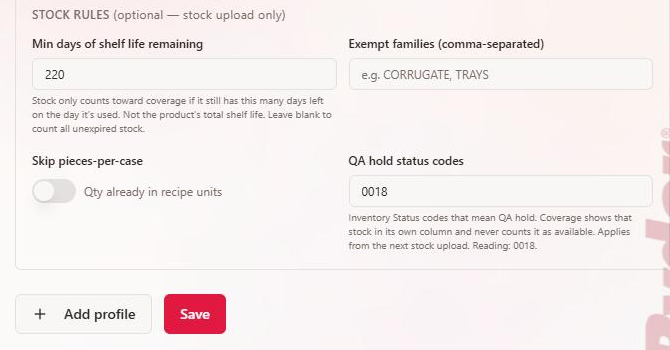
Excel often drops leading zeros, so 18 and 0018 are the same code. The line under the box shows what Beacon will read. 0001 is the available-stock code and can never be a QA hold code.
The code applies from the next stock upload. Until you upload again, Coverage says Upload stock again to see QA hold.
3. Reading the QA hold column
Open an order's drill-down on the Coverage tab (click the SKU). The QA hold column sits right after Available (Fig. 2).
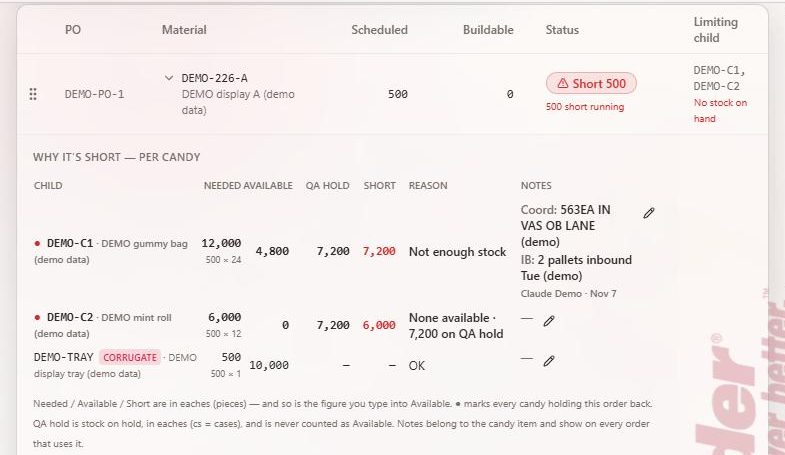
| Row in Fig. 2 | What it tells you |
|---|---|
| DEMO-C1: Available 4,800, QA hold 7,200, Short 7,200 | Short Only the 4,800 counts. The 7,200 on hold would cover it, but only once QA releases it. That is what you tell the customer. |
| DEMO-C2: Available 0, QA hold 7,200 | Short The reason reads None available · 7,200 on QA holdinstead of No stock on hand. |
| DEMO-TRAY: QA hold “—” | OK Nothing on hold. |
- Same unit as Available: eaches (pieces). If Beacon has no pieces-per-case for an item, QA hold shows in cases with cs.
- Nothing else moves. Short, Buildable, the status badge, Inventory Coverage and the Labor Planner's stock limit are exactly what they would be without QA hold. On the demo site the same file was uploaded with and without its QA hold rows: every number matched.
- Only the codes you set count as QA hold. Other held stock (another status code) still does not show.
4. Notes on an item
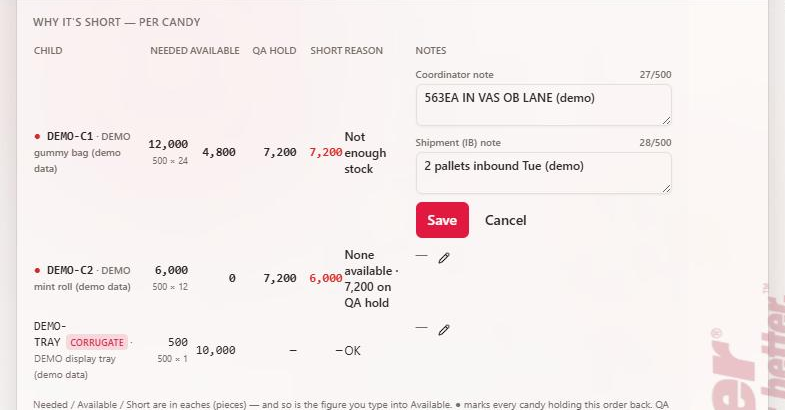
Each item has two notes, the same two columns as the old sheet: a coordinator note (where it is, why it can't be picked) and a shipment (IB) note.
- Open an order's drill-down and click the pencil in the Notes column of the item.
- Type in either box (Fig. 3). Each holds up to 500 characters; the counter turns red past that and Save greys out.
- Click Save (or press Ctrl+Enter). Cancel or Esc throws the change away.
- One note per item, for the whole site. It shows on every order that uses the item, so you write it once.
- Who and when show under it (
Claude Demo · Nov 7
in Fig. 2), so you can tell an old note from a new one. - To remove a note, empty both boxes and Save.
- Half-typed text is kept if you close the drill-down or Beacon recomputes. It is only lost if you leave the page.
Beacon keeps a record of every save: what the note said, who saved it and when. Nobody can edit or erase that record from the app.
5. Signing off a closed order
Closed orders never show in Coverage's main list (they draw no stock), so they have their own section at the bottom: Closed orders — audit. The badge says how many still need a sign-off.
- Click Closed orders — audit to open it. It lists orders closed in the last 30 days, newest first.
- When you have audited an order, click Sign off. Your initials and today's date fill in (Fig. 4).
- Signed off the wrong one? Click Undo.
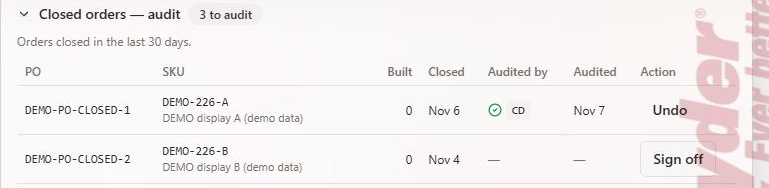
- Initials are not typed. They come from the name on your Beacon account, so a sign-off always shows who really did it. Hover the initials for the full name.
- Undo keeps the record. The order goes back to Sign off, and Beacon still keeps who signed off and who undid it.
6. Who can do what
| Role | Notes and sign-off |
|---|---|
| Lead, Line Captain, Coordinator, Admin, Executive | Write The same people who can edit Coverage today. |
| Worker, Viewer | Read They see the notes and the audit list, with no pencil and no buttons. |
| Admin only | Setting The QA hold status codes. |
7. Questions
Does QA hold stock ever count toward what we can build?
No. It is stored apart from usable stock and only shown. Released stock counts once it comes back as status 0001 in your next stock upload.
The QA hold column isn't there.
No QA hold code is set for your site yet (section 2). If it is set and the column shows only dashes, upload your stock file again.
Can a note be about one order only?
Notes belong to the item, so they show on every order that uses it. If it is about one order, put the PO in the note.
An order closed more than 30 days ago isn't in the audit list.
The list covers the last 30 days. Sign off orders as they close.