Beacon how-to · November 2026
Costing “No access” now hides the money screens
An Admin can set a person's Costing to No access. Until now that only stopped them saving a quote. Costing, Billing and the margins still showed. Now No access hides those screens and the money on them.
- v2.196.0
1. What changed
Before this release, No access only stopped Save to Archive in Costing. The screens still showed.
Now, for anyone below Admin, No access hides:
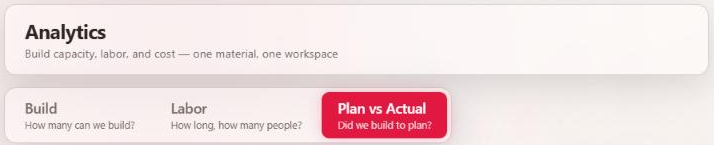
- Analytics → Costing and Analytics → Billing. Billing holds the weekly bill, the By SKU margins and the customer rates (Fig. 1).
- Material Master → Costing and its saved quotes. A link straight to that tab opens Materials instead.
- The money on a SKU's page in Material Master: Cost / Unit, the quote box and its lines, Charged to customer, Saved quotes, Include material cost and Open in Costing. The hours stay: Work Hours, Crew, Clock Hours and UPH.
- The money in Analytics → Plan vs Actual: Revenue, Labor cost, Margin and Margin vs plan, in the table, the drill-down and the Export file. The tab itself stays.
- The Dashboard's Billing tiles: Billed Revenue, Margin and Revenue / Unit, if your site shows them.
2. Who it applies to
No access only works on people below Admin. Admins, Executives and Super Admins are never blocked by it. In the grid, Admin and Super Admin rows can't be changed.
Nothing else about who sees what has changed:
- Costing, Billing, Material Master → Costing and the Plan vs Actual money are still for Lead and up.
- The money on a SKU's page and the Dashboard's Billing tiles still show to every role that saw them before.
No access takes them away from one person. It never shows a screen to someone whose role could not see it.
3. Set it for one person
An Admin or Super Admin does this.
- Open Settings and click the Permissions tab.
- In User Permissions, find the person's row.
- In the Costing column, pick No access. The other choices are Full and View only.
- Click Save Permissions.
The change reaches the person's open page. They don't need to reload.
4. View only or No access?
| Costing set to | Sees the money | Can save in Costing |
|---|---|---|
| Full | As their role allows. | As their role allows. |
| View only | YesAll of it. | No |
| No access | NoEverything in section 1 is hidden. | No |
Pick View only for someone who needs to read prices but should not save quotes. Pick No access for someone who should not see quotes, margins or customer rates.
5. What it does not do
It also does not hide this money:
- The Dashboard's Est. Labor Cost tile.
- History's Est. Cost.
- Material Master → Groups: the markup and the material-cost overrides.
- Material Master → Roles: the wages.
- The Labor Analyzer's week cost.
- The Monthly Synopsis money. That moves to Admin and up in this same release.
6. Check it yourself
For an Admin. Use a test user who is a Lead, so there is something to hide.
- In Settings → Permissions, set the test user's Costing to No access. Click Save Permissions.
- Have them open Analytics. Costing and Billing are gone (Fig. 1).
- Have them open any SKU's page in Material Master. There is no Cost / Unit.
- Set their Costing back to Full and click Save Permissions.