Beacon how-to · November 2026
Costing: type a step's count or cases per pallet, and the captain's whole run
You can type the count on a step Beacon counts for you, or a different cases per pallet for an existing SKU, and a site can charge the Line Captain for the whole run. All of them change the quote only. Nothing on the SKU changes.
- v2.183.0
- v2.193.0
- v2.194.0
1. Type the count on an auto step
In Material Master → Costing, pick a material or a group and click Calculate.
Under Build Step Detail, some pre- and post-build steps are counted by Beacon from the BOM. They used to say “auto count”. Now the count itself is in the box.
- Type the number you want. For example, type 12 where Beacon says 19.
- The step cost and the quote total change right away.
- The row still shows Beacon's own count (auto 19) and a Reset button.
Leave the box empty to use Beacon's count. Reset counts at the top of Build Step Detail clears all of them.
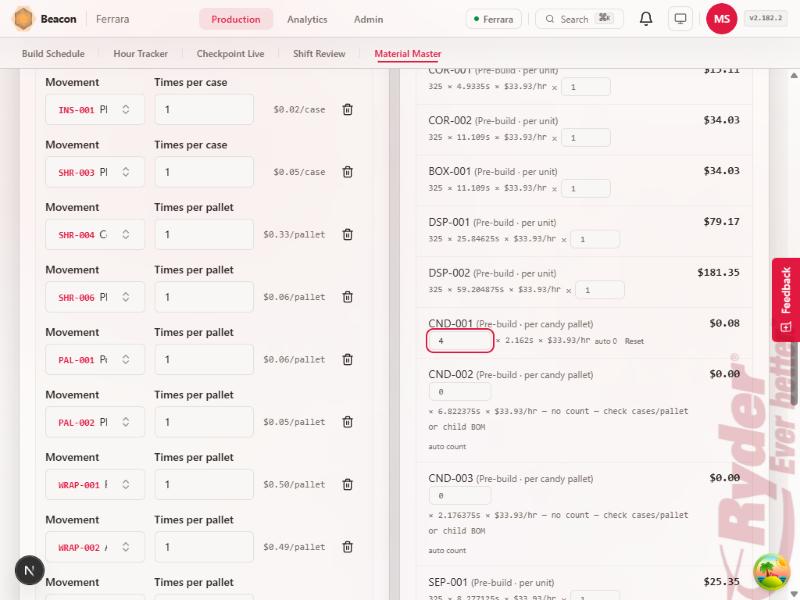
The count stays on that quote:
- Save to Archive keeps it, and reopening the quote brings it back.
- The SKU, its BOM and Save as new SKU never change.
- Steps that aren't counted from the BOM keep their × box as before.
2. The Line Captain is paid for the whole run
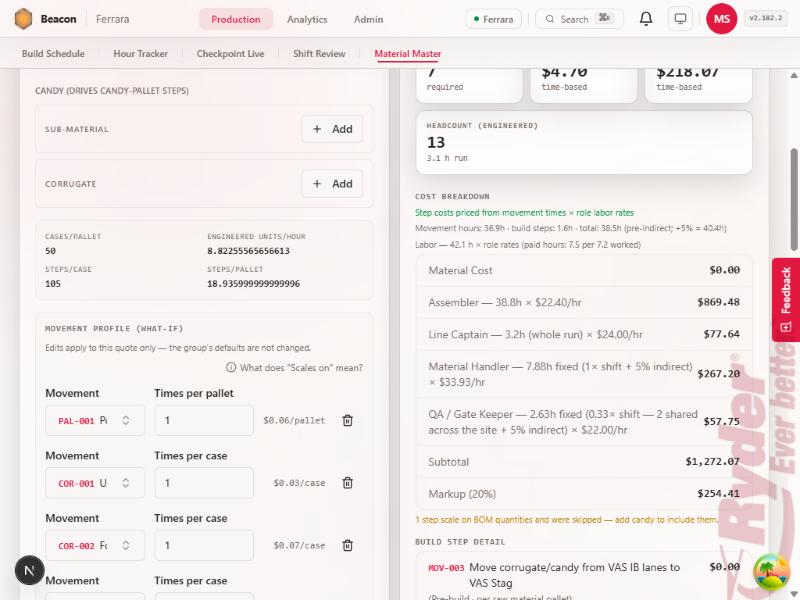
When a site turns it on, the Line Captain is charged at the captain rate for the build's whole run, not just the captain's own steps.
The captain is still one of the crew. Those hours come out of the assembler line. Headcount and run length do not change. Only the rate on those hours changes.
On a site that pays 8 hours for 7.5 worked, the captain's row is in paid hours, so it reads a little longer than the run on the headcount tile. See 7. Worked and paid hours.
3. The indirect % on shift roles
When a site turns it on, shift roles like the LTO carry the site's indirect % too, the same as the crew.
The quote line says + 5% indirect.
4. Turning them on (Admins)
- Go to Settings → Labor Rates, under the roles.
- Tick Add the indirect % to shift roles (like the LTO).
- Pick a role in Charged for the whole run, or pick None to turn it off.
- Click Save changes.
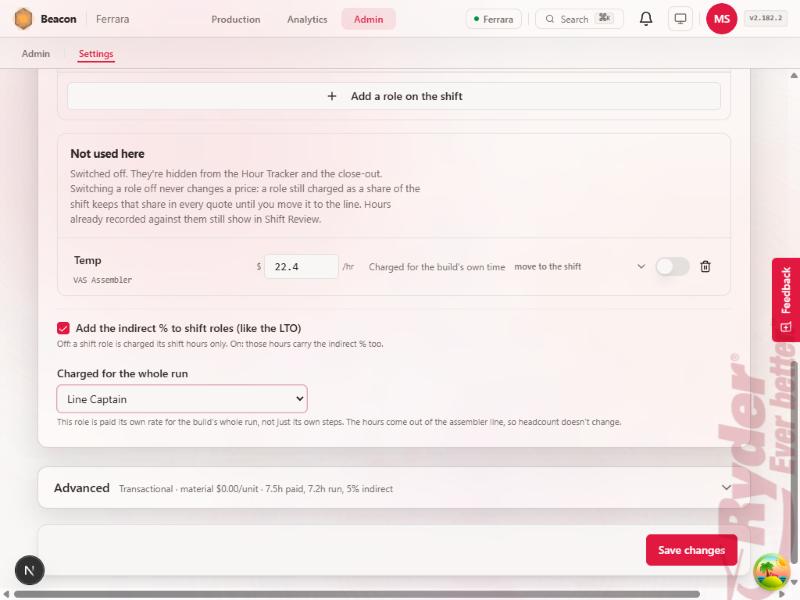
Both are off until a site sets them, so other sites' quotes do not change.
5. Type cases per pallet on an existing SKU
In Material Master → Costing, mode Existing Material, pick the SKU. Cases/Pallet on the card is now a box holding the SKU's own number.
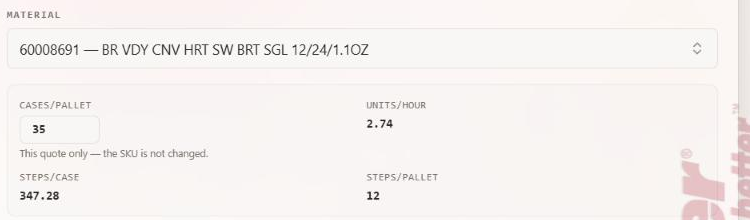
- Type the cases per pallet you are quoting. For example, type 40 where the SKU says 27.
- The card shows the SKU's number (SKU 27) and a Reset button.
- Pallets, every per-pallet step and the quote total change right away.
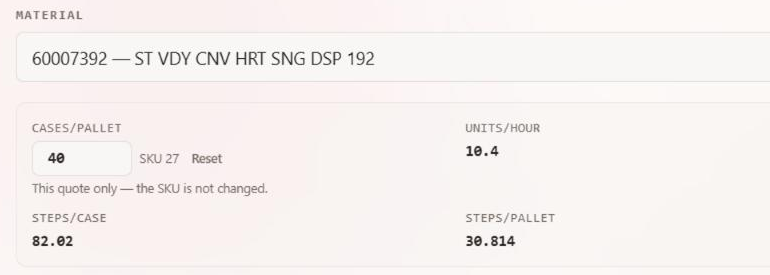
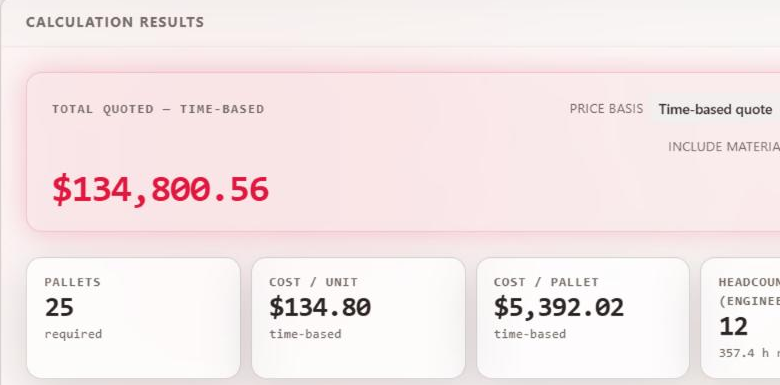
Leave the box empty, or click Reset, to use the SKU's number. It takes whole numbers of 1 or more. Anything else turns the box red and holds Calculate and Save to Archive until it is fixed.
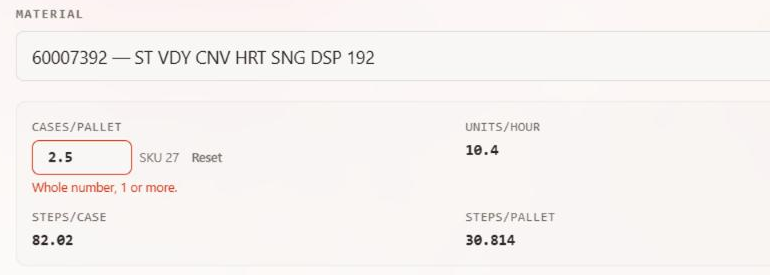
The number stays on that quote:
- Save to Archive keeps it, and Open in calculator brings it back at the same price.
- The SKU never changes. Its pallets in the planner, Checkpoint and the boards stay as they are. To change the SKU for good, edit it in Material Master.
- Picking another SKU clears it.
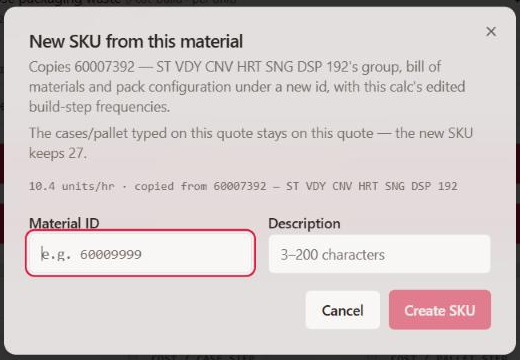
- Save as new SKU keeps the SKU's own number, and its window says so.
6. Reopen a saved quote
Under Saved quotes, click Open in calculator. The top of the calculator now shows the quote's own name. Below it, it shows the SKU or group the quote was built from and the date it was saved.
This helps when a quote is built on a stand-in SKU. The Material box still shows that stand-in SKU, and the name above says which quote it is.
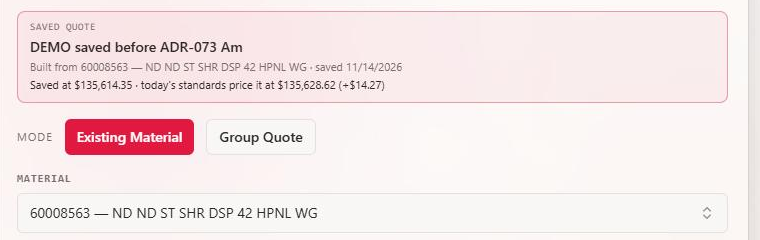
Saved price and today's price
A reopened quote is priced with today's standards. If a standard changed since it was saved, the total can come back different. The box says so instead of changing it quietly:
- Before you click Calculate: Saved at $4,601.26.
- After: Saved at $4,601.26 · today's standards price it at $4,668 (+$67), rounded here, or the same today.
Change anything that moves the price (quantity, markup, cases per pallet, a step, a count) and the box says edited since saved. Today's total is then a different quote, so it is no longer compared with the saved one. Put the input back and the mark goes away.
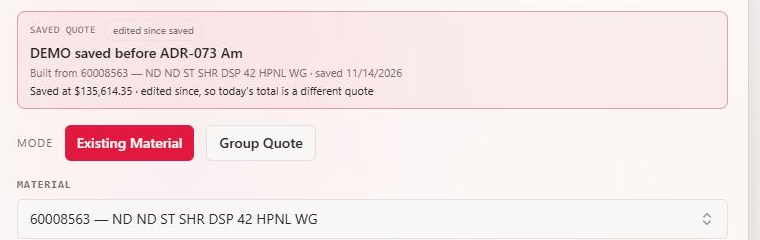
The name goes away when you pick another SKU or group, or after Save to Archive, because the calculator no longer shows that saved quote.
7. Worked and paid hours
On a site that pays 8 hours for 7.5 worked (like Ferrara), the quote shows two kinds of hours:
- The Headcount tile shows the run in worked hours: 10.7 h run (worked).
- The role rows show paid hours. The Line Captain's row names the same run: 11.4h (whole 10.7 h run, paid).
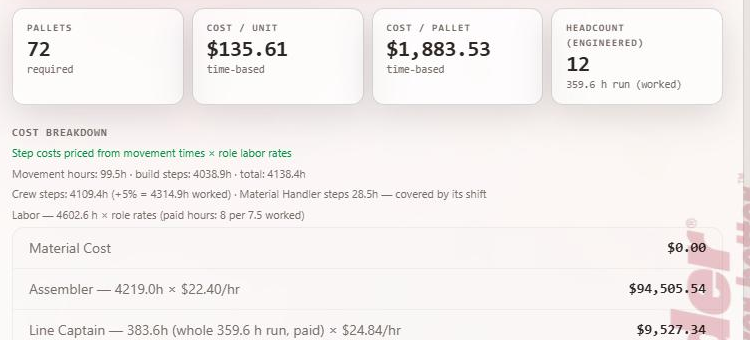
The crew line
The 5% indirect is on every role. The crew (Assembler and Line Captain) get it on their hours. The LTO gets it on its shift: 8 hours + 5% = 8.40 hours.
The grey Crew steps line shows the crew's step hours, then the same hours with the 5% added. The LTO's own steps are listed apart, because the LTO is already paid a whole shift for them.
8. Steps with no role or Job are priced
Some steps have no role and are in no Job (“Anyone on Line”). The quote used to leave them out of the price. Now they are priced at the assembler rate, in an Unassigned row.
An amber line under the rows names those steps and their step time, so you can give each one its real role or Job in Material Master → Jobs. The Unassigned row shows a little more than the step time, because it adds the indirect % and paid hours; the line says so.
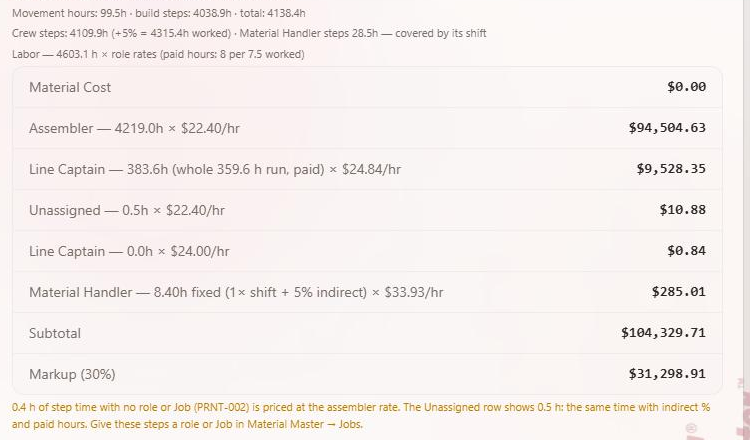
- Quotes already saved keep their price. Open one in the calculator and the box at the top shows the saved total beside today's (see 6. Reopen a saved quote).
- A step moved to the LTO or Material Handler leaves the crew. The LTO's shift already pays for it.